
The 30-second answer
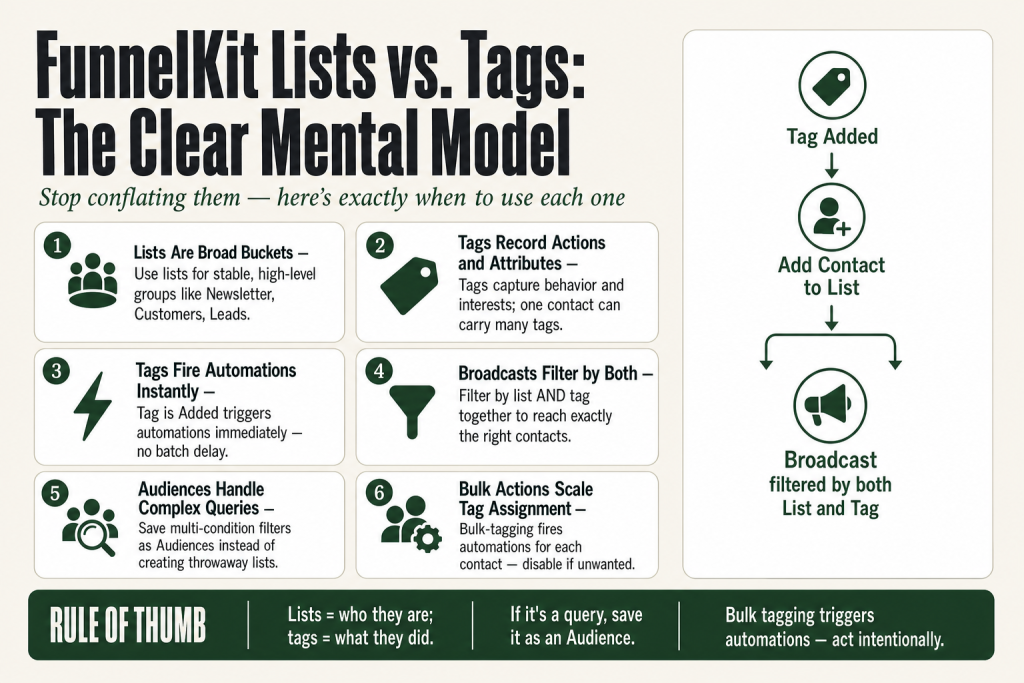
- Lists are broad buckets. Use them for stable, high-level groups: Newsletter, Customers, Leads. A contact belongs to a list because of who they are in your world, not because of a single action they took.
- Tags are specific labels. Use them to record behavior, interests, and attributes: “purchased-course-x”, “downloaded-ebook”, “vip”. A contact can carry many tags at once.
- Broadcasts can target both. When sending a broadcast you can filter by lists, tags, or a combination of both, so your send hits exactly who you want.
- Tags fire automations; lists receive them. The most common pattern: a tag triggers an automation, and one action inside that automation adds the contact to the right list.
- Audiences are the third tool. For complex, multi-condition segments, save a filter as an Audience rather than creating a tag or list just to hold a one-time slice of contacts.
- You manage both from Contacts. Go to Contacts › Lists or Contacts › Tags to create, edit, or delete either one.
Take this fix into your next scenario. The free Builder’s Companion Kit collects the checklists and templates that pair with this guide — so next time, you start from a template, not a blank page. Grab it free →
- What Lists Do (and What They Are Not)
- What Tags Do (and Why They Fire Automations)
- FunnelKit Lists and Tags: The Side-by-Side Difference
- Assigning Lists and Tags Inside Automations
- Worked Example: A Lead Magnet Funnel Using Both Lists and Tags
- When to Use Audiences Instead of More Lists or Tags
- Bulk Tagging and List Assignment Without One-by-One Manual Work
- Practical Naming Conventions That Keep Things Readable
- FAQ
FunnelKit lists and tags are both sitting inside Contacts in FunnelKit Automations, they both sound like ways to sort people, and almost everyone conflates them at first. I did too. The cost of that confusion is a contact database where broadcasts go to the wrong people, automations fire on the wrong signal, and you spend an afternoon untangling a mess that should never have happened. This article gives you the clear mental model, the exact steps for creating and assigning each one, and a worked example showing how lists and tags cooperate inside one real automation.
What Lists Do (and What They Are Not)
The official FunnelKit Automations documentation describes lists as “broader segments as compared to tags.” Think of a list like a filing cabinet drawer. Every contact in the drawer belongs there for a structural reason, not because of a momentary action. Your Newsletter list holds everyone who opted in to receive marketing email. Your Customers list holds everyone who has bought at least once. Your Leads list holds everyone who raised their hand but has not yet purchased.
A contact can belong to more than one list. Someone who downloaded a lead magnet and then bought a product can sit in both Leads and Customers without any conflict.
What lists are not: they are not designed to record granular actions. Do not create a list called “Clicked Email Oct 2026” or “Viewed Product Page Twice.” That kind of micro-event is what tags are for. If you use lists for micro-events you will end up with dozens of lists that nobody remembers, and your broadcast filter screen becomes a wall of noise.
How to create a list:
- Go to Contacts › Lists.
- Click Add New List.
- Enter a name and optional description, then save.
That list is now available as an action target in automations and as a filter in broadcasts.
What Tags Do (and Why They Fire Automations)
Tags are labels attached to individual contacts. The FunnelKit Automations documentation describes them as a way to access your contacts’ information easily and quickly. They are intentionally flexible: one contact can carry as many tags as your business logic needs.
The real power of tags is that they are the most versatile automation trigger in FunnelKit. Inside Automations › Events, you have two tag-specific core events: Tag is Added and Tag is Removed. When you add the tag purchased-course-a to a contact, any automation listening for that tag fires immediately. No manual intervention, no cron delay waiting to batch-process a list change.
Useful tag naming patterns:
- Behavior:
downloaded-ebook,clicked-pricing-page,abandoned-cart - Purchase:
purchased-course-a,purchased-membership - Interest:
interested-in-seo,interested-in-paid-ads - Status:
vip,at-risk,refunded
How to create a tag:
- Go to Contacts › Tags.
- Click Add New Tag.
- Enter the tag name and click Add.
Tags also appear in every contact’s profile, so you can add or remove them manually from the +Add button on any contact record. You can also add or remove tags in bulk via Contacts › Bulk Actions.
FunnelKit Lists and Tags: The Side-by-Side Difference
The single clearest way to hold the distinction in your head: lists are broad buckets for contacts, and tags are specific labels attached to each contact that show their particular actions or attributes. That framing comes straight from the FunnelKit documentation.
| Property | Lists | Tags |
|---|---|---|
| Nature | Static or semi-static | Very flexible, can have many per contact |
| Purpose | High-level segmentation | Micro-segmentation, behavior tracking, automation triggers |
| Fires automations as a trigger | Yes (Added to List, Removed from List) | Yes (Tag is Added, Tag is Removed) |
| Good for broadcasts | Yes, primary audience target | Yes, fine-grained filter layer |
| Has a description field | Yes | No (name only) |
Both are core events inside FunnelKit Automations. Both appear as filters when you build a broadcast or a saved Audience. The difference is why you reach for one over the other.
One honest caveat: if you are coming from ActiveCampaign or Mailchimp, their “lists” and FunnelKit’s lists are not identical concepts. FunnelKit’s lists are lighter. You will not find per-list email settings or custom unsubscribe pages per list the way those platforms work. Verify your specific compliance workflow against the FunnelKit documentation before assuming feature parity.
Assigning Lists and Tags Inside Automations
The core automation actions for lists and tags are straightforward. Inside any automation workflow, the available actions include:
- Add Tags and Remove Tags for tag management
- Add Contact to List and Remove Contact From List for list management
These actions can stack. You can add a tag and add a contact to a list in the same automation sequence, in the same step or in separate steps. You can also use a tag event to trigger list membership, which is the most common pattern in a clean FunnelKit setup.
The trigger events that correspond to lists and tags are: Tag is Added, Tag is Removed, Added to List, and Removed from List. Configure each event to watch for any change or a specific tag or list by name.
If your automations are misfiring or contacts are not moving through sequences as expected, the FunnelKit Automation Not Triggering guide walks through every reason a trigger can fail to fire. And if a contact never showed up in your CRM at all, check FunnelKit Automations Contact Not Added first.
Worked Example: A Lead Magnet Funnel Using Both Lists and Tags
Here is a concrete walkthrough. Imagine you run an online store selling marketing courses. Someone fills out your opt-in form to download a free SEO checklist.
What you want to happen automatically:
- Contact is created (or updated) in FunnelKit Automations.
- The tag
downloaded-seo-checklistis applied. - The contact is added to your Newsletter list.
- A welcome email sequence starts.
- If they click the email’s course link, the tag
interested-in-seo-courseis applied and a separate follow-up sequence begins.
How to build it:
Step 1: Opt-in form action. In your opt-in form settings (or the automation triggered by form submission), add the action Add Tags and enter downloaded-seo-checklist. Then add a second action: Add Contact to List and select your Newsletter list.
Step 2: Create a second automation. Set the event to Tag is Added, configured to watch for downloaded-seo-checklist. Add a Send Email action for the welcome message. If your opt-in form or its connected automation is not adding contacts, see FunnelKit Optin Not Working for the likely causes.
Step 3: Interest tag for click behavior. In the welcome email, configure the course link to trigger the tag interested-in-seo-course on click (this requires a link click action or goal step in your automation workflow).
Step 4: Broadcast to the right people. When you are ready to promote the SEO course, create a broadcast. Filter contacts by: List = Newsletter AND Tag = interested-in-seo-course. This sends only to engaged subscribers who already showed purchase intent, not your entire newsletter list.
That is the pattern: tags record what happened, lists define where someone belongs, and broadcasts combine both to reach exactly who matters.
If you want to see how the Rule Engine can further personalize what a contact sees based on their tags or list membership, FunnelKit Rule Engine Explained covers that in full.
When to Use Audiences Instead of More Lists or Tags
FunnelKit Automations has a third segmentation tool: Audiences, found at Contacts › Audiences. An Audience is a saved filter set. You define conditions once, save them, and reuse them across broadcasts and the contacts view without rebuilding the filter every time.
Audiences support conditions beyond lists and tags. You can filter by WooCommerce data (average order value, product purchased, coupon used), by geography, by engagement (email opens, clicks), by automation history, and more. You can layer multiple conditions using AND/OR logic.
The rule for when to reach for an Audience instead of a new list or tag: if the segment is defined by a query rather than a label, use an Audience. “Customers in Germany who have placed more than two orders and opened an email in the last 30 days” is a query. “VIP” is a label. The query becomes an Audience. The label becomes a tag.
Creating a new list or tag for every one-time send is a common mistake. You end up with a list called “Promo Oct 2026” that is meaningless six months later and clutters every dropdown in the interface. Save those one-time slices as an Audience, run your broadcast, and move on. The Audience keeps the logic without polluting your lists and tags.
One limitation to know: Audiences are dynamic in filter definition but are not real-time live segments that update automatically as contacts change. When you apply an Audience to a broadcast, FunnelKit calculates the matching contacts at send time. Verify this behavior against the current docs for your version before assuming it works differently.
Bulk Tagging and List Assignment Without One-by-One Manual Work
If you need to apply a tag or move a group of contacts into a list in one shot, use Contacts › Bulk Actions. Available bulk actions include Add Tags, Add Contact to List, Remove Tags, and Remove Contact From List, among others.
The workflow: create a bulk action, name it, specify the action (for example, Add Tags and enter the tag name), filter or select the contacts it applies to, review, and start. FunnelKit processes the batch and confirms when done.
One important detail from the changelog: bulk actions can trigger automations when tag or list change events are involved. If you have an automation listening for Tag is Added and you bulk-tag 500 contacts, those automations will fire for each contact. Make sure you want that behavior before you hit Start, especially if the automation sends an email. There is no undo for 500 sent emails.
If you are importing contacts from a CSV, WooCommerce, Mailchimp, or ActiveCampaign, the import flow also lets you assign tags and lists to every imported contact at the time of import. You can also enable Trigger Automations for Tag & List Changes during import if you want newly imported contacts to enter automation sequences immediately. Disable it if you just want the contacts in the database without triggering anything.
Practical Naming Conventions That Keep Things Readable
FunnelKit does not enforce a naming format. That means the responsibility is yours, and a bad naming decision made on day one compounds over time as your list grows.
A convention that works well in practice:
- Lists: Use proper nouns, singular category labels.
Newsletter,Customers,Leads,VIP Members. Keep them to a handful. If you have more than ten lists, question whether some should be tags instead. - Tags: Use lowercase, hyphenated, verb-or-noun phrases that describe an action or attribute.
purchased-course-a,abandoned-cart,downloaded-checklist,at-risk,refunded-2026. The lowercase-hyphen format makes tags easy to search and consistent across automations. - Avoid spaces in tags. FunnelKit accepts them, but spaces make filtering and searching harder in practice, especially if you ever export or use the API.
- Date-stamp tags that are genuinely time-bound. If a tag will only make sense during a campaign, include the period:
promo-blackfriday-2026. That way you know it is safe to archive or delete later.
A clean naming system also matters when you are debugging. If you ever hit a situation where automation logs show a tag was applied but nothing happened downstream, a consistent naming convention makes it much faster to spot a typo or mismatch. The FunnelKit Automation Logs guide explains how to read those logs and trace exactly where a sequence broke down.
FAQ
Can a contact be on multiple lists in FunnelKit?
Yes. A contact can belong to as many lists as you need. There is no limit stated in the documentation. A lead who later becomes a customer can sit in both the Leads list and the Customers list simultaneously.
Can I use a tag as a trigger for an automation in FunnelKit?
Yes. “Tag is Added” and “Tag is Removed” are core automation events in FunnelKit Automations. When you configure the event, you can watch for any tag or specify one particular tag by name. The automation fires as soon as that tag condition is met on a contact.
What happens when I delete a list or tag in FunnelKit?
FunnelKit will ask for confirmation before deleting a list or tag. Deleting a list removes the list itself. You should verify whether contacts are removed from other records or if only the list object is deleted, and review any automations that reference it before confirming the delete.
Do FunnelKit lists work like Mailchimp lists where contacts can only be in one?
No. FunnelKit lists are not the same as Mailchimp audiences. A contact in FunnelKit can belong to multiple lists at the same time, which is more like Mailchimp groups or tags than Mailchimp audiences. Check the current FunnelKit docs for your version to confirm behavior around unsubscribe handling per list.
What is the difference between a FunnelKit tag and a FunnelKit audience?
A tag is a label you explicitly apply to a contact, manually or via automation. An audience is a saved filter set that calculates matching contacts dynamically at broadcast time based on conditions you define. Audiences can include tag conditions, WooCommerce purchase data, geography, engagement history, and more.
Can I trigger automations when I bulk-tag contacts?
Yes, and you need to be intentional about it. FunnelKit Automations supports triggering automations for tag and list change events during bulk actions. If you have an automation tied to a tag and you bulk-tag hundreds of contacts, that automation fires for each one. Disable the trigger setting in the bulk action if you only want the tag applied without kicking off sequences.
Sources:
Sources: FunnelKit Automations: Managing Lists and Tags; FunnelKit Automations: Events; FunnelKit Automations: Actions; FunnelKit Automations: Filtering Contacts; FunnelKit Automations: Creating Audiences; FunnelKit Automations: Bulk Actions; FunnelKit Automations: Contact Profile; FunnelKit Automations: Import Contacts from CSV; FunnelKit Automations WordPress Plugin Changelog.
Brian Kasday spent forty years in direct-response marketing before rebuilding the whole operation as a one-person shop. He writes The Operator’s Library — including “The Missing Manual for FunnelKit” — for operators who’d rather build it themselves than wait on someone else.
Get the Builder’s Companion Kit — the free checklists and templates that pair with this guide: mmsvegas.com/op/funnelkit-resources/.
This guide fixes one FunnelKit step. The Missing Manual for FunnelKit covers the whole checkout system. See the manual →
More FunnelKit guides
Free · FunnelKit Operator Toolkit
Building checkouts in FunnelKit?
Get the free operator toolkit — order-bump templates, checkout checklists, and a note when what you just read changes.
Get the free toolkit →