
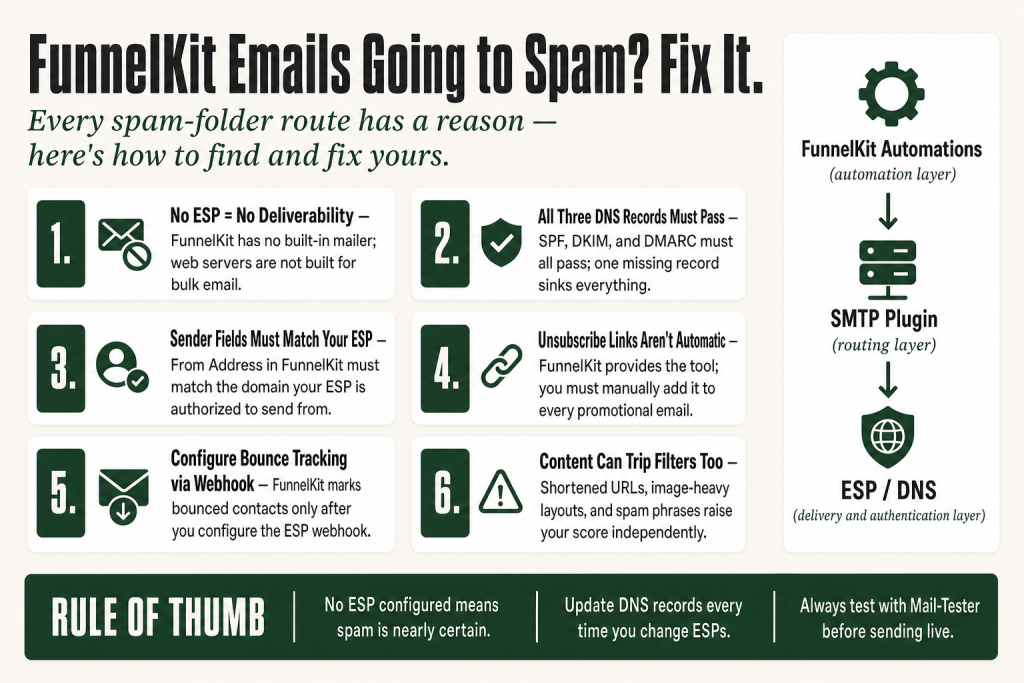
The 30-second answer
- Not using an ESP or SMTP plugin? That is almost certainly the root cause. FunnelKit Automations (formerly Autonami) sends through WordPress's default
wp_mail()function when no ESP is configured, and shared web servers are not built for bulk delivery. FunnelKit Automations has no built-in mailer: it relies on a third-party SMTP plugin and ESP that you set up separately for actual delivery. - Check SPF, DKIM, and DMARC. All three DNS records must pass and align with your sending domain. These records live in your DNS and are configured by you and your ESP, not by FunnelKit Automations. One missing record can sink everything, and any change to your ESP requires you to re-sync all three records.
- Verify your sender fields in FunnelKit Automations. Go to FunnelKit Automations » Settings » Email and confirm the “From” Name, “From” Address, and “Reply To” Address match the domain your ESP is authorized to send from.
- Add an unsubscribe link manually. FunnelKit Automations provides the tools to insert one, but it does not add it automatically. You must click “Add Unsubscribe Text” inside each broadcast or use the unsubscribe merge tag in each automation email. Marketing emails without one violate CAN-SPAM and GDPR and are a direct spam-filter trigger.
- Set up bounce handling. A list full of hard bounces destroys your sender reputation fast. FunnelKit Automations can automatically mark bounced contacts so they stop receiving mail, but only after you configure the webhook with your ESP.
- Run a spam score test on a real sent message using Mail-Tester or a similar tool before you assume anything is fixed. Read the full breakdown, not just the number.
- Check your content. Shortened URLs, image-heavy layouts with no text, and spam-trigger phrases all raise your score independently of infrastructure.
Take this fix into your next scenario. The free Builder’s Companion Kit collects the checklists and templates that pair with this guide — so next time, you start from a template, not a blank page. Grab it free →
- Start Here: Your Sending Infrastructure
- DNS Authentication: SPF, DKIM, and DMARC
- FunnelKit Automations Sender Settings to Verify
- Unsubscribe Links and Compliance
- Bounce Handling and List Hygiene
- Content, Subject Lines, and Formatting
- Walkthrough: Diagnosing FunnelKit Emails Going to Spam in Order
- What FunnelKit Cannot Fix For You
- FAQ
FunnelKit emails going to spam is almost never a random act of a filter. Spam folders are logical. Every inbox provider that routes your message to junk left a reason in the headers, and that reason fits into one of a handful of categories. This article walks you through each layer in the order you should check them, starting with the biggest causes and working down to the details that push borderline senders over the edge.
One honest caveat upfront: FunnelKit Automations (formerly Autonami) controls what gets sent and when. It does not control the underlying mail infrastructure, and it has no built-in mail delivery engine of its own. Actual delivery depends on a separate SMTP plugin and a third-party ESP that you configure. That means some fixes below live outside the plugin itself, in your DNS, your SMTP plugin, or your ESP. You have to touch all three layers to solve this properly. The judgment calls at every step stay with you: no plugin makes those decisions for you.
Start Here: Your Sending Infrastructure
This is where the majority of spam problems begin. FunnelKit Automations (formerly Autonami) sends all emails through the default wp_mail() function and has no built-in mail delivery engine of its own. Actual delivery depends on a separate SMTP plugin and a third-party ESP that you configure yourself. Without that setup, messages route directly from your web server. Web servers are not built to send bulk email, and the IP addresses they use are frequently flagged or on shared hosting ranges that inbox providers distrust.
The fix is to connect a dedicated email service. FunnelKit's own documentation recommends pairing FunnelKit Automations with an SMTP plugin such as WP Mail SMTP, then routing that plugin through a transactional ESP. Supported providers include Amazon SES, SendGrid, Mailgun, Postmark, and Elastic Email. WP Offload SES Lite is the recommended plugin for Amazon SES specifically.
Once you have an ESP configured, copy the “From” Name and “From” Address out of that SMTP plugin and paste them into FunnelKit Automations » Settings » Email. If the two do not match, your SMTP plugin may override the sender details silently, causing authentication failures.
If you are on Gmail or Outlook as your sending service, note that Gmail caps sends at 500 emails per day for trial accounts and 2,000 per day for Google Workspace accounts. If your volume is approaching those limits, you need a dedicated transactional ESP, not a personal inbox provider.
DNS Authentication: SPF, DKIM, and DMARC
Think of these three DNS records as the passport, the signature, and the policy that tells receiving servers whether to trust your mail. All three need to pass. Missing even one gives filters an easy reason to route you to spam.
A key point before you start: FunnelKit Automations does not manage your DNS records and does not configure these settings for you. SPF, DKIM, and DMARC are set up in your domain registrar or DNS host and must align with whichever external ESP is physically sending your mail. FunnelKit Automations is the automation layer on top; the authentication work happens between your DNS and your ESP.
That alignment is not a one-time task. Every time you change your ESP or SMTP settings, you need to revisit all three records. Your DKIM key is tied to a specific sending server. Switch providers without updating DNS and every message fails silently from that moment on. Your SPF record lists authorized sending IPs; add a new provider without updating the record and that provider's mail fails too. DMARC ties the two together and enforces the policy, so a gap in either cascades into a DMARC failure. Keep a note of which DNS records belong to which provider so you can update them cleanly whenever anything changes.
- SPF (Sender Policy Framework): Lists the IP addresses and servers authorized to send mail from your domain. When your email arrives, the receiving server checks whether the sending IP is on that list. If it is not, you fail SPF. Your ESP will give you the SPF include value to add to your DNS. Note that a domain can only have one SPF record. If you have multiple ESPs, all their include values must live inside a single TXT record.
- DKIM (DomainKeys Identified Mail): A digital signature applied by your ESP that proves the message body and headers were not altered in transit. Your ESP generates the key pair; you publish the public key as a DNS TXT record. Each provider uses a different DKIM selector, so switching ESPs means publishing a new key and removing the old one.
- DMARC (Domain-based Message Authentication, Reporting and Conformance): Ties SPF and DKIM together and tells receiving servers what to do when either check fails. It also requires that the authenticated domain aligns with your visible “From” Address. Without DMARC, a passing SPF or DKIM on a mismatched domain still fails alignment. Start with a
p=nonepolicy to collect reports before moving top=quarantineorp=reject.
The most common mistake here is switching ESPs and forgetting to update the DNS records for the new provider. Your old DKIM key no longer matches the signing server, and every message fails silently. Run a spam score test after any ESP change to catch this immediately.
FunnelKit Automations recommends running your messages through the Mail-Tester spam checker before sending to your list. That tool runs SpamAssassin and checks SPF, DKIM, and DMARC all in one pass, so you get a concrete score and a breakdown of exactly what failed, rather than guessing.
FunnelKit Automations Sender Settings to Verify
Once your infrastructure is sorted, open FunnelKit Automations » Settings » Email and work through these fields:
- “From” Name: Use a recognizable sender name, typically your store or brand name. An unfamiliar or blank name raises the “who is this?” reaction that drives spam complaints.
- “From” Address: This must be an address on your own domain, not a generic Gmail or Outlook address. It must also match the domain your SMTP plugin and ESP are authorized to send from. A mismatch here means authentication fails at the DMARC alignment step. (The live settings page labels this field “From” Address. You may see it referred to as “From Email” in some FunnelKit documentation pages and older tutorials; both refer to the same field.)
- “Reply To” Address: Set this to an inbox you actually monitor. It does not affect deliverability directly, but subscribers who try to reply and get no response are more likely to mark future messages as spam.
- Footer (Unsubscribe Text): FunnelKit Automations has a Footer field under email settings where you can add global unsubscribe text. This appears at the bottom of outgoing emails. Leave it populated.
If you are using the per-automation sender override, the same rules apply. Go into any Send Email step, enable the override, and make sure the “From” Address there also belongs to your sending domain and matches the domain your ESP is authorized to send from. A one-off automation sending from a different, unauthenticated address is one of the quieter causes of spam complaints. You are the one who has to catch that mismatch: the plugin does not flag it for you.
Unsubscribe Links and Compliance
Inbox providers, especially Gmail and Yahoo, treat a missing or broken unsubscribe mechanism as a direct spam signal. An unsubscribe link is also legally required in all promotional email under CAN-SPAM and GDPR. A promotional email without one is not just bad practice; it is a filter trigger and a legal exposure in one shot.
FunnelKit Automations gives you the tools to add unsubscribe links, but it does not insert them automatically. You are responsible for adding one to each promotional email you send. Here is how it works at two levels:
- Per-email unsubscribe text: In the broadcast or automation email editor, click the Add Unsubscribe Text button. This inserts a link pointing to your configured unsubscribe page. For automation emails, you can also insert the unsubscribe merge tag directly into the email body. When a contact clicks it, their status is updated to Unsubscribed in FunnelKit Automations, and they stop receiving promotional mail.
- One-click unsubscribe header: FunnelKit Automations supports the
List-Unsubscribeemail header, which is what Gmail and Yahoo use for their one-click unsubscribe button. A recent update (3.8.5.1) also fixed an edge case where the header could generate an invalid URL if the unsubscribe page had been deleted. Make sure your unsubscribe page exists and is published.
Starting with version 3.0.3, FunnelKit Automations shows a validation error if you attempt to save a marketing email without an unsubscribe link, which removes one category of easy mistake. Transactional emails are exempt from this check.
Transactional emails, such as order confirmations and shipping notifications, are exempt from the unsubscribe requirement. Contacts who have unsubscribed can still receive transactional mail through FunnelKit Automations.
If you are using the Audit Email feature (available inside the visual email builder via the Preview and Test button), it will flag emails that are missing an unsubscribe tag before you send them. Run it on any automation or broadcast you are unsure about. The feature checks for broken links, missing unsubscribe tags, and email size in one pass.
Bounce Handling and List Hygiene
A list full of bad addresses is a reputation killer. Every hard bounce signals to your ESP that you are sending to unverified contacts, and a bounce rate above your ESP's threshold can get your sending suspended entirely. Inbox providers also factor sender reputation into their filtering decisions, so bounces do not just affect the contacts who bounced; they drag down deliverability for everyone you send to.
FunnelKit Automations can automatically catch bounces and mark those contacts as Bounced so they are excluded from future sends. The mechanism is a webhook: your ESP calls a URL provided by FunnelKit Automations whenever a message bounces, and FunnelKit Automations updates the contact status. This requires you to configure the webhook connection between FunnelKit Automations and your ESP before it works. The plugin surfaces the data; you do the setup.
To set this up, go to FunnelKit Automations » Settings » Email and scroll down to the Bounce Tracking section. Enable it, select your provider (Amazon SES, Brevo, Elastic Email, Mailgun, Pepipost, Postmark, SendGrid, and SparkPost are supported natively), then copy the webhook URL and paste it into your ESP's webhook settings. The same webhook handles both bounce and spam complaint events for most providers.
Contact statuses to know:
- Bounced: Hard bounce. Email address is invalid. These contacts are excluded from further sends automatically once bounce handling is active.
- Soft Bounce: Temporary failure (full inbox, server down). FunnelKit Automations treats soft bounces as recoverable. As of version 3.8.7, soft-bounced contacts are included in broadcasts by default, so temporary failures no longer permanently lock contacts out of future campaigns.
- Complaint: The recipient hit “report spam.” This is the most damaging status for your sender reputation. These contacts should receive no further promotional mail.
As of FunnelKit Automations Pro 3.8.5, a timestamped note is recorded on the contact profile whenever a supported ESP reports a bounce or spam complaint, covering Mailgun, SendGrid, Amazon SES, Postmark, SparkPost, Brevo, Mailjet, Elastic Email, and SMTP.com.
If your ESP is not in the native list, you can still automate this. Use a Webhook Received trigger in a FunnelKit automation and add a Change Status action set to Bounced. Configure your ESP to POST the email address to that webhook URL on a bounce event. The FunnelKit webhook automation guide covers the trigger setup in detail.
Content, Subject Lines, and Formatting
Even with perfect authentication and a clean list, your content can still trip a filter. Spam engines read the message itself, not just the headers. Common content problems and how to fix them:
- Shortened URLs: Services like bit.ly are heavily abused by spammers. FunnelKit's own best practices documentation explicitly says not to shorten URLs in your emails. Link directly to your domain instead. For example, instead of
bit.ly/sale2026, useyourstore.com/sale. If you need tracking, use UTM parameters on your own domain URL rather than a third-party shortener. - Image-heavy emails with minimal text: A message that is 90% image and 10% text looks like a spam template to most filters. The fix is simple: add meaningful text blocks alongside your images. If you are using FunnelKit's visual email builder, treat each image as needing at least one substantive paragraph next to it. A rough target is to have more words than image area. As of version 3.8.0, the Email Audit feature also flags oversized emails, so run it before sending to catch layout problems early.
- Spam-trigger phrases: Phrase lists used by SpamAssassin are publicly available. Subject lines with excessive capitalization, multiple exclamation marks, or classic phrases like “free gift” or “act now” add points to your spam score. Rewrite those subject lines as straightforward statements. “Your order is ready” clears filters. “FREE GIFT inside!!! Act NOW!!!” does not.
- Merge tags that resolve to blank: An email with empty personalization fields, like a subject line that starts with a blank where the first name should be, can look broken or bot-generated to filters. Test your merge tags before sending. The merge tags troubleshooting guide covers blank output specifically.
- HTML rendering issues: If your SMTP plugin's MIME type is not set to
text/HTML, recipients can receive raw HTML code instead of a rendered email. Aside from being unreadable, the malformed output raises spam scores. Check your SMTP plugin's MIME settings if your visual builder emails look broken in the inbox.
After addressing content issues, send a test message to a Mail-Tester address and check the score and the breakdown. The breakdown is where the actionable detail lives, not the number itself.
Walkthrough: Diagnosing FunnelKit Emails Going to Spam in Order
Here is a repeatable sequence you can run against any FunnelKit automation or broadcast that is landing in spam. Work through it top to bottom rather than jumping around.
- Confirm your SMTP plugin is active and connected to an ESP. In WordPress, check your installed plugins. If WP Mail SMTP (or your chosen plugin) is active, open it and verify your ESP credentials are saved and the test email sends successfully.
- Send a test from the automation itself. Open the Send Email step inside FunnelKit Automations, enter your personal address in the Send Test Mail field, and send. Check where it lands.
- Forward that test message to Mail-Tester.com (or visit the site first to get a unique address, then send to that address directly). Read the full breakdown, not just the score. The breakdown names each specific failure, which is where you find the actual fix. Use the score as a rough signal: a result in the 8-10 range generally means your authentication and content are clean, while anything below that warrants a close look at whichever criteria are failing. Scores are directional, not definitive; a brand-new domain can score 10/10 and still land in spam due to reputation history that Mail-Tester cannot see.
- Fix authentication issues first. If SPF, DKIM, or DMARC are failing, fix those in your DNS and with your ESP before touching anything else. These records are not managed by FunnelKit Automations. Content changes will not overcome an authentication failure. Remember: if you recently changed ESPs or SMTP settings, your DNS records need updating too.
- Check FunnelKit Automations » Settings » Email. Confirm the “From” Address matches your ESP's authorized domain. Confirm bounce tracking is enabled and the webhook URL is pasted into your ESP.
- Check the automation email for an unsubscribe link if it is a promotional message. Open the email step, scroll to the footer area, and confirm the unsubscribe text is present. Remember: FunnelKit Automations does not add this automatically, though from version 3.0.3 onward it will show a validation error if you try to save a marketing email without one.
- Review content. Scan for shortened URLs, excessive images, and spam phrases. If your email uses merge tags, check that they resolve correctly using the approach in the merge tags guide.
- Check your contact list health. In FunnelKit Automations » Contacts, filter by status. If you have a high proportion of Bounced or Complaint contacts and bounce tracking has not been active, your sender reputation may already be damaged. Clean the list and give it time to recover before drawing conclusions about a campaign.
- Check automation logs. If you are not sure whether an email sent at all, the automation logs guide shows you how to find failed or skipped actions.
What FunnelKit Cannot Fix For You
FunnelKit Automations is the automation layer. It does not own your sender reputation, your DNS, or your ESP's IP pool, and it does not manage any of those on your behalf. A few things that are entirely outside the plugin's control:
- A burned sending domain or IP. If your domain or your ESP's shared IP has been blacklisted due to past abuse, your FunnelKit settings are not the thing to fix. You need to check blacklist databases like MXToolbox yourself, request delisting directly with the relevant blacklist operators, and possibly warm up a new sending domain. FunnelKit Automations has no ability to check blacklists or submit delisting requests on your behalf.
- Recipient-level filters. If a specific subscriber has a personal or corporate spam filter that blocks your domain regardless of authentication, there is nothing you can do on your end for that one address.
- ESP reputation policies. Some ESPs will throttle or suspend accounts with high complaint rates before you even notice a problem. Check your ESP's dashboard for complaint and bounce rate alerts, not just your FunnelKit reports.
- Gmail's engagement-based filtering. Gmail routes mail partly based on whether recipients open, click, and reply. A highly engaged list lands in the inbox. A disengaged one drifts toward promotions or spam even with perfect authentication. Segmenting your list and removing unengaged contacts over time is the only long-term answer. The FunnelKit lists and tags guide covers how to structure your contacts for that kind of segmentation.
If your broadcast campaigns specifically are not sending at all rather than landing in spam, that is a different problem. Check the broadcast not sending guide for that path.
FAQ
Why are my FunnelKit automation emails going to spam but my broadcast emails are not?
The most likely cause is a sender override inside the automation. Open the Send Email step and check whether ‘Override From Name, From Email and Reply To Email’ is enabled. If the override address is on a domain that your SMTP plugin or ESP is not authorized to send from, authentication fails for that automation specifically while your default address passes fine.
Does FunnelKit Automations have a built-in SMTP mailer?
No. FunnelKit Automations has no built-in mail delivery engine. It sends through WordPress’s wp_mail() function, which routes mail directly from your web server unless you configure a separate SMTP plugin and a third-party ESP. Without that setup, delivery is unreliable and spam rates climb fast. FunnelKit recommends WP Mail SMTP paired with a dedicated ESP like Amazon SES, SendGrid, Mailgun, Postmark, or Elastic Email.
How do I stop FunnelKit sending to bounced or complaint contacts?
Enable Bounce Tracking under FunnelKit Automations » Settings » Email. Scroll down to the Bounce Tracking section, select your ESP, copy the webhook URL provided, and paste that URL into your ESP’s webhook settings. You must complete this configuration step before anything is tracked automatically. Once active, FunnelKit Automations marks contacts as Bounced or Complaint when your ESP reports a failure, and those contacts are excluded from future promotional sends.
My FunnelKit emails have an unsubscribe link but they still go to spam. What else should I check?
An unsubscribe link is necessary but not sufficient. Run your email through Mail-Tester and read the full breakdown, not just the score. The most common remaining causes are SPF, DKIM, or DMARC failures on your domain, shortened URLs inside the email body, or a sending IP that is on a blacklist. Fix whichever issues the breakdown names, then retest. Also remember that Mail-Tester scores authentication and content but cannot see your domain or IP reputation, so a decent score does not rule out a reputation problem.
Can I test a single FunnelKit email before sending it to my list?
Yes. Open the Send Email action inside any automation, find the Send Test Mail field, enter your email address, and click Send. This sends the email exactly as your automation would, through the same SMTP plugin and ESP. You can then forward that message to Mail-Tester or check the headers manually to see what authentication passed.
Will fixing spam issues in FunnelKit also fix WooCommerce transactional email deliverability?
Largely yes, because the same SMTP plugin and ESP route all WordPress mail including WooCommerce order emails. DNS authentication fixes benefit everything sent from your domain. However, WooCommerce transactional emails have their own sender settings and do not share FunnelKit’s per-automation override, so verify those sender fields separately in FunnelKit Automations » Emails » Transactional Emails.
Sources:
Sources: FunnelKit Automations Email Deliverability Best Practices; FunnelKit Automations Email Setup; FunnelKit Automations SMTP Plugin Setup; FunnelKit Automations Email Settings; FunnelKit Automations Testing Your Email; FunnelKit Automations Setting Up Bounce Handling; FunnelKit Automations Contact Status; FunnelKit Automations Unsubscribe Link; FunnelKit Automations Transactional Emails; FunnelKit Automations Overriding Sender Details; FunnelKit Automations Choosing an ESP; FunnelKit Automations Fix HTML Issues in Emails; FunnelKit What's New (changelog, versions 2.8.0–3.8.5.2); FunnelKit Frequently Asked Questions (Autonami rebrand history).
Brian Kasday spent forty years in direct-response marketing before rebuilding the whole operation as a one-person shop. He writes The Operator’s Library — including “The Missing Manual for FunnelKit” — for operators who’d rather build it themselves than wait on someone else.
Get the Builder’s Companion Kit — the free checklists and templates that pair with this guide: mmsvegas.com/op/funnelkit-resources/.
This guide fixes one FunnelKit step. The Missing Manual for FunnelKit covers the whole checkout system. See the manual →
More FunnelKit guides
Free · FunnelKit Operator Toolkit
Building checkouts in FunnelKit?
Get the free operator toolkit — order-bump templates, checkout checklists, and a note when what you just read changes.
Get the free toolkit →