
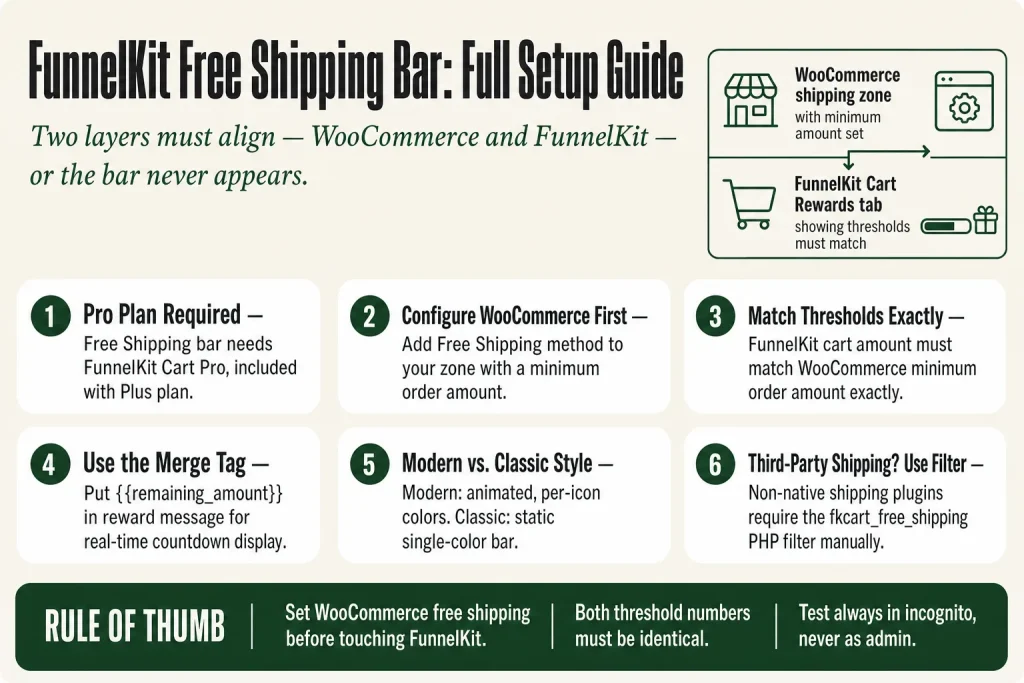
The 30-second answer
- Requires FunnelKit Cart Pro (the Pro version of FunnelKit Cart), included in the FunnelKit Plus plan and above. The free version of FunnelKit Cart (Lite) includes the slide-out drawer but does not include the Rewards feature. The Rewards feature is what powers the free shipping bar.
- Step 1 is WooCommerce, not FunnelKit. Go to WooCommerce ⇒ Settings ⇒ Shipping, open your shipping zone, add a Free Shipping method, and set a minimum order amount. This step only applies if you’re using WooCommerce’s native Free Shipping method. If you use a third-party shipping plugin, skip this step and use the
fkcart_free_shippingPHP filter instead to pass the threshold manually. - Step 2: create the reward. In WordPress, go to FunnelKit ⇒ Cart, open the Rewards tab, click “Create Reward,” choose “Free Shipping” as the type, set the icon title, and write your progress message using the
{{remaining_amount}}merge tag. - Step 3: align cart amounts carefully. The cart amount you set in FunnelKit must match the minimum order amount in your WooCommerce Free Shipping method exactly. If the two numbers diverge, customers who hit the FunnelKit bar milestone may not actually receive free shipping at checkout.
- Step 4: choose a bar style. Scroll down to the Reward Style section inside the Rewards tab. Pick Modern (animated, icon-per-reward) or Classic. Just above the Reward Style section, set whether rewards calculate on cart subtotal (before discounts) or on the order total after discounts. This is a FunnelKit Cart setting, not a WooCommerce setting.
- Step 5: test in incognito. Use an incognito window to simulate a non-admin user, which gives you more accurate results than testing while logged in as admin. Add products, watch the bar count down, verify it disappears or shows the “unlocked” message at the threshold.
- Bar not showing? First confirm your FunnelKit license is active and current on the Plus plan or above, because Pro features won’t operate on an expired or downgraded license. Then check that FunnelKit Cart is enabled, the shipping zone covers the test address, and a minimum order amount is set on the WooCommerce Free Shipping method. If you’re using a third-party shipping plugin, confirm the
fkcart_free_shippingfilter is in place.
Take this fix into your next scenario. The free Builder’s Companion Kit collects the checklists and templates that pair with this guide — so next time, you start from a template, not a blank page. Grab it free →
- What Plan You Need (and What the Free Version Can’t Do)
- Step 1: Set Up the Free Shipping Method in WooCommerce First
- Step 2: Create the Free Shipping Reward in FunnelKit Cart
- Step 3: Choose Your Progress Bar Style
- Worked Example: A $75 Free Shipping Bar on a Gift Store
- FunnelKit Free Shipping Bar Not Showing: Quick Checks
- FAQ
The FunnelKit free shipping bar is the animated progress bar inside the FunnelKit Cart slide-out drawer that tells shoppers things like “You’re $14 away from free shipping” in real time. It’s part of the Rewards feature inside FunnelKit Cart Pro, which is included with the FunnelKit Plus plan and above. The free Lite version gives you the drawer but not the Rewards system. Beyond the plan requirement, the bar has one dependency most people miss: WooCommerce needs a working free-shipping method configured in a shipping zone before the bar knows what threshold to count toward. If you use a third-party shipping plugin instead of WooCommerce’s native Free Shipping method, FunnelKit Cart won’t pick up the threshold automatically. In that case, you pass it in manually via the fkcart_free_shipping PHP filter. Get either dependency wrong and the bar either never appears or shows no target amount. This guide walks you through both layers, in the right order.
What Plan You Need (and What the Free Version Can’t Do)
The Rewards feature, which is the system that powers the free shipping bar, is available to FunnelKit users on the Plus plan and above. Those plans include FunnelKit Cart Pro (the paid tier of FunnelKit Cart). There is no separate purchase or separate plugin for Cart Pro: it comes bundled with your FunnelKit Plus license. FunnelKit Cart has a free version (called Lite) available on WordPress.org, but Lite does not include Rewards. On the free version, you get the slide-out drawer, quantity editing, an in-cart coupon field, and express checkout buttons, but no progress bars, no milestone gifts, and no in-cart upsells. Those are all part of Cart Pro.
If you already have a Plus or higher license and have activated the plugin, Cart Pro features are already available to you. The one thing that can silently break this: an expired license. Pro features including the Rewards system require an active, current license. If your license has lapsed, the bar won’t appear regardless of your settings. Check your license status at funnelkit.com before troubleshooting anything else.
One thing worth knowing if you run subscriptions: the reward system applies to regular cart totals. Verify how your subscription plugin reports cart subtotals before assuming the bar threshold matches your subscription product price. See FunnelKit WooCommerce Subscriptions: What Works and What to Test for specifics on that interaction.
Step 1: Set Up the Free Shipping Method in WooCommerce First
The FunnelKit free shipping bar reads its threshold from the WooCommerce Free Shipping method you have configured. If WooCommerce doesn’t have one set up, the bar has no number to count toward. This step applies only if you’re using WooCommerce’s built-in Free Shipping method. If your free shipping comes from a third-party plugin, skip ahead to the note at the bottom of this section and use the PHP filter approach instead. Set this up before you touch FunnelKit Cart.
- Go to WooCommerce ⇒ Settings ⇒ Shipping ⇒ Shipping Zones. Click the Edit button on the zone that covers your customers. If you don’t have a zone yet, click “Add shipping zone,” give it a name, and select the region.
- Inside the zone, click “Add shipping method.” Choose “Free Shipping” from the list and click Continue.
- Open the Free Shipping method settings. Set “Free Shipping Requires” to “A minimum order amount” and enter your threshold, for example 75. Click Save Changes.
A few things to verify before moving on. The zone must cover the address you’ll use for testing. FunnelKit docs also note it helps to set the default customer location to Geolocation so the bar can accurately match the shopper to the right zone. If a shopper belongs to a zone without a free shipping method configured, the bar won’t have a threshold to display. Also check whether you have the “Before coupon” option enabled or disabled in WooCommerce. That WooCommerce setting controls whether WooCommerce evaluates the order amount before or after coupon discounts apply, and it affects what FunnelKit Cart calculates as the remaining amount.
Using a third-party shipping plugin instead of WooCommerce’s native method? FunnelKit Cart only picks up the threshold automatically when you use WooCommerce’s built-in Free Shipping method. With any third-party shipping plugin, the bar has nothing to read on its own. This is not a limitation you can configure away in the FunnelKit UI: it requires manual intervention via a PHP filter. Add the fkcart_free_shipping snippet to your child theme’s functions.php or a code snippet plugin, set the min_amount value to your threshold, and then create the reward in FunnelKit Cart as normal. The official docs at funnelkit.com/docs show the exact filter and example code.
Step 2: Create the Free Shipping Reward in FunnelKit Cart
With WooCommerce configured (or your PHP filter in place), you can create the reward that drives the FunnelKit free shipping bar.
- Navigate to FunnelKit ⇒ Cart, then open the Rewards tab. The tab label is “Rewards” in the FunnelKit Cart settings screen. Click the “Create Reward” button.
- Set the Type to “Free Shipping.” FunnelKit Cart offers three reward types: Free Shipping, Discount, and Free Gift. Choose Free Shipping here.
- Set the icon title. This is the label that appears when the reward icon is hovered. Keep it short, for example “Free Shipping.”
- Write your progress message. Use the
{{remaining_amount}}merge tag to show the dynamic remaining cart amount. A message like “Add {{remaining_amount}} more for free shipping!” updates in real time as the shopper adds items. - Set the cart amount for this reward, and align it precisely with WooCommerce. The number you enter here must match the minimum order amount you set in the WooCommerce Free Shipping method in Step 1 exactly. This is not just a guideline. If you enter a higher threshold in FunnelKit than WooCommerce expects, customers who see the bar reach 100% may not actually receive free shipping at checkout. If you enter a lower threshold, the bar will show as complete before the customer actually qualifies. Keep the two numbers identical.
FunnelKit Cart supports up to three rewards total, one per reward type (Free Shipping, Discount, and Free Gift). You can stack all three at different cart thresholds to create a tiered reward ladder. You don’t have to use all three. Start with free shipping alone and add the others once you’ve confirmed the bar is working.
After you create the reward, set two additional options that appear below the reward cards:
- Messages: The message shown when all rewards are unlocked, for example “You’ve unlocked everything!”
- Calculate Rewards on Cart Subtotal (FunnelKit Cart setting): This toggle lives in FunnelKit Cart’s Rewards tab, not in WooCommerce. Turn it on to base milestone calculations on the pre-discount subtotal. Turn it off to use the post-discount order total. Which one is right depends on your promotion strategy. If you run heavy coupon discounts and don’t want those to unlock shipping milestones early, leave it off.
Step 3: Choose Your Progress Bar Style
Once your reward is saved, scroll down to the Reward Style section, which sits just below the “Calculate Rewards on Cart Subtotal” toggle inside the Rewards tab. You have two options:
- Modern: Animated progress bar, unique icons for each reward type, and more style customization controls, including Icon Default Color, Icon Active Color, Icon Background Active Color, and an Animation toggle. Think of it as a game-style progress tracker: each milestone has its own icon that lights up as the shopper’s cart fills. This is the default on newer installs and works well on stores with a bold, visual brand.
- Classic: A simpler, static bar with a single active progress bar color setting. No per-icon colors, no animation. Think of it as a plain fuel gauge, less visual noise but also less celebration when a reward unlocks. It fits stores with a minimal or editorial design aesthetic where animation would feel out of place.
The bar’s active color (labeled Progress Bar Active Color in Modern style) is controlled inside the Reward Style section itself. Broader cart styling, such as primary color, font color, and border radius, lives under FunnelKit ⇒ Cart ⇒ Styling. A Custom CSS field sits at the bottom of the Styling tab if you need pixel-level control. Keep in mind that the exact visual appearance of the bar depends on what you configure in the Styling tab: two stores using Modern style can look quite different from each other if their primary colors, fonts, and border radii differ.
One thing to check: the cart itself needs to be active and displaying on your site for any of this to render. If you haven’t enabled the slide-out cart yet or the cart icon isn’t showing, the reward bar has nowhere to live. See FunnelKit Cart Not Showing: Fix the Slide-Out Cart if you run into that first.
Worked Example: A $75 Free Shipping Bar on a Gift Store
Here’s how this looks end to end for a small gift store with a $75 free shipping threshold.
WooCommerce setup: The store has a United States shipping zone. Inside that zone, there is a Free Shipping method with “Free Shipping Requires” set to “A minimum order amount” of 75. There is also a Flat Rate method at $6.95 for orders below the threshold. This store uses WooCommerce’s native Free Shipping method, so FunnelKit Cart picks up the threshold automatically without any extra code. If this store were using a third-party shipping plugin, the native method wouldn’t be in play and automatic detection wouldn’t work. The owner would need to add the fkcart_free_shipping PHP filter with min_amount set to 75, which is the required manual intervention for non-WooCommerce shipping plugins. There is no automatic sync with non-native methods.
FunnelKit Cart reward (FunnelKit ⇒ Cart ⇒ Rewards tab):
- Type: Free Shipping
- Icon title: Free Shipping
- Message: “Add {{remaining_amount}} more to unlock free shipping!”
- Cart amount: 75 (this matches the WooCommerce minimum exactly, which is required)
- Calculate Rewards on Cart Subtotal (FunnelKit Cart setting): on, because this store doesn’t run discount codes that should shortcut the threshold
What the shopper sees: They add a $45 candle set. The slide-out cart opens and shows “Add $30.00 more to unlock free shipping!” with the bar roughly 60% filled. They add a $35 item. The bar completes, the message changes to the unlocked state, and free shipping appears automatically at checkout. The exact colors, icon style, and animation depend on which Reward Style is selected and what’s configured under FunnelKit ⇒ Cart ⇒ Styling. The example above uses Modern style defaults, but your bar may look different if you’ve customized those settings.
Where things go wrong in this exact scenario: If the store owner forgets to save the minimum order amount in WooCommerce, the Free Shipping method appears at checkout for every order regardless of total, and the FunnelKit bar either shows no threshold or a $0 remaining amount immediately. Always test the WooCommerce shipping method in isolation first: add a product under the threshold to a fresh cart and confirm the flat rate (not free shipping) shows at the checkout shipping step.
If your checkout is a FunnelKit custom checkout, make sure shipping calculations are enabled there too. The How to Set Up FunnelKit Checkout from Scratch guide covers that configuration.
FunnelKit Free Shipping Bar Not Showing: Quick Checks
The bar is invisible for a handful of specific reasons. Work through this list before digging into anything else.
- Your FunnelKit license isn’t active or has lapsed. Pro features, including the entire Rewards system, require a current, active license at the Plus plan or above. An expired license silently disables Pro features. Check your license status at funnelkit.com first, before anything else on this list.
- FunnelKit Cart Pro isn’t active. The free Lite version doesn’t include Rewards. Confirm you’re on Plus or above and that the Cart plugin is updated.
- No free shipping method in the relevant zone. The bar reads the WooCommerce shipping zone that matches the current visitor’s location. A guest without an address set may not match any zone, so the bar has no threshold to display. Test logged in with a known address first.
- The WooCommerce Free Shipping method has no minimum amount set. If “Free Shipping Requires” is set to “No requirement,” everyone gets free shipping already and the bar has nothing to count toward.
- You’re using a third-party shipping plugin and haven’t added the PHP filter. FunnelKit Cart does not automatically detect or sync with non-native shipping methods. This requires manual intervention via the
fkcart_free_shippingPHP filter. Set yourmin_amountvalue in the filter and the bar will then have a threshold to count toward. Without either the native WooCommerce method or this filter in place, the bar will not appear. - The slide-out cart itself isn’t enabled. The bar lives inside the cart drawer. If the cart isn’t showing, the bar can’t show either. The slide-out cart troubleshooting guide covers that separately.
- You’re testing while logged in as admin. Some caching layers and role-based rules behave differently for admins. Always run a final test in an incognito window, which simulates a non-admin user and gives you more accurate results than testing from your admin session.
- A coupon already pushed the total over the threshold before the cart opened. If “Calculate Rewards on Cart Subtotal” is off (in FunnelKit Cart settings), a discount coupon might push the post-discount total over $0 remaining immediately, triggering the unlocked state before the bar is visible. Flip the subtotal setting in FunnelKit Cart if that’s unexpected behavior for your setup.
Cart abandonment and the reward bar interact in one specific way worth noting: a shopper who abandons after seeing the bar but before unlocking free shipping is a high-intent target. If you have cart abandonment emails running, you can reference the threshold in your recovery copy. See the FunnelKit Cart Abandonment Setup guide for how to set that sequence up.
FAQ
does funnelkit free shipping bar work with the free version of funnelkit cart
No. The free shipping progress bar and all Rewards features require FunnelKit Cart Pro (the paid tier of FunnelKit Cart), which is included with the FunnelKit Plus plan and above. The free Lite version includes the slide-out drawer, quantity editing, coupon field, and express checkout, but not milestones, progress bars, or in-cart upsells.
does funnelkit cart read the free shipping threshold automatically from woocommerce
Only when you use WooCommerce’s built-in Free Shipping method with a minimum order amount set in a shipping zone. In that case, FunnelKit Cart picks up the threshold automatically with no extra code required. If you use a third-party shipping plugin, FunnelKit Cart does not sync with it on its own. You need to pass the threshold manually using the fkcart_free_shipping PHP filter.
can i show the free shipping bar without using woocommerce’s native free shipping method
Yes. FunnelKit provides the fkcart_free_shipping filter, which lets you supply a custom threshold via a PHP snippet in your child theme’s functions.php or a code snippet plugin. Set the min_amount value in the filter and then create the reward in FunnelKit Cart as normal. The bar will not appear at all until either the native WooCommerce method or this filter is in place. The official docs show the exact code.
do i need the php filter even if i’m using woocommerce’s native free shipping method
No. The PHP filter is only necessary when you’re using a third-party shipping plugin that FunnelKit Cart can’t read automatically. If you’re using WooCommerce’s built-in Free Shipping method with a minimum order amount configured in a shipping zone, FunnelKit Cart picks up that threshold on its own. No filter, no custom code. The filter exists specifically for stores whose free shipping logic lives outside WooCommerce’s native method.
what is the {{remaining_amount}} merge tag and where do i put it
It’s a dynamic placeholder that FunnelKit replaces with the actual dollar amount the shopper still needs to add to unlock the reward. Put it in the reward message field when creating your Free Shipping reward inside FunnelKit ⇒ Cart ⇒ Rewards tab, for example: “Add {{remaining_amount}} more for free shipping!”
what’s the difference between modern and classic progress bar style in funnelkit cart
Both options appear in the Reward Style section at the bottom of the Rewards tab in FunnelKit Cart settings. Modern gives you an animated progress bar where each reward type gets its own icon that lights up as the cart fills, plus additional color controls: Icon Default Color, Icon Active Color, Icon Background Active Color, and an Animation toggle. Picture a game-style tracker where each milestone has its own lit icon. Classic is a static single-color bar with no animation and one active progress color setting, closer to a plain fuel gauge. It’s less visually busy, which can suit stores with a minimal design. Neither costs extra; both are included in Cart Pro. The final look of either style also depends on what you’ve set in FunnelKit ⇒ Cart ⇒ Styling, so two stores on Modern can look quite different.
can i stack multiple rewards like free shipping plus a discount plus a free gift
Yes. FunnelKit Cart supports up to three rewards, one per reward type: Free Shipping, Discount, and Free Gift. You can combine all three at different cart thresholds to create a tiered milestone ladder. Each reward unlocks when the shopper’s cart reaches the amount you set for that tier.
Sources:
Sources: FunnelKit Docs: Set Up Rewards; FunnelKit Docs: Cart Rewards Overview; FunnelKit Docs: Free Shipping Reward Without Native WooCommerce Options; FunnelKit Docs: Cart Styling; FunnelKit Lite vs Pro Feature Comparison; WooCommerce Docs: Free Shipping. All documentation verified November 2026.
Brian Kasday spent forty years in direct-response marketing before rebuilding the whole operation as a one-person shop. He writes The Operator’s Library — including “The Missing Manual for FunnelKit” — for operators who’d rather build it themselves than wait on someone else.
Get the Builder’s Companion Kit — the free checklists and templates that pair with this guide: mmsvegas.com/op/funnelkit-resources/.
This guide fixes one FunnelKit step. The Missing Manual for FunnelKit covers the whole checkout system. See the manual →
More FunnelKit guides
Free · FunnelKit Operator Toolkit
Building checkouts in FunnelKit?
Get the free operator toolkit — order-bump templates, checkout checklists, and a note when what you just read changes.
Get the free toolkit →