
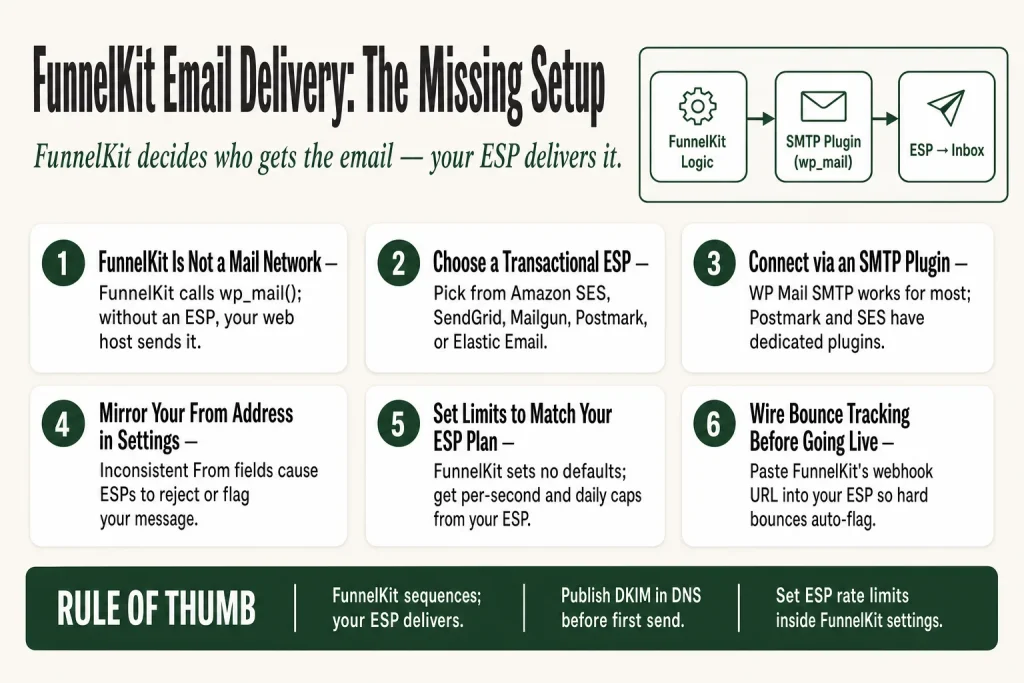
The 30-second answer
- FunnelKit is not a mail network. It calls WordPress’s
wp_mail()function. Without an ESP connected, mail goes out through your web host, which is built for web requests, not bulk email. - Choose a transactional ESP from FunnelKit’s recommended list: Amazon SES, SendGrid, Mailgun, Postmark, or Elastic Email.
- Connect via a WordPress SMTP plugin. FunnelKit recommends WP Mail SMTP for most providers, WP Offload SES Lite for Amazon SES, and Postmark for WordPress for Postmark.
- Use the Email Setup section under FunnelKit Automations › Tools if it appears in your version. The launcher is shown only once, so use it on first run. If your version does not show it, or if you have already dismissed it, install your chosen plugin directly from the WordPress plugin directory.
- Mirror your From address in FunnelKit Automations › Settings › Email after you configure the SMTP plugin.
- Set email limits in Settings › Email to match your ESP’s per-second and daily caps. FunnelKit does not set these for you and does not enforce defaults, so the right numbers come from your ESP’s plan page, not from FunnelKit itself.
- Wire up bounce tracking using the webhook URL in Settings › Email so hard bounces automatically mark contacts as Bounced.
- Send a test from inside any Send Email action before going live.
Take this fix into your next scenario. The free Builder’s Companion Kit collects the checklists and templates that pair with this guide — so next time, you start from a template, not a blank page. Grab it free →
- What FunnelKit Actually Does (and Doesn’t Do) With Email
- Which Sending Service Should You Choose?
- How to Connect the funnelkit sending service: The Full Walkthrough
- Test Before You Go Live
- Sending From Different From Addresses Per Automation
- FAQ
The FunnelKit sending service question trips up almost every new operator: you set up an automation, fire a test, and the email either lands in spam or never arrives at all. The reason is almost always the same. FunnelKit Automations is a sequencing and logic engine. It decides who gets an email and when. It does not own the pipes that carry that email to the inbox. That job belongs to an email service provider (ESP) or a transactional SMTP service, and connecting one is a separate step that FunnelKit leaves entirely up to you. This article walks you through the architecture, the provider options, and the exact configuration steps so you can get reliable delivery running before your first real send.
What FunnelKit Actually Does (and Doesn’t Do) With Email
Picture FunnelKit Automations as a conductor. It reads the score, knows the tempo, and tells each musician exactly when to play. But it does not build the instruments or own the concert hall. The instruments, in this analogy, are your sending infrastructure.
Technically: FunnelKit Automations sends all emails using the default wp_mail() method, the same function WordPress itself uses. When no external ESP is configured, wp_mail() hands the message to your web server’s local mail agent. Web servers are built to serve HTTP requests, not to deliver bulk email. Receiving mail servers know this, and they treat mail from generic hosting IP addresses with suspicion.
The practical consequence: your cart abandonment sequence or post-purchase follow-up goes out from a shared IP that has probably been used by dozens of other sites, some of which have damaged the IP’s reputation. Open rates suffer, deliverability suffers, and at volume you’ll hit sending limits that silently drop messages entirely.
Connecting a dedicated ESP addresses those problems. The ESP provides a reputable sending infrastructure, proper authentication headers, and a sending reputation you build and own. FunnelKit provides the logic that decides when and to whom. The two work together, but they are configured separately.
If your emails are already landing in spam, the connection layer is usually the first place to look. See FunnelKit Emails Going to Spam: What to Check for the full deliverability checklist once your ESP is connected.
Which Sending Service Should You Choose?
FunnelKit’s documentation recommends five transactional ESPs. Each has a different pricing model and complexity curve.
- Amazon SES: The cheapest per-email option at scale, but the most setup work. Requires an AWS account, domain verification, and a separate SNS configuration for bounce handling. Use WP Offload SES Lite to connect it to WordPress.
- SendGrid: Good free tier for low volumes, clean API, and a familiar dashboard. Connect via WP Mail SMTP.
- Mailgun: Developer-oriented, strong API, pay-as-you-go pricing. Connect via WP Mail SMTP.
- Postmark: Focused entirely on transactional mail, excellent deliverability reputation, and a clean bounce API. Use the Postmark for WordPress plugin.
- Elastic Email: Budget-friendly, but note that you must set the MIME type to HTML inside the Elastic Email Sender plugin before sending, or your emails may render as plain text.
One honest note on standard office email accounts: you can route FunnelKit through Gmail or Outlook SMTP, but FunnelKit’s own documentation flags these as built for one-to-one communication with a daily inbox limit typically in the 800–1,000 range for most SMTP connections. FunnelKit’s docs also note that Gmail imposes a daily sending limit of 2,000 emails for regular accounts and 500 for trial accounts. Hit the cap and messages stop going out, with no warning inside FunnelKit itself. They’re fine for very low-volume testing, but not for a real automation stack.
If you’re not sure which ESP to start with and you want a simple path, Postmark or SendGrid are the lowest-friction options for a solo operator. Amazon SES pays off once your volume justifies the setup time.
How to Connect the funnelkit sending service: The Full Walkthrough
Here is the end-to-end sequence. Take it in order, because each step depends on the previous one being complete.
Step 1: Sign up for your ESP and verify your sending domain
Do this inside your ESP’s dashboard, not inside FunnelKit or WordPress. Your ESP will generate SPF, DKIM, and DMARC records that you must add at your domain registrar (or wherever you manage your DNS). That last part is the step people skip: the records have to be published in your domain’s DNS, not just entered somewhere in your ESP account. Your ESP’s setup guide walks through the exact records and tells you exactly where to paste them in your registrar’s control panel. Do not skip DKIM. It is the single biggest deliverability lever at this stage, and it only works if the TXT or CNAME record is live in your DNS before you start sending.
Step 2: Use the Email Setup section in FunnelKit Automations (if available in your version)
Go to FunnelKit Automations › Tools › Email Setup. From here you can install and activate WP Mail SMTP without leaving FunnelKit. The official docs confirm this launcher is shown only once, so use it on first run if it appears. Note that the availability and layout of the Email Setup section can vary depending on which version of FunnelKit Automations you have installed. If you don’t see a launcher here, or if you have already dismissed it on a previous visit, install WP Mail SMTP (or your chosen plugin) directly from the WordPress plugin directory instead. When the launcher is present, click Install, then Activate, then Start Setup to launch the WP Mail SMTP setup wizard. Either way, the actual credential configuration must be completed inside the SMTP plugin itself, not inside FunnelKit.
Step 3: Configure WP Mail SMTP (or your chosen plugin)
Inside the WP Mail SMTP wizard, select your mailer (SendGrid, Mailgun, etc.), paste in your API key from the ESP dashboard, and save. The plugin rewires the wp_mail() function so that every outbound email from WordPress, including FunnelKit Automations, flows through your ESP’s API or SMTP relay rather than your web server’s local mail agent. If you are using Amazon SES, do the same steps inside WP Offload SES Lite. If you are on Postmark, use Postmark for WordPress.
Step 4: Mirror the From address in FunnelKit Automations Settings
After the SMTP plugin is configured, go to FunnelKit Automations › Settings › Email. Set the “From” Name, “From” Address, and “Reply To” Address to match exactly what you configured inside the SMTP plugin. If these are inconsistent, some ESPs will reject the message or flag it as suspicious. Copy and paste rather than retyping.
Step 5: Set email rate limits
Still inside Settings › Email, scroll to the Email Limit section. You’ll see two fields: Email Limit per second (the maximum emails FunnelKit will send out in a second) and Email Daily Limit (the maximum emails FunnelKit will send out in a day). FunnelKit does not set these for you and does not enforce a built-in default cap. The right values come entirely from your ESP’s plan page, not from FunnelKit. Look up your specific plan’s per-second and daily limits, then enter numbers at or slightly below those caps to leave headroom. Exceeding your ESP’s limits causes the ESP to reject or throttle messages, and the failure may be silent from FunnelKit’s side, meaning you won’t always see an obvious error in the automation log.
Step 6: Wire up bounce tracking
Still in Settings › Email, scroll to Bounce Tracking and enable it. Select your ESP from the dropdown. FunnelKit generates a unique webhook URL. Copy that URL and paste it into your ESP’s webhook or notification settings. The exact location differs by provider: in SendGrid it is Settings › Mail Settings › Event Webhooks; in Mailgun it is the Webhooks section under Sending; in Amazon SES it goes through an Amazon SNS topic subscription. Each provider’s specific steps are covered in FunnelKit’s individual bounce-handling docs. Once this is wired up, FunnelKit automatically marks hard-bounced contacts as Bounced and soft bounces as Soft Bounced in the contact record, so they stop receiving mail.
Protecting your bounce rate protects your sender reputation. If you are chasing down contacts that never got added in the first place, see FunnelKit Automations Contact Not Added: Every Cause and How to Fix Each.
Step 7: Disable duplicate open and click tracking
FunnelKit Automations tracks opens and clicks using its own pixel and redirect links. If your SMTP plugin or ESP also has engagement tracking turned on, both systems count independently and your stats will be wrong. Turn off open and click tracking inside the SMTP plugin and inside the ESP dashboard. Let FunnelKit own those metrics.
Test Before You Go Live
After completing the setup, do not assume it is working. Send a test before any real contacts flow through.
Open any existing automation (or create a one-step test automation with a Send Email action). Inside the email composer, find the Send Test Mail field, enter your own email address, and click Send. Check your inbox. Check your spam folder. If the email lands in spam even for your own address, the most likely cause is an incomplete DNS authentication record at the domain level. That means an SPF, DKIM, or DMARC record that was generated by your ESP but never actually published to your domain’s DNS, or was published incorrectly. Check at your registrar first before assuming it is a FunnelKit configuration issue.
You can also run a spam score check using a third-party tool like Mail-Tester before sending to real contacts. FunnelKit’s own best practices doc lists a spam score check as part of the deliverability checklist, and it will flag missing or broken SPF, DKIM, and DMARC records explicitly.
If you later find that automated sequences are not sending despite the connection being live, the automation trigger itself may be the issue rather than the sending layer. See FunnelKit Automation Not Triggering? How to Find Why It Won’t Fire for that path. For broadcast-specific delivery failures, see FunnelKit Broadcast Not Sending: Every Cause and How to Fix Each.
Sending From Different From Addresses Per Automation
Once your primary ESP is connected, you may want different automations or broadcasts to appear to come from different senders. FunnelKit supports this without requiring a second SMTP connection.
Inside any automation’s Send Email action, check the Override From Name, From Email and Reply To Email box. Fill in the alternate address. For broadcasts, you set the sender fields directly in the Content step of the broadcast builder.
One constraint worth knowing: the alternate From address still needs to be verified in your ESP. If you send from [email protected] but only [email protected] is verified in SendGrid, the ESP will reject or rewrite the From header. Verify every address you intend to use at the ESP level first.
FAQ
Does FunnelKit Automations have a built-in SMTP or does it need a separate plugin?
FunnelKit Automations does not include its own SMTP layer. It uses WordPress’s wp_mail() function, which routes through your web server unless you install a separate SMTP plugin such as WP Mail SMTP or WP Offload SES Lite. Depending on your version of FunnelKit Automations, the Tools section may include an Email Setup option that walks you through installing WP Mail SMTP. If that option does not appear, or if you have already dismissed it, install the plugin directly from the WordPress plugin directory. The actual credential configuration always happens inside the SMTP plugin, not inside FunnelKit.
Can I use Gmail or Google Workspace SMTP with FunnelKit Automations?
You can, but FunnelKit’s documentation notes that Gmail imposes a daily sending limit of 2,000 emails for regular accounts and 500 for trial accounts, and flags most standard SMTP connections as built for one-to-one communication rather than bulk sends. Hitting that cap causes delivery failures with no warning inside FunnelKit. For anything beyond a handful of test sends, a transactional ESP like Postmark, SendGrid, or Amazon SES is a better fit.
Where exactly do I find the bounce tracking webhook URL in FunnelKit?
Go to FunnelKit Automations > Settings > Email, scroll to the Bounce Tracking section, enable it, and select your ESP from the dropdown. FunnelKit generates a unique URL right there that you copy and paste into your ESP’s webhook configuration. The exact location on the ESP side differs per provider. FunnelKit’s docs include individual guides for Amazon SES, SendGrid, Mailgun, Postmark, Brevo, Elastic Email, SparkPost, and Pepipost.
Do I need to turn off click tracking in my SMTP plugin if FunnelKit tracks clicks?
Yes. FunnelKit Automations tracks opens and clicks using its own mechanisms. If your SMTP plugin or ESP also has engagement tracking enabled, both systems count independently and your analytics will be off. Disable open and click tracking inside the SMTP plugin and inside the ESP dashboard, and let FunnelKit own those metrics.
What happens if I exceed my ESP’s sending limits inside FunnelKit?
The ESP will reject or throttle the excess messages. FunnelKit’s automation log may show errors, but in some cases the failure is silent from FunnelKit’s perspective. To prevent this, set Email Limit per second and Email Daily Limit in FunnelKit Automations > Settings > Email to values at or below your ESP plan’s actual caps. FunnelKit does not enforce built-in defaults for these fields. The right numbers come from your ESP’s plan page, not from FunnelKit, so check there before entering anything.
Can I send from multiple From addresses using a single ESP connection?
Yes. Inside any Send Email action in an automation, check Override From Name, From Email and Reply To Email and enter the alternate address. In broadcasts, you set the sender details in the Content step. The alternate address must already be verified in your ESP, or the ESP will reject or rewrite the From header.
Sources:
Sources: FunnelKit Automations Email Setup; Choosing Email Service Provider; Setting Up SMTP Plugin; Email Deliverability Best Practices; Email Settings (From Name, Bounce Tracking, Email Limits); Setting Up Bounce Handling; Sending Emails From Different Senders; Testing Your Email; Email Deliverability FAQs. All documentation verified October 2026.
Brian Kasday spent forty years in direct-response marketing before rebuilding the whole operation as a one-person shop. He writes The Operator’s Library — including “The Missing Manual for FunnelKit” — for operators who’d rather build it themselves than wait on someone else.
Get the Builder’s Companion Kit — the free checklists and templates that pair with this guide: mmsvegas.com/op/funnelkit-resources/.
This guide fixes one FunnelKit step. The Missing Manual for FunnelKit covers the whole checkout system. See the manual →
More FunnelKit guides
Free · FunnelKit Operator Toolkit
Building checkouts in FunnelKit?
Get the free operator toolkit — order-bump templates, checkout checklists, and a note when what you just read changes.
Get the free toolkit →