
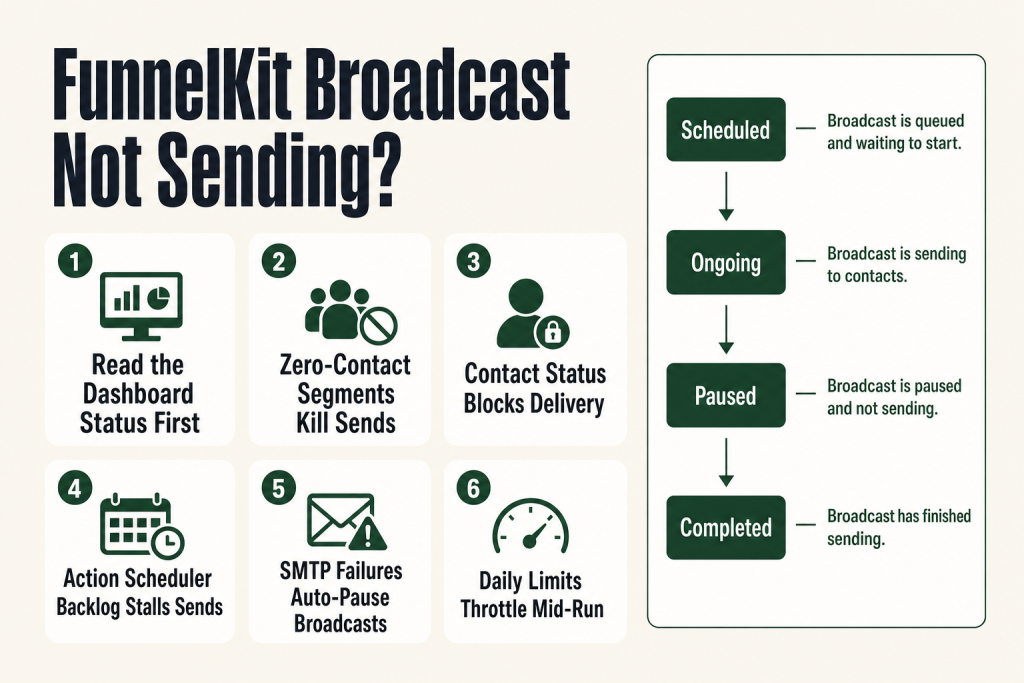
The 30-second answer
- Scheduled, not sent: Check the Broadcast Dashboard for “Scheduled” status. The send time you picked may not have passed yet, or the WordPress site timezone is off.
- Zero-contact audience: Your segment filters returned no matching contacts. Re-run the filter preview before launching.
- Contact status blocks: Contacts marked Unsubscribed or Bounced are skipped by default. Confirm the target contacts are “Subscribed.”
- Action Scheduler backlog: FunnelKit Automations is a backend automation engine that runs via WP-Cron or Action Scheduler. A stalled queue means no emails leave, even though the broadcast shows “Ongoing.”
- SMTP failure loop: A run of consecutive delivery failures auto-pauses the broadcast. Check the error message in the broadcast overview and fix your SMTP connection first. (The exact pause threshold was raised in v3.6.4 Pro; check your installed version.)
- Daily or per-second sending limits: FunnelKit Automations enforces limits set under Settings > Email. If your list is larger than the daily cap, the broadcast stops mid-send.
- Wrong sender address: A From Email that your SMTP provider does not recognise causes silent rejections or hard failures before any message leaves.
- Cached worker URL: A cached internal URL can prevent background processes from firing. Check and clear it from the FunnelKit troubleshooting docs.
Take this fix into your next scenario. The free Builder’s Companion Kit collects the checklists and templates that pair with this guide — so next time, you start from a template, not a blank page. Grab it free →
- Start at the Broadcast Dashboard: Read the Status First
- Schedule vs. Send Now: Two Paths, Two Failure Modes
- Segment Filters That Return Zero Contacts Silently Kill the Send
- Contact Status: Subscribed, Unsubscribed, and Bounced All Behave Differently
- Action Scheduler Backlog: the Invisible Reason Broadcasts Stall
- SMTP and Sender Setup: the Misconfiguration That Pauses Everything
- Sending Limits That Throttle or Halt Your Broadcast Mid-Run
- Deliverability Checks: When Sends Are Logged as Sent but Never Arrive
- Worked Diagnostic Walkthrough: FunnelKit Broadcast Not Sending
- FAQ
A FunnelKit broadcast not sending is one of those problems that looks catastrophic but almost always has a mundane explanation. You hit “Broadcast Now,” nothing shows up in inboxes, and the dashboard either sits on “Ongoing” forever or flips to “Completed” with a suspiciously low send count. Before you start questioning your entire email setup, work through this checklist. Every cause below is real and fixable. Some clear in a couple of minutes. Others, like a misconfigured server cron on shared hosting, can take longer, so set aside time before a big send rather than after.
Start at the Broadcast Dashboard: Read the Status First
Before touching any setting, go to Campaigns > Broadcasts inside FunnelKit Automations. The official docs confirm the path as “Campaigns ⇨ Broadcasts” (not a deeper sub-menu). You’ll see a list of all the broadcasts you’ve created, and you can filter by Scheduled, Ongoing, Completed, or Paused status. Each state means something different and points you at a different fix.
- Scheduled: The broadcast exists and is queued, but the send date and time have not arrived yet. Verify the date, time, and especially the timezone. A broadcast set for 9 AM in the wrong timezone could be sitting hours away from firing.
- Ongoing: Sending is in progress. A large list can take time to drain through your sending limits. If it has been stuck on “Ongoing” for more than a few hours with no movement, jump to the Action Scheduler section below.
- Paused: If your broadcast was sent to only a few contacts and then stopped, it is likely because a run of consecutive emails failed. FunnelKit Automations shows a notice in the broadcast overview with the exact error reason from your email service provider. The threshold for consecutive failures was raised in v3.6.4 Pro, so the exact number depends on the version you have installed. Check the notice text in your dashboard for the current trigger.
- Completed with a low count: The broadcast ran but your segment filters drastically narrowed the audience, or many contacts were skipped due to status. Read on.
You can cancel a paused or ongoing broadcast by clicking the action button and hitting Cancel if you need to restart clean. Otherwise use “Resume Broadcast” after fixing the underlying issue.
Schedule vs. Send Now: Two Paths, Two Failure Modes
From the final summary step you can click “Broadcast Now” to send the email right away, or “Schedule for Later” to pick a specific date and time. When scheduling, you select the exact date and time and hit Schedule to lock it in.
The most common mistake here is choosing “Schedule for Later,” selecting a time, saving, and then expecting the email to be live immediately. It is not. It will sit under the Scheduled tab until that moment arrives. The second most common mistake is setting a time in a different timezone than your contacts expect.
FunnelKit Automations uses your WordPress site timezone for all scheduled sends. WordPress does not automatically detect or adjust for visitor or operator timezone discrepancies. It reads whatever value is saved under WordPress Dashboard > Settings > General and uses that as-is. If that value is wrong, every scheduled broadcast fires at the wrong real-world time, with no warning. Confirm the WordPress timezone matches your intended send timezone before you create the broadcast, not after. Fix the WordPress timezone first, then schedule the send.
Segment Filters That Return Zero Contacts Silently Kill the Send
This is the one that trips operators most often on a new list. You build a careful audience, launch the broadcast, and nothing happens because the filter returned no matches. FunnelKit does not throw a big warning when the contact count is zero: it just sends to zero people and marks the broadcast complete.
When selecting recipients for a broadcast campaign, you use the filter UI for precise audience targeting with full AND/OR capabilities. That power is also the trap. An AND chain across three conditions can easily produce an empty result set when you expect thousands of contacts.
Before you launch, click the Filter button on the audience step and let FunnelKit calculate the matching contact count. Only the contacts who match those filters will show up. If no contacts satisfy your filtering criteria, you will get a prompt that says “No Contacts Found.” That is your signal to loosen the conditions.
Common culprits:
- Tag mismatch: You filtered by a tag that was renamed or never actually applied to anyone. Check the exact tag spelling in Contacts > Lists & Tags.
- List filter too narrow: Lists are broader segments. You can create a list, add contacts to it, and then broadcast to that list. If the list itself is empty, the broadcast has nobody to send to.
- Tags or lists not reflecting after a recent update: A bug in older versions of FunnelKit Automations Pro caused updated tags and lists not to appear in broadcast audience selection until the cache was cleared. This was patched in v3.6.4 Pro. If you are on an older version and recently added contacts or tags that are not showing in your filter preview, update the plugin first. If you are already on a current version and still see stale data, clear any server-side or plugin caches and try again.
- AND vs. OR logic: Switch any AND connector to OR and recount. If the number jumps dramatically, your conditions are too restrictive in combination.
Contact Status: Subscribed, Unsubscribed, and Bounced All Behave Differently
FunnelKit only sends promotional broadcast emails to contacts whose status allows it. Get the status wrong and your list looks full but your sends are empty.
A “Subscribed” contact is one who has confirmed their subscription when double opt-in is enabled, and has not unsubscribed or bounced. When double opt-in is turned off, contacts are directly marked as Subscribed. You can send any type of email, whether transactional or promotional, to Subscribed contacts.
You cannot send promotional emails to unsubscribed contacts, though transactional emails can still be sent. The unsubscribe link lets contacts stop receiving promotional emails, but they continue to receive transactional ones.
A contact is labeled “Bounced” when an email sent to them is not delivered due to an invalid address. FunnelKit Automations integrates with various email service providers to automatically mark contacts as Bounced, but you need to set up bounce handling for this to work automatically.
There is one override worth knowing: when building your broadcast audience, you can choose whether to send to unsubscribers and unverified contacts or not. That checkbox is off by default, which is the correct setting for promotional emails. If you need to reach everyone for a transactional-style blast, you can toggle it, but understand the deliverability risk.
To audit your contacts’ statuses, go to FunnelKit Automations > Contacts and filter by status. If a large portion of your target list is Unsubscribed or Bounced, the low send count is expected behavior, not a bug.
For more on how contact status interacts with opt-in flows, see FunnelKit double opt-in setup.
Action Scheduler Backlog: the Invisible Reason Broadcasts Stall
This is the cause that most operators never check because it is invisible. FunnelKit Automations is a backend automation engine that runs via WP-Cron or Action Scheduler. Its own cron worker needs to fire regularly to handle tasks like scheduling, task creation, and sending bulk emails. When that pipeline clogs, every async task in the store quietly stops. Customers do not see errors. You do not see errors. The store just stops doing things.
FunnelKit’s own WP-Cron documentation is direct about this: the cron worker must run every minute to handle broadcast sends, automation scheduling, and data synchronisation. Without it, you will see lag or complete stalls in sending bulk emails. Action Scheduler adds its own layer on top, and FunnelKit updated its Action Scheduler library in v3.6.0 to add extra handling specifically to support broadcasts.
WP-Cron only fires when a visitor loads a page on your site. If your site has very low traffic, or if pages are heavily cached, WP-Cron will not fire often enough to process tasks.
How to check: Go to WooCommerce > Status > Scheduled Actions. Look for Past-due and Failed statuses using the built-in filters. If you see hundreds or thousands of past-due actions, your queue is backed up and broadcasts will not drain.
Common fixes:
- Replace WP-Cron with a real server cron: FunnelKit’s documentation recommends setting up a server-level cron job that hits the FunnelKit cron worker URL every minute. This is the single highest-impact fix for any broadcast or automation timing issue, and it removes the dependency on site traffic entirely. On shared hosting, you can usually do this through cPanel’s Cron Jobs tool under “Advanced.”
- Check for security plugin interference: Temporarily deactivate security plugins like Wordfence or Sucuri to see if the queue starts processing. These plugins can block the loopback requests that Action Scheduler uses, which usually come as POST requests to admin-ajax.php.
- Check the PHP time limit: A short max_execution_time on your server can cause large batches of actions to time out, leaving them stuck as pending.
- Check the FunnelKit worker URL: A cached worker URL prevents FunnelKit Automations background processes from running correctly, including broadcasts. If you see broadcast or automation issues, check whether the FunnelKit Automations cron job is set up, and if the problem persists after that, verify whether the worker URL is cached. FunnelKit’s documentation walks through the exact curl command to test this.
Also check Settings > Logs inside FunnelKit Automations (navigate to Settings, then select the Logs sub-section). One of the most efficient ways to debug an issue is to gather activity logs for an event when the issue occurred. FunnelKit Automations gives you a logs section to see the activity performed by the plugin. Note that these logs are automatically deleted after every month.
See also: FunnelKit and the Action Scheduler: keeping WooCommerce automations running.
SMTP and Sender Setup: the Misconfiguration That Pauses Everything
FunnelKit Automations sends email using WordPress’s native wp_mail() function by default, the same method WordPress itself uses. That function routes messages directly from your web server unless an SMTP plugin is configured to override it. Web servers are not built for bulk email, so without a proper SMTP plugin in place, deliverability breaks fast. FunnelKit recommends installing WP Mail SMTP to handle the actual sending, and you can install it directly from FunnelKit Automations > Tools > Email Setup without hunting for it in the plugin directory.
Once WP Mail SMTP (or an equivalent plugin like WP Offload SES Lite, Postmark for WordPress, or Elastic Email Sender) is configured, copy the From Name and From Email from that plugin and set both values under FunnelKit Automations > Settings > Email. These two values must match what your sending provider expects, or authentication fails.
When creating email broadcasts, you can also set the sender’s name, email, and reply-to address in the Content step of the broadcast builder. If you enter a From Email address there that your SMTP provider does not authorise, messages will fail even though the connection itself is fine.
Recommended plugin pairings: WP Offload SES Lite for Amazon SES, WP Mail SMTP for SendGrid, Mailgun, Elastic Email, and Postmark for WordPress for Postmark.
Quick diagnostic: Use the test email tool inside the broadcast builder (you can send test emails to yourself or any contact before launching) and watch whether the test delivers. If the test fails, the problem is in your SMTP setup, not FunnelKit. Fix the SMTP connection first, then resume or recreate the broadcast.
Check the email logs, verify your SMTP plugin and email service configuration, and resolve any connection or authentication issues. Once resolved, you can resume the broadcast.
Click “Resume Broadcast” from the action button after fixing the issue. FunnelKit Automations automatically retries the emails that initially failed after resuming.
Sending Limits That Throttle or Halt Your Broadcast Mid-Run
FunnelKit Automations has two limits you set under Settings > Email: Email Limit per second (the maximum number of emails sent in a second) and Email Daily Limit (the maximum number of emails sent in a day). These exist to match your SMTP provider’s own caps.
The trap: you set a daily limit of 500 when you signed up, your list has grown to 2,000, and now every broadcast stalls after 500 sends. The dashboard shows “Ongoing” for days because it is waiting for the next day’s quota to open. It is not broken, just throttled.
Your provider’s limits are the real ceiling. Most standard SMTP connections such as Google Workspace or Outlook are built for one-to-one communication and typically have a daily inbox limit of 800 to 1,000 emails. If you are sending a bulk broadcast, you will hit those limits and emails will go undelivered. FunnelKit does not recommend SMTP providers unless they are capable of sending bulk email.
Before a large broadcast, confirm two numbers: the daily limit in your FunnelKit Automations email settings, and the actual sending limit on your ESP account. Set the FunnelKit limit at or below the ESP’s cap. If your list is bigger than the daily cap, split the audience into segments and spread the sends across multiple days, or upgrade your ESP plan.
Deliverability Checks: When Sends Are Logged as Sent but Never Arrive
A different problem from “not sending” is “sent but not received.” The broadcast dashboard shows a healthy sent count, but contacts report seeing nothing. That is a deliverability issue, not a FunnelKit configuration issue, and it requires a different checklist.
SPF, DKIM, and DMARC: These DNS records tell inbox providers your domain is authorised to send from your ESP. Without them, even a well-configured SMTP connection lands in spam or is rejected silently. Your DNS records must be verified against your specific ESP’s requirements, not a generic template. Use a tool like MXToolbox or your ESP’s built-in verification to confirm all three are passing.
From address domain: Ensure that the email addresses you use are valid and allow you to send and receive messages. A From address at a domain with no MX record, or a domain that does not match your DKIM signature, raises immediate red flags for receiving servers.
Bounce handling: Certain email systems like Amazon SES use a threshold for soft bounces. If the same address soft bounces multiple times, typically three consecutive emails, the contact may be reclassified as Bounced. A high bounce rate on your account signals a dirty list to your ESP and can throttle or suspend your sending.
Enable bounce tracking: By enabling the bounce handling option under Settings > Email, you can track bounced emails from your email service provider. This uses a webhook: select your provider and paste the URL into your provider’s webhook settings.
Enable broadcast debug logs: Under Settings > Advanced, scroll to the Debug Logs section. There you’ll find “Enable Logs for Broadcast,” which captures step-by-step execution. Logs are saved to Settings > Logs (the dedicated Logs sub-section confirmed in FunnelKit’s own docs). Turn it on, reproduce the issue, then review what FunnelKit actually attempted. Disable logging once troubleshooting is complete to avoid performance impact.
If you are troubleshooting automation-level emails in addition to broadcasts, the same cron and SMTP stack applies. See the companion article on FunnelKit automation not triggering for trigger-specific causes, FunnelKit abandoned cart emails not sending for issues specific to that automation type, and FunnelKit email deliverability setup for a full walkthrough of SPF, DKIM, and DMARC configuration.
Worked Diagnostic Walkthrough: FunnelKit Broadcast Not Sending
Here is the sequence to run in order. Stop when you find the cause.
- Open the Broadcast Dashboard. Go to Campaigns > Broadcasts inside FunnelKit Automations and read the status column. If it says Scheduled, confirm the send time and timezone in WordPress Settings > General. Remember: WordPress does not auto-adjust for timezone mismatches, so verify the saved value is correct for your intended send time. If it says Paused, read the error message in the broadcast overview before touching anything else.
- Check the audience count. Click into the broadcast, go to the audience step, and re-run your filters. If the preview shows zero contacts, your segment is the problem. Loosen or correct the conditions and save.
- Verify contact status. Filter your Contacts list by the same conditions and check the subscription status column. Contacts showing Unsubscribed or Bounced will not receive promotional broadcasts regardless of your segment settings.
- Check Action Scheduler. Go to WooCommerce > Status > Scheduled Actions and switch to the Past-due filter. More than a handful of items older than a few hours means your cron is stalled. Set up a real server cron job pointing at the FunnelKit cron worker URL, running every minute. On shared hosting, use cPanel’s Cron Jobs tool under “Advanced.”
- Send a test email. Inside the broadcast Content step, use the Send Test Email option and send to your own address. If it fails, go fix your SMTP plugin before doing anything else with the broadcast.
- Review the FunnelKit logs. Go to Settings > Logs, find the most recent broadcast log file, and open it. The log will show exactly where execution stopped and what error was returned.
- Check your sending limits. Go to Settings > Email and compare the Email Daily Limit value against your list size. If the limit is smaller than your audience, the broadcast will send in daily batches until it finishes.
- Resume or recreate the broadcast. Once the root cause is fixed, use Resume Broadcast from the action button if it was paused, or clone the broadcast and relaunch if it was stuck in an unrecoverable state. Cloning copies all settings, segments, and content and produces a duplicate with a “(Copy)” label.
FAQ
Why does my FunnelKit broadcast show Completed but only a few emails were actually sent?
The most common cause is a segment filter that matched far fewer contacts than you expected, or a large portion of your list carrying Unsubscribed or Bounced status. Check the audience preview count before your next send and audit contact statuses in the Contacts list. A second cause is the broadcast auto-pausing after a run of consecutive SMTP failures and then being manually cancelled, which logs it as Completed in some cases.
Why is my FunnelKit broadcast stuck on Ongoing for hours?
The broadcast queue runs through Action Scheduler and WP-Cron. If WP-Cron is not firing reliably, tasks pile up and the broadcast drains slowly or not at all. Check WooCommerce > Status > Scheduled Actions for a past-due backlog. Setting up a real server-side cron job running every minute (pointing at the FunnelKit cron worker URL) is the permanent fix. Also check your Email Daily Limit under Settings > Email: if the limit is lower than your list size, the broadcast will trickle out over multiple days.
Can I use Gmail or Google Workspace SMTP to send a broadcast to thousands of contacts?
FunnelKit does not recommend it. Standard SMTP connections like Google Workspace and Outlook are built for one-to-one communication and carry daily limits around 800 to 1,000 emails. A large broadcast will hit those limits quickly and go undelivered. Use a bulk-capable sending provider like Amazon SES, SendGrid, Mailgun, or similar instead.
Why did my FunnelKit broadcast pause itself?
FunnelKit Automations automatically pauses a broadcast when a run of consecutive emails fails to send through your email service provider. The broadcast overview shows the error reason returned by the provider. The pause threshold was increased in v3.6.4 Pro, so the exact number of failures that triggers the pause depends on your installed version. Fix the SMTP or authentication issue first, then use Resume Broadcast from the action button. FunnelKit will retry the failed emails automatically after you resume.
My broadcast sent successfully but contacts say they never received it. What do I check?
This is a deliverability issue, not a send failure. Verify that SPF, DKIM, and DMARC DNS records are correctly configured for your sending domain and ESP. Check your bounce rate in the ESP dashboard: a high bounce rate can suppress your account. Also confirm the From Email address matches the domain your DKIM key is signed for. Enable bounce handling in FunnelKit Automations > Settings > Email so bounced contacts are automatically flagged and excluded from future sends.
Does FunnelKit broadcast skip unsubscribed contacts automatically?
Yes. Contacts with Unsubscribed or Bounced status are skipped for promotional broadcasts by default. There is a checkbox in the broadcast audience step that you can enable if needed, but this is off by default and should stay off for promotional email to protect your sender reputation.
Sources:
Sources: FunnelKit Automations: Email Broadcast setup docs; FunnelKit: Email Broadcast Didn’t Reach All Contacts? Here’s Why; FunnelKit Automations: Email Settings (limits, From address); FunnelKit Automations: Email Setup / SMTP; FunnelKit Automations: Sending Emails From Different Senders; FunnelKit Automations: Email Deliverability FAQs; FunnelKit Automations: Contact Status; FunnelKit Automations: Logs; FunnelKit Automations: Advanced Settings / Debug Logs; FunnelKit Automations: Cached Worker URL troubleshooting; FunnelKit Automations: Creating Audiences; FunnelKit Automations: Email Deliverability Best Practices; FunnelKit Automations: WP-CRON setup; FunnelKit: Ensure Your WordPress Cron Is Working Properly; WooCommerce: Scheduled Actions / Action Scheduler.
Brian Kasday spent forty years in direct-response marketing before rebuilding the whole operation as a one-person shop. He writes The Operator’s Library — including “The Missing Manual for FunnelKit” — for operators who’d rather build it themselves than wait on someone else.
Get the Builder’s Companion Kit — the free checklists and templates that pair with this guide: mmsvegas.com/op/funnelkit-resources/.
This guide fixes one FunnelKit step. The Missing Manual for FunnelKit covers the whole checkout system. See the manual →
More FunnelKit guides
Free · FunnelKit Operator Toolkit
Building checkouts in FunnelKit?
Get the free operator toolkit — order-bump templates, checkout checklists, and a note when what you just read changes.
Get the free toolkit →