
Table of contents
- What a data store actually is
- When to use one, and when not to
- Creating a data store and defining your structure
- The five operations you will use
- Reading all records: the pagination trap
- Using data stores across multiple scenarios
- The real limits: size, records, and what happens when you hit them
- Quick reference
- Frequently asked questions
Make’s data store is a simple key-value database that lives inside your Make account. You create it, define its columns, and then any scenario you own can read from or write to it, no external database required.
That sounds modest, and it is. But for the specific problems it solves, remembering what ran last time, deduplicating records across scenario runs, passing state between two unrelated scenarios, it’s the right tool, and the alternatives (Google Sheets as a makeshift database, a paid Airtable base, an external database connection) all cost more friction than the job warrants. The catch is that Make’s documentation explains the mechanics without explaining when and why, and there are several limits that will surprise you if you discover them in production. This guide covers both.
What a data store actually is
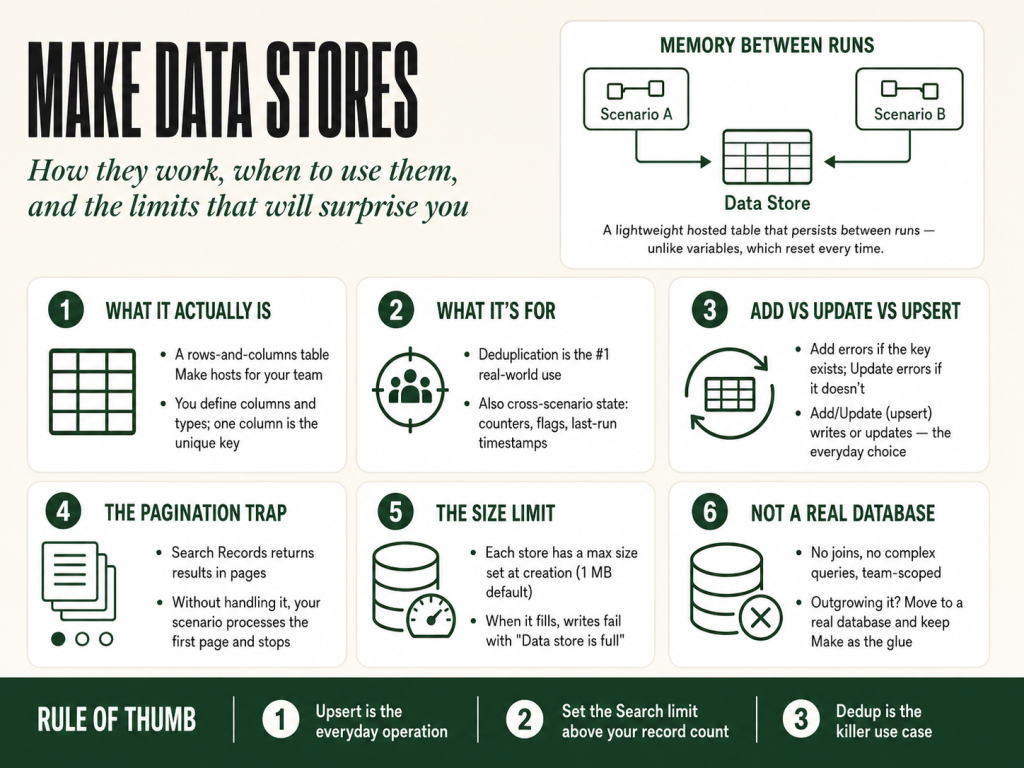
A data store is a lightweight table, rows and columns, that Make hosts for you. Each data store belongs to your Make team and persists between scenario runs. Unlike a scenario’s internal variables (which reset every run) or the data that flows through a module’s output (which disappears the moment the scenario finishes), a data store keeps its values until you explicitly change or delete them.
You define the structure: a name for the store, and a list of columns with types (text, number, boolean, date, array, object). One column can be designated the key, Make uses this as the unique identifier for each row. If you don’t designate a key, Make generates a numeric ID automatically.
That’s the whole model. It’s not a relational database. There are no joins, no foreign keys, no indexes beyond the key column. Think of it as a persistent spreadsheet that your scenarios can read and write to mid-run.
When to use one, and when not to
Data stores are the right answer for a short list of problems.
Deduplication. Your trigger fires for every new record in a source, but some records have already been processed. Store the unique ID of each processed record in a data store, then check for it at the start of each run. If it’s there, skip. If it isn’t, process and write it. This is the most common real-world use of data stores, and it works cleanly.
Cross-scenario state. Two scenarios need to share a value, a counter, a flag, a last-run timestamp, but they have no other connection. Writing to a shared data store is the cleanest solution. One scenario writes the value; the other reads it. No external system needed.
Simple queues. You can write records to a data store in one scenario and process them in another, clearing each record once it’s handled. This works well for low-volume queues where strict ordering and delivery guarantees don’t matter.
When not to use one. Data stores are not the right tool for large datasets, reporting, or anything that requires search beyond the key column. If you’re storing more than a few thousand records, working with data other people need to see or edit, or running queries against values in non-key columns, reach for a proper external database (Airtable, Supabase, Google Sheets for human-readable data, or a direct database connection). Make’s data stores don’t support filtering by arbitrary columns, the “Search records” operation does a full-table scan filtered client-side, which is slow and credit-expensive at scale.
Before you build with data stores: the free Builder’s Companion Kit includes reference cards for Make’s core features, including a data store cheat sheet, plus six importable scenario blueprints. Get the free kit →
Creating a data store and defining your structure
In Make’s left navigation, go to Data stores. Click Add a data store. Give it a name, something specific enough to find later (processed-order-ids is better than my-store). Set the data storage size; the default is 1 MB.
Next, define your structure. Each row in the structure becomes a column:
- Namethe column name your modules will reference.
- Typetext, number, boolean, date, time, date-time, array, or object (object means a nested set of key-value pairs).
- Is Key?mark one column as the key. Make uses this for lookups and for the upsert behavior of “Add/Update a Record.” If you don’t set a key, Make uses an auto-generated numeric
Keyfield. - Requiredif checked, Make will error if a scenario tries to write a record without that field.
Design tip: always set an explicit key column using a value that’s naturally unique in your data, an order ID, an email address, a combination field. Auto-generated keys make lookups awkward because you’d have to search for a record by a non-key field instead of going straight to it by key.
You can add columns to a data store after creating it, but you can’t change a column’s type. If you need to change a type, you’ll need to create a new store and migrate the data.
The five operations you will use
The Data Store module in Make exposes several operations. Five cover almost every real use case.
Add a Record. Writes a new row. If a record with the same key already exists, Make throws an error, it does not overwrite. Use this when you know the record is new and want duplicate writes to fail loudly.
Update a Record. Updates an existing row by key. If the key doesn’t exist, Make throws an error. Use when you’re certain the record exists and want a missing record to fail loudly.
Add/Update a Record (upsert). Writes the record if the key doesn’t exist; updates it if it does. This is the most useful operation. In most automations, you want “write this value, overwrite if it’s already there”, upsert is that behavior without needing a prior check.
Get a Record. Reads a single row by key. Returns the record’s fields if found; returns nothing (an empty bundle) if not found. This is how you check whether a record exists, run “Get a Record,” then use a filter to check whether the bundle is empty.
Search Records. Scans all records in the data store and returns those that match a condition. The condition is applied after retrieval, Make reads every record in the store and then filters. This is the operation to use sparingly at scale: a 5,000-record store with a search runs the condition against all 5,000 rows every time. Use it for small stores or one-time setup scenarios. For anything repeated at volume, structure your data to use “Get a Record” by key instead.
Delete a Record. Removes a row by key. Irreversible, Make does not prompt for confirmation in a running scenario.
Reading all records: the pagination trap
This is the mistake that bites people building queue-style automations or data-sync scenarios.
The “Search Records” operation, including searching with no filter, to get all records, returns results in pages. You set how many records come back per run with the module’s Limit field, and a large store is returned in pages. Make processes each page as a bundle, and if your scenario doesn’t handle pagination, it processes the first 100 rows and stops.
The fix: in the Search Records module settings, there’s a Limit field. Set it to the maximum number of records you expect. If your store might grow, build the scenario to iterate through pages using the iterator pattern or accept that the limit needs periodic adjustment. A cleaner design for large datasets is to structure your key so you can retrieve records one at a time by key rather than scanning.
The second trap is writing to a data store while iterating over it. If your scenario reads all records, processes each one, and deletes records as it goes, Make may re-read pages mid-iteration and either miss records or double-process them. Safe pattern: read all records first (into an array aggregator), then process each record from the aggregated list, then delete. That way your read is complete before any writes happen.
Using data stores across multiple scenarios
A data store isn’t locked to the scenario that created it. Any scenario in your team can read from or write to any data store in the same team account. This is the feature most documentation underplays.
The practical implications are significant. You can build a “writer” scenario that collects data from several sources and normalizes it into a data store, and a separate “reader” scenario that runs on a different schedule and consumes that data. You can use a data store as a shared configuration table, one scenario reads a set of settings from the store, another updates them via a webhook trigger. You can implement a simple mutex by checking for a flag in a data store before a scenario proceeds.
Concurrency caveat: Make does not lock a data store record while a scenario reads it. If two scenario runs execute simultaneously and both read-then-write the same key, you can get a race condition, the second write overwrites the first without seeing it. For most small-operator use cases this doesn’t matter. If you’re building something where simultaneous runs are likely and the data must be consistent, either design the key structure so each run writes a distinct key, or ensure the scenario is set to run sequentially (Make’s scenario settings have a “Sequential processing” option for this).
Related: if your data store use case is really about reliable state across retries and error handling, the companion article on Make error handling covers the full picture of how Make persists (or doesn’t persist) bundle state when scenarios fail.
The real limits: size, records, and what happens when you hit them
Data stores have two limits that matter: storage size and the number of data stores per team.
Storage size. Each data store has a maximum size in megabytes, set when you create it. The default is 1 MB. You can increase it at creation time or by editing the store later, up to the per-store ceiling your plan allows, 1 MB by default on the entry Core plan, more on Pro and Teams, and custom on Enterprise (check make.com/pricing for your plan’s current figure). When a data store hits its size limit, Make throws a “Data store is full” error on the next write attempt. The scenario doesn’t partially succeed, the write fails and the scenario errors. Monitor your data store sizes in the Data Stores panel; Make shows current usage versus the limit for each store.
Number of data stores. You can create up to 1,000 data stores per organization, regardless of your plan. If you hit that limit, Make won’t let you create a new store. The fix is to either upgrade your plan or consolidate stores, multiple logical “tables” can live in the same store if you use a composite key (e.g., prefix the key with the entity type: order:12345 vs customer:67890).
Record count. There’s no hard record-count limit independent of the size limit, you can have as many records as fit in the allocated megabytes. A 1 MB store with lean text records can hold several thousand rows. A store with records containing long text fields or nested objects fills up faster. Design accordingly: store IDs and compact values, not full document content.
What happens when you hit a limit. Make throws an error on the operation that breached the limit, it doesn’t silently drop data. The scenario logs the error, and if you have incomplete execution handling enabled, the failed bundle is parked for review. This is the right behavior, but it means you need to monitor your data stores actively if they’re on a growth path. There’s no built-in Make alert for “data store approaching capacity.” If that matters to your operation, build a monitoring scenario that runs daily, reads the store’s current size and record count via the Make API, the data store GET endpoint returns size, records, and maxSize, and sends an alert if usage exceeds a threshold.
Quick reference
| Operation | What it does | Error if missing? | Use when |
|---|---|---|---|
| Add a Record | Creates a new row | Yes, errors if key exists | Record is guaranteed new |
| Update a Record | Updates an existing row by key | Yes, errors if key missing | Record is guaranteed to exist |
| Add/Update (upsert) | Creates or overwrites | No | Most writes, safest default |
| Get a Record | Reads one row by key | No, returns empty bundle | Check existence; targeted reads |
| Search Records | Scans all rows, filters by condition | No | Small stores; setup/one-off runs |
| Delete a Record | Removes a row by key | No | Clearing processed queue items |
Frequently asked questions
Can two scenarios use the same data store at the same time? Yes, any scenario in your team can read from or write to any data store in the same account. There are no locks, so if two scenario runs execute simultaneously and both write to the same key, the second write wins. For most use cases this doesn’t matter; if it does, enable sequential processing on the scenario or design keys so concurrent runs write distinct rows.
What’s the difference between Add a Record and Add/Update a Record? Add a Record errors if the key already exists, it will not overwrite. Add/Update a Record (upsert) creates the record if it’s new or overwrites it if it already exists. In most automations, upsert is the right default because it handles both cases without requiring a prior existence check.
How do I check if a record exists without erroring? Use “Get a Record” by key. If the record exists, Make returns it. If it doesn’t exist, Make returns an empty bundle, not an error. Add a filter after the Get module: if the bundle is empty (the key field is empty or missing), take the “new record” path; otherwise take the “exists” path.
Can I query a data store by a non-key column? Not directly. “Search Records” lets you filter by any field, but it’s a full-table scan, Make reads every record and then applies the filter. This works fine for small stores but gets slow and expensive at scale. The better design is to set your key column to the value you’ll query most often, so you can use “Get a Record” directly.
What happens when a data store is full? Make throws a “Data store is full” error on the next write attempt. The failing operation errors, the scenario logs it, and if incomplete execution handling is enabled, the bundle is parked. There’s no silent data loss, the error is explicit. Monitor your store sizes in the Data Stores panel and set alerts if a store is on a growth path.
Do data stores count against my credit usage? The data store module itself counts credits like any other Make module, each time the Data Store module runs, it consumes one credit (or one credit per bundle for bundle-level operations). The data stored in the store does not consume credits; only the read/write operations do. See the companion article on Make operations vs. credits for the full credit model.
Get the full Make reference
The free Builder’s Companion Kit has the data store cheat sheet, a cost estimator so credits never surprise you, six importable starter blueprints, and the Production Readiness Checklist. Everything in one download, no fluff. Get the free kit →
If you’re ready to start building, you can create a free Make account here and have your first scenario running today, the free plan is enough to learn on and test your first data store.
More Make guides
Free · Make Operator Toolkit
Running scenarios in Make?
Get the free operator toolkit — production checklists and the fixes that keep scenarios alive under real traffic, plus a note when this guide changes.
Get the free toolkit →