
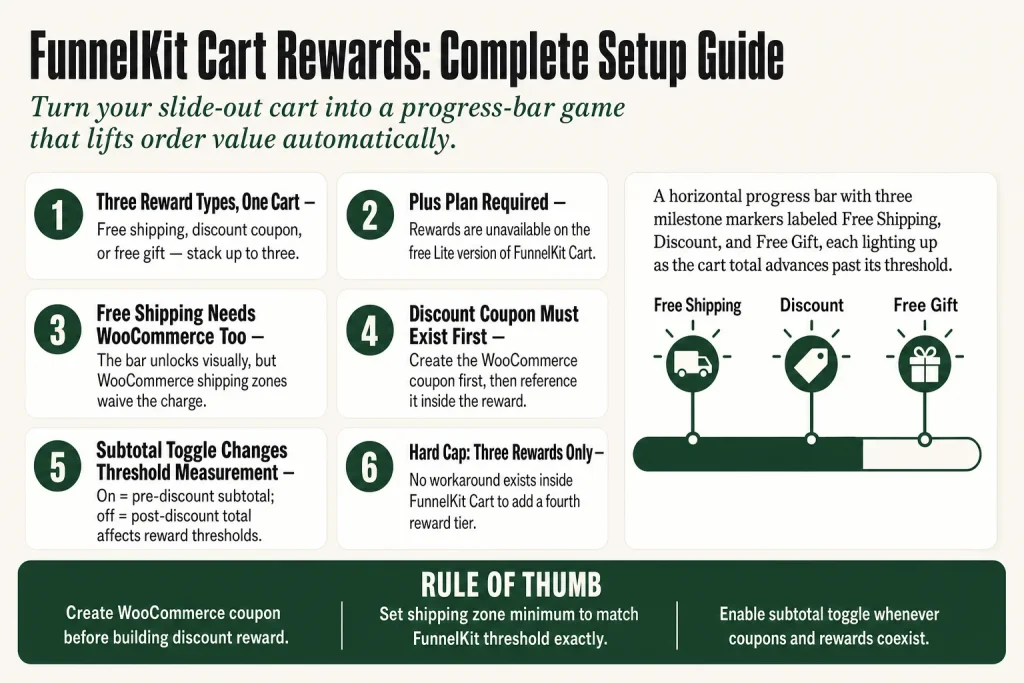
The 30-second answer
- Three reward types: free shipping, discount (auto-applied WooCommerce coupon), and free gift (product added to cart automatically).
- Maximum of three rewards per cartin any combination and any order you choose.
- Rewards require FunnelKit Plus plan or abovethey are not available on the free Lite version.
- Free shipping requires a matching WooCommerce shipping zone: you must add a free shipping method in WooCommerce → Settings → Shipping and set a minimum order amount there too.
- Discount rewards use an existing WooCommerce couponcreate the coupon first, then reference it in the reward.
- The “Calculate Rewards on Cart Subtotal” toggle controls whether thresholds are measured before or after existing discounts are applied.
- Two progress-bar styles available: Modern and Classic, each with its own colour customisation options.
Take this fix into your next scenario. The free Builder’s Companion Kit collects the checklists and templates that pair with this guide — so next time, you start from a template, not a blank page. Grab it free →
- What FunnelKit Cart Rewards Actually Are
- Plan Requirement Before You Start
- The Three FunnelKit Cart Rewards Types
- How to Set Up FunnelKit Cart Rewards: Step by Step
- Worked Example: A Three-Tier FunnelKit Cart Rewards Stack
- Common Mistakes That Break FunnelKit Cart Rewards
- Cart Rewards vs the Free Shipping Bar: What’s the Difference
- FAQ
FunnelKit cart rewards are the milestone system built into FunnelKit Cart Pro that turns your slide-out cart into a progress-bar game: spend $X more, unlock free shipping; spend $Y more, get a discount; hit $Z, grab a free gift. The mechanic is simple, but the setup has a few sharp edges that bite operators who skip the details. This page covers every reward type, the exact configuration steps, the one WooCommerce prerequisite that blocks free shipping from ever firing, and the toggle that changes how thresholds are calculated.
What FunnelKit Cart Rewards Actually Are
FunnelKit Cart is the slide-out cart drawer that replaces the default WooCommerce cart page. The rewards system sits inside it as a progress bar. A shopper sees exactly how far they are from each milestone, adds one more item to close the gap, and the reward drops automatically when the threshold is crossed. Think of it like an arcade ticket counter: the number counts up as they add products, and the prize dispenses when it hits the mark.
The official docs describe it as a system to “gamify the shopping experience” by unlocking a special price, free shipping, or a gift once the cart reaches a certain threshold. You can stack all three rewards at once, or run just one or two. The rewards fire in milestone order, so a shopper can unlock them one by one as they keep adding to the cart.
One hard limit to know up front: you can configure a maximum of three rewards per cart. You cannot add a fourth. Choose your tiers carefully before you build.
Plan Requirement Before You Start
The rewards feature is not available on the free Lite version of FunnelKit Cart. According to the official docs, rewards are available to all FunnelKit users on the Plus plan and above. If you open the Rewards section and see nothing but an upgrade prompt, that is your answer.
If you are on a qualifying plan and the Rewards section still looks empty or broken, check the FunnelKit Cart Not Showing guide first to confirm the cart itself is active, then return here.
The Three FunnelKit Cart Rewards Types
FunnelKit Cart offers exactly three reward types. Here is what each one does and what it needs to work.
1. Free Shipping
When a shopper’s cart hits your threshold, FunnelKit Cart marks the shipping reward as unlocked and the progress bar completes for that tier. But the actual shipping waiver does not come from FunnelKit. It comes from WooCommerce. You must first configure a free shipping method in WooCommerce → Settings → Shipping, add it to the correct shipping zone, and set a minimum order amount there. FunnelKit’s reward bar is the visual signal; WooCommerce is the engine that removes the charge. Skip that WooCommerce step and the bar will show “unlocked” while the customer still pays for shipping at checkout.
There is also a code-based workaround documented by FunnelKit for stores that use a custom or third-party shipping method not covered by WooCommerce’s native free shipping option. It uses the fkcart_free_shipping filter to pass a method ID and minimum amount directly, bypassing the standard shipping zone setup. Use that path only if your shipping setup genuinely cannot use the native method.
2. Discount
The discount reward auto-applies a WooCommerce coupon when the cart hits your threshold. You must create the coupon first in WooCommerce → Marketing → Coupons (or WooCommerce → Coupons on older installs), then reference it by searching for it inside the reward setup. The coupon can be a percentage discount, a fixed cart discount, or a fixed product discount depending on how you configured it in WooCommerce. FunnelKit applies it automatically; the shopper does not need to type a code. If a coupon is not applying as expected, the FunnelKit Coupon Not Applying guide covers every failure mode.
3. Free Gift
The free gift reward adds a product from your catalogue to the cart automatically when the threshold is crossed. You pick the product from your store when setting up the reward, set the cart value that triggers it, and write the message the shopper sees. Variable products are supported as gifts, and shoppers can change variations of a free gift variable product from inside the cart drawer. The gift product is added at zero cost; if the shopper removes it and the cart still meets the threshold, it will be added again.
How to Set Up FunnelKit Cart Rewards: Step by Step
Here is the full walkthrough for configuring all three reward tiers. You can use one, two, or all three in any order you like.
- Enable FunnelKit Cart. Go to FunnelKit → Cart and confirm the cart toggle is on.
- Open the Rewards section. Inside FunnelKit Cart settings, click Rewards, then click Create Reward.
- Choose your reward type. Select Free Shipping, Discount, or Free Gift.
- Set the cart amount threshold. Enter the minimum cart value that unlocks this reward.
- Add the reward details.
- For Free Shipping: add an icon, title, and message. Confirm WooCommerce shipping zones are configured separately.
- For Discount: search and select the existing WooCommerce coupon you want auto-applied.
- For Free Gift: search and select the product you want added to the cart, then set the threshold amount and your reward message.
- Add more rewards if needed. Click Create Another Reward to add a second or third tier.
- Configure global reward options. After all rewards are set, configure:
- Messages: the text displayed when all rewards are unlocked.
- Calculate Rewards on Cart Subtotal: toggle on to measure thresholds against the subtotal before any discount is applied; toggle off to measure against the order total after discounts.
- Choose a progress bar style. Select Modern or Classic. Classic lets you customise the active progress bar colour.
The subtotal toggle deserves a moment of attention. If a shopper has a coupon that drops their order total below your threshold, leaving this toggle off means they lose the reward. Turning it on measures against the pre-discount subtotal, so the reward survives the coupon application. Neither setting is wrong; it just depends on whether you want rewards to stack with coupon codes or not.
Worked Example: A Three-Tier FunnelKit Cart Rewards Stack
Say you sell supplements with an average order value of $65. You want to push customers toward $100. Here is a plausible three-tier setup:
- $75 threshold: Free shipping. Configure a free shipping coupon zone in WooCommerce with a $75 minimum. Create a Free Shipping reward in FunnelKit Cart set to $75. Message: “You’re [amount] away from free shipping.”
- $100 threshold: 10% discount. Create a 10% percentage coupon in WooCommerce (no usage limits, auto-apply). Reference it in a Discount reward set to $100. Message: “10% off unlocked.”
- $130 threshold: Free gift. Pick a low-COGS sample product (say, a trial-size product). Create a Free Gift reward at $130, select that product. Message: “Free sample added to your cart.”
Set “Calculate Rewards on Cart Subtotal” to on, so the 10% coupon applied at $100 does not drag the measured total below $75 and accidentally strip the free shipping reward.
The shopper sees a progress bar with three markers. At $52 spent, the bar nudges them: “$23 away from free shipping.” That is the nudge that lifts the cart. This is the same mechanic described in the FunnelKit docs: “a visitor adds items worth up to $200, they unlock free shipping” then “items worth up to $300, they will get an additional 10% discount.” Scale the dollar amounts to your catalogue.
If you also run cart-level automations tied to spend behaviour, the FunnelKit Rule Engine is the right place to layer in conditional offer logic that goes beyond what the rewards bar can do on its own.
Common Mistakes That Break FunnelKit Cart Rewards
Most reward failures come down to four mistakes.
Skipping the WooCommerce shipping zone for free shipping
The reward bar unlocks visually but the shipping fee still appears at checkout. Fix: go to WooCommerce → Settings → Shipping, add a free shipping method to the correct zone, and set a minimum order amount that matches your FunnelKit threshold.
Referencing a coupon that has usage restrictions
If the WooCommerce coupon you linked has a usage limit per user, an expiry date, or is restricted to specific products or emails, it may silently fail to apply. The reward fires, but the discount does not appear. Test with a clean coupon first, then add restrictions once you confirm it works.
Getting the subtotal toggle wrong
If you have coupons in play and the toggle is off, a shopper who applies a coupon first can fall below the reward threshold on the “after discount” total, losing a reward they visually already unlocked. That is a jarring experience. Decide your policy before launch and set the toggle to match.
Expecting more than three rewards
The cap is three. There is no workaround inside FunnelKit Cart itself. If you need more complex tiering, you need a different tool for that layer.
If your cart is not showing up at all (so none of this matters yet), check FunnelKit Cart Not Showing. If the cart is live but a specific coupon is not applying even outside the rewards system, see FunnelKit Coupon Not Applying.
Cart Rewards vs the Free Shipping Bar: What’s the Difference
FunnelKit also has a dedicated free shipping bar that lives inside the cart drawer separately from the milestone rewards system. The rewards system is for multi-tier gamification (up to three milestones, each unlocking a different reward type). The free shipping bar is a single-purpose progress indicator focused only on the shipping threshold.
If you only need a shipping bar and no other reward tiers, the standalone bar is simpler to configure. If you want stacked milestones, use the rewards system. The two are not mutually exclusive by design, but running both simultaneously can create a confusing visual for shoppers. Pick the tool that matches your strategy and use it consistently. The full setup for the standalone bar is in the FunnelKit Free Shipping Bar Setup guide.
FAQ
how many rewards can you add in funnelkit cart
FunnelKit Cart supports a maximum of three rewards: free shipping, a discount, and a free gift. You can use any one, two, or all three in any combination. There is no way to add a fourth reward tier within the cart rewards system itself.
does funnelkit cart rewards require a paid plan
Yes. The rewards feature is available on the FunnelKit Plus plan and above. It is not included in the free Lite version of FunnelKit Cart.
why is funnelkit free shipping reward not working at checkout
The reward bar is controlled by FunnelKit, but the actual shipping waiver comes from WooCommerce. You must add a free shipping method to your WooCommerce shipping zone and set a minimum order amount there. If that WooCommerce setting is missing, the bar will show as unlocked but the shipping charge will still appear at checkout.
what does calculate rewards on cart subtotal do in funnelkit
When this toggle is on, FunnelKit measures reward thresholds against the cart subtotal before any discount is applied. When it is off, thresholds are measured against the order total after discounts. If shoppers use coupons, leaving it off can cause them to fall below a threshold they already visually unlocked, which is a poor experience.
can you use a variable product as a free gift in funnelkit cart rewards
Yes. FunnelKit Cart supports variable products as free gifts. Shoppers can change the variation of the free gift product from inside the cart drawer without visiting the product page.
does the funnelkit discount reward auto-apply the coupon or does the shopper have to enter it
The coupon is applied automatically when the cart hits the threshold. The shopper does not need to enter any code. You create the coupon in WooCommerce first, then reference it inside the FunnelKit reward configuration.
Sources:
Sources: FunnelKit Cart Rewards Overview (funnelkit.com/docs, updated July 2025); Set Up Rewards (funnelkit.com/docs, updated July 2025); FunnelKit Cart Rewards index (funnelkit.com/docs, updated July 2025); Free Shipping Reward Without Native WooCommerce Options (funnelkit.com/docs); FunnelKit Lite vs Pro comparison (funnelkit.com).
Brian Kasday spent forty years in direct-response marketing before rebuilding the whole operation as a one-person shop. He writes The Operator’s Library — including “The Missing Manual for FunnelKit” — for operators who’d rather build it themselves than wait on someone else.
Get the Builder’s Companion Kit — the free checklists and templates that pair with this guide: mmsvegas.com/op/funnelkit-resources/.
This guide fixes one FunnelKit step. The Missing Manual for FunnelKit covers the whole checkout system. See the manual →
More FunnelKit guides
Free · FunnelKit Operator Toolkit
Building checkouts in FunnelKit?
Get the free operator toolkit — order-bump templates, checkout checklists, and a note when what you just read changes.
Get the free toolkit →