
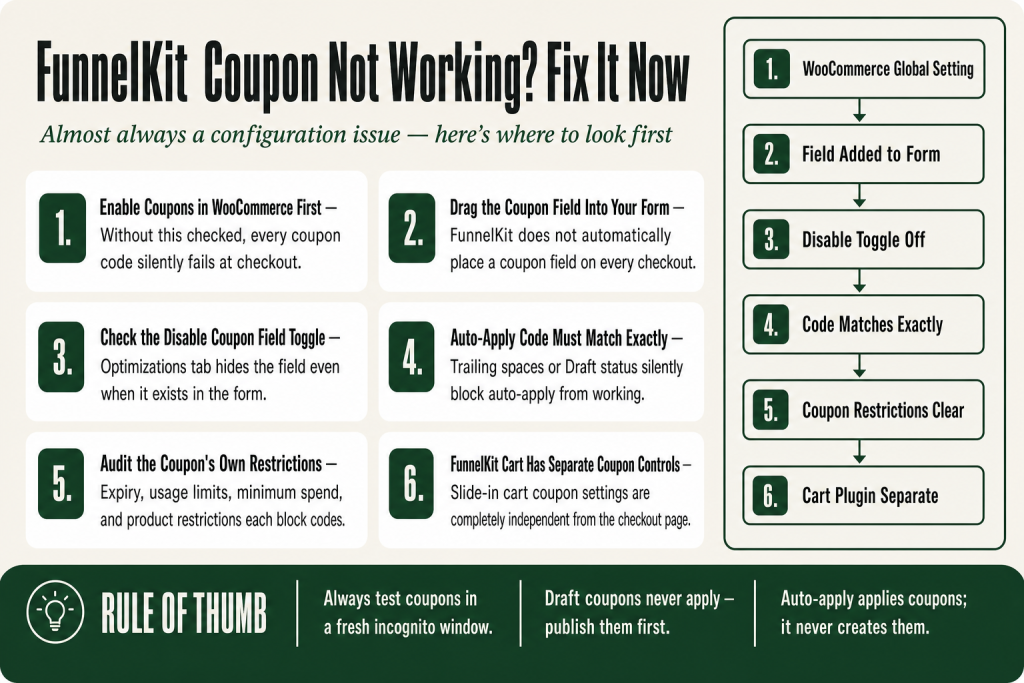
The 30-second answer
- WooCommerce coupons are globally disabled: Go to WooCommerce → Settings → General and check “Enable the use of coupon codes.”
- The coupon field was never added to the checkout form: Open the checkout page in the FunnelKit editor, go to Checkout Form Fields, and drag the Coupon field in.
- The field is hidden via the Optimizations tab: The “Disable Coupon Field” option inside Auto Apply Coupons can suppress the field even when it exists in the form.
- Auto-apply is on but pointing to the wrong coupon: Check the Optimizations → Auto Apply Coupons section and confirm the code matches exactly what’s in Marketing → Coupons (WooCommerce → Coupons on older installs).
- The coupon itself is invalid: Check expiry date, usage limits, minimum spend, product/category restrictions, and publication status in Marketing → Coupons.
- The coupon field is hidden inside the mini cart but missing from the form: If you moved the field to a custom position, you may have two fields or none. Check both the mini cart setting and the form fields.
Take this fix into your next scenario. The free Builder’s Companion Kit collects the checklists and templates that pair with this guide — so next time, you start from a template, not a blank page. Grab it free →
- First check: WooCommerce coupons may be globally disabled
- The coupon field was never added to the FunnelKit checkout form
- The “Disable Coupon Field” option inside Auto Apply Coupons is switched on
- Auto-apply coupon is set up but funnelkit coupon not applying at checkout
- The coupon URL parameter isn’t applying the code
- The coupon itself is invalid: restriction checks to run
- If you’re using FunnelKit Cart (the slide-in cart): separate coupon field controls
- Worked example: coupon field missing after switching templates
- Coupon created in FunnelKit Automations isn’t arriving or applying
- FAQ
A funnelkit coupon not applying is one of those problems that looks like a FunnelKit bug but is almost always a configuration issue one layer deeper. Either the coupon field isn’t on the checkout page, it’s been deliberately hidden, the coupon itself isn’t valid, or WooCommerce’s own coupon system isn’t switched on. Each cause has a different fix. Work through this list in order and you’ll find yours.
First check: WooCommerce coupons may be globally disabled
This is the one everyone skips because it seems too obvious. If coupons are switched off at the WooCommerce level, nothing FunnelKit does will make them apply. The coupon field may render on the page but every code a customer enters will silently fail or show an error.
To check: go to WooCommerce → Settings → General. Scroll down to the “Enable Coupons” section. Enable the use of coupon codes must be checked. WooCommerce’s own documentation confirms this is the prerequisite for any coupon to work, regardless of which checkout plugin you’re using.
Save changes and test again before moving on. If coupons were already enabled, keep reading.
The coupon field was never added to the FunnelKit checkout form
FunnelKit Funnel Builder doesn’t automatically place a coupon field on every checkout page. You have to add it manually. If you built your checkout from a template, it may or may not be included, depending on which template you chose.
To add the field: open your funnel in the FunnelKit dashboard, click your checkout step, and look for the Checkout Form Fields section on the Design tab. Pick the Coupon field from the available fields panel and drag it into position on the form. Click Save.
You can also make the field collapsible so it doesn’t distract buyers who don’t have a code. Enable the “Make coupon field a clickable link” toggle inside the field settings to collapse it by default. Click Update when done.
If you want the coupon field at a custom position, note that the mini cart may already be showing one. Placing both results in duplicate coupon fields, which confuses buyers. Disable the one inside the mini cart settings when you add the field to a custom spot in the form.
For a complete look at how FunnelKit checkout form fields work, see FunnelKit Checkout Fields Customization: Add, Remove, Reorder, and Fix.
The “Disable Coupon Field” option inside Auto Apply Coupons is switched on
This is the most common cause of a field that used to show and now doesn’t. Inside the Optimizations tab, the Auto Apply Coupons section contains a “Disable Coupon Field” toggle. Flip it to Yes and the coupon field disappears from buyers’ view, even if it’s physically present in your form layout. It’s easy to hit by accident when you’re configuring auto-apply for the first time.
To check: in the FunnelKit funnel builder, click your checkout page and go to the Optimizations tab. Find the Auto Apply Coupons section. Inside it you’ll see the “Disable Coupon Field” option with Yes and No buttons. If Yes is selected, the field will not appear to buyers.
If you deliberately want to hide the field because you’re auto-applying a code, that’s intentional behavior. If you want buyers to be able to enter their own codes, select No and hit Save changes.
Auto-apply coupon is set up but funnelkit coupon not applying at checkout
FunnelKit’s auto-apply feature applies a coupon you’ve already created inside WooCommerce. The official docs are explicit: this field doesn’t create a new coupon. It only applies coupons that already exist in WooCommerce. If the code you’ve entered in the Optimizations tab doesn’t exactly match an active coupon in WooCommerce, nothing gets applied and you won’t always see a clear error.
The auto-apply setup lives at: your checkout step → Optimizations tab → scroll down to Auto Apply Coupons. Click the Yes button to enable it, then enter the coupon code in the field that appears. That code must already exist under Marketing → Coupons (shown as WooCommerce → Coupons on older installs where the legacy menu hasn’t been dismissed) and must be published, unexpired, and within its usage limits.
Common mistakes here:
- Trailing space in the coupon code field inside Optimizations.
- Code exists in WooCommerce but the coupon is in Draft status rather than Published.
- The coupon has a minimum spend requirement the test cart doesn’t meet.
- The coupon is restricted to specific products and the cart contains none of them.
After any change, click Save changes in FunnelKit and test with an incognito window so cached sessions don’t confuse your results.
Worked example: auto-apply set up correctly but the code still won’t apply
Here’s a scenario I’ve seen more than once. You create a coupon in WooCommerce, paste the code into the Auto Apply Coupons field in the Optimizations tab, hit Save, and then visit the checkout in incognito. No discount appears. Here’s how to work through it step by step:
- Copy the exact code from WooCommerce first. Go to Marketing → Coupons (or WooCommerce → Coupons on older installs), open the coupon, and copy the code directly from the “Coupon code” field. Don’t retype it from memory.
- Paste it back into the Optimizations field. In your checkout step, go to the Optimizations tab, find Auto Apply Coupons, enable it (Yes), clear the existing code field, and paste the freshly copied code. Hit Save changes.
- Check the coupon’s status. Back in Marketing → Coupons, confirm the coupon is Published, not Draft. A Draft coupon won’t apply regardless of how correctly you’ve entered the code.
- Check the expiry date and usage limits. Open the coupon’s General tab and confirm the expiry date is in the future. Open the Usage Limits tab and confirm the coupon hasn’t hit its per-coupon limit. A fully used or expired coupon fails silently at the auto-apply stage.
- Test with a cart that meets every restriction. If the coupon has a minimum spend or product restriction, your test cart has to clear those hurdles too. Add the required product, meet the minimum spend, and test again in a fresh incognito session.
- Confirm no caching is swallowing the parameter. If your server or a caching plugin is caching the checkout page, the auto-apply logic may never run. Exclude your checkout URL from your caching rules, flush the cache, and retest.
If you’ve run through all six steps and the code still won’t apply, open the coupon in WooCommerce and temporarily remove all restrictions. If it applies then, a restriction is the culprit. Add them back one at a time until it breaks again. That narrows it to one setting.
If you also want to embed coupon codes inside recovery emails, FunnelKit Automations handles that separately. See FunnelKit Abandoned Cart Emails Not Sending? for the email side of that setup.
The coupon URL parameter isn’t applying the code
FunnelKit supports passing a coupon code directly in the URL so that buyers land on checkout with a discount already applied. The parameter format documented by FunnelKit is:
https://yourdomain.com/checkouts/YourCheckoutPageName/?aero-coupons=COUPONCODEYou can pass multiple codes by separating them with a comma. If this parameter isn’t working, check these points:
- The coupon code in the URL must match exactly the code in WooCommerce, including letter case where your server is case-sensitive.
- The coupon must be published and valid (not expired, not over its usage limit).
- If a page caching plugin is active, a cached version of the checkout page may strip or ignore query parameters. Exclude your checkout URL from cache rules, then retest.
- Confirm the checkout page URL slug in the parameter matches the actual slug FunnelKit assigned to your checkout page.
The URL parameter approach is especially useful for broadcast email campaigns. For background on how FunnelKit Automations sends those broadcasts, see FunnelKit Broadcast Not Sending.
The coupon itself is invalid: restriction checks to run
If the field shows and the customer enters a code but it still doesn’t apply, the problem is almost always inside the coupon’s own WooCommerce settings. Think of each restriction as a gate the coupon has to pass through. Any one of them can quietly block it.
Go to Marketing → Coupons (shown as WooCommerce → Coupons on older installs where the legacy menu is still active) and open the coupon. Work through each tab:
- General tab: Confirm the coupon has a discount type and amount set. Confirm the expiry date isn’t in the past. If it expired, update the date and save.
- Usage Restrictions tab: Check minimum and maximum spend. If the cart total doesn’t meet the minimum, WooCommerce will reject the code. Check product and category restrictions. If the coupon is restricted to products the buyer hasn’t added, it won’t apply. Check whether “Individual use only” is ticked and another coupon is already in the cart.
- Usage Limits tab: Check the per-coupon usage limit. If the limit has been reached, the code is exhausted. Increase the limit or create a fresh code.
- Publication status: The coupon must be in Published status. Draft coupons will not apply.
One edge case worth knowing: if you’re testing as an admin user or a logged-in user who has already used this coupon at its per-user limit, the test will fail even though it would work for a new customer. Always test in an incognito window with a guest session or a fresh account.
If you’re using FunnelKit Cart (the slide-in cart): separate coupon field controls
FunnelKit Cart is a separate product from FunnelKit Funnel Builder, and its coupon field settings are completely independent from the checkout page coupon field. The two plugins have no shared coupon-display toggle. If your store uses the sliding cart, you control that coupon box inside the FunnelKit Cart settings, not inside the checkout funnel editor.
Inside FunnelKit Cart settings you can choose to show or hide the coupon box, and you can set it to display collapsed or expanded by default. If the coupon box is hidden there, buyers using the cart drawer won’t see it regardless of what the checkout page does. To be clear: hiding the coupon field in FunnelKit Cart only affects the slide-in cart. It has no effect on the coupon field inside your FunnelKit checkout page, and vice versa. You manage each one in its own settings area.
If you’re running both FunnelKit Cart and a custom checkout page with its own coupon field, make sure you haven’t ended up with duplicate coupon entry points. One clear place to enter a code is better than two confusing ones.
Note also that there have been community-reported conflicts between FunnelKit Cart and certain third-party coupon plugins. If buyers are seeing permission errors when applying codes through the sliding cart, the likeliest cause is a plugin conflict. Test by temporarily deactivating other coupon-related plugins one at a time to isolate the culprit.
Worked example: coupon field missing after switching templates
Here’s a real scenario. You switch your checkout to a new FunnelKit template to refresh the design. The new template looks great but customers start reporting there’s nowhere to enter a coupon code. Here’s the fastest way to diagnose and fix it:
- Open your funnel and click the checkout step.
- Go to the Optimizations tab. Under Auto Apply Coupons, confirm “Disable Coupon Field” is set to No. If it was Yes, flip it, save, and test. You’re done.
- If that wasn’t it, scroll down to the Checkout Form Fields section on the Design tab. Scan the active fields for a Coupon field. If it’s missing, drag it in from the available fields panel and click Save.
- Visit the live checkout in an incognito window. Type a test coupon code and click Apply. If it applies, you’re done. If you get an error message, the issue is now inside the coupon settings themselves, not FunnelKit. Go to Marketing → Coupons and audit the restriction tabs as described in the section above.
- If the field shows but nothing happens when you click Apply, check WooCommerce → Settings → General and confirm “Enable the use of coupon codes” is checked.
This five-step sequence resolves the majority of cases without needing to contact support.
Coupon created in FunnelKit Automations isn’t arriving or applying
FunnelKit Automations can generate and deliver personalized coupon codes inside automated emails. You use a “Create Coupon” action step in your automation workflow, set the discount type, amount, prefix, and expiry, and Automations generates the unique code and embeds it in the email. This is a confirmed feature in the official docs and works across win-back sequences, post-purchase follow-ups, and abandoned cart recovery.
Important: the “Create Coupon” action step requires the paid (Pro) version of FunnelKit Automations. The free (Lite) version does not include the Create Coupon action. If you’re on the Lite version and expecting dynamic coupon generation inside a workflow, that’s why it isn’t working. FunnelKit Automations Pro is bundled with the Professional and Elite plans of FunnelKit Funnel Builder, or you can purchase it as a standalone plugin. With the free version, you can still embed a static existing WooCommerce coupon code as plain text in your emails, but the code won’t be generated or personalized on a per-contact basis at send time.
If the coupon in one of those emails isn’t working when the buyer clicks through and you do have the Pro version, the issue is usually one of three things:
- The Create Coupon action step failed or wasn’t added. If the automation action that generates the coupon code didn’t run, the merge tag in the email body will output nothing or a literal tag. Check the automation logs for errors on that action step. For merge tag problems generally, see FunnelKit Merge Tags Not Working.
- The auto-apply URL is malformed. When you embed a coupon inside a cart recovery URL, the link must carry the correct parameter for the checkout page and the valid coupon code. Verify the generated URL in a browser before sending the campaign.
- The automation itself isn’t firing. If the email never sends, the coupon never arrives. See FunnelKit Automation Not Triggering if you’re not sure the workflow is running.
Any coupon code the automation issues must still pass all the standard WooCommerce validity checks when the buyer tries to use it.
FAQ
why is the coupon field not showing on my funnelkit checkout page
Two things cause this most often. First, the coupon field simply hasn’t been added to the checkout form: open the checkout step in FunnelKit, go to the Design tab, scroll to Checkout Form Fields, and drag the Coupon field in. Second, the Disable Coupon Field option inside the Auto Apply Coupons section of the Optimizations tab may be set to Yes. Flip it to No and save.
funnelkit coupon code not working says invalid
An “invalid” error comes from WooCommerce, not FunnelKit. Open the coupon under Marketing > Coupons (or WooCommerce > Coupons on older installs) and check whether it’s Published, within its usage limit, not expired, and doesn’t have a minimum spend or product restriction the current cart fails to meet. Also confirm WooCommerce > Settings > General has “Enable the use of coupon codes” checked.
does funnelkit auto apply coupon require pro
Yes. The Auto Apply Coupons feature inside the Optimizations tab requires FunnelKit Funnel Builder Pro. The coupon itself must be created first in Marketing > Coupons (or WooCommerce > Coupons on older installs). FunnelKit’s auto-apply only applies an existing coupon. It does not create one.
how do i pass a coupon code in the funnelkit checkout url
Add the parameter ?aero-coupons=YOURCOUPONCODE to your FunnelKit checkout page URL. For multiple codes, separate them with a comma. The coupon must already exist and be active in WooCommerce for the parameter to work.
funnelkit cart coupon field not showing in slide-in cart
FunnelKit Cart has its own coupon field setting that is completely separate from the checkout page coupon field. Open the FunnelKit Cart settings and confirm the coupon box is enabled and set to show. Changes here only affect the slide-in cart, not the checkout page field. If you also have a coupon field on the checkout page, consider disabling one of them to avoid confusing buyers with two entry points.
coupon applied in funnelkit but discount not deducted from order total
This usually means the coupon conditions weren’t fully met at the time of order, or a plugin conflict is overriding the discount calculation. Check whether the cart met the coupon’s minimum spend and product restrictions. Then test with all non-essential plugins deactivated to rule out a conflict with another discount or currency plugin.
Sources:
- FunnelKit Docs: Add Coupon Field and Make it Collapsible
- FunnelKit Docs: How to Auto-Apply Coupons on the Checkout Page
- FunnelKit Docs: Auto-Apply Coupons (Checkout Optimization)
- FunnelKit Docs: Add WooCommerce Coupons via URL Parameter
- FunnelKit Docs: Coupon Field in FunnelKit Cart
- FunnelKit Docs: Create Personalized Coupons (Automations)
- FunnelKit Automations on WordPress.org: Free vs Pro Feature List
- WooCommerce Docs: Managing Coupons
Brian Kasday spent forty years in direct-response marketing before rebuilding the whole operation as a one-person shop. He writes The Operator’s Library — including “The Missing Manual for FunnelKit” — for operators who’d rather build it themselves than wait on someone else.
Get the Builder’s Companion Kit — the free checklists and templates that pair with this guide: mmsvegas.com/op/funnelkit-resources/.
This guide fixes one FunnelKit step. The Missing Manual for FunnelKit covers the whole checkout system. See the manual →
More FunnelKit guides
Free · FunnelKit Operator Toolkit
Building checkouts in FunnelKit?
Get the free operator toolkit — order-bump templates, checkout checklists, and a note when what you just read changes.
Get the free toolkit →