
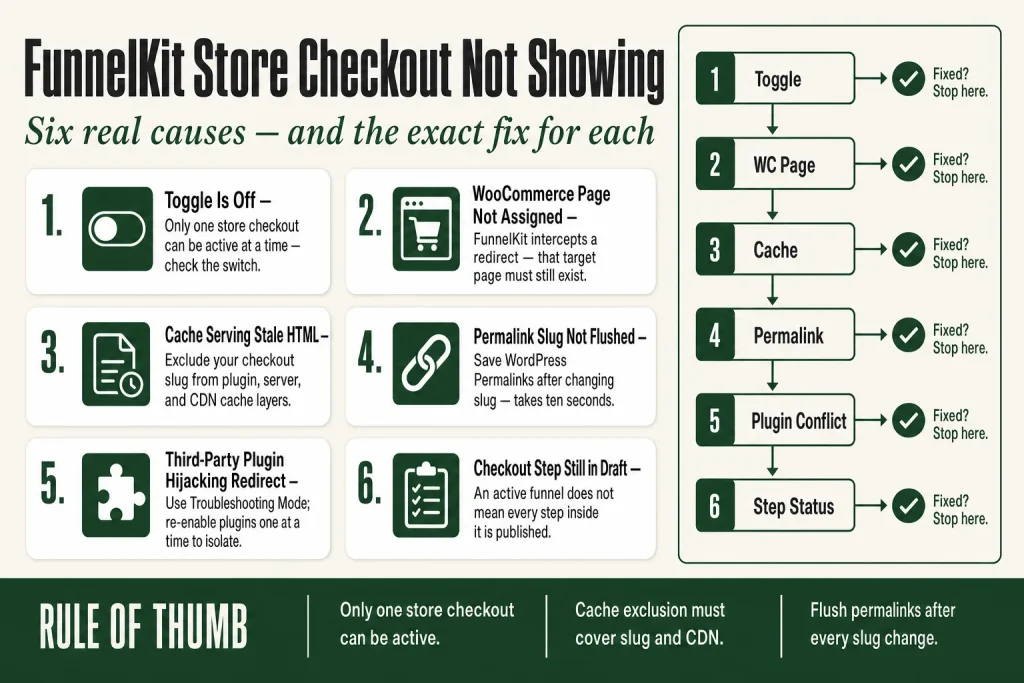
The 30-second answer
- Toggle is off: go to FunnelKit › Store Checkout and confirm the “Enable Store Checkout” toggle is on. Without it, nothing switches over.
- WooCommerce checkout page not set correctly: WooCommerce › Settings › Advanced must still point to a valid checkout page. If that field is empty or points to a deleted page, some redirects break before FunnelKit can intercept them.
- Cache serving stale HTML: your FunnelKit checkout page URL (default slug:
checkouts) must be excluded from every cache layer, including plugin cache, server-level cache, and CDN. - Permalink mismatch: if you changed the checkout slug in FunnelKit › Settings › General › Permalinks but didn’t flush WordPress rewrite rules, the old URL returns a 404 and the new one is unknown.
- Third-party plugin conflict: another plugin (a bundle plugin, a competing checkout, or a page builder) can hijack the checkout redirect before FunnelKit fires.
- Funnel is published but the checkout step itself is in draft: the funnel being active is not the same as every step inside it being live.
Take this fix into your next scenario. The free Builder’s Companion Kit collects the checklists and templates that pair with this guide — so next time, you start from a template, not a blank page. Grab it free →
- The Enable Store Checkout Toggle: What It Actually Does
- WooCommerce Checkout Page Assignment and Why It Still Matters
- Cache Is the Invisible Cause Nobody Checks First
- Permalink Mismatch: When You Changed the Slug But Didn’t Flush
- Third-Party Plugin Conflicts That Hijack the Checkout Redirect
- The Funnel Is Active But the Checkout Step Is in Draft
- FunnelKit Store Checkout Not Showing: A Step-by-Step Diagnosis Walkthrough
- What FunnelKit Can’t Fix on Its Own
- FAQ
FunnelKit store checkout not showing is one of the most disorienting problems you can hit. You built the funnel, imported the template, and customers are still landing on the plain WooCommerce checkout. The design you spent an hour on is nowhere. The fix is almost always one setting you missed or one plugin doing something you didn’t expect. This guide walks every cause in order, from the most common to the most obscure, so you can find it fast and get back to work.
The Enable Store Checkout Toggle: What It Actually Does
FunnelKit uses a single on/off switch to tell WooCommerce which checkout page to serve. When the toggle is on, every shopper who hits the native WooCommerce checkout URL gets redirected to your FunnelKit template instead. When it’s off, they go straight to the default WooCommerce checkout, no matter how polished your funnel is.
To check it: go to FunnelKit › Store Checkout. Next to your checkout funnel, you’ll see the toggle. If it’s grey, flip it. The label reads Enable Store Checkout.
One thing that catches people: you can have multiple store checkouts built inside FunnelKit, but only one can be active at a time. If you built a second funnel to test a new template and enabled it, the first one silently became inactive. Check that the toggle is on for the funnel you actually want customers to see.
Toggling it off reverts your site immediately to the default WooCommerce checkout. That makes it safe to test, but it also means an accidental click takes your custom checkout offline. If you share dashboard access with anyone, that’s worth knowing.
WooCommerce Checkout Page Assignment and Why It Still Matters
Even with FunnelKit active, WooCommerce still needs a valid page assigned under WooCommerce › Settings › Advanced › Checkout page. FunnelKit intercepts the redirect to that page and swaps in your template. If the field is empty, points to a deleted page, or points to a page with no content, some paths through your store (especially cart-to-checkout links) can break before FunnelKit ever gets a chance to intercept.
The fix is simple: make sure a page exists and is assigned there. It doesn’t have to look good. It’s a redirect target, not a destination. FunnelKit replaces what the visitor actually sees.
A related issue: if you deleted the original WooCommerce checkout page during setup and never re-created it, this field is now blank. Create a plain WordPress page, title it “Checkout”, publish it, and assign it. FunnelKit will take over from there.
For a deeper look at the difference between a store checkout funnel and a product-specific checkout, see FunnelKit Store Checkout vs Product-Specific Checkout: Which One Do You Need?
Cache Is the Invisible Cause Nobody Checks First
Think of your cache plugin as a photograph of your checkout page taken before you activated FunnelKit. Everyone who visits gets handed that old photograph instead of the live page. Your FunnelKit store checkout not showing problem may already be fixed in your database, but shoppers still see the old checkout because nothing told the cache to take a new picture.
FunnelKit’s checkout pages use a slug structure that the major cache plugins don’t exclude automatically. The default parent slug is checkouts, so a URL might look like yourdomain.com/checkouts/your-funnel-name. You need to add that path to your cache plugin’s exclusion list manually.
Find your exact slug by going to FunnelKit › Settings › General › Permalinks. That’s the string to exclude. The process is the same across cache plugins: open the plugin’s settings, find the exclusion or “never cache” field, and add your slug with a trailing wildcard (for example, /checkouts/* or /checkouts/ depending on the plugin).
Cache plugins with documented exclusion steps in FunnelKit’s own docs include WP Rocket, LiteSpeed Cache, W3 Total Cache, WP Super Cache, WP Fastest Cache, and several others. If you’re on a managed host like WP Engine or a CDN like Cloudflare, those have server-level caches that require separate exclusion rules beyond the plugin.
Quick test before you dig into settings: paste your checkout URL into a browser with a fresh incognito window, or append ?nocache=1 to the URL. If the FunnelKit checkout appears there but not in a normal window, cache is your problem.
Permalink Mismatch: When You Changed the Slug But Didn’t Flush
FunnelKit lets you change your checkout slug under FunnelKit › Settings › General › Permalinks. If you changed it and didn’t also save WordPress permalinks, the new slug doesn’t register with the rewrite rules engine. Visitors get a 404. FunnelKit never fires.
The fix takes ten seconds: go to Settings › Permalinks in WordPress and click Save Changes without changing anything. That re-registers the new slug.
If you’re using a cache plugin, clear the cache immediately after. A stale cache can still serve 404s even after the rewrite rules are correct.
One related situation: if you removed the checkouts parent slug entirely (FunnelKit allows this), and you’ve been adding cache exclusions based on that slug, your exclusion rule is now wrong. Update the cache exclusion to match the new URL structure whenever you rename or restructure the permalink.
Third-Party Plugin Conflicts That Hijack the Checkout Redirect
Another plugin can get to the checkout redirect before FunnelKit does. The result looks identical to FunnelKit not working at all, but the cause is external.
Common offenders: other checkout replacement plugins (if you tested a competitor and didn’t fully remove it), page builders that apply full-page templates to WooCommerce endpoints, product bundle plugins that redirect certain cart contents to a different checkout URL, and optimization plugins that strip query strings or modify redirects.
Diagnosis is straightforward. Use WordPress’s built-in Health › Troubleshooting Mode (or the Health Check plugin). That lets you deactivate all other plugins for your session only, without affecting visitors. If FunnelKit’s checkout shows up with everything else off, re-enable plugins one at a time until it breaks again. That’s your conflict.
One thing to know about troubleshooting mode: it’s session-scoped. A page cache can still serve cached HTML to your test session even while other plugins are disabled. If you’re getting inconsistent results, clear the cache and test again in a fresh private window.
If you’re also troubleshooting checkout loading problems beyond just visibility, see FunnelKit Checkout Not Loading: Every Cause and How to Fix Each for the fuller picture.
The Funnel Is Active But the Checkout Step Is in Draft
An active funnel is not the same as an active checkout step. You can enable the store checkout toggle at the funnel level while the individual checkout page step inside it sits in draft. When that happens, FunnelKit has no published page to redirect shoppers to, and the default WooCommerce checkout fills the gap.
To check: go to FunnelKit › Store Checkout, open your funnel, and look at each step in the funnel canvas. The checkout step should show as published, not draft. If it’s in draft, open it and publish it.
This tends to happen when you import a template, save your edits, and then activate the funnel before hitting the final publish button on the step itself. Easy to do when you’re moving quickly through setup.
If you’re building from scratch rather than from a template, see How to Set Up FunnelKit Checkout from Scratch: The Complete Beginner’s Guide for the full setup sequence, including where the step-level publish controls live.
FunnelKit Store Checkout Not Showing: A Step-by-Step Diagnosis Walkthrough
Work through this list in order. Each step takes under a minute. Stop when the checkout appears.
- Check the toggle. Go to FunnelKit › Store Checkout. Confirm the Enable Store Checkout switch is on for the funnel you want active. If another funnel accidentally has the toggle, turn it off and enable the right one.
- Check the step status. Open the active funnel. Confirm the checkout step inside it is published, not draft.
- Check WooCommerce’s checkout page setting. Go to WooCommerce › Settings › Advanced. The Checkout page field must reference a real, published page. If it’s empty, create a placeholder page and assign it.
- Flush rewrite rules. Go to Settings › Permalinks and click Save Changes. This takes two seconds and fixes a surprising number of “not showing” reports.
- Test without cache. Open an incognito window and visit your checkout URL with
?nocache=1appended. If FunnelKit’s checkout shows up here, go exclude the checkout slug from your cache plugin. - Test without other plugins. Use WordPress troubleshooting mode to disable other plugins for your session. If the checkout shows up, re-enable plugins one at a time to isolate the conflict.
- Verify the slug matches your cache exclusion rule. Go to FunnelKit › Settings › General › Permalinks, confirm the current slug, and make sure your cache exclusion uses that exact string.
If you’re unsure whether your situation calls for a store checkout or a product-specific funnel, that distinction matters for diagnosis. The two types behave differently, and the wrong one will never show for the right shoppers. That article is at FunnelKit Store Checkout vs Product-Specific Checkout: Which One Do You Need?
What FunnelKit Can’t Fix on Its Own
FunnelKit intercepts the WooCommerce checkout redirect. It can’t override server-level rules that execute before WordPress even loads. If your host or CDN has a redirect rule pointing /checkout somewhere else, FunnelKit never sees the request. Check your Cloudflare page rules, your host’s redirect manager, and any .htaccess rules if you’re on Apache.
FunnelKit also can’t rescue a checkout that breaks after it loads. If the page shows but the form doesn’t work, that’s a different problem: scripts, payment gateway setup, or a field conflict. This article covers visibility. For post-load issues, see FunnelKit Checkout Not Loading and FunnelKit Stripe Not Connecting.
One honest caveat: if you’re running an A/B test on the checkout step, FunnelKit routes some visitors to a variant URL. If you’re testing from your own account and always land on the control, the variant may be what someone else sees. That’s not a bug, it’s traffic splitting. See FunnelKit A/B Testing: How to Set Up, Read Results, and Declare a Winner if that’s your situation.
FAQ
FunnelKit store checkout not showing after I enabled it, what do I check first?
Check the toggle in FunnelKit > Store Checkout. It needs to be on for the specific funnel you want active. Then verify the checkout step inside that funnel is published, not in draft. Those two things account for most cases.
Does FunnelKit store checkout work if WooCommerce checkout page is empty?
Not reliably. FunnelKit intercepts the redirect to whatever page WooCommerce has assigned as checkout. If that field is empty or points to a deleted page, some checkout paths break before FunnelKit can intercept them. Assign a valid published page under WooCommerce > Settings > Advanced, even if it’s a blank placeholder.
My FunnelKit checkout shows for me but not for customers, what causes that?
Cache. When you’re logged into WordPress, you often bypass cache rules that apply to logged-out visitors. Exclude your FunnelKit checkout slug from your cache plugin, your CDN, and any server-level cache your host runs. Find the slug under FunnelKit > Settings > General > Permalinks.
Can I have two FunnelKit store checkouts active at the same time?
No. Only one store checkout can be active at a time. Enabling a second one disables the first. If you want different checkouts for different products, that requires product-specific funnels, not multiple store checkouts.
FunnelKit store checkout stopped showing after I changed the permalink, how do I fix it?
Go to Settings > Permalinks in WordPress and click Save Changes without changing anything. That flushes the rewrite rules and registers the new slug. Then clear your cache and test again.
Another plugin might be conflicting with FunnelKit checkout, how do I find out which one?
Use WordPress’s built-in Troubleshooting Mode under Tools > Site Health. It lets you deactivate all other plugins for your session only without affecting visitors. If the FunnelKit checkout appears, re-enable plugins one at a time until it breaks. The last one you enabled is the conflict.
Sources:
Sources: FunnelKit Docs: Creating a Store Checkout (Global Checkout Funnel); FunnelKit Docs: Replace the Default WooCommerce Checkout Page; FunnelKit Docs: Caching Plugins; FunnelKit Docs: Permalinks; FunnelKit Docs: Product Not Showing on Checkout (caching); FunnelKit Funnel Builder plugin changelog and FAQ (WordPress.org).
Brian Kasday spent forty years in direct-response marketing before rebuilding the whole operation as a one-person shop. He writes The Operator’s Library — including “The Missing Manual for FunnelKit” — for operators who’d rather build it themselves than wait on someone else.
Get the Builder’s Companion Kit — the free checklists and templates that pair with this guide: mmsvegas.com/op/funnelkit-resources/.
This guide fixes one FunnelKit step. The Missing Manual for FunnelKit covers the whole checkout system. See the manual →
More FunnelKit guides
Free · FunnelKit Operator Toolkit
Building checkouts in FunnelKit?
Get the free operator toolkit — order-bump templates, checkout checklists, and a note when what you just read changes.
Get the free toolkit →