
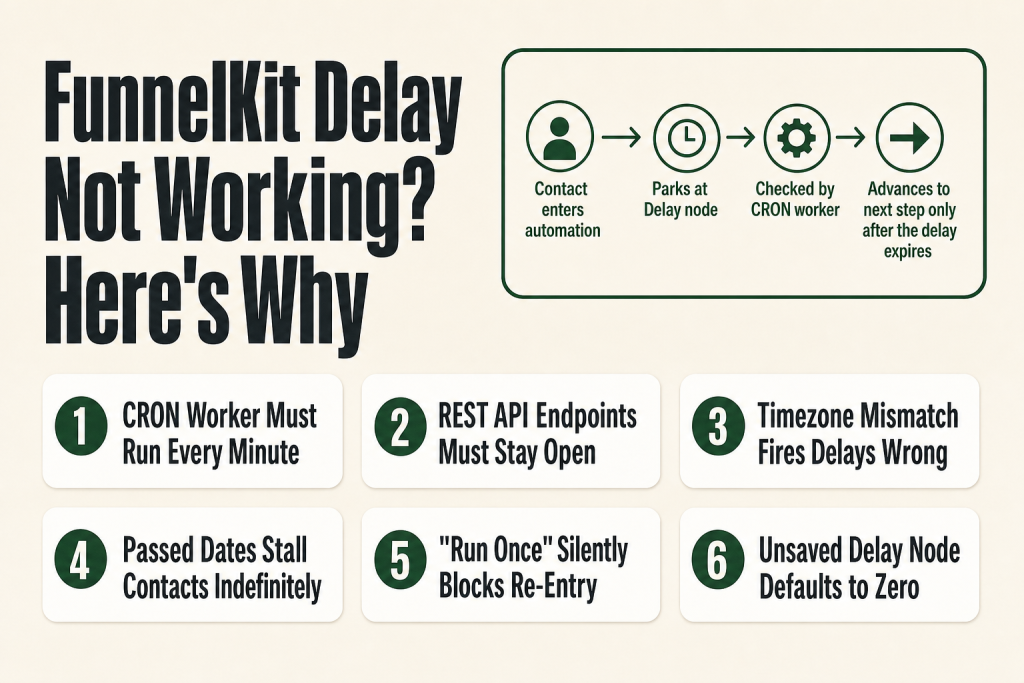
The 30-second answer
- Cron not running: FunnelKit Automations needs its CRON worker to fire every minute. If it is not running, all delay processing stops cold.
- REST API blocked: Security plugins or firewalls that block
/wp-json/funnelkit-automations/*endpoints can hinder or prevent delay steps from processing. - Cached worker URL: A caching layer that caches the FunnelKit worker URL returns a stale response and the queue never advances.
- Timezone conflict: The delay is configured to fire at a specific time of day, and the contact’s timezone (or your WordPress timezone) is wrong.
- “Delay until” date has already passed: When the target date has passed and no jump-to-step is configured, contacts can stall indefinitely.
- Automation set to “run once” with contact still active: The same contact is blocked from re-entering, which looks like the delay is stuck.
- Delay step not saved: You configured the delay but did not click Save before activating the automation.
Take this fix into your next scenario. The free Builder’s Companion Kit collects the checklists and templates that pair with this guide — so next time, you start from a template, not a blank page. Grab it free →
- How the FunnelKit Delay Step Actually Works
- Cause 1: The CRON Worker Is Not Running
- Cause 2: A Plugin or Firewall Is Blocking the REST API Endpoints
- Cause 3: Timezone Mismatch Is Pushing the Delay to the Wrong Time
- Cause 4: The “Delay Until” Date Has Already Passed
- Cause 5: The Automation Is Set to “Run Once” and the Contact Is Still Active
- Cause 6: The Delay Node Was Not Saved
- Walkthrough: Using Advanced Logs to Diagnose a FunnelKit Delay Not Working Issue
- Delay Type Quick Reference: Mode-Specific Pitfalls
- FAQ
A FunnelKit delay not working problem looks deceptively simple: contacts enter the automation, hit the delay step, and just… sit there. The follow-up email never fires, the timed coupon never drops, and you have no idea why. Before you assume something is broken, it helps to know that the delay node itself is rarely the culprit. Sometimes the cause is a system-level fault like a broken cron setup, a blocked REST API endpoint, or a timezone mismatch. Other times it is pure misconfiguration: the wrong delay type, an unsaved node, or an enrollment setting that blocks re-entry. This article names every cause, tells you exactly what to check, and hands you the fix.
How the FunnelKit Delay Step Actually Works
Understanding the mechanism saves you from chasing the wrong fix. Triggers enroll contacts into an automation, and then the next node in the sequence executes. When that node is a Delay, the contact parks at that position and waits. Nothing moves it forward except the CRON worker.
FunnelKit Automations depends on its CRON worker to fire every minute. The official docs label this section “WP-CRON,” and the underlying mechanism is WordPress’s cron system, whether you run it via WP-Cron (the default pseudo-cron) or a real server-level cron job. Think of the worker as the conveyor belt: it picks up parked contacts, checks whether their delay has expired, and pushes them to the next step. If the belt stops, every contact on it stops too, regardless of how long they have been waiting.
The delay step itself offers several modes. You can delay by a fixed period (minutes, hours, days, weeks, or months), delay until a specific time of day or day of the week, delay until a fixed calendar date and time, delay based on a custom contact field such as a date of birth or appointment date, or delay based on an order meta field such as a shipping date (order-related events only). Each mode has its own failure point, so the fix depends on which mode you are using.
One nuance worth memorising: if you combine a fixed-period delay with a “delay until a specific time” step, the logic is sequential. The system first waits the minimum period, then checks whether the target time has already passed in that window. If it has, it waits until the next occurrence of that time. A contact that enters at 10:30 AM Wednesday with a 1-day delay followed by a 10:00 AM Thursday target will wait until 10:00 AM the following Thursday, not the next day, because 10:00 AM Thursday is before the 10:30 AM point when the minimum period expires.
Cause 1: The CRON Worker Is Not Running
This is the most common root cause by a wide margin. FunnelKit Automations depends on its CRON worker to execute every minute to handle scheduling, task creation, and data synchronisation. Without it, delays never resolve and contacts never advance.
WordPress ships with a pseudo-cron called WP-Cron. WP-Cron checks for scheduled tasks on each page load, so on a low-traffic store it may run every 10 to 20 minutes instead of every minute. The delays still resolve eventually, but they fire late, which breaks time-sensitive sequences like abandoned cart recovery. FunnelKit’s own documentation recommends setting up the CRON at the server level for more consistent minute-by-minute execution.
How to check: Go to FunnelKit Automation > Settings > Advanced, enable “Enable Advanced Logs”, then enable the “Enable Logs for Cron Execution Time” sub-option, and let it run for a few minutes. The log file (named fka-cron-check-xxx) shows you the actual frequency the worker is hitting. If you see gaps larger than a minute or two, WP-Cron’s pseudo-cron behaviour is the bottleneck.
The fix: Replace WP-Cron with a server-level cron job. If your host provides cPanel, go to cPanel, search for “Cron Jobs” under Advanced, set the frequency to every minute (* * * * *), and point the command at your WordPress installation using WP-CLI or a direct PHP call. The official FunnelKit docs also note that you can combine WP-CLI with your server’s system crontab so the worker runs without depending on site visitors. Results depend on your host’s environment and any rate-limiting policies they apply, so confirm the approach works for your setup. Some hosts block frequent requests; if you use a third-party service like cron-job.org, ask your host to whitelist the service’s IP addresses.
Cause 2: A Plugin or Firewall Is Blocking the REST API Endpoints
FunnelKit Automations processes delay steps through its own REST API endpoints. If a security plugin, firewall, or caching layer blocks those endpoints, delay processing can be hindered or stopped entirely. The endpoints that must remain open are:
/wp-json/autonami-app/*
/wp-json/woofunnels/*
/wp-json/autonami/*
/wp-json/funnelkit-automations/*
CleanTalk is a known offender. Its “Disable REST API for non-authorized users” setting inside CleanTalk > Settings > General Settings > Miscellaneous blocks all of those endpoints. The fix is to uncheck that option and save. Other security plugins (Wordfence, iThemes Security, and similar) have equivalent settings; look for any rule that restricts REST API access to logged-in users only.
Caching plugins are another common culprit. If a caching plugin caches the FunnelKit worker URL and returns a stale cached response, the queue never advances. WP Rocket and similar plugins need an exclusion rule for the endpoints above. WP Rocket, for example, supports patterns like /wp-json/autonami-app/(.*); add each of the four base paths to the “Never Cache URLs” list.
If you have a 403 error anywhere in FunnelKit’s logs (go to Settings > Logs), that is strong evidence of a blocked endpoint. FunnelKit’s official documentation walks through resolving 403 errors by whitelisting those endpoint URLs in your caching, firewall, or web server settings.
Cause 3: Timezone Mismatch Is Pushing the Delay to the Wrong Time
When you use the “delay until a specific time of day” or “delay until a specific day of the week” mode, FunnelKit checks the contact’s timezone. If the contact’s timezone is not set, it falls back to the timezone configured in your WordPress settings (Settings > General > Timezone). If that is wrong, every timed delay fires at the wrong hour.
The practical failure pattern: you set a delay to fire at 10:00 AM, you are in EST, but WordPress is set to UTC. The email fires at 10:00 AM UTC, which is 5:00 AM or 6:00 AM in your audience’s local time. Your open rates tank and it looks like the delay is “not working” when it is actually working on the wrong clock.
Fix in three steps:
- Confirm WordPress Settings > General > Timezone is set to your primary audience’s timezone, not UTC.
- If you sell internationally and have enabled per-contact timezone delivery, verify the contact record actually has a timezone value. Contacts imported from CSV or created without a storefront session often have no timezone and fall back to the WordPress default.
- After correcting the timezone, contacts already waiting in the delay queue will resolve at the next cron run using the corrected offset. You do not need to re-enroll them manually.
Cause 4: The “Delay Until” Date Has Already Passed
This one trips up anyone using the “delay until a specific date and time” mode or the “delay based on a custom field date” mode. If the target date has already passed when the contact hits that node, FunnelKit needs to know what to do next. The answer depends on whether you have configured the “Jump to step if time has passed” option.
When that option is not configured, the behaviour can leave contacts stalled. A known bug in some versions caused the delay-until-custom-field-date step with day/month recurrence and “jump to step if time has passed” enabled to schedule contacts roughly a year ahead instead of jumping immediately. FunnelKit has listed this as a fixed issue in their changelog. That said, a plugin update alone may not resolve contacts already stuck in your queue: after updating, open each affected delay node, confirm the “Jump to step if time has passed” target is set correctly, save the node, and manually re-enroll any contacts still parked at that step. If contacts continue to behave unexpectedly after updating, check whether a custom field contains a malformed date value, since that can cause similar symptoms independently of the bug.
The correct setup for date-based delays:
- Open the delay node and select the custom-field or fixed-date mode.
- Always configure “Jump to step if time has passed” and point it at the next meaningful step in your sequence (not a dead end or an exit).
- Click Save. This is easy to miss: the delay configuration panel has its own Save button separate from the automation’s main Save.
For order-field delays (shipping date, delivery date from a third-party plugin), remember that this delay mode only becomes active for WooCommerce order-related automation events. If your trigger is not an order event, the field will not be available.
Cause 5: The Automation Is Set to “Run Once” and the Contact Is Still Active
This one looks like a delay problem but is actually an enrollment problem. When an automation is configured to run once per contact and that contact is still in the Active tab (waiting at a delay node), a second trigger for the same contact is silently ignored. The contact never re-enters, the delay never fires, and from the outside it looks like the sequence is broken.
You can confirm this by going to the automation’s Contacts tab. The Contacts tab shows four states: Active, Completed, Paused, and Failed. If the contact is under Active and parked at the delay node, the automation is working correctly but the contact is queued. If the same contact then triggers the event again and does not appear as a second Active entry, the “run once” setting is blocking re-entry.
Your options:
- Enable “Allow currently active contacts in this automation to re-enter again” in the trigger settings if repeat entries make sense for your use case (order confirmation sequences, win-back flows).
- Leave the setting off and accept that the contact will complete the existing run before being eligible again. This is correct for welcome sequences and one-time subscriber flows.
If a contact is stuck in the Active tab but should have completed, you can manually end their automation from the Contacts tab. Go to the entry, click the action menu, and choose to end or delete the activity. This is also where you can retry a failed action or re-enter a contact.
Not sure whether contacts are even entering the automation in the first place? See FunnelKit Automations Contact Not Added for a full enrollment diagnostic.
Cause 6: The Delay Node Was Not Saved
It sounds obvious, but this is a real one. The delay configuration panel opens as a side drawer or modal in the automation builder. It has its own Save button. If you configure the delay, then click away or save the overall automation without explicitly saving the delay node first, the node reverts to its default (or a zero-value) state.
A zero-value delay passes contacts through instantly. That is the opposite of stuck, but it is still wrong and can look like the delay “didn’t work” because emails fire at the wrong time.
The check: Open the delay node in your published automation. If the configured values are blank or show a default of zero, the save did not take. Re-enter your values and click Save inside the delay panel before saving the automation overall.
Walkthrough: Using Advanced Logs to Diagnose a FunnelKit Delay Not Working Issue
When the cause is not obvious, turn on Advanced Logging and let the logs tell you. Here is the exact sequence to follow.
- Enable Advanced Logs. Go to FunnelKit Automation > Settings > Advanced. Enable “Enable Advanced Logs”. Then enable two sub-options: “Enable Logs for Cron Execution Time” and “Enable Logs for Automation Steps”. The logs save to FunnelKit Automation > Settings > Logs.
- Reproduce the issue. Trigger the automation with a test contact. Wait at least two to three minutes.
- Check the cron log. Open the
fka-cron-check-xxxfile. You should see entries spaced roughly one minute apart. Gaps longer than two or three minutes confirm the CRON worker is not running reliably. Fix the cron setup first (see Cause 1 above) before investigating anything else. - Check the automation step log. Open the
fka-automation-step-id-xxxfile for your automation. Look for entries that correspond to your delay node. If you see the contact arrive at the node but never advance past it, note the timestamp difference. If the gap matches the delay duration, the delay is working but the cron fired late. If there are no entries at all after the contact arrives, a REST API block is likely preventing the worker from processing the queue. - Disable Advanced Logs when done. These logs are verbose and are not intended for permanent use. Disable the setting once you have your diagnosis.
If cron runs on time and the logs show the step being processed but emails still do not send after the delay, the issue has moved downstream into the action (the email send step), not the delay itself. Check your email sending setup or review the Failed tab in the Contacts section of that automation for error details.
Delay Type Quick Reference: Mode-Specific Pitfalls
Each delay mode has at least one non-obvious failure point. Some of these are system faults; others are misconfiguration. Here is the condensed reference:
- After a delay (fixed period): Fully dependent on cron. A 1-day delay fires approximately 24 hours after enrollment, but only if the CRON worker is running every minute. On a low-traffic WP-Cron setup, expect drift.
- Delay until a specific time of day / day of the week: Uses the contact’s timezone, falling back to the WordPress timezone. Confirm both are correct. Remember the stacking logic: a minimum-period delay plus a time-of-day delay can result in waits much longer than expected (see the Thursday example in the first section).
- Delay until a specific date and time: Always configure the “Jump to step if time has passed” option. Without it, contacts whose target date is in the past may stall.
- Delay based on a custom field date: The custom field must contain a valid, parseable date value. An empty or malformed field value (wrong date format, text string where a date is expected) causes the delay to behave unpredictably. This is a configuration error, not a bug. FunnelKit has also patched a separate bug where contacts were scheduled a year out instead of jumping when day/month recurrence and “jump to step if time has passed” were both enabled. Update to a current version, then verify your node configuration and re-enroll any contacts still stuck.
- Delay based on an order field value: Only available when the automation trigger is a WooCommerce order-related event. The meta key you specify must exist on the order object and contain a valid date. If the meta key is wrong or empty, the delay cannot resolve. That is a configuration issue, not a system fault.
If your automation is not even reaching the delay step, the problem is upstream. See FunnelKit Automation Not Triggering for the full trigger diagnostic. If your abandoned cart sequence in particular is stuck at the delay, FunnelKit Abandoned Cart Emails Not Sending covers the cart-specific causes that interact with delay timing.
FAQ
Why are contacts stuck in the Active tab at my delay step?
Active means the contact has enrolled and is waiting for the delay period to expire. That is normal. If they stay there far longer than the configured delay, the CRON worker is not running reliably or a REST API block is hindering the queue from processing. Enable Advanced Logs (FunnelKit Automation > Settings > Advanced) and check the cron execution log first.
FunnelKit delay not working after I updated the automation, why?
Contacts who were already waiting at the delay node when you updated the automation continue under the old configuration. Only contacts who enroll after the update see the new delay settings. If you need all contacts to use the new settings, you must manually end their current run and re-enroll them.
Does FunnelKit delay use the contact’s timezone or the site timezone?
For “delay until a specific time of day” or “delay until a specific day of the week” modes, FunnelKit uses the contact’s timezone if one is set on the contact record. If the contact has no timezone, it falls back to the timezone set in WordPress Settings > General > Timezone. Confirm both are correct if your timed delays are firing at the wrong hour.
Can a security plugin cause FunnelKit delays to stop working?
Yes. Security plugins that restrict the WordPress REST API to logged-in users only can hinder or block the FunnelKit Automations endpoints that process delay steps. CleanTalk’s “Disable REST API for non-authorized users” setting is a documented cause. Whitelist the /wp-json/funnelkit-automations/* and related endpoints in any security or firewall plugin you run.
How do I fix a delay-until-custom-field date that sends contacts a year into the future?
This was a confirmed bug in FunnelKit Automations affecting the “delay until custom field date” step when day/month recurrence and “jump to step if time has passed” were both enabled. FunnelKit has listed it as fixed in their changelog. Update to a current version of FunnelKit Automations. After updating, open the delay node, confirm the “Jump to step if time has passed” target is set correctly, and save the node. Then check any contacts still parked at that step and re-enroll them manually. If the behaviour persists after updating, also check whether the custom field contains a malformed date value, since that is a separate configuration issue that can cause similar symptoms on its own.
My delay fires immediately instead of waiting. What is wrong?
The most likely cause is that the delay node was not saved before the automation was activated. Open the delay node in the builder, confirm the delay value is not zero or blank, re-enter your values if needed, click Save inside the delay panel, then save the overall automation. A misconfigured “after a delay” node with a zero value passes contacts through instantly.
Sources:
Sources: FunnelKit Automations: Setting Delays (official docs); FunnelKit Automations: WP-CRON (official docs); FunnelKit: Configure CleanTalk Settings (official docs); FunnelKit: Resolve the 403 Error (official docs); FunnelKit: Check and Resolve the Cached Worker URL (official docs); FunnelKit Automations: Advanced Settings (official docs); FunnelKit Automations: Contacts Tab (official docs); FunnelKit: Automation Runs on Contact Once vs. Multiple Times (official docs); FunnelKit Changelog (official); FunnelKit Automations: Workflow (official docs); FunnelKit: Ensure Your WordPress Cron Is Working Properly (official docs).
Brian Kasday spent forty years in direct-response marketing before rebuilding the whole operation as a one-person shop. He writes The Operator’s Library — including “The Missing Manual for FunnelKit” — for operators who’d rather build it themselves than wait on someone else.
Get the Builder’s Companion Kit — the free checklists and templates that pair with this guide: mmsvegas.com/op/funnelkit-resources/.
This guide fixes one FunnelKit step. The Missing Manual for FunnelKit covers the whole checkout system. See the manual →
More FunnelKit guides
Free · FunnelKit Operator Toolkit
Building checkouts in FunnelKit?
Get the free operator toolkit — order-bump templates, checkout checklists, and a note when what you just read changes.
Get the free toolkit →