
The 30-second answer
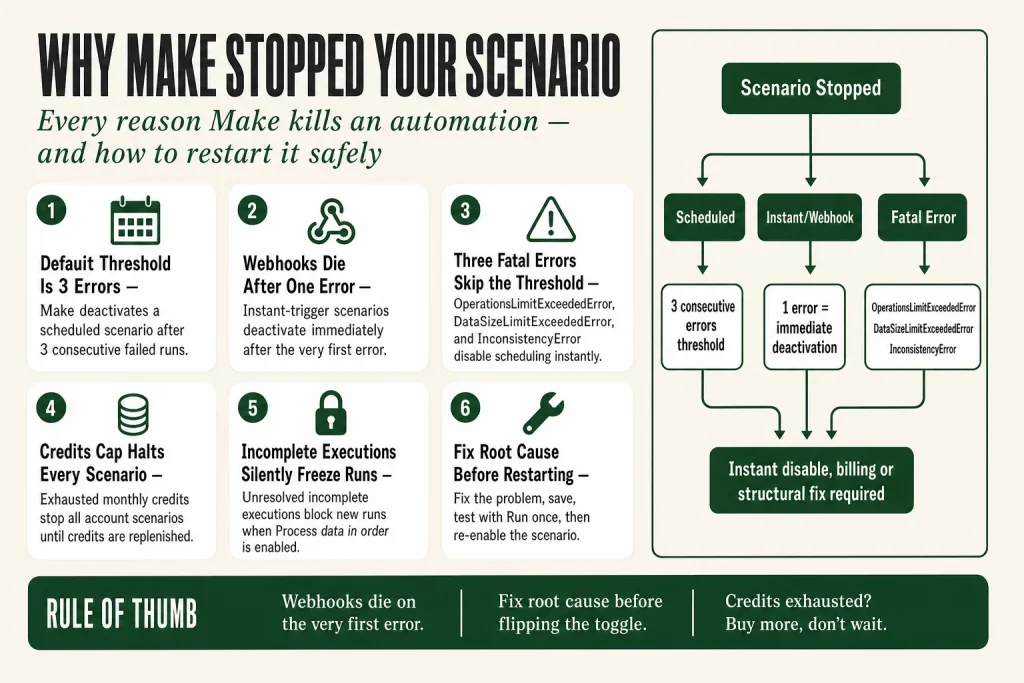
- Consecutive errors hit the threshold. Make deactivates a scheduled scenario after 3 consecutive failed runs by default. You can change this in Scenario settings under the “Errors before deactivation” field (accessible via the advanced settings toggle).
- Instant-trigger (webhook) scenarios get no grace period. If a scenario starts with an instant trigger and a run ends in an error, Make deactivates it immediately, regardless of the consecutive-errors setting.
- Some errors skip the threshold entirely. DataSizeLimitExceededError, InconsistencyError, and OperationsLimitExceededError are all fatal errors that disable scheduling on the first occurrence, no matter what your threshold is set to. Act fast: for OperationsLimitExceededError, buy extra credits or upgrade your plan to replenish your credit allowance so scenarios can resume. For DataSizeLimitExceededError, reduce payload size or buy extra credits to raise your data transfer quota.
- Your plan hit its monthly credits cap. When your organization exhausts its monthly credits, Make halts every scenario in the account until the billing cycle resets or you purchase more credits. The error that fires is called OperationsLimitExceededError. (Make switched from “operations” to “credits” as its billing unit on August 27, 2025. The error name did not change.)
- A blocked incomplete-executions queue froze new runs. If “Process data in order” is enabled and unresolved incomplete executions exist, Make pauses all new runs for that scenario.
- Never just flip the toggle. Fix the root cause first, verify with Run once, then re-enable the scenario.
Take this fix into your next scenario. The free Builder’s Companion Kit collects the checklists and templates that pair with this guide — so next time, you start from a template, not a blank page. Grab it free →
- How Make decides to deactivate a scenario
- Instant triggers play by a completely different rule
- Fatal errors that skip the threshold no matter what
- How incomplete executions can silently freeze a running scenario
- Credits cap: when every scenario in your account stops at once
- Other causes that look like deactivation but aren’t
- Diagnostic walkthrough: how to find out why a make scenario stopped running
- How to restart a stopped scenario safely
- Adjusting the consecutive-errors threshold (and what it cannot do)
- How to know before a client does
- FAQ
A make scenario stopped running is one of the most disorienting things that happens in an automation stack, because Make doesn’t always make noise when it shuts something down. The scenario looks fine on the dashboard. The toggle might even show it as active. But nothing has processed for hours, a client is waiting, and you have no idea where to start. This article walks through every reason Make stops a scenario on its own, tells you which errors bypass the normal threshold entirely, and gives you a safe restart sequence so you don’t flip the switch back on and repeat the same failure ten minutes later.
How Make decides to deactivate a scenario
Make does not deactivate a scenario to punish you. It deactivates it to prevent a broken automation from hammering a downstream API, draining credits on certain-to-fail runs, or corrupting data through repeated partial writes. Think of it as a circuit breaker, not a punishment.
The standard rule: when a scheduled scenario finishes with an error the specified number of consecutive times in a row, Make disables the scenario. The setting that controls this is called Errors before deactivation, and it lives in Scenario settings. To access it, open the scenario in the builder, click the gear icon in the toolbar to open Scenario settings, then enable the advanced settings toggle. The “Errors before deactivation” field appears there. The default is 3.
Runs that end with a warning do not count toward the threshold. Only runs that end with an error status increment the counter. If a run includes a delay in the error, Make pauses for that duration and then tries again; if there is no delay, the error counts immediately against the consecutive limit.
Instant triggers play by a completely different rule
If your scenario starts with an instant trigger (a webhook or any module labeled INSTANT in the module list), the consecutive-errors setting is irrelevant. Make deactivates an instant-trigger scenario immediately after the first error, full stop. The “Errors before deactivation” threshold does not apply.
This catches people off guard constantly, because they set a threshold of 10 and still find their webhook scenario dead after one bad run. That is working as designed, not a bug.
There is a nuance worth knowing: if you configure a webhook to process its queue on a schedule rather than immediately, Make treats it like a scheduled trigger and applies the normal consecutive-errors threshold instead. Only webhook scenarios set to run Immediately get the zero-tolerance rule. See Make Webhooks Explained for the full breakdown of immediate versus scheduled webhook processing.
One more thing on webhooks: Make automatically deactivates any webhook that is not connected to an active scenario for more than 5 days (120 hours). After that, the webhook URL returns a 410 Gone response to anything calling it. If you deleted or cloned a scenario and the old webhook became orphaned, that is likely what happened.
Fatal errors that skip the threshold no matter what
Three error types are classified as fatal, meaning Make disables scheduling immediately on the first occurrence regardless of the consecutive-errors setting or trigger type:
- OperationsLimitExceededError: your organization has exhausted its monthly credits. Make disables scenario scheduling account-wide the moment this fires. The error name is OperationsLimitExceededError in Make’s official documentation. It did not change when Make switched its billing unit from operations to credits on August 27, 2025. What changed is the resource being measured: your plan’s allowance is now counted in credits. The error label stayed the same. To restore scheduling, you need to replenish your credit allowance: buy extra credits from the billing page or upgrade your plan. That replenishes the credits Make needs before it will resume scheduling your scenarios. Waiting for the monthly renewal is an option only if you can afford the downtime. Check your organization’s usage dashboard before you do anything else to confirm this is the cause.
- DataSizeLimitExceededError: a module hit the data transfer quota. Your data transfer limit is calculated from your plan’s credits limit. Make immediately disables scheduling when this error appears with no error handler catching it. The fastest fix is to buy extra credits, which raises the data transfer quota that scales with them. You can also reduce the payload size going through the scenario or upgrade your plan. All three paths restore scheduling. Waiting for monthly renewal does not reset data transfer mid-cycle in the same way, so purchasing credits or reducing payload size is the more reliable immediate action.
- InconsistencyError: this fires during the rollback phase, most often when two scenarios write to the same data store concurrently and one tries to undo changes the other already committed. Make immediately disables scheduling because the data state is uncertain. The fix here is rearchitecting concurrent data-store access, not a billing action.
You will never talk these down by raising the “Errors before deactivation” threshold. For OperationsLimitExceededError and DataSizeLimitExceededError, the fix is a billing action (buying credits or upgrading) or reducing the load. For InconsistencyError, it is a structural change to how your scenarios access shared data.
How incomplete executions can silently freeze a running scenario
This one is subtle and trips up a lot of operators because the scenario appears to be on. No deactivation, no red bubble. Data just stops moving.
When “Store incomplete executions” is enabled in Scenario settings, failed runs are parked in the Incomplete executions tab rather than discarded. That is usually the right call: it protects your data. But there is a catch.
If you also have Process data in order enabled, Make will not start a new run until every incomplete execution for that scenario is resolved. The queue becomes a dam. New triggers or scheduled runs stack up behind it, invisible unless you open the Incomplete executions tab and look.
The fix is not to toggle the scenario off and on. It is to open the Incomplete executions tab, understand why each entry failed, resolve or delete them, and then let the scenario continue. See Make Incomplete Executions Piling Up for the full resolution workflow.
One more edge case: if the incomplete-executions storage itself is full (the per-organization limit depends on your plan), Make cannot store new failures. The Scenario settings panel calls this setting “Discard data if storage is full.” If that setting is enabled, Make discards the failed data and keeps scheduling. If it is disabled, Make disables scheduling instead. Neither outcome is great, which is why keeping the incomplete-executions queue clear is part of basic scenario hygiene.
Credits cap: when every scenario in your account stops at once
If multiple unrelated scenarios all stopped at roughly the same time, the most likely cause is not individual errors. It is an account-wide credits cap.
Make switched its billing unit from “operations” to “credits” on August 27, 2025. Credits are what your plan’s allowance is measured in. When your organization exhausts its monthly credits, Make halts every execution across the whole account until the billing cycle resets or you purchase more credits. Scenarios stay toggled on. The history just shows nothing since the cap was hit. This can look identical to a scheduling problem or a scenario that is simply doing nothing, which is why checking your organization’s usage dashboard is step one of any multi-scenario outage diagnosis.
The credits cap fires as an OperationsLimitExceededError. This is one of the fatal errors that bypass the consecutive-errors threshold entirely, so the scenario may not even appear deactivated in the UI. It just stops generating runs. Buying extra credits or upgrading your plan replenishes your credit allowance, which is what Make requires before it resumes scheduling. That is what restores your scenarios, not the act of toggling them on and off. If the outage is hurting you now, do not wait for the billing cycle to reset.
Other causes that look like deactivation but aren’t
Before you spend time digging through error handling, rule out these common impostors:
- The toggle is simply off. Make does not auto-save when you exit the builder after editing a module. If you made a change, closed the tab, and walked away, the scenario may have been left off. Check the toggle first.
- Expired connection. A connected app’s OAuth token or API key expired. The scenario is on and trying to run, but every run fails at the module with the broken connection. Make sends an email notification for connection expiry, but it often lands in spam or a shared inbox nobody monitors. See Make Connection Expired for the reconnection steps.
- Timezone mismatch. The scenario is running, just not when you expect it. If the schedule looks correct in your head but runs at odd times, compare your account timezone in profile settings against the scenario’s advanced schedule settings.
- Cloned or imported scenario. Cloned and imported scenarios often arrive inactive or with scheduling turned off. If you recently duplicated a workflow, check that the new copy was actually activated.
- Platform outage. If multiple unrelated apps fail simultaneously, check the official Make status page at status.make.com before assuming the problem is in your scenario.
Diagnostic walkthrough: how to find out why a make scenario stopped running
Go in this order. Each step is fast, and stopping at the right one saves you from chasing a false trail.
- Check the toggle. Open the scenario. Is it on or off? If it is off and the history is empty with no red entries, something switched it off after the last save. Check whether anyone else on the team edited it, or whether you left it off after a manual test.
- Open the execution history. Click the History tab. Scroll to where the runs stop. Look at the last few entries before the silence. Red entries with error badges tell you exactly which module failed and what the error type was. No entries at all points to a scheduling or cap problem rather than an error-driven deactivation. See Make Execution History for how to read the error detail panel.
- Read the error type in the failing run. The error type tells you the restart path:
- ConnectionError or RateLimitError: fix or reauthorize the connection, check the API status.
- BundleValidationError or DataError: a field value is wrong or missing. Fix the mapping.
- OperationsLimitExceededError: your monthly credits are exhausted. Check your usage dashboard. You need to replenish your credit allowance by buying extra credits or upgrading your plan before scheduling resumes. Do not wait for the billing cycle if the downtime is a problem now.
- DataSizeLimitExceededError: your data transfer quota is exhausted. Reduce the payload going through the scenario or buy extra credits to raise the quota right away.
- InconsistencyError: look for concurrent data-store writes across scenarios.
- Check the Incomplete executions tab. Open it even if the scenario looks active. If entries are piling up and “Process data in order” is on, that is your freeze.
- Check connections. Go to the Connections page and look for any warning indicator on the connections used by this scenario. A single expired connection deactivates the scenario on the next run.
- Check your organization’s credits usage. Navigate to your organization dashboard and look at monthly usage. If it is at or near the cap, that is the culprit for any multi-scenario outage.
How to restart a stopped scenario safely
Turning a deactivated scenario back on without fixing the root cause is like resetting a tripped breaker in a room that is still flooded. It trips again, possibly faster this time, because the same condition is still there.
Here is the restart sequence:
- Fix the root cause first. Whatever the error log pointed to: reconnect the expired connection, fix the broken field mapping, buy more credits, resolve the incomplete executions, or reduce the payload. Do not proceed until the actual problem is addressed.
- Save your changes. Make does not auto-save edits. Click Save in the builder before anything else. Changes you do not save are not live, and the scenario will keep running the previous broken version.
- Test with Run once before re-enabling. Click “Run once” and walk through the execution. Confirm the specific module that was failing now succeeds. Check the output panel on that module.
- Verify data was not duplicated or skipped. Depending on your trigger type, Make may replay the same data that caused the original failure. For webhook scenarios with a queue, the queued payload is still there waiting. Confirm that reprocessing it is safe before re-enabling at scale.
- Re-enable the scenario. Flip the toggle back on. Watch the first few scheduled runs in the history to confirm they complete successfully.
- Consider adding error handling to the failing module. Right-click any module in the builder to attach an error handler route. A Skip handler (renamed from Ignore in May 2026) lets a bad bundle pass through without deactivating the whole scenario. A Retry handler (renamed from Break in May 2026) parks the failed bundle as an incomplete execution for later review. See Make Error Handling for when to use each directive.
One thing to watch on webhook scenarios specifically: because instant-trigger scenarios deactivate on the very first error, error handlers on downstream modules reduce (but do not eliminate) that risk. If the module that fails is the trigger itself, Make deactivates the scenario before any handler can run. Add handlers to the modules most likely to fail after the trigger so individual bad payloads park themselves rather than taking the whole scenario offline. You still cannot override the instant-trigger deactivation rule in settings; handlers are your best mitigation, not a full override.
Adjusting the consecutive-errors threshold (and what it cannot do)
You can raise the “Errors before deactivation” setting to give your scenario more room before Make deactivates it. This is useful for scenarios that talk to occasionally flaky APIs where a transient error is not a real emergency. Setting it to 5 or 10 means a brief API hiccup does not kill your automation.
But be clear on what this setting does not do:
- It does not apply to instant-trigger (webhook) scenarios. Those deactivate on the first error regardless.
- It does not apply to fatal errors (OperationsLimitExceededError, DataSizeLimitExceededError, InconsistencyError). Those deactivate immediately regardless.
- It does not fix the underlying problem. A higher threshold only delays the deactivation if the same error keeps occurring.
A better long-term answer than raising the threshold is adding real error handling at the module level, particularly for modules that call external APIs. That way a transient failure does not even register as a scenario-level error.
Also worth knowing: if “Process data in order” is disabled, the scenario continues to run on its schedule regardless of errors, meaning individual failed bundles do not accumulate into a consecutive count the same way. That setting creates its own tradeoffs (parallel runs, no guaranteed order), but it does prevent a single bad bundle from eventually shutting the scenario down.
How to know before a client does
Make sends an email to the account owner when a scenario is deactivated due to consecutive errors. That email is useful, but it often arrives after the damage is done, and it frequently ends up in spam or routes to a shared inbox nobody monitors.
You can configure notification settings in your profile to control which error events trigger emails. Beyond that, consider two additional layers:
- Build a monitoring scenario. A separate Make scenario that runs on a schedule, calls the Make API to check whether your critical scenarios are active, and sends you a Slack or email alert if any are off. This catches deactivations faster than waiting for a client to notice.
- Add a final notification module to critical scenarios. A simple HTTP call or messaging module at the end of your scenario that fires on success. If it goes quiet, something upstream broke. It is a heartbeat, not a fix, but it surfaces problems in real time.
For scheduling-related problems that are not about deactivation but about the scenario simply not running at the expected time, see Make Scenario Not Running on Schedule. The two issues often look identical from the outside.
FAQ
why did make deactivate my scenario automatically
Make deactivates a scenario when it finishes with an error the specified number of consecutive times in a row. The default threshold is 3. You control this with the “Errors before deactivation” setting in Scenario settings (enable the advanced settings toggle to see it). Instant-trigger (webhook) scenarios are deactivated after just one error. Fatal errors like OperationsLimitExceededError (your monthly credits are exhausted) and DataSizeLimitExceededError bypass the threshold entirely and deactivate immediately. For both of those, you need to replenish your credit allowance, by buying extra credits or upgrading your plan, before Make will resume scheduling your scenarios. Purchasing credits addresses the root cause directly: Make stopped because credits ran out, and scheduling only resumes once credits are available again.
how do I turn my Make scenario back on after it stopped
Fix the root cause first, then save your changes. Use Run once to confirm the scenario works before re-enabling it. If the cause was OperationsLimitExceededError or DataSizeLimitExceededError, you need to resolve the billing issue (buy credits, reduce payload, or upgrade) before re-enabling does anything useful. Those errors mean Make stopped scheduling because your credit allowance was exhausted. Turning the scenario back on without replenishing credits just repeats the same failure and deactivates it again.
Make scenario is on but not running and there are no errors
Three things can cause this: your organization hit its monthly credits cap (check the usage dashboard and buy credits if needed, since scheduling only resumes once your credit allowance is replenished), incomplete executions are blocking new runs because Process data in order is enabled, or the scenario is on a schedule that hasn’t come due yet in your timezone. Check the execution history and the Incomplete executions tab first.
can I stop Make from deactivating my webhook scenario on every error
Partially, but not completely. Because instant-trigger scenarios deactivate on the very first error, you cannot override this behavior in settings. What you can do is add error handler routes to the modules most likely to fail after the trigger. A Skip handler drops the bad bundle and keeps the scenario alive for future runs. A Retry handler parks the bundle as an incomplete execution. (Skip was previously called Ignore, and Retry was previously called Break. Both were renamed in May 2026. The behavior did not change.) These handlers mitigate the risk on downstream modules, but if the trigger module itself fails, Make deactivates the scenario before any handler can act. Error handlers are your best tool here, not a full override of the instant-trigger rule.
what is the Number of consecutive errors setting in Make
Make’s current UI labels this setting “Errors before deactivation” (you may see it referred to as “Number of consecutive errors” in older docs or community threads). It is the number of back-to-back failed runs Make allows before disabling your scenario’s scheduling. The default is 3. You can change it in Scenario settings by enabling the advanced settings toggle. The setting does not apply to instant-trigger scenarios or to fatal error types.
does Make notify me when it deactivates a scenario
Yes, Make sends an email notification when a scenario is deactivated due to errors. You can adjust notification preferences from your Profile page under Email preferences. Those emails sometimes land in spam, so it’s worth also setting up your own monitoring if the scenario is business-critical.
Sources:
Sources: Make Help Center: Scenario settings; Make Help Center: Overview of error handling; Make Help Center: Fix errors and warnings; Make Help Center: Incomplete executions; Make Help Center: Webhooks; Make Help Center: Error handlers; Make Help Center: Skip error handler; Make Help Center: Credits as new billing unit (effective August 27, 2025); Make Help Center: Manage your email preferences. All UI labels and default values verified against live Make documentation, November 2026.
Brian Kasday spent forty years in direct-response marketing before rebuilding the whole operation as a one-person shop. He writes The Operator’s Library — including “The Missing Manual for Make” — for operators who’d rather build it themselves than wait on someone else.
Get the Builder’s Companion Kit — the free checklists and templates that pair with this guide: mmsvegas.com/make-resources.
This guide solves one Make problem. The Missing Manual for Make covers the production system. See the manual →
More Make guides
Free · Make Operator Toolkit
Running scenarios in Make?
Get the free operator toolkit — production checklists and the fixes that keep scenarios alive under real traffic, plus a note when this guide changes.
Get the free toolkit →