
Table of contents
- The 30-second answer
- What an order bump is, and where it lives
- Before you start: two prerequisites
- How to set up a FunnelKit order bump, step by step
- Where the bump shows on your checkout
- Display rules: showing the bump to the right buyers
- Pricing the bump so it actually converts
- Testing the bump before you trust it
- Common mistakes that quietly cost you bumps
- Frequently asked questions
- Sources
If you’re trying to set up a FunnelKit order bump, you’re working on one of the highest-leverage things you can add to a WooCommerce checkout. It’s a small offer that sits right on the checkout page with a checkbox — one click and the buyer adds it to the order they’re already paying for. No second checkout, no second card entry. The buyer is already holding their wallet, which is exactly why a well-placed bump converts when a standalone offer wouldn’t.
This guide walks through how to set up a FunnelKit order bump from an empty checkout to a tested, live offer — including the three settings that quietly decide whether your bump ever appears, and how to price it so people actually tick the box. It’s the version I wish I’d had the first time, instead of clicking around hoping the offer would show up on the front end.
The 30-second answer
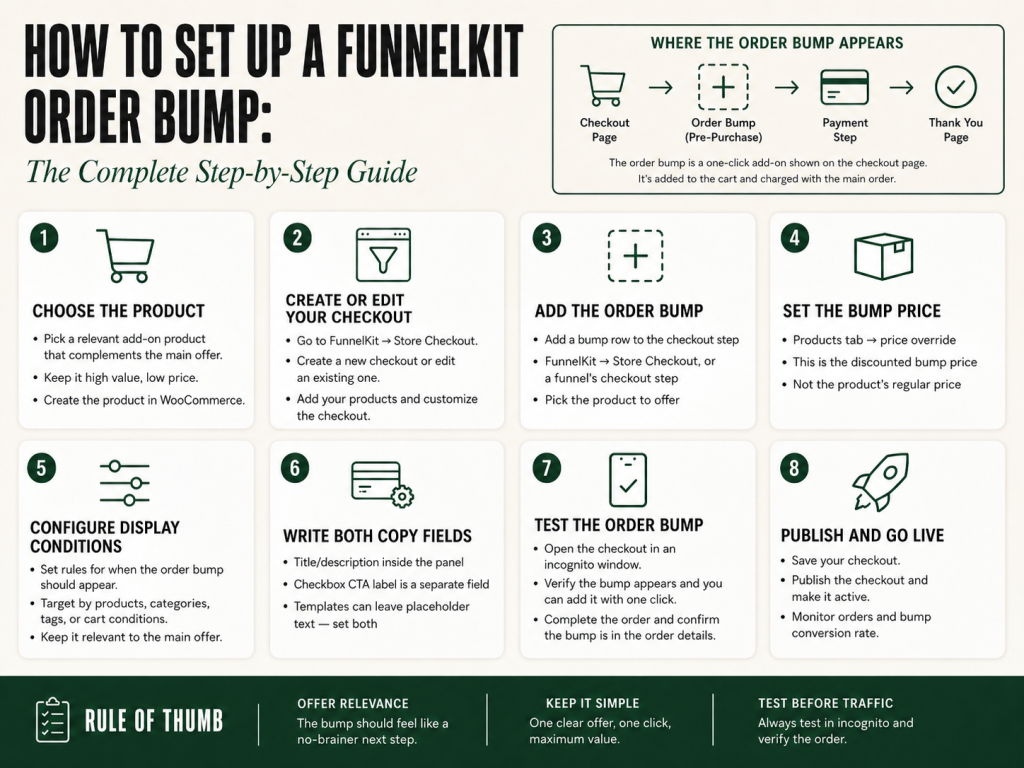
To set up a FunnelKit order bump, you add a bump row to a FunnelKit checkout, choose the product, override its price, write the offer copy, and set where and to whom it shows. The short path:
- Go to FunnelKit → Store Checkout (or open a specific funnel’s checkout step) and make sure that checkout is enabled.
- Add an Order Bump and pick the product you want to offer.
- In the bump’s Products tab, set a price override — the discounted bump price.
- In the Design tab, write both the bump title/description and the checkbox CTA label (they’re separate fields).
- In the Rules tab, leave “No Rules” to show it on every order, or add a condition to target it.
- Set the bump’s position, save, and test on a live checkout in an incognito window.
The one setting people forget: a FunnelKit bump has two separate copy areas — the title/description shown inside the checkout panel, and the checkbox CTA label — and some imported skins or templates may still contain placeholder copy in the title/description. If you set only the CTA and save, your live checkout can show filler text where your offer pitch should be. Always set both, then load the live page to confirm.
What an order bump is, and where it lives
An order bump is a pre-purchase offer. It appears on the checkout page itself, before the customer clicks Place Order. They see a small panel — usually a short headline, a sentence or two of pitch, and a checkbox — and ticking the box adds the bump product to the same order at the price you set. Because it rides along with a purchase the buyer has already committed to, it carries almost no friction. That’s the whole reason it works.
In FunnelKit, order bumps are a checkout feature. They are configured as rows inside a FunnelKit checkout — either your global Store Checkout or the checkout step of a dedicated funnel. They appear only on the checkout FunnelKit controls — your Store Checkout or a specific funnel checkout step. If another checkout page, plugin, or block is what your traffic actually hits, that FunnelKit bump will not render there, no matter how carefully you build it. That distinction matters later when you test. If you haven’t built your FunnelKit checkout yet, start with How to Set Up FunnelKit Checkout from Scratch before coming back here.
One more thing worth knowing up front: a bump is a pre-purchase offer, which makes it different from a one-click upsell. The upsell fires after Place Order, on its own page, before the thank-you page. The bump lives on the checkout. They’re complementary — many stores run a bump on the checkout and an upsell right after — but they’re built and configured in different places.
Before you start: two prerequisites
Two things need to be true before a bump can work, and confirming them now saves you a confusing debugging session later.
1. The bump product has to exist as a real, purchasable WooCommerce product. FunnelKit offers an existing product at an overridden price; it doesn’t invent one. So the thing you want to bump must already be a product in your catalog, in stock (or set to allow purchase), and not hidden in a way that blocks it from being added to a cart. If the product isn’t purchasable, the bump can fail to render with no error.
2. You have to be editing the checkout your customers actually use. If you run a single global Store Checkout, that’s where the bump goes. If you’ve built a dedicated product or sales funnel with its own checkout step, the bump belongs on that funnel’s checkout — and it’ll only show when buyers arrive through that funnel’s link. A bump built on Funnel A will never appear on Funnel B’s checkout. Decide which checkout this offer belongs on before you start clicking.
How to set up a FunnelKit order bump, step by step
Here’s the full sequence to set up a FunnelKit order bump from scratch.
Step 1 — Open the checkout. Go to FunnelKit → Store Checkout for the global checkout, or open your funnel and select its checkout step. Confirm the checkout is enabled (there’s a toggle near the top). Order bumps and one-click upsells are managed as rows attached to this checkout.
Step 2 — Add an order bump. Find the Order Bumps section and add a new bump. FunnelKit will usually start you from a template layout. Treat the template as scaffolding, not finished copy — you’ll be replacing any placeholder text in a later step.
Step 3 — Choose the product. In the bump’s Products tab, select the WooCommerce product you want to offer. This is the item that gets added to the order when the buyer ticks the box.
Step 4 — Set the price override. Still in the Products tab, set the price override. This is the discounted bump price, and it overrides the product’s normal listed price for this bump only. The product keeps its regular price everywhere else on your store. (More on choosing the number in the pricing section below.)
Step 5 — Write the offer copy. Open the Design tab. There are two distinct copy areas here, and confusing them is one common setup mistake: the bump title and description (the pitch shown inside the checkout panel) and the CTA / checkbox label (the short line next to the tickbox). Write both. Some imported skins or templates may leave placeholder copy in the title/description, so setting only the CTA can leave that filler live on your checkout.
Step 6 — Set display rules (optional). Open the Rules tab. Leaving it on “No Rules” shows the bump on every order. If you want to target it — only when a particular product is in the cart, only above a certain cart total — add a rule here. Covered in detail below.
Step 7 — Choose the position and save. Set where the bump renders on the checkout (see the next section), then save. Saving in the editor isn’t proof it works — the only proof is loading the live checkout, which is Step 8.
Step 8 — Test on a live checkout. Open your checkout in a private/incognito window, add a qualifying product to the cart, and confirm the bump appears with your real copy and your real price. Don’t skip this. Testing while logged in as admin, or on a cached page, is how a perfectly good bump gets reported as “not showing.”
Building a full funnel, not just one bump? The free FunnelKit Resources kit includes a checkout-and-bump setup checklist, copy templates for high-converting bumps, and a pre-launch QA list so nothing ships with placeholder text. Get the kit →
Where the bump shows on your checkout
This is where a lot of older tutorials get it wrong, so be careful what you copy. FunnelKit does not lock every bump into a single fixed spot. Each bump has a position setting, and FunnelKit supports multiple placement options on the checkout — and lets you set the position independently for desktop and mobile.
Practically, that means you choose where this particular bump appears relative to the other checkout elements (for example, near the order summary, after the customer details, or close to the payment area), and you can give it one position on desktop and a different one on mobile if that reads better on a phone. Rather than memorizing a “default” location, open the bump’s position setting, pick the placement, save, and then look at the live checkout on both a desktop browser and a phone to confirm it lands where you intended.
If you’re running more than one bump on the same checkout, their positions, rules, and any multi-bump settings all matter — check the live page with a qualifying cart to see the real stacking, because the editor preview doesn’t always reflect rule-driven visibility.
Display rules: showing the bump to the right buyers
The Rules tab is what turns a bump from “show this to everyone” into “show this to the people it actually fits.” A few patterns worth knowing:
- No Rules — the bump shows on every order through this checkout. Fine for a universal add-on that suits any buyer.
- Cart-contents rules — show the bump only when a specific product (or one of a set) is in the cart. This is how you make the bump relevant: offer the matching accessory, refill, or companion product to the thing they’re buying.
- Cart-total rules — show the bump only above or below a threshold, so you’re not pitching a $40 add-on on a $15 order.
A rule that’s stricter than you realize is a leading cause of “my bump isn’t showing.” If you add a condition, test with a cart that genuinely satisfies it — the right product in the cart, the cart total above your floor — or the bump will correctly hide and look broken. Treat any non-obvious disappearance as a rule to re-read, not a bug. (There’s a full troubleshooting walkthrough for that in our companion guide, linked at the end.)
Pricing the bump so it actually converts
A bump lives or dies on being an easy yes. The buyer should be able to look at it for two seconds and think “sure, why not.” That points you toward a few principles rather than one magic number:
Keep it low relative to the order. A bump is an impulse add-on, not a second major purchase. As a rule of thumb, a bump priced well below the main order — often a small fraction of the cart — reads as a no-brainer, while a bump that rivals the order total reads as a decision, and decisions kill impulse adds. (If your offer needs a real decision, it probably belongs as a one-click upsell after checkout, not as a bump.)
Make the discount visible and real. The price override lets you show the bump well under its normal price. A genuine markdown from the product’s standard price gives the buyer a concrete reason to act now — this is the one time they’ll get it at this price, bundled with what they’re already buying.
Match the bump to the cart. The most reliable lever isn’t price at all — it’s relevance. A bump that obviously complements what’s in the cart will out-convert a random discounted product every time, which is exactly what the cart-contents display rules above are for.
Don’t over-think the exact figure on day one. Pick a price that feels like an easy yes, ship it, and watch the take rate. The bump is one of the few things on your checkout you can safely tune after launch without disrupting anything else. If your bump is showing but still not getting ticks, see FunnelKit Order Bump Not Converting? 7 Causes and How to Fix Each.
Testing the bump before you trust it
Treat the live test as part of the build, not an optional last step. The editor preview can look perfect while the live checkout shows something different, because caching, display rules, and your own logged-in admin session all change what renders.
The reliable test: open your checkout in a private/incognito window, add a product that qualifies under your rules, and walk the checkout as a real buyer would. Confirm four things — the bump appears, the copy is your copy (no leftover placeholder), the price is your overridden price, and ticking the box actually adds the product to the order total. If anything’s off, start with three common causes: you’re on a cached page, you’re logged in as admin, or a display rule is excluding your test cart. Clear those and re-test.
Bump still not appearing after all this? There are about nine separate reasons a FunnelKit bump fails to show on the front end, and they look identical from the outside. Our companion guide walks each one down in order of likelihood: FunnelKit order bump not showing? The 9 reasons and how to fix each.
Common mistakes that quietly cost you bumps
None of these throw an error. They just leave money on the table.
Leaving placeholder copy live. Setting the CTA label but not the title/description can leave filler text on your checkout if the template shipped with it. Always set both copy areas and confirm on the live page.
Building the bump on the wrong checkout. A bump on the global Store Checkout won’t show on a dedicated funnel’s checkout step, and vice versa. Make sure the bump lives on the checkout your traffic hits.
A display rule that’s too tight. A rule no test cart satisfies makes a working bump look broken. Test with a cart that meets the condition.
Pricing it like a second purchase. A bump priced near the order total stops being an impulse add. Keep it an easy yes, or move the offer to a post-purchase upsell.
Never testing on a live, logged-out checkout. The editor preview is not proof. The incognito test is.
Set up the way described here — right product, real discount, both copy areas filled, a sensible position, rules that match a real cart, and a logged-out test — and you’ve removed the common setup problems that keep bumps from earning. The full bump-and-upsell offer architecture, including how to sequence a bump into a complete checkout funnel, is covered in The Missing Manual for FunnelKit.
Grab the free FunnelKit Resources kit. Includes the checkout-and-bump setup checklist, swipeable bump copy, the one-click-upsell wiring guide, and a pre-launch QA list so nothing ships with placeholder text or a broken offer. One download. Get the kit →
Frequently asked questions
Where do I add an order bump in FunnelKit? Order bumps are configured as rows inside a FunnelKit checkout. For a single store-wide checkout, go to FunnelKit → Store Checkout and add the bump there. If you’re using a dedicated funnel, open that funnel’s checkout step and add the bump to it — it will only show on that funnel’s checkout.
Can I show different order bumps to different customers? Yes. Each bump has a Rules tab. Leaving it on “No Rules” shows the bump on every order. Adding a rule lets you show a bump only when a specific product is in the cart, or only above or below a cart-total threshold, so you can target each bump to the buyers it fits.
Where does the order bump appear on the checkout page? It appears in the position you configure for that bump. FunnelKit supports multiple placement options and lets you set the position separately for desktop and mobile, so the correct way to confirm placement is to set the bump’s position, save, and view the live checkout on both a desktop browser and a phone.
How do I set the discounted bump price? In the bump’s Products tab, set a price override. That value replaces the product’s normal listed price for this bump only; the product keeps its regular price everywhere else on your store.
Why isn’t my order bump showing on the checkout? The most common causes are testing on a cached page, testing while logged in as admin, a display rule the test cart doesn’t satisfy, the bump being built on a different checkout than the one you’re viewing, or the bump product not being purchasable. Test in an incognito window with a qualifying cart first; our companion guide covers all nine causes in order.
What’s the difference between an order bump and a one-click upsell? An order bump is a pre-purchase offer shown on the checkout page with a checkbox, added before the customer clicks Place Order. A one-click upsell is a post-purchase offer shown on its own page after Place Order and before the thank-you page, accepted with a single click that appends it to the order already placed.
Can I run more than one order bump on the same checkout? Yes. FunnelKit lets you add multiple bumps to a single checkout. Each bump has its own product, price override, copy, position, and display rules, so they can show independently or stack. Check the live checkout with a qualifying cart to confirm how they render together, because the editor preview doesn’t always reflect rule-driven visibility across multiple bumps.
Sources
Verified live as of June 2026:
- FunnelKit Help Center — Order Bumps: funnelkit.com/docs/orderbumps/
- FunnelKit Help Center — Set the Display Position of Order Bumps: funnelkit.com/docs/orderbumps/products/set-display-position/
- FunnelKit Help Center — Rules (Order Bump): funnelkit.com/docs/orderbumps/rules/
Brian Kasday writes The Operator’s Library for MMS Vegas — production-grade reference manuals for the tools small operators actually run. The Missing Manual for FunnelKit is the long-form companion to articles like this one.
Brian Kasday writes The Operator’s Library for MMS Vegas — production-grade reference manuals for the tools small operators actually run.
More FunnelKit guides
Free · FunnelKit Operator Toolkit
Building checkouts in FunnelKit?
Get the free operator toolkit — order-bump templates, checkout checklists, and a note when what you just read changes.
Get the free toolkit →