
Table of contents
- The 30-second answer
- First, confirm it’s actually a FunnelKit checkout
- The nine reasons a bump doesn’t show
- When the bump shows but looks broken
- The diagnostic order that finds it fastest
- Quick reference: symptom to cause
- Frequently asked questions
- Sources
If your FunnelKit order bump is not showing on the checkout, you’re in a frustratingly common spot: you built the bump, set the product and the discounted price, wrote the copy, and saved — then loaded the checkout to admire it and… nothing. No error, no warning — just a normal checkout page with no offer on it.
This is one of the most common FunnelKit support questions, and the frustrating part is that “the bump isn’t showing” has about nine different causes that all look identical from the front end. The good news: every one of them is quick to check, and they fall in a predictable order of likelihood. Work down this list and you’ll find yours — usually in the first three.
The 30-second answer
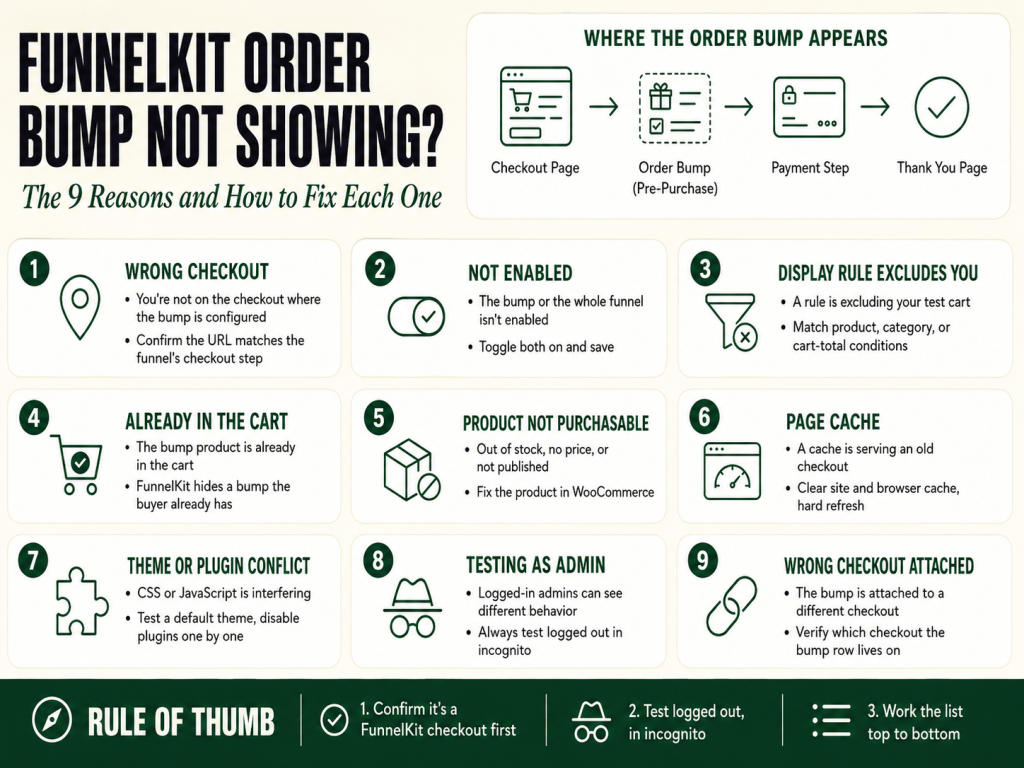
An order bump fails to appear for one of nine reasons, in rough order of how often they’re the culprit:
- You’re not on the checkout where that FunnelKit bump is configured — a different checkout is handling the page.
- The bump (or the funnel) is saved but not enabled/published.
- A display rule on the bump excludes the cart you’re testing with.
- The bump product is already in the cart.
- The bump product isn’t purchasable — out of stock, unpublished, hidden, or has no price.
- A page cache is serving an older version of the checkout.
- Theme or third-party CSS/JavaScript is hiding it or breaking the checkout render.
- You’re testing logged in as admin, or in a session that doesn’t meet the rules.
- The bump is on a different checkout than the one your traffic actually hits.
The fastest first move: open your checkout in a private/incognito window with a qualifying product in the cart. Many “bump not showing” reports resolve right here — the bump was rendering the whole time, but a cached page or a logged-in admin session was hiding it from you.
First, confirm it’s actually a FunnelKit checkout
Order bumps are a FunnelKit checkout feature. They render on the checkout page that FunnelKit controls — nowhere else. If your store is still serving WooCommerce’s default checkout (or the newer block-based checkout, or a checkout from another plugin), there is no slot for a FunnelKit bump to appear in, no matter how perfectly you configured it.
So before you debug anything else, confirm the page you’re testing is the FunnelKit one. In FunnelKit → Store Checkout, the checkout has to be enabled with the toggle at the top right. If you’re using a dedicated Product Funnel instead of the global Store Checkout, the bump lives on that funnel’s checkout step, and you have to reach it through the funnel’s own link — not the generic /checkout/ URL. A bump configured on funnel A will never show on funnel B’s checkout. This mismatch — bump on one checkout, traffic landing on another — is reason nine on the list above, and it’s worth ruling out first because it makes every other check pointless.
The nine reasons a bump doesn’t show
1. You’re not on the checkout where the bump is configured
Covered above — this is the single most common cause. FunnelKit’s Store Checkout has to be toggled on and set as the active checkout. If a block checkout or another checkout plugin is intercepting the page, FunnelKit never gets to render. Fix: enable the FunnelKit Store Checkout and make sure no competing checkout plugin is overriding it.
2. The bump or the funnel isn’t enabled
A bump can be fully built and still be switched off. Inside Store Checkout, the order-bump row has its own enable state, and the checkout itself has the master toggle. Save is not the same as enable — it’s entirely possible to save a beautifully configured bump that’s sitting there disabled. Open the bump step, confirm it’s active, confirm the checkout is active, and re-save.
3. A display rule is excluding your test cart
The bump’s Rules tab controls which orders see it. If it’s set to No Rules, the bump shows on every order. But the moment you add a rule — “only show when cart contains product X,” “only when cart total is over $50,” “only for a specific category” — the bump becomes conditional, and a test cart that doesn’t meet the condition will (correctly) hide it.
This is the cause people miss most, because the configuration is working exactly as designed — the bump just isn’t meant to show for the cart you happened to test with. Open the Rules tab, read the condition out loud, and build a cart that satisfies it. If you want the bump on everything while debugging, switch it to No Rules temporarily.
4. The bump product is already in the cart
If the bump product is already in the cart — including from a previous test where you added it to “see if it works” — the bump may suppress itself. Empty the cart, add a different qualifying product, and reload. This is worth testing explicitly if “Hide Order Bump after Selection” or a product-replacement behavior is in play, since both change what shows once an offer has been accepted or the same item is present by another route.
5. The bump product isn’t purchasable
A bump can only offer a product WooCommerce considers buyable. If the bump product is out of stock, set to “hidden” in catalog visibility, unpublished, has no price, or is a product type the bump doesn’t support, FunnelKit has nothing valid to show and skips it silently. Check the bump product directly in WooCommerce: is it published, in stock, and priced? A draft or out-of-stock product is a common silent killer here.
6. A page cache is serving an old checkout
If you added the bump after a caching layer had already stored your checkout page, visitors (and you) get served the cached copy — the one without the bump. This is especially common on managed WordPress hosts and with caching plugins or a CDN like Cloudflare in front of the site. Clear your page cache (and CDN cache) after any checkout change, and always verify in an incognito window, which is more likely to bypass the cache. As a rule, checkout and funnel pages should be excluded from caching entirely — dynamic, per-session pages have no business being cached.
7. Theme or plugin CSS/JavaScript is interfering
Two flavors here. The bump can render in the HTML but be hidden by aggressive theme CSS, or a JavaScript error from the theme or another plugin can break the checkout render partway through so the bump never paints. FunnelKit has an Advanced setting that controls whether your theme’s CSS/JS loads on the checkout, upsell, and thank-you pages — on conflict-prone themes, turning the theme’s styles off on those pages both fixes layout bleed and removes a class of script conflicts. To diagnose: open the browser console on the checkout and look for red JavaScript errors, and use “inspect element” to see whether the bump markup is present-but-hidden versus genuinely absent. Present-but-hidden is a CSS problem; genuinely absent points back up the list to rules, caching, or the wrong checkout.
8. You’re testing as a logged-in admin
Admin sessions behave differently: they often bypass caching (so you see stale state in the other direction), they can sit inside a cart you set up earlier that violates a rule, and they don’t represent what a fresh customer sees. The cure is the same incognito, logged-out test from the 30-second answer. Always confirm bump behavior as an anonymous visitor before concluding anything.
9. The bump is attached to a different checkout
If you run both a global Store Checkout and one or more dedicated Product Funnels, a bump you set on one will not appear on the others. Confirm the bump is attached to the exact checkout your customers actually land on. For funnel traffic, use the funnel’s generated link; for store traffic, the bump belongs on the global Store Checkout.
Skip the guesswork on the copy itself. The free 5 Order Bump Templates kit gives you five copy-ready FunnelKit bumps — headline, description, and exact setup for each — plus a bump-selection matrix so you put the right bump on the right offer, and a take-rate scorecard to track what’s working once it’s live. Get the templates →
When the bump shows but looks broken
A close cousin of “not showing” is “showing, but wrong” — and the fix is different, so it’s worth separating.
The most common version: your live checkout shows the bump, but the headline and description read like placeholder gibberish (“Exclusive Offer” / Latin lorem ipsum) instead of your copy. This happens because a FunnelKit bump has two separate copy areas that are easy to confuse. The CTA button label is set in one place; the title and description shown inside the checkout form are set in another (Design → Content). Some imported skins or templates may still have placeholder title/description copy. If you only edited the CTA label, the visible pitch can still be Latin on the live page. Set both, save, and QA the live checkout — not the editor preview, the actual front-end page — before you call the bump done.
The other “looks wrong” case is the price. The bump’s discounted price is set in its Products tab and overrides the product’s normal price. If the bump is showing full price, you set the product but not the price override.
The diagnostic order that finds it fastest
Don’t check randomly. Run them in this order and you’ll isolate the cause in a couple of minutes:
- Incognito + qualifying cart. Rules out caching and the logged-in-admin artifact in one move.
- Confirm the checkout. Are you on the FunnelKit Store Checkout (or the right funnel’s checkout), with it enabled?
- Confirm the bump is enabled, not just saved.
- Read the Rules tab. Does your test cart actually satisfy the condition? Set to No Rules to test.
- Change the cart product so it isn’t the same as the bump product, and confirm the bump product is published, in stock, and priced.
- Inspect the page. Markup present-but-hidden means CSS; markup absent means go back to steps 2–5. Check the console for JS errors. If the checkout itself won’t load at all, see FunnelKit Checkout Not Loading for a separate checklist.
If you’ve cleared all six and the bump still won’t appear, you’re into genuine conflict territory — deactivate other plugins one at a time on a staging copy to find the offender, and check FunnelKit’s own status/logs.
Quick reference: symptom to cause
| What you see | Most likely cause | Fix |
|---|---|---|
| No bump anywhere, on any cart | Wrong checkout / bump or checkout disabled | Enable FunnelKit Store Checkout; enable the bump |
| Bump shows on some carts, not others | Display rule on the Rules tab | Read the rule; build a qualifying cart or set No Rules |
| No bump only when one product is in cart | Bump product already in cart | Use a different product as the cart item |
| You see no bump, customers report seeing it | Cache / logged-in admin session | Test in incognito; clear page + CDN cache |
| Bump space is blank but page looks fine | Theme CSS hiding it, or JS error | Inspect element; disable theme CSS on checkout |
| Bump shows Latin placeholder text | Title/description never edited | Set both title/description AND the CTA label |
| Bump shows full price | Price override not set | Set the discounted price in the Products tab |
The complete order-bump reference — rules logic, multi-bump rotation, and the upsell mechanics that pair with bumps — is covered in The Missing Manual for FunnelKit. Once your bump is showing consistently, see FunnelKit Order Bump Not Converting if the take rate is lower than expected.
Grab the free 5 Order Bump Templates kit. Five copy-ready FunnelKit order bumps with headline, description, and setup for each, plus a bump-selection matrix and a take-rate scorecard. One download. Get the kit →
Frequently asked questions
Why is my FunnelKit order bump not showing on the checkout? The most common reasons are that the FunnelKit Store Checkout isn’t the active checkout, the bump or checkout is saved but not enabled, a display rule on the Rules tab excludes your test cart, or the bump product is already in the cart. Test in an incognito window with a qualifying product first — that rules out caching and logged-in-admin artifacts, which account for a large share of reports.
Where do order bumps appear on the FunnelKit checkout? Order bumps appear wherever that bump’s display position is set — FunnelKit offers multiple positions, including above or below the order summary, above or below the payment gateways, above the checkout form, or inside the mini cart, with separate position options for mobile. If your bump is configured but invisible, check its Display Position setting. Bumps only appear on the checkout FunnelKit controls — the global Store Checkout or a specific Product Funnel’s checkout step — not on WooCommerce’s default or block checkout.
Why does my bump show on some orders but not others? Almost always a display rule. The bump’s Rules tab can restrict it to carts containing a certain product, over a certain total, or in a certain category. Carts that don’t meet the condition correctly hide the bump. Set the rule to No Rules to confirm, then re-add the condition you actually want.
Why is my order bump showing “Exclusive Offer” or placeholder text? The bump’s title and description are a separate field from its CTA button label, and some imported skins or templates may still have placeholder title/description copy. If you only edited the CTA label, the live checkout still shows the placeholder. Edit both, save, and check the live front-end page.
Could caching be hiding my order bump? Yes. If a page cache or CDN stored the checkout before you added the bump, visitors get the old cached page without it. Clear the page cache and CDN cache after any checkout change, and exclude checkout and funnel pages from caching entirely — they’re dynamic and shouldn’t be cached.
Does the bump product need to be in stock? Yes. A bump can only offer a product WooCommerce considers purchasable. If the bump product is out of stock, unpublished, hidden in catalog visibility, or has no price, FunnelKit skips it silently. Confirm the product is published, in stock, and priced.
Can I show multiple order bumps on the same FunnelKit checkout? Yes. FunnelKit supports multiple bumps on a single checkout, each with its own rules and display position. If none of them are showing, check each bump’s enabled state and Rules tab independently — one misconfigured bump doesn’t block the others, so the cause is usually per-bump.
Sources
Verified June 2026:
- FunnelKit — Order Bumps documentation: https://funnelkit.com/docs/orderbumps/
- FunnelKit — Set the Display Position of Order Bumps: https://funnelkit.com/docs/orderbumps/products/set-display-position/
- FunnelKit — Rules (Order Bump): https://funnelkit.com/docs/orderbumps/rules/
- FunnelKit — Creating a Store Checkout: https://funnelkit.com/docs/funnel-builder/getting-started/creating-a-store-checkout/
Brian Kasday writes The Operator’s Library for MMS Vegas — production-grade reference manuals for the tools small operators actually run. The Missing Manual for FunnelKit is the long-form companion to articles like this one: https://mmsvegas.com/missing-manual-funnelkit/
More FunnelKit guides
Free · FunnelKit Operator Toolkit
Building checkouts in FunnelKit?
Get the free operator toolkit — order-bump templates, checkout checklists, and a note when what you just read changes.
Get the free toolkit →