
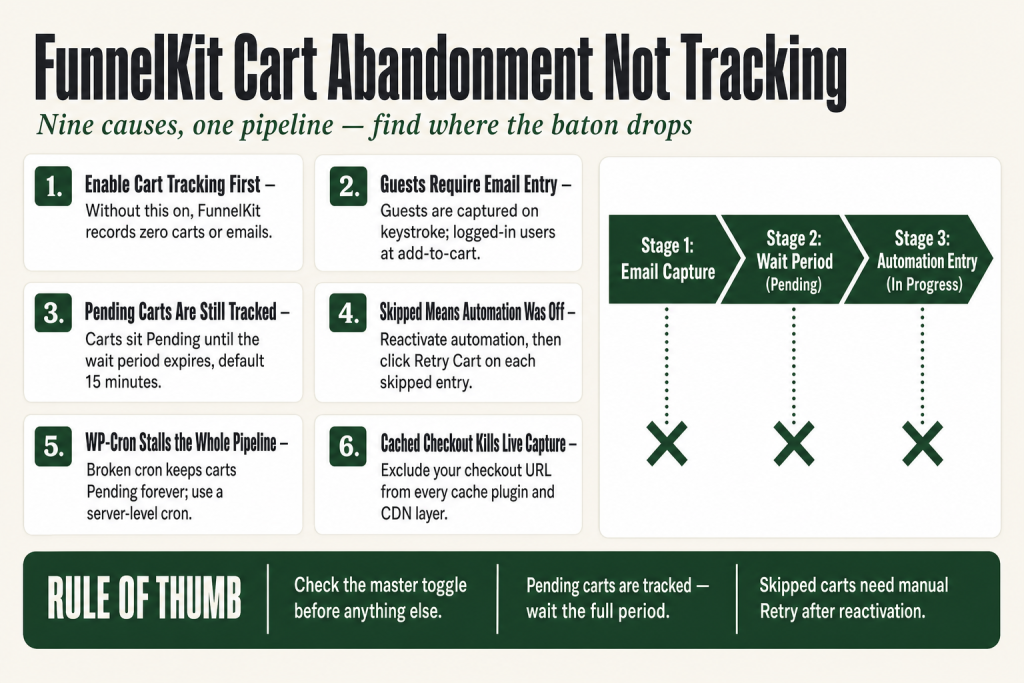
The 30-second answer
- Enable Cart Tracking is off: Go to FunnelKit Automations → Settings → Cart and confirm the toggle is on. Nothing else in this guide matters until this is on.
- No email captured yet: FunnelKit captures on email entry, not on add-to-cart (for guests). If the shopper never typed their email on the checkout page, no cart is recorded.
- Logged-in vs. guest difference: Logged-in users are captured at add-to-cart. Guests require the email field.
- Wait period confusion: Carts sit in Pending status until the wait period (15 minutes by default) passes. Check the status column before assuming nothing is tracked.
- Automation is inactive or set to “Once”: A Skipped status in the cart list means the automation was off when the cart was captured.
- Cool-off period is excluding recent buyers: A customer who purchased recently will be excluded from tracking for the configured cool-off window.
- GDPR consent notice blocked the capture: If your checkout consent notice is enabled and the shopper declined, no cart is stored by design.
- WP-Cron is broken: FunnelKit uses WP-Cron to advance cart statuses and fire automations. A stalled cron means carts stay Pending forever.
- Caching is serving a static checkout page: A cached checkout page breaks live email capture. Exclude your checkout URL from your cache plugin.
- WooCommerce Blocks Checkout: Blocks checkout support landed in FunnelKit Automations. Confirm you are running a version that includes it.
Take this fix into your next scenario. The free Builder’s Companion Kit collects the checklists and templates that pair with this guide — so next time, you start from a template, not a blank page. Grab it free →
- How FunnelKit Cart Abandonment Tracking Actually Works
- Check 1: The Enable Cart Tracking Switch
- Check 2: Email-Capture Timing and Guest Checkout Behavior
- Check 3: Wait Period, Lost Cart Period, and the Cool-Off Exclusion
- Check 4: Automation Is Inactive, Producing Skipped Carts
- Check 5: GDPR Consent Notice and Privacy Plugin Conflicts
- Check 6: WP-Cron Is Stalled or Disabled
- Check 7: Caching Serving a Static Checkout Page
- Check 8: WooCommerce Blocks Checkout Compatibility
- The Incognito Test: How to Confirm Tracking Works End-to-End
- Worked Example: Cart Appearing in Pending but Automation Never Fires
- Why Contacts Appear Without Cart Data (Merge Tag Blanks)
- FAQ
FunnelKit cart abandonment not tracking is one of those problems that looks mysterious until you understand how the pipeline actually works. Carts don’t appear in the Recoverable Carts list. Contacts never enter the automation. Recovery emails sit in draft forever. Nine times out of ten, the cause is one of a small set of configuration gaps, environment issues, or privacy settings working exactly as designed, just not how you expected. This guide walks every cause in order of likelihood, gives you a concrete check for each, and tells you what to do when you find it.
How FunnelKit Cart Abandonment Tracking Actually Works
Before you can fix a tracking gap, you need to know the exact sequence FunnelKit uses. Think of it as a three-stage relay baton. Miss any handoff and the cart never reaches the finish line.
Stage 1: Email capture. For guest shoppers, FunnelKit Automations captures the email address as soon as the user types it into the email field on the checkout page. The shopper does not need to submit the form. As soon as they tab out of the email field, the address is written to the database and the cart is marked Pending. For logged-in users, the capture happens earlier: FunnelKit records the cart as soon as the customer adds a product, before they visit checkout at all.
Stage 2: Wait period. The cart sits in Pending status while the clock runs. The wait period you configure in Settings → Cart is the time FunnelKit holds off before declaring the cart abandoned. When that window closes without a completed order, the cart status moves to In Progress and the automation fires.
Stage 3: Automation entry. When the status becomes In Progress, the contact enters the Cart Abandoned automation. If the automation is inactive at that moment, the cart is marked Skipped instead of In Progress. You can retry a skipped cart after reactivating the automation.
This sequence explains most of the “nothing is tracking” reports. The baton was dropped at stage 1 (no email), stage 2 (cron stalled), or stage 3 (automation off).
Check 1: The Enable Cart Tracking Switch
This is the first thing to verify, full stop. Navigate to FunnelKit Automations → Settings → Cart and confirm that Enable Cart Tracking is checked. Without it, FunnelKit does not record any cart or email data, no matter what your automations look like.
I have seen stores where tracking was accidentally turned off after a plugin update reset the settings panel. It takes thirty seconds to check. Do it before reading anything else on this page.
Once you enable it, FunnelKit begins live capture immediately. You do not need to rebuild automations or flush anything.
Check 2: Email-Capture Timing and Guest Checkout Behavior
The single biggest source of “missing carts” is a misunderstanding of when capture happens for guests. FunnelKit captures the email on keystroke, not on form submission. That means the guest must reach the email field on your checkout page and type into it.
Scenarios that produce zero captures:
- The shopper added to cart and closed the browser before reaching checkout.
- Your checkout page is a WooCommerce default page but a page builder or theme strips the email field.
- The shopper used a social login or auto-fill that never fires the keypress event FunnelKit listens for. (Verify this with a manual test using a real keyboard entry.)
- Your checkout flow skips the email field entirely for some user roles or products.
For logged-in users, the rules are different. FunnelKit captures their cart the moment they add a product, so no checkout visit is required. If logged-in carts are missing but guest carts show up, the problem is upstream of checkout, not in the tracking settings themselves.
If you run a custom FunnelKit checkout, also confirm the checkout page loads correctly with no JS errors, since a broken checkout can silently prevent the capture script from firing. The sibling article FunnelKit Checkout Not Loading covers that diagnostic in detail.
Check 3: Wait Period, Lost Cart Period, and the Cool-Off Exclusion
These three settings in FunnelKit Automations → Settings → Cart are the most commonly misconfigured after the main toggle.
Wait Period (minutes): This is how long FunnelKit waits after email capture before moving the cart from Pending to In Progress and triggering the automation. The default is 15 minutes. If you set this to a large number (say, 180 minutes), carts will sit in Pending for three hours before anything fires. They are being tracked, just not yet abandoned in FunnelKit’s view. Check your Recoverable Carts list and look at the status column before concluding nothing is captured.
Lost Cart (days): This controls when a Pending or In Progress cart is moved to the Lost tab and removed from the recoverable pool. If this is set too short, carts may disappear from the list before you notice them.
Cool-off period (days): This setting excludes customers from abandonment tracking for a configurable number of days after they place an order. It is designed to stop you from sending recovery emails to someone who just bought. If a known customer’s cart is not appearing, check whether they are still inside their cool-off window. A recent purchaser will not generate a new cart entry until that window expires.
Check 4: Automation Is Inactive, Producing Skipped Carts
This one catches a lot of operators. A cart can be successfully captured and still never trigger an email because the automation was inactive when the cart reached In Progress status.
When a cart tries to enter an automation that is turned off, its status is set to Skipped. It will not automatically retry when you re-enable the automation later. You have to manually click Retry Cart on the skipped entry, which changes its status to Rescheduled and puts it back in the queue.
Check your automation’s status (Active vs. Inactive) in the Automations list. Also check the Runs setting on the Cart Abandoned trigger event. If it is set to “Once per contact,” a shopper who has already been through the automation once will never enter it again, even on subsequent abandonment events. Change this to “Multiple times” if you want repeat abandoners tracked.
For a deeper look at why automations fail to trigger in general, the sibling article FunnelKit Automation Not Triggering covers every trigger-level failure path.
Check 5: GDPR Consent Notice and Privacy Plugin Conflicts
FunnelKit has a built-in GDPR consent notice you can enable under Settings → Cart. When enabled, a notice appears at the checkout email field telling shoppers their data will be saved for abandonment reminders, with an opt-out option. If a shopper declines consent, FunnelKit will not capture their cart. That is not a bug. It is the feature working correctly.
The problem shows up when you have this setting enabled and a sizeable portion of your traffic opts out. If you see far fewer captured carts than expected, check whether your consent notice copy is inadvertently alarming shoppers. You can customize the notice text under the same settings panel.
A separate but related issue: third-party cookie-consent plugins (CookieYes, Complianz, Borlabs Cookie, etc.) can block the FunnelKit tracking script from running entirely if the shopper declines analytics cookies before the script loads. These tools intercept JavaScript at the browser level. The fix is to categorize the FunnelKit cart-capture script as a “functional” or “necessary” script rather than an analytics one, or to consult your legal team on how to frame it for your jurisdiction. This is a compliance call, not a FunnelKit configuration call, and you need to verify the right classification for your business.
Also note: if you are sending recovery emails, make sure your automation’s email steps actually work in isolation first. The sibling article FunnelKit Abandoned Cart Emails Not Sending covers delivery-side failures separately from tracking failures.
Check 6: WP-Cron Is Stalled or Disabled
FunnelKit Automations runs its background tasks via WP-Cron. A healthy cron is what advances cart statuses from Pending to In Progress and fires the automation on schedule. If WP-Cron is broken, carts pile up in Pending status indefinitely and nothing ever sends.
Common reasons WP-Cron fails: your host has disabled it (some managed hosts do), you have DISABLE_WP_CRON set to true in wp-config.php, or your site gets so little traffic that the cron never has a visitor request to piggyback on.
To check, go to FunnelKit Automations → Settings → Advanced and look for the cron health indicator. FunnelKit’s documentation also recommends setting up a real server-level cron rather than relying on WordPress’s visitor-triggered version. Ask your host to configure a server cron that calls wp-cron.php every minute. This removes the dependency on site traffic and is the most reliable long-term fix.
A plugin like WP Crontrol (free in the repository) lets you see all scheduled events and manually fire them for testing. If you fire the FunnelKit cron event manually and carts suddenly move to In Progress, you have confirmed a cron gap.
Check 7: Caching Serving a Static Checkout Page
This is the silent killer. Caching is great for static pages. It is terrible for checkout pages that need to run live JavaScript to capture email keystrokes in real time. If your cache plugin serves a fully static version of the checkout page, the FunnelKit capture script may never run, and no email gets recorded.
FunnelKit has documented caching exclusion rules for every major caching layer in the WordPress ecosystem, including WP Rocket, LiteSpeed Cache, W3 Total Cache, WP Super Cache, WP Fastest Cache, SG Optimizer, Breeze (Cloudways), Hummingbird, WP Engine, Kinsta, and Cloudflare. The fix in every case is the same concept: add your checkout page URL to the exclusion list in your cache plugin so it is never stored as a static page.
Go to your cache plugin’s settings and find the “excluded pages” or “never cache” list. Add the slug of your checkout page (and any FunnelKit funnel step pages). Then clear all cached pages and test again. Check FunnelKit’s caching documentation at funnelkit.com/docs/checkout-pages/caching/ for the exact steps for your specific plugin.
CDNs can cause the same problem. If you push checkout pages through a CDN edge cache (Cloudflare Page Rules, Fastly, BunnyCDN), confirm those pages are bypassing cache at the CDN layer too.
Check 8: WooCommerce Blocks Checkout Compatibility
WooCommerce’s block-based checkout (the “Cart Block” and “Checkout Block” introduced in recent WooCommerce releases) used a different rendering path than the classic shortcode checkout. Earlier versions of FunnelKit Automations did not support cart capture on the block-based checkout.
Full WooCommerce Blocks Checkout compatibility for abandoned carts, including cart capture, recovery, prefilled fields, and restoration of the previously selected payment method, was added in a recent FunnelKit Automations release. If your store uses the block-based checkout and carts are not being tracked, confirm that you are running a version of FunnelKit Automations that includes this support. Check the changelog at the plugin’s WordPress.org changelog for confirmation.
If you are on a version without blocks support, either update FunnelKit Automations or switch to the classic WooCommerce shortcode checkout while you schedule the update.
The Incognito Test: How to Confirm Tracking Works End-to-End
Guessing at the cause wastes time. This test procedure gives you a definitive yes or no in about ten minutes.
- Open a fresh incognito or private window. This clears cookies and eliminates any logged-in session. You want to simulate a first-time guest visitor.
- Add a product to the cart and navigate to the checkout page.
- Type a real email address into the email field (use a test address you control). Tab out of the field without filling anything else.
- Close the browser tab immediately. Do not submit the form.
- Wait for the configured wait period (default 15 minutes). Then go to FunnelKit Automations → Carts → Recoverable Carts.
- You should see your test email in the list with a status of Pending (if the wait period hasn’t elapsed) or In Progress (if it has).
If the cart does not appear after the wait period:
- Check that Enable Cart Tracking is on.
- Check your browser’s developer console on the checkout page for JavaScript errors that might be preventing the capture script from firing.
- Confirm the checkout page is not being served from cache (open it in a new incognito window with the browser developer tools open; check the response headers for
X-Cache: HITor similar). - Check your privacy/consent plugin to see if it blocked the FunnelKit script.
If the cart appears but the automation never fires, confirm the automation is Active and WP-Cron is running.
One note from experience: do not test while logged in as an admin. WordPress admin sessions can bypass tracking in ways that produce a false negative. Always test as a real guest in a clean incognito window.
Worked Example: Cart Appearing in Pending but Automation Never Fires
Here is a common support pattern worth walking through completely.
Symptom: Carts show up in the Recoverable Carts list with Pending status, but after 24 hours nothing has moved and no emails have sent.
Diagnosis step 1: Check the status column. If carts are still Pending after hours, the wait period timer never expired. That means either the wait period is set to an absurdly high value, or WP-Cron is not firing.
Diagnosis step 2: Go to FunnelKit Automations → Settings → Advanced and check the cron status. If it shows a problem, that’s your answer.
Diagnosis step 3: Install WP Crontrol, find the FunnelKit abandoned cart cron event, and run it manually. If the cart immediately moves to In Progress, cron was the gap.
Diagnosis step 4: If the cart moves to In Progress but still no email sends, the automation itself has a problem. Check that it is Active, that the trigger is set to fire on this contact (not “Once” when they’ve already run through it), and that the email step is configured correctly. The sibling article FunnelKit Automation Not Triggering covers that last layer in depth.
Diagnosis step 5: If the cart is In Progress and the automation is Active but emails still don’t land, the issue has moved downstream to deliverability. Check FunnelKit Broadcast Not Sending for the deliverability diagnostic path, which applies equally to automation emails.
Work through the chain in order. Each step either rules out a layer or hands you the answer directly.
Why Contacts Appear Without Cart Data (Merge Tag Blanks)
A different version of this problem: contacts show up in FunnelKit but the cart data is missing. Recovery emails go out with blank product names or a zero cart value. This is a merge-tag population failure, not a tracking failure.
Causes include:
- The automation was built before the cart capture was fully configured, and the cart data fields were never populated on early entries.
- The recovery email template uses cart merge tags but the cart entry was marked Lost before the email sent, clearing the cart data.
- A caching plugin cleared WooCommerce session data between the capture event and the email send.
For a complete walkthrough of blank or wrong merge-tag values, see FunnelKit Merge Tags Not Working. That article covers every reason a merge tag returns empty or incorrect output, which is a different problem from tracking not working at all.
FAQ
funnelkit cart abandonment not tracking logged-in users
For logged-in users, FunnelKit captures the cart as soon as they add a product, before they reach checkout. No email entry is required. If logged-in carts are missing, confirm that Enable Cart Tracking is on and that the user role is not being excluded by a cool-off period or an automation condition that filters by user role.
does funnelkit track guest checkout abandonment
Yes. For guest shoppers, FunnelKit captures the cart as soon as the shopper types their email into the checkout email field. They do not need to submit the form. If a guest never reaches the email field, no cart is recorded, because there is no identifier to attach the cart to.
funnelkit recoverable carts showing pending but not moving to in progress
This almost always means WP-Cron is not firing. The wait period timer is advanced by a cron job. If cron is broken, carts stay Pending indefinitely. Check the cron status in FunnelKit Automations Settings, and ask your host to set up a server-level cron rather than relying on WordPress visitor-triggered cron.
funnelkit cart abandonment tracking blocked by gdpr cookie consent plugin
A cookie-consent plugin that blocks analytics scripts before the user accepts can prevent the FunnelKit capture script from running. You may need to classify the FunnelKit cart-capture script as a functional or necessary script in your consent tool. This is a compliance decision, so verify the correct classification with your legal counsel.
funnelkit cart skipped status what does it mean
Skipped means the cart was captured successfully, but the Cart Abandoned automation was inactive when the cart tried to enter it. To recover these, reactivate the automation first, then click Retry Cart on each skipped entry. The cart status will change to Rescheduled and re-enter the queue.
does caching break funnelkit cart abandonment tracking
Yes, if the checkout page is being served from cache as a static HTML file. The FunnelKit live-capture script cannot run on a cached page. Exclude your checkout page URL from your cache plugin. FunnelKit publishes specific exclusion instructions for WP Rocket, LiteSpeed Cache, WP Engine, Kinsta, Cloudflare, and most other common caching layers.
Sources:
Sources: FunnelKit Docs: Enable Cart Tracking; FunnelKit Docs: Cart Settings (Wait Period, Cool-off, Lost Cart, Notice); FunnelKit Docs: Set Up Abandoned Cart Automation; FunnelKit Docs: Carts (Recoverable, Recovered, Lost, Statuses); FunnelKit Docs: WP-Cron; FunnelKit Docs: Caching Plugins; FunnelKit Automations Changelog (WordPress.org): WooCommerce Blocks Checkout abandoned cart support; FunnelKit Docs: Checkout Consent Settings.
Brian Kasday spent forty years in direct-response marketing before rebuilding the whole operation as a one-person shop. He writes The Operator’s Library — including “The Missing Manual for FunnelKit” — for operators who’d rather build it themselves than wait on someone else.
Get the Builder’s Companion Kit — the free checklists and templates that pair with this guide: mmsvegas.com/op/funnelkit-resources/.
This guide fixes one FunnelKit step. The Missing Manual for FunnelKit covers the whole checkout system. See the manual →
More FunnelKit guides
Free · FunnelKit Operator Toolkit
Building checkouts in FunnelKit?
Get the free operator toolkit — order-bump templates, checkout checklists, and a note when what you just read changes.
Get the free toolkit →