
The 30-second answer
- Contact-level status view: Go to your automation, open the Contacts tab, and filter by Failed or Active. Click View Journey to see exactly which step broke and why.
- Global activity screen: Go to Automations > Contact Activities for a single feed of every contact across all automations, with retry and rerun controls right there.
- Basic and Advanced debug logs: Go to FunnelKit Automations > Settings > Advanced, scroll to the Debug Logs (For Developers) section, enable Basic Logs (or Advanced for deeper issues), then read the files under Settings > Tools > Logs.
- Email History tab: Go to FunnelKit Automations > Emails > History to confirm whether a specific email was sent, bounced, or failed to hand off.
- Cron log: If contacts are stuck in Active and nothing moves, enable Enable Logs for Cron Execution Time under Advanced Logs and check the
fka-cron-checkfile to verify the worker is firing. - Turn logging off when done. The official docs explicitly recommend disabling debug logging after troubleshooting to avoid performance drag.
Take this fix into your next scenario. The free Builder’s Companion Kit collects the checklists and templates that pair with this guide — so next time, you start from a template, not a blank page. Grab it free →
- The Four Layers of FunnelKit Automation Logs
- Floor 1: The Contacts Tab and Contact Journey View
- Floor 2: Global Contact Activities for Cross-Automation Debugging
- Floor 3: How to Enable and Read FunnelKit Automation Logs in the Debug Settings
- Why Contacts Get Stuck in Active: Checking the Cron Log
- Floor 4: Using the Email History Log to Confirm Delivery
- Worked Example: Debugging a Failed ‘Send Email’ Action Step by Step
- The Debug Action: Dropping a Breadcrumb Inside an Automation
- What the Logs Can’t Tell You
- FAQ
FunnelKit automation logs are the fastest way to find out why a contact got stuck, why an action silently failed, or why an automation ended before it reached its final step. The problem most operators hit is that FunnelKit has four distinct layers of logging, and they live in different places. Open the wrong one and you’ll stare at nothing useful for twenty minutes. This guide maps every layer, tells you which one to open first for each failure type, and walks you through what to actually do once you’ve read the output. The logs surface what happened and when. The judgment calls about what to fix and how are yours to make.
The Four Layers of FunnelKit Automation Logs
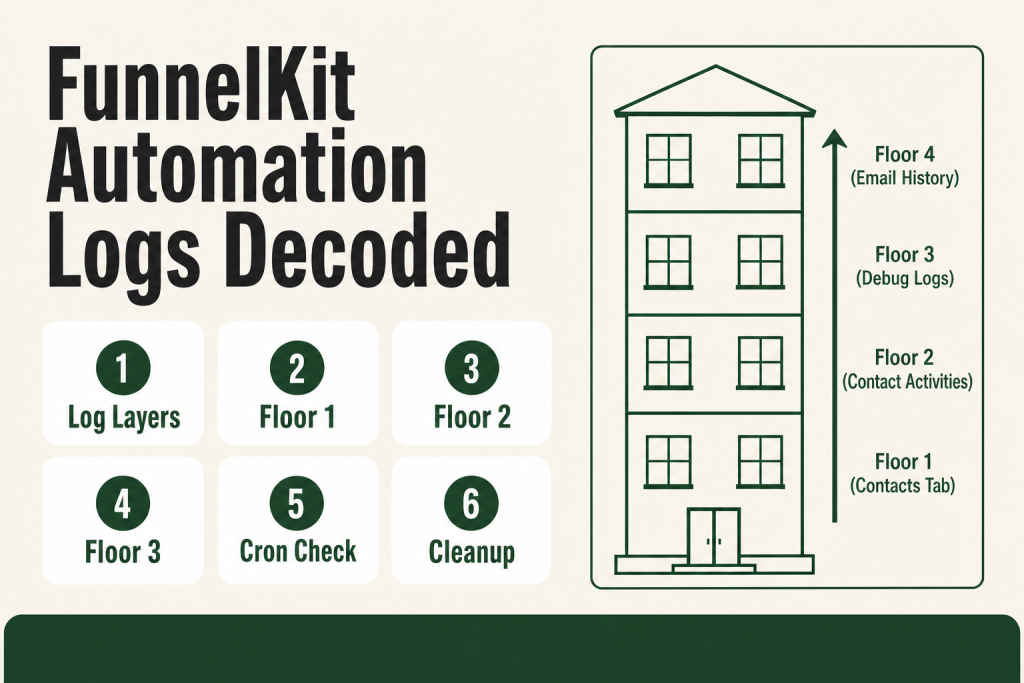
Think of FunnelKit’s logging like a building with four floors. Most debugging problems live on floor one or two. You only go higher when the lower floors don’t give you enough signal.
- Floor 1: Contact-level status tabs. Built into every automation’s Contacts tab. No setup required. Shows you active, completed, paused, and failed contacts with a per-step journey view.
- Floor 2: Global Contact Activities screen. A single feed across all automations. Lets you retry, rerun, or end contacts without opening each automation separately.
- Floor 3: Basic and Advanced debug logs. File-based logs you enable in Settings > Advanced, under the Debug Logs (For Developers) section. You enable them, reproduce the issue, then read the file under Settings > Tools > Logs.
- Floor 4: Email History. A separate log specifically for email delivery, covering transactional, broadcast, and automated sends.
Most stuck-contact and failed-action problems are solved on floors 1 or 2. You only need floors 3 and 4 when the journey view shows a failure but doesn’t tell you why. And in every case, the logs identify the problem. What you do about it is still your call.
Floor 1: The Contacts Tab and Contact Journey View
This is your first stop, every time. Open the automation that’s misbehaving and click the Contacts tab.
You’ll see four sub-tabs:
- Active: contacts currently running through or waiting in the automation.
- Completed: contacts that finished, including ones that ended early without reaching the final step.
- Paused: contacts on hold.
- Failed: contacts where a step threw an error.
For each row you get: the contact name and email, when they started, the last run time, the next run time, and their current status. The column you care about most is View Journey.
Click View Journey and you land on the workflow canvas overlaid with that specific contact’s path. Each step shows whether it completed, was skipped, or failed, and the failure message is attached directly to the broken step. That message is the first real clue. Screenshot it before you start changing anything.
A note on the Completed tab: contacts that ended mid-automation without hitting the end goal appear here, not in Failed. FunnelKit logs an ‘automation-ended’ event with a reason, such as ‘Ended by Goal,’ ‘Ended as Cart is Recovered,’ or ‘Ended as Event validation failed.’ Check Completed first if you expected a contact to keep moving but they simply vanished from Active.
From the Contacts tab you can also take immediate action without leaving: select the contact and choose to run, pause, or exit the automation instantly. If you’ve already fixed the root cause, you can rerun the contact right there rather than waiting for the trigger to fire again.
Related reading: if the contact never entered the automation at all, that’s a different problem covered in FunnelKit Automation Not Triggering. If a contact entered but a delay is the stuck point, see FunnelKit Delay Not Working.
Floor 2: Global Contact Activities for Cross-Automation Debugging
When a contact is bouncing between multiple automations, or you just want to see everything that’s failing across your entire account in one place, use the global Contact Activities screen.
Go to Automations and click Contact Activities. You get a real-time feed of every contact across every active automation, showing status, automation name, last run, and next run time.
The useful part: you don’t have to open each automation to act. From this screen you can retry an action, rerun an automation, re-enter a contact to the automation, end an automation, or delete an activity entirely. For failed or paused contacts, the failure and skip reasons are displayed right in the row, so you can scan a problem quickly without drilling into journey views for each one.
This is especially useful after you make a settings change. You can scan the feed to confirm contacts that were previously stuck are now moving again, rather than opening each automation individually.
Floor 3: How to Enable and Read FunnelKit Automation Logs in the Debug Settings
The contact journey view gives you the what. The debug logs give you the why. When a failure message is vague, or you’re dealing with something like a webhook, a cron timing issue, or a broadcast that stops mid-send, you need the file-based logs.
Enabling Basic Logs
Go to FunnelKit Automations > Settings > Advanced and scroll down to the Debug Logs (For Developers) section. Toggle on Enable Basic Logs. Basic logs capture core operational activity and write it to a file you can read under Settings > Tools > Logs.
Reproduce the failing action (or wait for the automation to run), then navigate to Settings > Tools > Logs, select the relevant log file from the dropdown, and click View. Read the entries from the time window when the failure occurred.
Enabling Advanced Logs
Toggle on Enable Advanced Logs and a second set of granular options appears. Each one writes to its own named file:
- Enable Logs for Cron Execution Time: writes to
fka-cron-check-[date]. Use this when contacts are stuck in Active and nothing is moving. If this file shows the cron isn’t firing on schedule, that’s your culprit. See the cron section below. - Enable Logs for Event JSON Endpoint: writes to
fka-event-endpoint-check-[date]. Use this when debugging incoming webhook payloads. Pairs directly with FunnelKit Webhook Automation. - Enable Logs for Automation Steps: writes to
fka-automation-step-id-[date]. Logs step-by-step execution inside a specific automation. This is the log to grab when a step fails silently with no clear error in the journey view. - Enable Logs for Broadcast: writes to
fka-broadcast-[date]. Use when a broadcast stops partway through. Related: FunnelKit Broadcast Not Sending. - Enable Logs for Bulk Actions: writes to
fka-bulk-action-[date]. Use when bulk contact operations aren’t completing.
Reading the log files
Go to Settings > Tools > Logs, pick the file that matches your issue from the dropdown, and click View. The entries are timestamped. Match the timestamp to when the failure occurred and read forward from there. You’re looking for error strings, empty payloads, or steps that start but don’t finish. Finding the entry is step one. Diagnosing what it means and deciding on the fix is still on you.
One important caveat from the official docs: these log files are automatically deleted every month to keep the database lightweight. If you’re chasing an intermittent issue, enable the log, trigger the failure deliberately, and read it the same session. Don’t leave logging on and come back in three weeks expecting history.
Turn logging off when you’re done
This is the step everyone skips. The official documentation explicitly recommends disabling logging once troubleshooting is complete to optimize system performance. Leaving Advanced Logs enabled on a busy store is like leaving every light in the building on overnight. Turn it off the same session.
Why Contacts Get Stuck in Active: Checking the Cron Log
The most common reason contacts sit in Active indefinitely, and nothing in the journey view shows a failure, is a broken WordPress cron. FunnelKit’s automation worker runs on WP-Cron. If WP-Cron isn’t firing, delays never resolve and scheduled actions never execute. The contacts just sit there, Next Run Time frozen.
To investigate, go to FunnelKit Automations > Settings > Advanced, enable Enable Advanced Logs, then enable Enable Logs for Cron Execution Time. Save. Wait a few minutes, then go to Settings > Tools > Logs and look for the file named fka-cron-check-[today's date]. Click View.
If the file exists and shows entries spaced a minute or two apart, the cron is healthy. If the file doesn’t exist at all, or entries are spaced hours apart, the cron is broken or being blocked. The log tells you whether the worker is firing. Diagnosing why it’s blocked, and whether your host has disabled WP-Cron in favor of a system cron, is a separate investigation you’ll need to run against your server configuration.
Quick check: if you don’t see the cron log file at all, copy your site’s cron URL and paste it directly into the browser. Then refresh the Logs page. If the file appears, the cron URL works but something is preventing auto-execution. That’s usually a server configuration issue, not a FunnelKit one.
For contacts stuck mid-automation because of delay configuration issues rather than cron problems, the dedicated article FunnelKit Delay Not Working covers that separately.
Floor 4: Using the Email History Log to Confirm Delivery
The contact journey view tells you whether FunnelKit tried to send an email. The Email History log tells you whether it actually handed it off to your email provider, and what happened after, up to that handoff point.
Go to FunnelKit Automations > Emails and click the History tab. You get a log of all emails sent from FunnelKit, covering automated sequences, broadcasts, and transactional emails. Each row shows the subject line, the date and time it was sent, the status (sent, failed, bounced, or draft), and engagement data like opens and clicks.
If the journey view shows a ‘Send Email’ step completed but the contact says they never received it, check Email History. ‘Completed’ in the journey means FunnelKit dispatched it to your SMTP or email service. If the History tab shows ‘failed’ or nothing at all for that contact at that time, the issue is with your email stack, not with FunnelKit’s automation logic. That’s an SMTP configuration problem, not an automation problem, and they require completely different fixes.
One thing the logs can’t tell you: whether the email landed in the recipient’s spam folder. FunnelKit can log a successful dispatch, but what the receiving mail server does with the message after handoff is outside FunnelKit’s scope entirely. For spam placement and deliverability questions, you need your email provider’s own sending logs and reputation tools.
For broadcast-specific failures, FunnelKit will auto-pause the broadcast after ten consecutive send failures and display the error reason. Once you’ve resolved the SMTP or authentication issue, you can resume the broadcast from the action menu and FunnelKit will retry the emails that previously failed.
Worked Example: Debugging a Failed ‘Send Email’ Action Step by Step
Here’s how the full process looks in practice. Say you have a post-purchase automation: trigger fires on order completion, a delay waits one hour, then a ‘Send Email’ action sends a review request. A customer reports they never got the email.
- Open the automation, click Contacts, filter by Failed and Completed. Check both tabs. In this case you find the contact is in Completed, not Failed.
- Click View Journey. The delay step shows completed. The Send Email step shows completed. FunnelKit’s side of the job looks clean.
- Open Email History (FunnelKit Automations > Emails > History). Filter by the contact’s email address and the approximate send time. The row shows status: failed, with an error from your email provider about authentication.
- Root cause identified. FunnelKit dispatched the email, but your SMTP credentials had expired. The automation logic was never broken. Fix the SMTP connection and resend from the History tab using the resend control. The log pointed you to the right layer. The fix itself is on the SMTP side.
Different scenario: the Send Email step in the journey view shows ‘Failed’ with a vague message about a missing field.
- Go to Settings > Advanced, scroll to the Debug Logs (For Developers) section, enable Advanced Logs, then enable Enable Logs for Automation Steps. Save.
- Manually rerun the contact from the Contacts tab (select the contact, click Run).
- Go to Settings > Tools > Logs, open the
fka-automation-step-idfile, and find the timestamp matching your manual rerun. - The log shows the merge tag for the recipient email resolved to empty, because the contact record had no email address stored. Fix: check the contact’s profile and trace back to the trigger event that created the contact without an email. That path leads to FunnelKit Automations Contact Not Added for the upstream fix.
The pattern is always the same: start with the journey view, escalate to the relevant log file only if the journey view isn’t specific enough, fix the root cause yourself, then rerun or retry from the Contacts tab or Contact Activities screen.
The Debug Action: Dropping a Breadcrumb Inside an Automation
FunnelKit has a lesser-known ‘Debug’ action type you can drop directly inside an automation workflow. It writes a custom message to your logs at the point where that action fires. Think of it as a console.log for your automation, without needing to touch any code.
Add a WordPress-category action to your automation and choose Debug. Enter a message, something like ‘Reached step 4 for contact: {{contact.email}}’. When that step executes, the message appears in your logs under FunnelKit Automations > Settings > Logs.
You do need Basic Logs enabled for the message to be written. The official docs confirm you enable this under Settings > Advanced before the Debug action will write anything. And you need to remove or disable the Debug step before leaving it live in production, since every execution writes a log entry and you’ve already been warned about what happens when you leave logging on permanently.
This technique is most useful in long, branching automations with split paths where the journey view shows a contact taking an unexpected branch but the reason isn’t obvious from the step labels alone. Drop a Debug action at each branch entry point, rerun a test contact, and the log tells you exactly which path was taken and when. Figuring out why the rule engine sent the contact that way, and whether the condition logic needs adjusting, is your next move. For more on the rule engine that drives those branching decisions, see FunnelKit Rule Engine Explained.
What the Logs Can’t Tell You
Honest caveat time. The logs are good at telling you what FunnelKit did and when. They are not good at telling you why a contact never entered an automation in the first place, because if the trigger never fired, there’s nothing to log. For trigger-level failures you need to think upstream: did the event actually occur, did it meet the automation’s entry conditions, and is the automation set to run once or multiple times per contact.
The logs also can’t tell you whether your email landed in the recipient’s spam folder. FunnelKit logs a successful dispatch when it hands the message off to your email provider. What happens inside the recipient’s inbox or their mail server’s spam filters is entirely outside FunnelKit’s visibility. For deliverability questions, you need your email provider’s own sending logs and reputation tools.
Finally, log files are deleted every month automatically. If you’re investigating a failure that happened three weeks ago and logging wasn’t enabled at the time, the evidence is gone. The fix is to enable Basic Logs as a standing practice on any store where automation reliability matters, and to review for failures weekly rather than waiting for a customer complaint. The performance cost of Basic Logs alone is low enough that this is a reasonable tradeoff for most operators, but verify that against your own server capacity before leaving it on indefinitely.
FAQ
Where are FunnelKit automation logs stored?
They’re in two places depending on the type. The contact-level journey logs are inside each automation under the Contacts tab. The file-based debug logs are at FunnelKit Automations > Settings > Tools > Logs. You only see file entries there if you’ve enabled Basic or Advanced Logs in Settings > Advanced first.
How do I enable FunnelKit automation debug logs?
Go to FunnelKit Automations > Settings > Advanced and scroll to the Debug Logs (For Developers) section. Toggle on Enable Basic Logs for general operational logging, or Enable Advanced Logs to unlock granular options like per-automation step logs and cron timing logs. Save the settings, reproduce the issue, then read the files under Settings > Tools > Logs. Disable logging again when you’re done.
Why is a contact stuck on Active in my automation?
The most common cause is a WP-Cron problem. FunnelKit’s automation worker depends on WP-Cron to advance contacts through delays and scheduled actions. Enable Advanced Logs and then Enable Logs for Cron Execution Time under Settings > Advanced. Check the fka-cron-check file in Settings > Tools > Logs. If there are no entries or they’re widely spaced, your cron isn’t firing reliably. The log confirms the symptom. Diagnosing the server-side cause of the cron failure is a separate step.
What’s the difference between Failed and Completed contacts in FunnelKit?
Failed means a step threw an error that stopped execution. Completed means the automation finished, including cases where it ended early without reaching the final step. Contacts that were terminated mid-automation by a goal, link trigger, bulk action, or event validation failure all appear in Completed, not Failed. Click View Journey on a Completed contact to see the exact reason it ended when it did.
FunnelKit shows the email step completed but the customer says they didn’t get it. What do I check?
Go to FunnelKit Automations > Emails > History and find the contact’s email address around the time the step ran. A Completed status in the journey view means FunnelKit handed the email off to your email provider. If Email History shows a failed or missing entry for that send, the failure is in your SMTP or email service layer, not in FunnelKit’s automation logic. Also keep in mind that FunnelKit can’t tell you whether the email landed in spam. For that you need your email provider’s own logs.
How long does FunnelKit keep automation logs?
Log files are automatically deleted after every month to keep the system lightweight. If you need to investigate a past failure, you’ll need to have had logging enabled at the time. For production stores, keeping Basic Logs enabled as a standing practice is reasonable given the low performance cost, but always verify this against your own server capacity before leaving it on indefinitely.
Sources:
Sources: FunnelKit Automations: Logs (official docs); FunnelKit Automations: Advanced Settings (official docs); FunnelKit Automations: Contacts tab (official docs); FunnelKit Automations: Contact’s Journey (official docs); FunnelKit Automations: Email History (official docs); FunnelKit Automations: WP-Cron (official docs); FunnelKit Automations: Workflow (official docs); FunnelKit Automations: WordPress Debug Action (official docs); FunnelKit Automations 3.0.3 release notes (automation-ended event log).
Brian Kasday spent forty years in direct-response marketing before rebuilding the whole operation as a one-person shop. He writes The Operator’s Library — including “The Missing Manual for FunnelKit” — for operators who’d rather build it themselves than wait on someone else.
Get the Builder’s Companion Kit — the free checklists and templates that pair with this guide: mmsvegas.com/op/funnelkit-resources/.
This guide fixes one FunnelKit step. The Missing Manual for FunnelKit covers the whole checkout system. See the manual →
More FunnelKit guides
Free · FunnelKit Operator Toolkit
Building checkouts in FunnelKit?
Get the free operator toolkit — order-bump templates, checkout checklists, and a note when what you just read changes.
Get the free toolkit →