
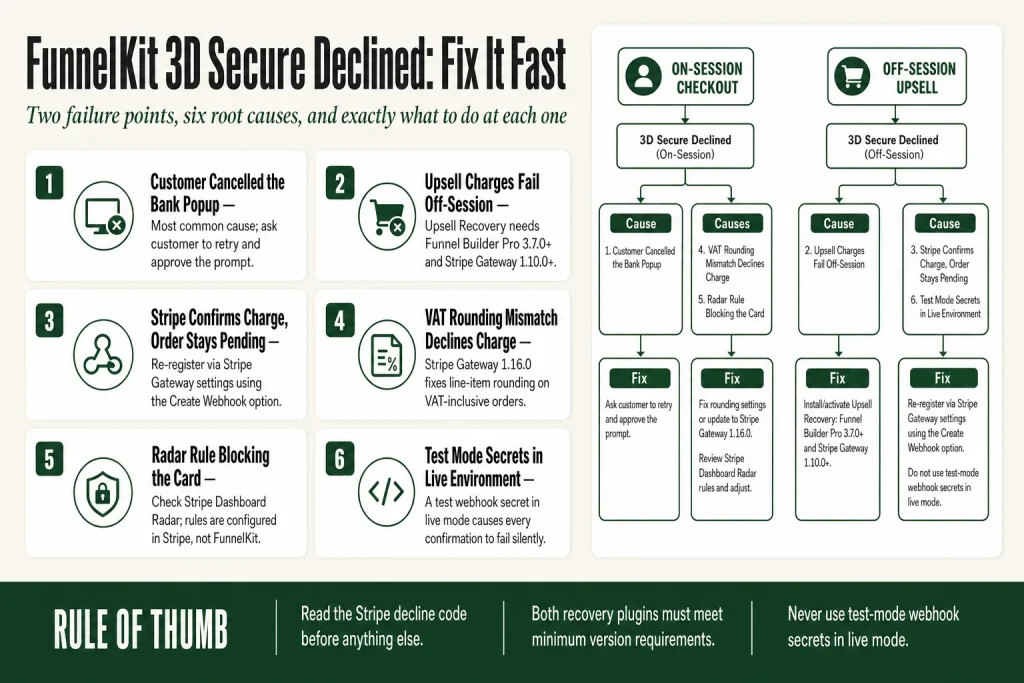
The 30-second answer
- 3D Secure (3DS) declined at checkout: The customer either cancelled the bank popup or their bank blocked the charge. Ask them to try again or contact their bank. Check the Stripe Dashboard for the exact decline code.
- 3DS declined on a one-click upsell: The tokenized card could not be charged off-session without re-authentication. The Upsell Recovery feature (requires Funnel Builder Pro 3.7.0+ and Stripe Gateway 1.10.0+) lets the customer enter a new card without losing the sale. Both plugins must be at those minimum versions for the feature to work.
- Webhooks not arriving: If Stripe confirms the charge but the WooCommerce order stays pending, the webhook is likely broken. Re-register it by navigating to WooCommerce > Settings > Payments > Stripe Gateway > Manage > Stripe Settings and using the Create Webhook option.
- VAT rounding mismatch: On VAT-inclusive orders, a line-item rounding difference between the WooCommerce order total and the amount sent to Stripe can cause the charge to be declined. The Stripe Gateway 1.16.0 changelog confirms line items now reconcile exactly with the payment amount on VAT-inclusive orders. Update the FunnelKit Stripe Gateway plugin to 1.16.0 or later if you run VAT-inclusive pricing.
- Test mode webhooks in live mode: Test and live webhook secrets must match the environment. A test secret in a live-mode setup causes every payment confirmation to fail silently.
- Stripe Radar rule blocking the card: Log into your Stripe Dashboard and check Radar for any custom rules that may be blocking the card type or country. Radar rules are configured entirely in Stripe, not in FunnelKit. Confirm any rule aligns with your actual business needs before adjusting.
Take this fix into your next scenario. The free Builder’s Companion Kit collects the checklists and templates that pair with this guide — so next time, you start from a template, not a blank page. Grab it free →
- How 3D Secure Works Inside a FunnelKit Checkout
- FunnelKit 3D Secure Declined at Main Checkout: Every Cause
- FunnelKit 3D Secure Declined on One-Click Upsells
- When Stripe Confirms the Charge but FunnelKit Shows It Declined
- Automation Follow-Up After a 3D Secure Decline
- How to Test FunnelKit 3D Secure Scenarios Without Real Cards
- FAQ
A FunnelKit 3D Secure declined error is one of the more disorienting failures you can face, because the card itself is fine. The customer entered correct details, clicked pay, and still got turned away. There are exactly two moments this happens: at the main checkout (on-session), and on the post-purchase one-click upsell page (off-session). The cause and the fix are different in each case. This article walks through both, starting with how the authentication layer actually works so the fixes make sense.
How 3D Secure Works Inside a FunnelKit Checkout
Think of 3D Secure as a second door the bank puts in front of certain transactions. The customer knocks at your checkout. Stripe checks whether their bank requires authentication. If it does, a popup or redirect sends the customer to their bank to verify via SMS code, app approval, or biometric. Only after that confirmation does Stripe attempt the actual charge.
SCA (Strong Customer Authentication) is the regulatory version of this requirement. PSD2 mandates it across the EEA and UK. Stripe’s documentation also identifies other regions where SCA-style rules apply to card payments. Outside regulated regions, 3DS is optional, but Stripe or your Radar rules can still trigger it.
The important distinction: Stripe automatically handles soft decline codes that indicate 3DS is required by issuers, and it triggers 3DS when regulations such as PSD2 require it. Disabling Radar does not prevent 3DS from firing in cases where it is mandatory. There is no setting inside FunnelKit that can suppress authentication your customer’s bank or Stripe’s SCA rules require. FunnelKit’s role is to implement the Payment Intents API correctly so the authentication popup appears inline at checkout and the result is handled before the order is created. That part is built in. What you can influence, for cards where 3DS is optional, is whether Stripe requests it, by adjusting your Radar rules inside the Stripe Dashboard. Verify any such change in Stripe directly, not in FunnelKit, and confirm any rule you add or remove aligns with your business needs before it goes live.
The Stripe Dashboard is your primary diagnostic tool. Every declined payment shows a decline code and, for 3DS failures specifically, whether the authentication was attempted or never started. Get comfortable reading it before you try to fix anything.
FunnelKit 3D Secure Declined at Main Checkout: Every Cause
When a customer hits a 3DS decline on your main checkout page, run through this list in order.
1. The customer cancelled or timed out the bank popup
This is the most common cause, and you cannot fix it from your side. The customer closed the authentication window before approving. The fix is asking them to try again and approve the bank prompt. If their banking app notification expired, they may need to restart the checkout.
2. The bank blocked the charge after authentication
This is less obvious: the customer completed the 3D Secure step, but the bank still declined. In Stripe, this shows as card_declined after a successful authentication, not as an authentication_required code. The customer needs to contact their card issuer. There is nothing you can adjust on your end.
3. Stripe Radar rule is blocking the card
If you have custom Radar rules, they can reject cards before or after 3DS. Log into your Stripe Dashboard, go to Radar, and check whether a rule is catching the transaction. Common culprits: country blocks, velocity rules, or a rule requiring 3DS that then fails for unsupported cards. Before adjusting or removing any rule, confirm it aligns with your actual business needs. Radar rules are configured entirely in Stripe, not in FunnelKit, so there is no FunnelKit setting to check here. You can add a card fingerprint to an allow list during testing, but make sure that exception does not open a gap in your fraud protection once you go back to production.
4. VAT rounding creates a line-item discrepancy
On VAT-inclusive orders, a rounding difference between the WooCommerce order total and the line items sent to Stripe can cause the charge to fail. This is a known issue specific to VAT-inclusive pricing configurations. The Stripe Gateway 1.16.0 changelog confirms that line items sent to Stripe now reconcile exactly with the payment amount on VAT-inclusive orders, fixing declined payments caused by a rounding mismatch. If you are on an older version and running VAT-inclusive pricing, update the plugin first before investigating anything else. If you are not using VAT-inclusive pricing, this cause almost certainly does not apply to you.
5. The card type is not 3DS2-capable and your Radar rules require it
3DS2 (the modern version) requires the card’s bank to support it. Older cards fall back to 3DS1, which some Radar configurations reject. Stripe only prompts for 3DS authentication if the feature is available for that specific card. If it is not available, the payment proceeds normally unless a Radar rule explicitly blocks it. Check your Radar rules. If you are intentionally blocking non-3DS2 cards, that is a deliberate trade-off. If not, adjust the rule to allow 3DS1 fallback. Either way, confirm the rule reflects your business intent before changing it.
Also see FunnelKit Stripe Not Connecting if the gateway itself is not appearing at checkout, which is a different problem entirely.
FunnelKit 3D Secure Declined on One-Click Upsells
Post-purchase one-click upsells are fundamentally different from the main checkout. The customer is no longer sitting at a form. They are looking at an offer page. FunnelKit charges their saved (tokenized) card in the background the moment they click accept. There is no opportunity to show them a 3DS popup mid-upsell.
This is called an off-session payment: the charge happens after the customer authenticated for the initial order. Banks in SCA-regulated regions can still demand fresh authentication for subsequent charges, which causes the upsell charge to fail with authentication_required.
Why this happens more in the EU and UK
SCA-regulated issuers can require re-authentication for subsequent charges. Whether this applies to a given transaction depends on the issuer, the amount, and how the original payment mandate was set up. This is not a FunnelKit bug; it is the regulation working as intended.
The Upsell Recovery feature
FunnelKit addressed this directly. The Upsell Recovery feature was delivered across two plugin updates that shipped together in November 2024. The official changelog for Funnel Builder Pro 3.7.0 confirms it added the front-end upsell recovery flow, which allows new credit card form input when a transaction fails with FunnelKit Stripe Gateway. The Stripe Gateway 1.10.0 changelog confirms it added the payment-side handling that displays the new credit card form on the upsell page when the background charge fails. The customer can enter a different card and complete the purchase without losing the offer, so a 3DS decline on an upsell is not necessarily a lost sale.
Both plugins must be at these versions or later for the feature to work: Funnel Builder Pro 3.7.0+ and Stripe Gateway 1.10.0+. If either plugin is behind, the recovery form will not appear and a declined upsell charge becomes a hard loss.
Enabling and verifying Upsell Recovery
The feature activates once both plugins are on the required versions. That said, there are a few things worth confirming before you rely on it in production:
- Check plugin versions. In your WordPress dashboard, go to Plugins and confirm Funnel Builder Pro shows 3.7.0 or later and Stripe Payment Gateway for WooCommerce shows 1.10.0 or later. If either is behind, update it first.
- Confirm Stripe is connected and webhooks are registered. Navigate to WooCommerce > Settings > Payments > Stripe Gateway > Manage > Stripe Settings and verify your Stripe account is connected and the webhook is active. A broken webhook can prevent the recovery flow from completing even if both plugins are current.
- Test the failure path. In test mode, use Stripe’s test card
4000 0027 6000 3184through your main checkout, then attempt the upsell. The recovery card entry form should appear on the upsell page when the tokenized charge fails. If it does not appear, recheck both plugin versions and the webhook status before assuming a deeper configuration problem. - Test the recovery path. When the recovery form appears, enter a second test card and confirm the upsell order is created and moves to Processing. Check the order note to confirm the Stripe decline code was logged.
If the upsell shows a cryptic payment error
The Stripe Gateway 1.15.0 changelog shows significant improvements to payment element handling and checkout error feedback. If you are seeing opaque error output on a failed upsell, updating the plugin to 1.15.0 or later is a reasonable first step. If the error persists after updating, check the Stripe Dashboard for the associated Payment Intent and confirm it reached a terminal state before the upsell page tried to re-use it. The Stripe Dashboard remains the authoritative source for decline codes and payment status.
For context on how upsells fire in the first place, see FunnelKit One-Click Upsell Not Working.
When Stripe Confirms the Charge but FunnelKit Shows It Declined
Here is a scenario that looks like a 3DS decline but is actually a webhook failure: Stripe charges the card successfully, sends the payment_intent.succeeded event to your site, your site does not receive it, and the WooCommerce order stays in a pending or failed state. From the customer’s perspective the payment went through. From your admin panel it looks declined.
Stripe relies on webhooks to tell WooCommerce that a payment succeeded. If the webhook endpoint is broken, orders do not update. The FunnelKit Stripe Gateway plugin registers this webhook automatically during the connect flow, but it can break if you migrate hosts, change your domain, or update SSL certificates.
How to check
- Go to your Stripe Dashboard, navigate to Developers > Webhooks, and look at recent deliveries. Failed deliveries show a 4xx or 5xx response code.
- In WordPress, navigate to WooCommerce > Settings > Payments > Stripe Gateway > Manage > Stripe Settings. You will see your Webhook ID, Webhook URL, and both live and test webhook secret fields. Confirm the URL matches your current live domain.
- If it does not match, use the Create Webhook option on the same screen to re-register. The official FunnelKit webhook docs confirm this option is available on the API Settings screen.
Starting with Stripe Gateway version 1.13.0, the plugin added admin alerts for webhook misconfigurations. The official 1.13.0 release notes confirm this addition. If you see a webhook-related notice in your WordPress admin, fix the webhook before investigating anything else.
Also check that you are not running test-mode webhook secrets in your live environment. A test secret rejects every live-mode delivery silently. The Webhook URL and both webhook secret fields (live and test) must match the environment you are operating in.
For a deeper look at how order status gets stuck after upsells, read FunnelKit Primary Order Accepted Status Stuck, which covers the WP-Cron dependency that is often the root cause.
Automation Follow-Up After a 3D Secure Decline
A 3DS-declined upsell is a missed revenue opportunity, but it does not have to stay that way. FunnelKit Automations has a dedicated trigger for rejected offers. You can build a follow-up sequence that fires when a customer declines (or fails to complete) a one-click upsell, and sends them a recovery email with a direct link back to the offer.
The key distinction: a customer whose upsell charge was declined due to 3DS authentication is in a different situation than one who clicked “No thanks.” The first customer wanted the product; their bank got in the way. Your recovery email for that segment should acknowledge the friction, not assume they changed their mind. Send them a direct link that routes them back through a card-entry form. Do not send them a generic “here’s what you missed” message designed for deliberate rejecters. That judgment call stays with you. The automation handles timing and delivery.
How to build the recovery automation
Here is the basic sequence, based on the documented steps in the FunnelKit Automations interface:
- Create a new automation. Go to FunnelKit Automations and click “Create Automation” (or “Add New” depending on your version). Choose “Start from Scratch.”
- Select the trigger. In the event picker, select Recover Offers. Configure it to fire on Offer Rejected (for upsells), Bump Rejected (for order bumps), or Both. You can scope it to any offer or a specific one. Set the run frequency to “Multiple Times” if you want repeat buyers who hit the failure again to re-enter the sequence.
- Add a short delay. A 30-to-60-minute delay before the first email gives the customer time to complete the purchase on their own before you follow up.
- Add the email action. Write a plain email that acknowledges the payment issue and gives them a direct recovery link. FunnelKit lets you generate an offer recovery link inside the automation that routes the customer back to the upsell checkout with the card-entry form pre-loaded. Paste that link into the email.
- Activate the automation. Toggle it to active. Test it first in a sandbox order before sending it to real customers.
Build a separate automation for Offer Rejected and Bump Rejected if you want different copy for each.
For the mechanics of setting up these triggers, see FunnelKit Automation Not Triggering if the sequence is not firing, or FunnelKit Automation Logs: How to Debug Stuck or Failed Actions if it is firing but the emails are not reaching the customer.
How to Test FunnelKit 3D Secure Scenarios Without Real Cards
You should verify your 3DS flow in test mode before sending real customers through it. Stripe provides specific test card numbers for each scenario.
Test cards to use
- Triggers 3DS authentication (must complete to succeed): Card number
4000 0027 6000 3184, any future expiry, any 3-digit CVC. This opens the authentication popup. - Generic decline (no 3DS):
4000 0000 0000 0002 - Insufficient funds:
4000 0000 0000 9995 - Expired card:
4000 0000 0000 0069 - Incorrect CVC:
4000 0000 0000 0127
With the 3DS test card, you will see a modal that lets you choose “Complete authentication” or “Fail authentication.” Use both paths. Confirm that a failed authentication returns a clear error on your checkout page and that no order is created in WooCommerce. Confirm that a successful authentication creates the order and moves it to Processing.
Then test the same card on your one-click upsell offer. You should see the Upsell Recovery card input appear if the tokenized charge fails. If it does not appear, verify that both Funnel Builder Pro and the Stripe Gateway plugin are on the required versions (3.7.0+ and 1.10.0+ respectively).
Run your tests with test-mode webhooks pointing at your staging URL. Never use test-mode credentials in production. If you need to test webhook delivery, the Stripe CLI’s stripe listen command lets you forward events to a local or staging endpoint without creating a public webhook.
FAQ
why is stripe 3d secure declining my funnelkit checkout
The most common reasons are: the customer cancelled or timed out the authentication popup, their bank blocked the charge after authentication, or a Stripe Radar rule is intercepting the transaction. Open the Stripe Dashboard, find the declined Payment Intent, and read the decline code. ‘authentication_required’ means the popup was not completed. ‘card_declined’ after authentication means the bank refused the charge even after the customer verified. Radar rules are managed entirely in Stripe, so if you suspect a rule is involved, check there and confirm any change fits your business before applying it. Keep in mind that not every declined 3DS charge has a fix on your end.
funnelkit one click upsell failing with 3d secure after checkout
One-click upsells charge the saved card off-session, so there is no opportunity to show the bank popup again. If the issuer demands re-authentication, the charge fails. The Upsell Recovery feature requires both Funnel Builder Pro 3.7.0+ and Stripe Gateway 1.10.0+. Both plugins must be at those versions. The official changelogs confirm that Funnel Builder Pro 3.7.0 added the front-end recovery flow and Stripe Gateway 1.10.0 added the payment-side handling that displays the new card entry form on the upsell page so the customer can complete the purchase.
stripe says payment succeeded but woocommerce order is still pending or failed
This is almost always a broken webhook. Stripe sent the confirmation, but your site never received it. Check Developers > Webhooks in your Stripe Dashboard for failed deliveries, then use the Create Webhook option in your Stripe Gateway plugin settings (WooCommerce > Settings > Payments > Stripe Gateway > Manage > Stripe Settings) to re-register the endpoint. Also confirm you are not using a test-mode webhook secret in your live environment.
can i disable 3d secure in funnelkit stripe gateway
Not for cards where it is mandatory. Stripe automatically triggers 3DS when regulations such as PSD2 require it, and disabling Radar does not prevent this. There is no setting inside FunnelKit that can suppress authentication your customer’s bank or Stripe’s SCA rules require. For cards where 3DS is optional, you can influence whether Stripe requests it by adjusting your Stripe Radar rules. Verify any such change in the Stripe Dashboard, not in FunnelKit, and confirm the rule aligns with your business needs before you apply it.
funnelkit stripe vat order total mismatch causing payment declined
On VAT-inclusive orders, a rounding difference between the WooCommerce order total and the line items sent to Stripe can cause the charge to fail. This is specific to VAT-inclusive pricing configurations. The FunnelKit Stripe Gateway 1.16.0 changelog confirms that line items now reconcile exactly with the payment amount on VAT-inclusive orders, fixing this mismatch. Update the plugin. If you cannot update immediately and you are running VAT-inclusive pricing, disabling tax-inclusive pricing temporarily is a workaround while you arrange the update. If you are not using VAT-inclusive pricing, this cause almost certainly does not apply to you.
how do i test 3d secure on funnelkit checkout without a real card
Use Stripe’s test card 4000 0027 6000 3184 with any future expiry and any CVC. It triggers the 3DS authentication modal in test mode. The modal lets you choose to complete or fail the authentication so you can verify both outcomes. Make sure you are in test mode in both WooCommerce and your Stripe Dashboard before running the test.
Sources:
Sources: FunnelKit Stripe Gateway Setup and Onboarding; FunnelKit Stripe Gateway Webhooks; FunnelKit One-Click Upsell Order Processing; FunnelKit One-Click Upsell Order Statuses; FunnelKit One-Click Upsell Gateway Compatibility; FunnelKit Stripe WooCommerce Plugin Changelog (WordPress.org); FunnelKit: How to Test Stripe Payments in WooCommerce; FunnelKit: Order Bump and One-Click Upsell Recovery Feature; FunnelKit What’s New / Changelogs; Stripe: 3D Secure Authentication; Stripe: SCA Enforcement FAQ; Stripe: Verifying PaymentIntent Status; Stripe: Fraud Prevention Rules (Radar); FunnelKit Docs: One-Click Upsells in Automations.
Brian Kasday spent forty years in direct-response marketing before rebuilding the whole operation as a one-person shop. He writes The Operator’s Library — including “The Missing Manual for FunnelKit” — for operators who’d rather build it themselves than wait on someone else.
Get the Builder’s Companion Kit — the free checklists and templates that pair with this guide: mmsvegas.com/op/funnelkit-resources/.
This guide fixes one FunnelKit step. The Missing Manual for FunnelKit covers the whole checkout system. See the manual →
More FunnelKit guides
Free · FunnelKit Operator Toolkit
Building checkouts in FunnelKit?
Get the free operator toolkit — order-bump templates, checkout checklists, and a note when what you just read changes.
Get the free toolkit →