
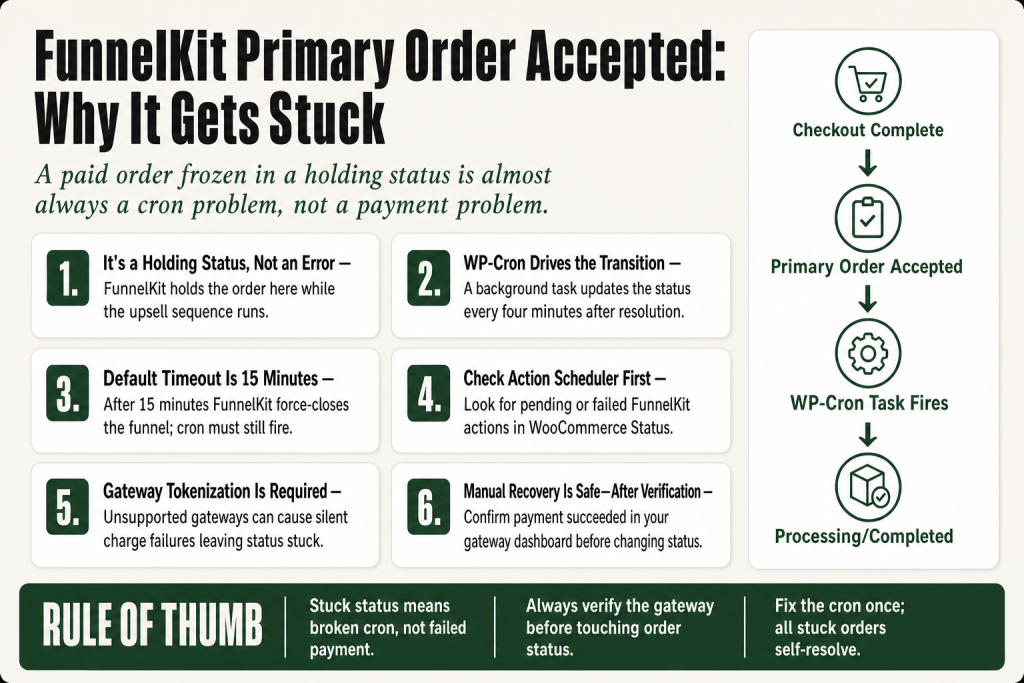
The 30-second answer
- “Primary Order Accepted” is intentional. FunnelKit holds the order in this interim state while the customer moves through your upsell sequence, so the final order record reflects whatever was accepted or declined.
- The transition runs on WP-Cron. After the customer accepts, declines, or the timeout expires, a background task updates the status. If WP-Cron is broken, the status never moves.
- The default timeout is 15 minutes. You can adjust it under FunnelKit > Settings > One-Click Upsells > Order Statuses. After that window, the funnel is force-closed and the status should resolve automatically, provided the cron fires.
- Check Action Scheduler first. Go to WooCommerce > Status > Scheduled Actions and look for pending or failed FunnelKit actions.
- Enable FunnelKit’s upsell log (FunnelKit > Settings > One-Click Upsells > Miscellaneous) and your gateway’s log for a full trail of what happened.
- Manual recovery is safe. Once you confirm no payment is pending, you can update the order status directly in WooCommerce Orders. Don’t do this before verifying the gateway transaction.
- A non-tokenization-compatible gateway will break the upsell charge silently. Confirm your gateway supports card tokenization.
Take this fix into your next scenario. The free Builder’s Companion Kit collects the checklists and templates that pair with this guide — so next time, you start from a template, not a blank page. Grab it free →
- What “Primary Order Accepted” Actually Means
- How the Status Transition Works: Timeout, WP-Cron, and Action Scheduler
- Why Your Payment Gateway Matters Here
- How to Diagnose a FunnelKit Primary Order Accepted Status Stuck on a Specific Order
- Fix WP-Cron So the Transition Fires Automatically
- Adjusting the Completion Timeout (and When That Helps)
- Safe Manual Recovery for Orders Already Stuck
- Worked Example: Tracing a Stuck Order from Log to Fix
- What This Means for FunnelKit Automations and External CRMs
- FAQ
The funnelkit primary order accepted status stuck problem looks alarming: a paid order sitting in a custom holding status long after the customer finished (or skipped) your upsell session. The money cleared, the upsell interaction ended, yet WooCommerce refuses to flip the order to Processing or Completed. Confirmation emails are late or missing, automations haven’t fired, and you’re staring at a status that reads like something went wrong when it mostly didn’t. This article explains exactly what that status is, why it gets stuck, and how to recover it safely without touching payment data.
What “Primary Order Accepted” Actually Means
“Primary Order Accepted” is not an error state. It’s a custom WooCommerce order status that FunnelKit registers specifically for its upsell flow. If your upsell isn’t firing at all, that’s a different problem. When it does fire, FunnelKit moves the order into this holding status the moment the post-purchase upsell sequence begins.
Think of it like a hotel room that’s been checked in but not yet settled: the guest is still at the minibar deciding. The status exists so FunnelKit can process correct order data. If the customer accepts an upsell that gets merged into the primary order, the final record needs to reflect the complete total, not just the checkout amount. Resolving to Processing prematurely would mean sending a confirmation email with the wrong line items.
The docs are clear on the design intention: “By having an intermediate order state, we wait for the upsell funnel to get complete. Once it is done, the order status automatically moves to a successful order state.” The label of this custom status can be renamed from FunnelKit > Settings > One-Click Upsells > Order Statuses, but the status itself will always exist while you have active upsell funnels.
One more important detail: this status is not visible to the customer. No email is sent at this stage. It’s internal bookkeeping only, which means your customer sees nothing unusual, but your order list will show this status until the transition completes.
How the Status Transition Works: Timeout, WP-Cron, and Action Scheduler
The transition from “Primary Order Accepted” to a final status (Processing, Completed, or Pending depending on your gateway and product type) does not happen instantly. It runs as a scheduled background job. Here’s the full chain:
- Customer reaches the upsell page. FunnelKit sets the order to “Primary Order Accepted” and starts timing the session.
- Customer accepts, declines, or leaves. FunnelKit registers the outcome. If they accept, the upsell charge is attempted via your gateway’s stored token. If they decline or abandon the page, no charge is made and the funnel is flagged complete.
- Timeout kicks in as a safety net. FunnelKit waits for an interval for the funnel to complete (the default is 15 minutes). If the customer doesn’t complete the funnel within this window, FunnelKit will forcefully end the funnel. You can change this under Global Settings > One-Click Upsells > Order Statuses.
- A WP-Cron task fires. FunnelKit relies on WP-Cron to handle order status transitions after upsell interactions. Once a customer accepts or declines, WP-Cron runs a background task, usually every 4 minutes, to update the status to the final WooCommerce status.
- The status resolves. The order moves to Pending, Processing, or Completed depending on where the original order was supposed to go.
WooCommerce itself adds another layer here. It uses Action Scheduler, a job-queue library, for many of its own background tasks. Action Scheduler still depends on WP-Cron firing to drain its queue, which means a WP-Cron failure cascades into an Action Scheduler failure, and that’s exactly the kind of thing that leaves a FunnelKit order sitting in limbo.
If WP-Cron isn’t working properly, the order status won’t change automatically, causing the order to remain stuck at “Primary Order Accepted.”
Why Your Payment Gateway Matters Here
One-click upsells charge the customer’s card without asking them to re-enter payment details. That’s only possible because the gateway tokenizes the card during the original checkout. FunnelKit stores the token reference, not the raw card data, and uses it to create a second charge if the offer is accepted. The process is PCI-compliant because the sensitive data never leaves the gateway plugin.
The practical consequence: your gateway must support card tokenization for upsells to work. Checkout pages and order bumps work with every WooCommerce-compatible gateway, but one-click upsells require tokenization support specifically. If your gateway doesn’t support it, FunnelKit won’t display upsell offers to customers who checked out with that method. Per FunnelKit’s docs, if you have multiple gateways and only one is compatible, upsell offers will only show when a purchase happens through the compatible gateway.
When it comes to a stuck status, a partially supported gateway can cause a specific failure pattern: the upsell offer fires, the customer accepts, the charge attempt silently fails, and the order doesn’t cleanly resolve. FunnelKit creates a new order and marks it as “failed” in this case so you can retry, but the primary order may also stay in “Primary Order Accepted” until the cron resolves it. Always cross-reference the upsell log with the gateway log when you see this pattern.
Currently supported gateways for one-click upsells include FunnelKit’s own Stripe plugin, the official WooCommerce Stripe gateway, PayPal, Authorize.net CIM, Braintree, and others. Check the live FunnelKit gateway list for the current complete list before assuming your gateway qualifies.
How to Diagnose a FunnelKit Primary Order Accepted Status Stuck on a Specific Order
Work through this in order. Don’t manually change order statuses before you’ve confirmed the payment state.
Step 1: Enable FunnelKit upsell logging
Go to FunnelKit > Settings > One-Click Upsells > Miscellaneous and turn logging on. Reproduce the issue with a test transaction, then navigate to WooCommerce > Status > Logs and select the upsell log files from the dropdown. Look for the order ID in question and read what the log says about the session outcome and any charge attempt.
Also enable logging inside your gateway plugin. Each gateway has its own “Enable Logging” checkbox, usually inside WooCommerce’s payment settings for that gateway. Gateway logs will show you whether the tokenized charge succeeded, failed, or was never attempted.
Step 2: Check Action Scheduler
Go to WooCommerce > Status > Scheduled Actions. Filter by “Pending” and “Failed.” Look for any FunnelKit-related hook names associated with the stuck order. A pile of pending actions far past their scheduled time is evidence that the scheduler isn’t running. A failed action with the right order ID is your smoking gun.
Step 3: Test WP-Cron
FunnelKit’s own documentation points to two methods. The simpler one: install a plugin like WP Crontrol and inspect the cron event queue. Look for events marked “Now” that never advance, which signals a stuck or disabled cron. The more reliable method on a server you control: use WP-CLI to run wp cron test and check whether the spawning system responds. If it fails or returns an error, you’ve found the root cause.
A common hidden trap: some hosting stacks or performance guides recommend setting DISABLE_WP_CRON to true in wp-config.php to reduce load, and then setting up a real server cron job instead. That’s a legitimate approach, but if the server cron was never actually configured after the WP-Cron was disabled, background tasks stop running entirely. Check your wp-config.php for that constant and verify a server-side cron job exists if it’s set.
Step 4: Check for a gateway tokenization failure
If the upsell log shows the offer was accepted but the gateway log shows a charge failure, FunnelKit creates a new failed order for the upsell item. The primary order should still transition to its final status after the cron fires. Confirm the original checkout payment succeeded (check your payment processor dashboard directly, not just WooCommerce), then treat the stuck status as a cron issue, not a payment issue.
Fix WP-Cron So the Transition Fires Automatically
The cleanest long-term fix isn’t to manually update stuck orders one by one. It’s to make WP-Cron reliable so orders resolve on their own every time.
Option A: Replace WP-Cron with a real server cron job
WP-Cron is “pseudo-cron,” meaning it only runs when someone visits the site. Low-traffic stores, overnight orders, or server-side caching that bypasses WordPress page loads can all cause WP-Cron to fire late or never. Setting up a real server cron job that calls wp-cron.php on a fixed schedule (every minute or every five minutes) removes this dependency. Your host’s control panel or WP-CLI can set this up. The exact steps vary by host, so check your host’s documentation.
If you use this approach, add define('DISABLE_WP_CRON', true); to wp-config.php to prevent the built-in pseudo-cron from also running and doubling up. Just make absolutely certain the server cron job is working before you do this.
Option B: Clear a blocked Action Scheduler queue
If Action Scheduler has a backlog, a single broken action can effectively poison the queue. The runner hits the broken action, errors, and stops, leaving everything else behind it stalled. Go to WooCommerce > Status > Scheduled Actions, find any failed FunnelKit actions, and inspect them. If the failure is from a transient error (a timeout, a brief gateway outage), you can retry the action from the Scheduled Actions screen. If it keeps failing, identify the cause before retrying in bulk.
If WP-Cron is confirmed working but the Action Scheduler queue is massively backlogged from unrelated jobs (subscriptions, bulk imports, stock syncs), those other jobs can delay FunnelKit’s order transition tasks. Clearing or resolving the unrelated backlog often unblocks the FunnelKit tasks without any changes to FunnelKit’s own settings.
Adjusting the Completion Timeout (and When That Helps)
The 15-minute default timeout is the point at which FunnelKit forcefully ends the funnel if the customer hasn’t responded. You can change this in FunnelKit > Settings > One-Click Upsells > Order Statuses. The setting accepts a value in minutes.
Lowering the timeout doesn’t fix a broken cron. It just means the window in which an order can be “stuck” is shorter. If cron fires reliably, a lower timeout means orders resolve faster for customers who abandon the upsell page without accepting or declining. That can be useful when your confirmation emails are triggered by the “upsell end” event and you want them to arrive sooner.
Raising the timeout makes sense if you have a multi-step upsell sequence with a countdown timer and genuinely need customers to have more time to decide. Just know that any order where the customer drops off mid-session will stay in “Primary Order Accepted” for that full window.
The setting that pairs with this is the confirmation email timing. As FunnelKit’s Order Statuses docs note, the timeout interval is especially relevant when confirmation emails are set to trigger on the “upsell end” event. If you’re wondering why post-purchase emails are delayed, this pairing is worth reviewing. See also FunnelKit automation not triggering for broader email delay causes.
Safe Manual Recovery for Orders Already Stuck
If you have existing stuck orders you need to resolve now, here’s how to do it without creating a payment mess.
- Verify the original payment succeeded in your payment processor’s dashboard (Stripe, PayPal, etc.), not just in WooCommerce. A stuck status in WooCommerce does not mean the charge failed. In the overwhelming majority of cases, the customer’s card was charged successfully at checkout, and the stuck status is purely a background-job issue.
- Check whether an upsell was accepted. Look at the upsell log for that order ID. If an upsell was accepted, confirm the second charge also succeeded in your gateway dashboard before deciding what the final order total should be.
- Update the order status manually. Once you’re confident about the payment state, go to WooCommerce > Orders, open the order, and use the status dropdown to move it to the correct final status (usually Processing or Completed). Add an order note describing why you changed it manually, so there’s an audit trail.
- Trigger confirmation emails if needed. If your customer hasn’t received a confirmation, WooCommerce lets you resend the order confirmation email from the order detail screen. Use the “Order actions” dropdown at the top right and select “Resend new order notification” (or the relevant email action for your setup).
- Don’t manually change status before confirming payment. This is the one caveat that matters. If you change an order to Completed when the original payment actually failed, you’ll have fulfilled an order without collecting payment. Always check the gateway first.
If you have many stuck orders from the same time window (suggesting a cron outage rather than individual failures), fix the cron issue first, then let Action Scheduler work through the backlog. Manually changing dozens of orders is tedious and error-prone compared to fixing the root cause and waiting a few minutes for the queue to drain.
For the related problem of upsells that never showed in the first place, see FunnelKit one-click upsell not working.
Worked Example: Tracing a Stuck Order from Log to Fix
Here’s a realistic scenario so you can see the full diagnostic path in one place.
Situation: Three orders from yesterday evening are sitting in “Primary Order Accepted.” It’s now the next morning. All three customers checked out successfully and your Stripe dashboard confirms all three charges went through. None of the post-purchase confirmation emails sent.
Step 1, Check Action Scheduler. You go to WooCommerce > Status > Scheduled Actions, filter by Pending, and see 80+ pending FunnelKit actions, all scheduled for last night and never executed.
Step 2, Test WP-Cron. You install WP Crontrol and see several events marked “Now” (overdue but not executing). You also check wp-config.php and find define('DISABLE_WP_CRON', true);. You check with your host and confirm: WP-Cron was disabled months ago to improve performance, but the server-side cron replacement was never set up correctly after a server migration.
Step 3, Fix the root cause. You either re-enable WP-Cron by removing that constant temporarily, or you work with your host to confirm the server cron job is pointing at the correct URL and firing correctly. Within five minutes of WP-Cron running again, Action Scheduler drains the backlog and all three orders move to Processing.
Step 4, Handle the emails. Because the confirmation emails were set to trigger on the “upsell end” event in FunnelKit Automations, they also fire once the order status resolves. You verify in your email sending logs that they dispatched. If any failed (for example because your automation trigger only fires on live transitions, not on retroactive status changes), you resend them manually from each order detail screen.
Step 5, Prevent recurrence. You work with your host to confirm the server cron is running on a 1-minute schedule. You also lower the completion timeout from 15 minutes to 10 minutes so future edge cases resolve faster once cron is healthy.
The whole diagnosis took under 20 minutes. The fix took another 10 once the root cause was identified. If you’re building a FunnelKit funnel from the ground up and want to verify cron health before going live, check the setup guide at build a FunnelKit checkout.
What This Means for FunnelKit Automations and External CRMs
The “Primary Order Accepted” status isn’t just a display label. It’s the gate that controls when downstream systems fire. If your FunnelKit Automation is set to trigger on “Order Completed” or “Order Processing,” it won’t fire while the order is stuck in the interim status. That means post-purchase email sequences, tagging in your CRM, and any webhook-based integrations are all on hold.
Some third-party integrations (like WP Fusion, which connects FunnelKit to external CRMs) offer a specific setting to run on “Primary Order Accepted” instead of waiting for the final status. This can be useful if you need CRM data to sync immediately, before the upsell session completes. But there’s a real trade-off: if you sync at that point, any upsell-specific tags or data won’t be included, because the upsell hasn’t resolved yet.
The cleaner solution in most cases is to fix the cron so the status resolves quickly rather than trying to work around the delay with early-trigger settings. A reliable cron means the gap between checkout and automation trigger is only a few minutes at most, which is usually acceptable. For a full breakdown of FunnelKit Automations that refuse to fire regardless of order status, see FunnelKit automation not triggering.
If abandoned cart emails are also affected (because the order never reached a completed state that would mark the cart as recovered), see FunnelKit abandoned cart emails not sending for that specific flow.
FAQ
Is “Primary Order Accepted” a sign that the payment failed?
No. The payment was collected at checkout before the upsell sequence ever started. “Primary Order Accepted” is an internal holding status FunnelKit uses while the customer decides on the upsell offer. The original charge succeeds independent of this status. Verify in your payment processor’s dashboard directly if you’re unsure.
How long should an order stay in Primary Order Accepted status?
Typically only a few minutes, or up to the timeout period you’ve configured (default 15 minutes), if the customer abandons the upsell page. After the timeout, FunnelKit should forcefully resolve the funnel and a WP-Cron task should update the status to the final WooCommerce state. If it’s still stuck hours later, WP-Cron or Action Scheduler is the problem.
Can I change the Primary Order Accepted timeout to a shorter time?
Yes. Go to FunnelKit > Settings > One-Click Upsells > Order Statuses and set the interval in minutes. A shorter timeout means orders resolve faster for customers who abandon the upsell page. It doesn’t affect customers who accept or decline the offer, since those actions trigger the transition immediately regardless of the timeout.
What if my WP-Cron is working but orders are still stuck?
Check the Action Scheduler queue at WooCommerce > Status > Scheduled Actions for failed or heavily backlogged FunnelKit actions. A failed action from a previous error can block subsequent ones. Also enable FunnelKit’s upsell log and your gateway’s log to confirm the upsell session completed cleanly and no charge failure is holding things up.
Will manually changing the order status to Completed cause any problems?
Only if you do it before confirming the payment state and upsell outcome. If the original payment succeeded and you’ve confirmed what was (or wasn’t) charged for the upsell, manually moving the status is safe. Add an order note explaining the manual change. FunnelKit will not attempt to re-run the upsell logic after you manually update the status.
Does the gateway I use affect whether this status gets stuck?
The gateway affects whether the upsell charge can be attempted, not the status transition itself. The transition is always controlled by WP-Cron. However, if your gateway doesn’t support card tokenization, the upsell won’t fire at all, and the order won’t enter “Primary Order Accepted” in the first place. A partially supported gateway can cause a silent charge failure that leaves the session unresolved, which then depends on the cron timeout to clear.
Sources:
Sources: FunnelKit Docs: “Primary Order Accepted” Status Not Updating Properly After Upsell Offers; FunnelKit Docs: Order Processing; FunnelKit Docs: Order Statuses (Global Settings); FunnelKit Docs: How to Enable Log for One Click Upsells; FunnelKit Docs: List of Payment Gateways; FunnelKit Docs: Payment Gateway Compatibility for One-Click Upsell.
Brian Kasday spent forty years in direct-response marketing before rebuilding the whole operation as a one-person shop. He writes The Operator’s Library — including “The Missing Manual for FunnelKit” — for operators who’d rather build it themselves than wait on someone else.
Get the Builder’s Companion Kit — the free checklists and templates that pair with this guide: mmsvegas.com/op/funnelkit-resources/.
This guide fixes one FunnelKit step. The Missing Manual for FunnelKit covers the whole checkout system. See the manual →
More FunnelKit guides
Free · FunnelKit Operator Toolkit
Building checkouts in FunnelKit?
Get the free operator toolkit — order-bump templates, checkout checklists, and a note when what you just read changes.
Get the free toolkit →