The 30-second answer
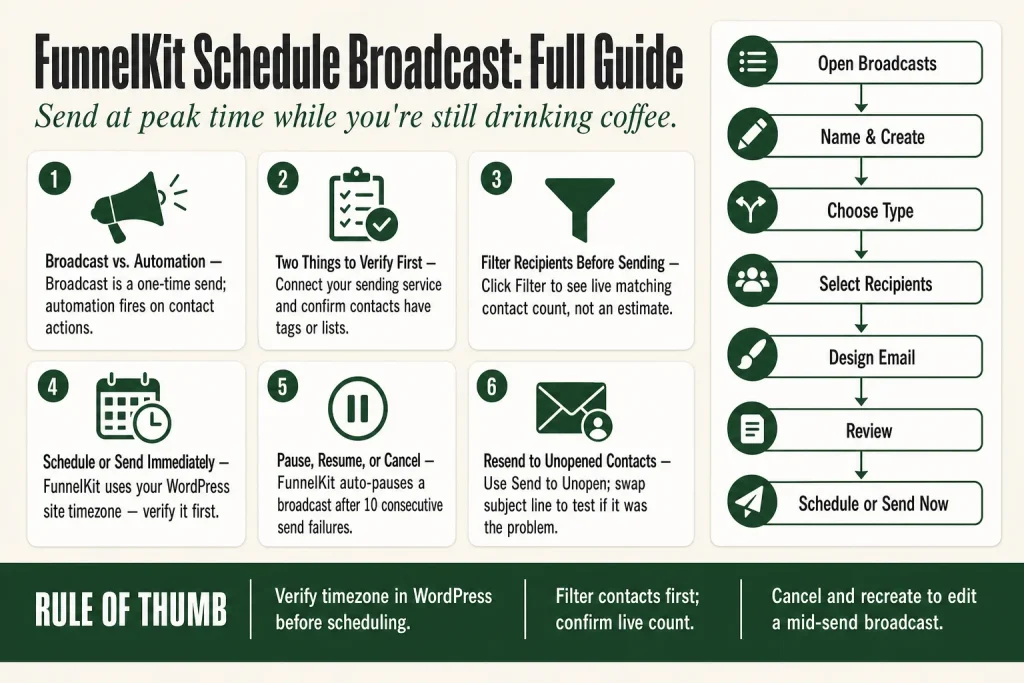
- Go to Campaigns → Broadcasts in FunnelKit Automations and click Add New Broadcast under the Email or SMS tab.
- Name the broadcast, choose Standard (one version to everyone) or A/B Test (two-plus variants), then click Add.
- On the Recipients step, filter by tags, lists, contact details, custom fields, WooCommerce data, or a saved Audience. Click Filter to confirm the match count before moving on.
- Design your email with the Text, HTML, or Visual Builder editor, or load a saved template.
- Review the campaign summary on the final step, then choose Broadcast Now to send immediately or Schedule for Later to set a specific date and time.
- The scheduled broadcast appears in the dashboard with a Scheduled status. You can pause, resume, or cancel it from the action menu until it fires.
- After sending, use Send to Unopen to reach contacts who never opened the first email (or, for SMS, who did not engage with the original message).
Take this fix into your next scenario. The free Builder’s Companion Kit collects the checklists and templates that pair with this guide — so next time, you start from a template, not a blank page. Grab it free →
- Broadcast vs. Automation: Pick the Right Tool First
- Before You Build: Two Things to Verify
- How to FunnelKit Schedule Broadcast: Full Step-by-Step
- Scheduling an SMS Broadcast
- Managing a Scheduled Broadcast: Pause, Edit, and Cancel
- Resend to Unopened Contacts After the Broadcast
- A/B Testing and Smart Sending with Scheduled Broadcasts
- Checking Results After the Broadcast
- FAQ
The FunnelKit schedule broadcast feature is the difference between hitting “send” in a panic at 6 a.m. and having a polished campaign go out at peak open-rate time while you’re still drinking coffee. It lives inside FunnelKit Automations, it supports both email and SMS, and the whole flow is seven steps. This guide walks every one of them, flags the spots where operators get tripped up, and shows you what to check once the broadcast is out the door.
Broadcast vs. Automation: Pick the Right Tool First
An automation fires when something happens: a purchase, a tag added, a form submitted. A broadcast is a one-time send you aim at a fixed audience on a fixed date. Think of automation as a tripwire and a broadcast as a scheduled drop.
If you want to announce a flash sale, send a product launch email, or follow up on a newsletter, a broadcast is correct. If the send should happen automatically every time a contact does something, build an automation instead. Getting this wrong early means rebuilding later, so be honest about the use case before you start.
For a deeper look at how triggers drive automated sequences, see FunnelKit Automation Not Triggering.
Before You Build: Two Things to Verify
1. Your sending service is connected. FunnelKit Automations needs a connected email provider (such as SendGrid, Postmark, Amazon SES, or similar) before any broadcast can actually deliver. If you have not done that yet, start at FunnelKit Sending Service: How to Connect an Email Provider. A broadcast you schedule to a disconnected sender goes nowhere.
2. Your contacts exist and are tagged or listed. Broadcast segmentation depends on tags and lists already being in place. If your contacts are missing those, set them up first. See FunnelKit Lists and Tags: How to Organize Contacts the Right Way before building your recipient filter.
How to FunnelKit Schedule Broadcast: Full Step-by-Step
The flow below is for an email broadcast. The SMS path matches almost exactly, with a provider connection step (Twilio or Bulkgate) substituted for the email sending service.
Step 1: Open Broadcasts
In your WordPress admin, go to FunnelKit Automations and click Campaigns → Broadcasts. Under the Email tab, click Add New Broadcast.
Step 2: Name and Create
Enter a name for this broadcast (internal only, contacts never see it) and click Add. FunnelKit creates the broadcast record and drops you into the editor.
Step 3: Choose the Type
You get two choices here. Standard sends the same email to every selected contact at the same time. A/B Test creates two or more variants and splits them across the audience. With Smart Sending enabled, you set a sample size and a wait time: FunnelKit sends the variants to the sample, waits, then picks the winner based on opens and delivers it to the rest. Choose Standard for most campaigns. Use A/B Test when you genuinely want to learn something, not just because it sounds thorough. And keep in mind: the winner is determined by open counts in the sample, so you need a list large enough that the sample itself produces a readable result. On a small list, the difference between variants may just be noise.
There is also a toggle for sending to unsubscribed or unverified contacts. Leave it off unless you have a clear compliance reason to override it.
Step 4: Select Your Recipients
This is where most time gets spent. You can send to all contacts or narrow the list with filters. Click + Add New Filter to segment by tags, lists, contact details, custom fields, WooCommerce purchase history, or a pre-saved Audience. You can stack multiple conditions. After setting the filters, click Filter to see the live count of matching contacts before you proceed. That number is your actual send size, not an estimate.
Step 5: Design the Email
Pick Text, HTML, or Visual Builder. The Visual Builder opens FunnelKit Automations’ drag-and-drop editor. If you already have a saved template, click Templates on the content step to import it instead of building from scratch. Set your subject line, preview text, from name, and from email here. Personalize with merge tags where it makes sense, but verify the tags have actual data behind them before scheduling or you will send emails with blank first names.
If merge tags are behaving strangely, check FunnelKit Merge Tags Not Working before you commit to a scheduled send.
Step 6: Review
The final step shows a summary: broadcast name, type, recipient count, subject line, from details, and send time. Read it. A mismatched recipient filter or wrong subject line caught here costs nothing. Caught after sending, it costs trust.
Step 7: Schedule or Send
This is the core decision. Click Broadcast Now to fire immediately, or click Schedule for Later to pick a specific date and time. When you choose Schedule for Later, a date and time picker appears. Set it and click Schedule to confirm. The broadcast moves to Scheduled status on the dashboard and will send at that time automatically.
FunnelKit Automations uses your WordPress site’s timezone for broadcast scheduling. Check Settings → General in WordPress to confirm that timezone is correct before you rely on it for time-sensitive sends.
Scheduling an SMS Broadcast
The SMS path mirrors email almost exactly. Go to Campaigns → Broadcasts → SMS and click Add New. Name the broadcast, choose Standard or A/B Test, select and filter contacts, write the SMS body (merge tags work here too, but verify contacts have phone numbers stored or they will be skipped), then on the final step click Broadcast Now or Schedule for Later and confirm with Schedule.
One hard requirement: SMS broadcasts need a connected Twilio or Bulkgate account before they can send. Contacts also need valid phone numbers stored in their profiles. Any contact missing a phone number will be skipped silently, so check your data before scheduling a large SMS send.
Managing a Scheduled Broadcast: Pause, Edit, and Cancel
Once a broadcast is scheduled, it appears in the Broadcasts dashboard with its status shown. From the action button on any scheduled or running broadcast, you can:
- Pause a running broadcast to stop mid-send.
- Resume a paused broadcast to continue from where it stopped.
- Cancel a scheduled or paused broadcast before all emails are delivered.
- Clone a broadcast to use it as a starting point for the next campaign.
One thing FunnelKit will not let you do: edit the content or recipient filter of a broadcast that has already started sending. If you need to change those, cancel and recreate. That is by design, not a bug.
If a broadcast fires but something goes wrong mid-send, FunnelKit Automations will automatically pause the broadcast after 10 consecutive email send failures, to protect your deliverability. See FunnelKit Broadcast Not Sending for the recovery steps. Once you resolve the underlying issue, you can resume and FunnelKit will retry the emails that initially failed.
Resend to Unopened Contacts After the Broadcast
After a broadcast completes, FunnelKit Automations gives you a second shot at contacts who never opened it. In the Broadcasts dashboard, find the completed broadcast, open its action menu, and click Send to Unopen. This creates a new broadcast pre-filtered to only the contacts who received but did not open the original.
You can change the subject line and tweak the email body before sending the follow-up. Keeping the same body but swapping the subject is the fastest test of whether the subject line was the problem. You can schedule this follow-up for later the same way you scheduled the original.
According to FunnelKit’s documentation, this feature works for both email and SMS broadcasts. Note that standard SMS delivery does not support open tracking the way email does, so for SMS the “unopened” filter is based on FunnelKit’s own tracking rather than a carrier-level read receipt. Verify your SMS tracking settings before relying on it.
A/B Testing and Smart Sending with Scheduled Broadcasts
When you choose A/B Test as the broadcast type, you can create two or more variants that differ in subject line, preview text, or email body. Enable Smart Sending and set a sample size (as a percentage of the total audience) and a wait time (in hours). FunnelKit Automations sends the variants to the sample, waits the specified time, picks the winner based on opens, and sends the winning variant to the remaining audience automatically.
You can still schedule an A/B broadcast for later. Set the date and time on the final review step just like a Standard broadcast. The sample goes out at the scheduled time, and the winner send follows after the wait period elapses.
Smart Sending picks a winner by open count within the sample window. That means two things: first, your sample needs to be large enough to produce a result that is not just random variation. Second, you are optimizing for opens, not clicks or revenue. On a 200-contact list, a 20% sample is 40 people across two or more variants. That is not enough to be confident the winner is actually better. Use A/B Test with Smart Sending on larger segments where the numbers are meaningful. On small lists, trust your own judgment on the subject line and save the test for later.
For a deeper look at split testing inside FunnelKit, see FunnelKit A/B Testing: How to Set Up, Read Results, and Declare a Winner.
Checking Results After the Broadcast
Click the broadcast name in the dashboard to open its overview. You will see sent count, open rate, click rate, orders placed, revenue attributed, and unsubscribes. These update in real time as the send processes.
The Engagement tab breaks down opens and clicks by day and hour. Use that pattern to choose better send times for your next broadcast. If Monday at 10 a.m. consistently outperforms Tuesday at 3 p.m. for your audience, schedule accordingly. No tool decides that for you, and you should not outsource that judgment.
If the dashboard shows contacts as sent but the numbers look wrong, or if some contacts never received the email, check FunnelKit Broadcast Not Sending and FunnelKit Emails Going to Spam for systematic diagnosis.
FAQ
what timezone does funnelkit use when scheduling a broadcast
FunnelKit Automations uses your WordPress site’s timezone for broadcast scheduling. Check Settings > General in WordPress to confirm the timezone is set correctly before you rely on it for time-sensitive campaigns. The broadcast scheduler itself does not show a separate per-broadcast timezone picker, so getting the WordPress site timezone right is your only lever here.
can I edit a scheduled broadcast before it sends
Yes, as long as it has not started sending yet. From the Broadcasts dashboard, cancel the scheduled broadcast and recreate it with the corrected content or recipient filter. Once sending has begun, the content and audience are locked.
funnelkit broadcast not sending to all contacts
FunnelKit Automations automatically pauses a broadcast if 10 consecutive emails fail to send, to protect your sender reputation. Open the Broadcasts dashboard, check the broadcast status, then resume after fixing the underlying sending issue. FunnelKit will retry the emails that initially failed once you resume. See the FunnelKit troubleshooting doc on failed broadcast emails for the full list of causes.
can you schedule a broadcast to a specific list or tag in funnelkit
Yes. On the Recipients step of the broadcast builder, click Add New Filter and segment by tags, lists, contact details, WooCommerce purchase history, custom fields, or any saved Audience. Click Filter to confirm the matching contact count before moving to the next step.
how do I resend a funnelkit broadcast to people who didn’t open it
After the broadcast completes, go to Campaigns > Broadcasts, find the finished broadcast, open its action menu, and click Send to Unopen. This creates a new broadcast targeted only at contacts who did not open the first one. You can change the subject line and schedule the follow-up for a later time. FunnelKit’s documentation confirms this feature is available for both email and SMS broadcasts.
does funnelkit automations support sms broadcast scheduling
Yes. Go to Campaigns > Broadcasts > SMS, create a new broadcast, choose your contacts, write the SMS body, and on the final step click Schedule for Later to pick a specific date and time. You need a connected Twilio or Bulkgate account, and contacts must have phone numbers stored in their profiles.
Sources:
Sources: FunnelKit Docs: Email Broadcast; FunnelKit Docs: Broadcast Dashboard; FunnelKit Docs: A/B Testing Broadcasts; FunnelKit Docs: Smart Sending; FunnelKit Docs: Resend to Unopen; FunnelKit Docs: SMS Broadcast; FunnelKit Docs: Broadcast Analytics; FunnelKit Docs: Email Templates; FunnelKit Docs: Failed Broadcast Emails. All documentation verified October 2026.
Brian Kasday spent forty years in direct-response marketing before rebuilding the whole operation as a one-person shop. He writes The Operator’s Library — including “The Missing Manual for FunnelKit” — for operators who’d rather build it themselves than wait on someone else.
Get the Builder’s Companion Kit — the free checklists and templates that pair with this guide: mmsvegas.com/op/funnelkit-resources/.
This guide fixes one FunnelKit step. The Missing Manual for FunnelKit covers the whole checkout system. See the manual →
More FunnelKit guides
Free · FunnelKit Operator Toolkit
Building checkouts in FunnelKit?
Get the free operator toolkit — order-bump templates, checkout checklists, and a note when what you just read changes.
Get the free toolkit →