
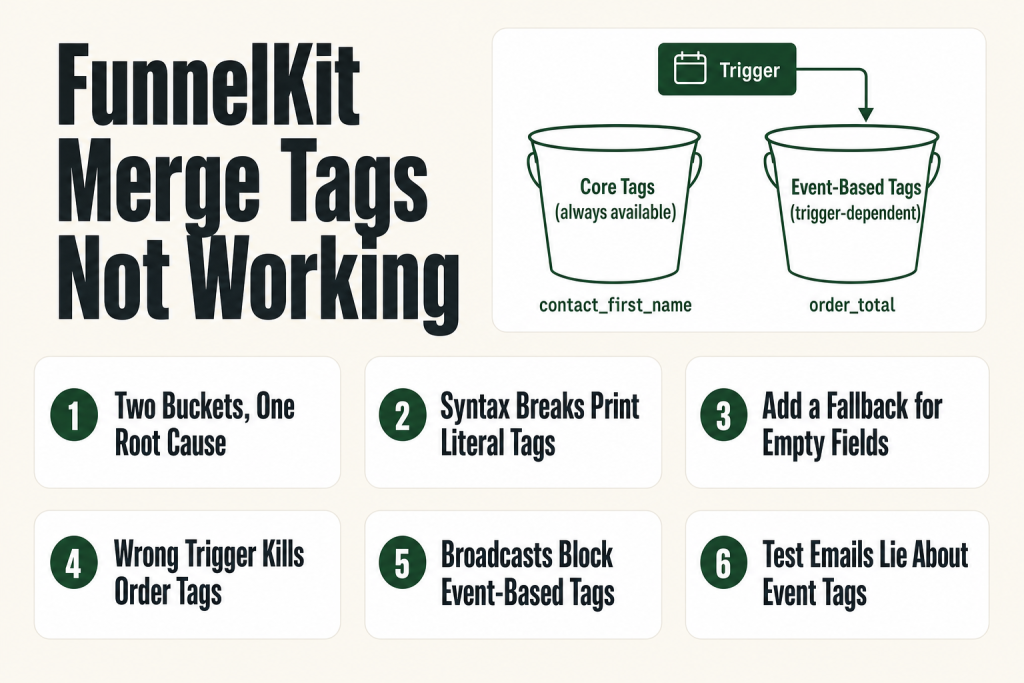
The 30-second answer
- Literal tag printed (e.g.
{{contact_first_name}}shows up as text): The tag was typed by hand with a typo, or pasted from a rich-text editor that corrupted the double braces. Always use the built-in merge tag picker. - Blank output: The data field is empty for that contact, or you used an order/event tag inside a trigger that carries no order context (e.g. a “Tag is added” trigger).
- Wrong value (e.g. old order total instead of current one): You used a core contact tag like
{{reorder_last_order_url}}where you needed the event-based{{order_total}}from an Order Created trigger. - Fix blank output: Add a fallback parameter:
{{contact_first_name fallback=“there”}}. - Fix missing order data: Make sure your trigger is a WooCommerce order event (Order Created, Order Status Changed, etc.) so event-based tags are available.
- Test properly: Use the Preview and Test button after saving, then verify the actual sent email in FunnelKit Automations ⇒ Emails ⇒ History.
Take this fix into your next scenario. The free Builder’s Companion Kit collects the checklists and templates that pair with this guide — so next time, you start from a template, not a blank page. Grab it free →
- The Two Buckets: Core Tags vs. Event-Based Tags
- Syntax Errors That Make FunnelKit Merge Tags Not Working
- Blank Output When the Contact Field Is Empty
- Order Tags Returning Blank Because the Trigger Has No Order Context
- The Order Data Tag for Custom and Third-Party Fields
- Trigger Timing and Why Data Isn’t Available Yet
- The Order Items Tag: Blank Tables and Wrong Templates
- Broadcasts vs. Automations: Different Tag Availability
- Walkthrough: Diagnosing a Blank Tag in 5 Minutes
- Why Test Emails Show Blank Tags Even When Live Sends Are Fine
- FAQ
FunnelKit merge tags not working is one of those problems that looks random until you understand the two-bucket system the plugin uses. One bucket holds contact-level data that travels with the person. The other holds event-level data that only exists when a specific trigger fires. Put the wrong tag in the wrong automation and you get a blank, a literal {{order_total}} printed in plain text, or your last order value instead of this one. Every one of those outcomes has a specific cause and a specific fix. This article walks through all of them.
The Two Buckets: Core Tags vs. Event-Based Tags
FunnelKit Automations splits merge tags into two categories, and mixing them up is the single most common cause of blank output.
Core (contact-level) tags are available in every automation and every broadcast, regardless of trigger. These pull from the contact profile: first name, email, last order URL, password reset link, and similar fields. They exist as long as the contact record has data.
Event-based tags only appear when a matching trigger is selected. Pick “Order Created” as your event and you get tags like {{order_total}}, {{order_items}}, {{order_payment_method}}, and the full order data set. Pick “Cart Abandoned” and you get cart-specific tags. Pick “Tag is Added” and those order tags simply do not exist in that context because there is no order attached to the trigger.
The practical rule: if a tag is blank, open the automation, click the trigger node, and ask yourself whether that trigger carries the kind of data the tag needs. If the answer is no, the tag will never render, no matter how perfectly it is formatted.
Syntax Errors That Make FunnelKit Merge Tags Not Working
A tag that renders as literal text, such as {{contact_first_name}} showing up word-for-word in the email, nearly always means the syntax is broken. FunnelKit Automations uses double curly braces with no spaces inside them: {{tag_name}}. Any deviation and the parser ignores it.
Common syntax breaks:
- Typed by hand with a typo. One wrong character inside the tag name, a single brace instead of double, or an accidental space after
{{and the tag fails silently. - Pasted from Word, Google Docs, or a PDF. Rich-text editors convert standard straight quotes to curly quotes and can mangle the brace characters entirely. The tag looks correct on screen but the underlying characters are wrong.
- Copied from a browser with smart-quote substitution. Same problem. What you see is not what the parser reads.
- Tag name mismatch. Field names are case-sensitive and underscore-dependent.
{{ContactFirstName}}is not the same as{{contact_first_name}}.
The fix is always the same: delete the typed or pasted tag entirely, open the merge tag picker inside the email editor (click the {{..}} icon), search for the tag, and click Copy. Then paste. Never type a merge tag from memory in production.
Blank Output When the Contact Field Is Empty
A tag can be syntactically perfect and still render blank if the underlying field is empty for that contact. This is common with first names on abandoned cart emails: the shopper dropped off before filling in the billing name field, so {{contact_first_name}} has nothing to pull.
FunnelKit’s solution is the fallback parameter. The syntax is: {{contact_first_name fallback=“there”}}. Wherever the first name is missing, the email reads “Hi there” instead of “Hi .” That trailing space with nothing after it is exactly the kind of broken personalization that makes customers feel like something went wrong.
The fallback parameter works on any tag that might be empty. Set one on every name tag and any other field you are not certain will always be populated. It is a one-minute insurance policy.
One honest caveat: the fallback only protects against empty fields. If the field exists but holds the wrong value, a fallback won’t help. That is a data-quality problem you have to solve at the source, either by fixing how contacts are created or by auditing the contact record directly before you send a broadcast.
Order Tags Returning Blank Because the Trigger Has No Order Context
This is the version of the problem that trips up experienced operators. You build a post-purchase sequence, add a delay, and then add a second email four days later. The second email still sits inside the same Order Created automation, so order tags should work, right?
Generally yes, because the order ID travels through the automation run. But watch for two specific scenarios where order context can break down:
- You use a “Tag is Added” or “New Contact” trigger and copy-paste order tags from a different automation. Those triggers carry no order data, so the tags are blank every time.
- You reference a core tag that reads the contact’s last order (like
{{reorder_last_order_url}}) but you actually want the order that triggered the current automation. The last-order tag pulls the contact’s most recent order as recorded in the contact profile, which may be a different order by the time the delayed email sends. For current-order data, always use the event-based order tags available inside the Order Created or Order Status Changed trigger context.
The pattern to remember: event-based tags are frozen at trigger time. Core profile tags read live from the contact record at send time. That difference matters the moment any delay is involved.
If your automation is not triggering at all rather than sending blank tags, the problem is upstream. See FunnelKit Automation Not Triggering for a full breakdown of why automations fail to fire.
The Order Data Tag for Custom and Third-Party Fields
Sometimes the built-in order tags don’t cover a field you need, for example a custom checkout field added by another plugin. FunnelKit handles this with the “Order Data” merge tag, which accepts a metadata key as a parameter. You configure it by clicking the Settings icon next to the Order Data tag in the picker, entering the metadata key from the order record, and copying the generated tag.
Where this breaks: if you enter the wrong metadata key, the tag renders blank. To find the correct key, go to WooCommerce and open the specific order. Scroll to the custom fields area, find the field, and copy the exact key name including underscores and case. Paste that into the Order Data merge tag configurator. A small typo in the key is invisible and produces a blank every time.
The same workflow applies for accessing custom order data from third-party plugins. Locate the metadata key in the order record, then use it with the Order Data tag. If the key exists on the order, the tag resolves. If it doesn’t, it blanks.
If you’re sending order-related emails and the entire message isn’t going out, rather than just a single tag being blank, see FunnelKit Order Confirmation Emails Not Sending for the full deliverability checklist.
Trigger Timing and Why Data Isn’t Available Yet
Some blank tags are a timing problem rather than a configuration problem. Consider a “New Contact is Added” automation that tries to pull order data. At the moment a contact is created from an opt-in form, there is no order. The tag has no data to resolve against because the event that would create that data hasn’t happened yet.
The same issue appears in a subtler form with abandoned cart automations. Cart data tags like cart items and cart total are available because the Cart Abandoned trigger carries that context. But if your first email fires very quickly after abandonment, make sure the cart session was fully captured before the automation ran. If there are gaps, the cart tracking capture timing is the place to investigate, not the tags themselves.
For order-based automations, FunnelKit lets you set order status conditions on the trigger, such as “Completed”, “Processing”, or “On Hold”. If your automation fires on a status that doesn’t yet have all the order metadata populated by your fulfillment or payment plugins, tags that rely on that metadata may blank. Adjusting the trigger to fire on a later order status (like Completed instead of Processing) often resolves this.
Abandoned cart email issues have their own dedicated playbook. If your cart emails are not sending at all rather than sending with bad tags, check FunnelKit Abandoned Cart Emails Not Sending first.
The Order Items Tag: Blank Tables and Wrong Templates
The {{order_items}} tag is a multi-part tag that requires a template parameter. FunnelKit offers eight display options: product grid in 2-column and 3-column layouts, product rows, order summary layout, comma-separated list, product IDs comma-separated, and two line-separated product name formats. If you paste {{order_items}} without a template parameter, you may get a blank or the wrong format entirely.
Always configure the order items tag through the picker. Click Select next to Order Items, choose the template (Cart Table Layout is the most common for order confirmation and abandoned cart emails), then click Copy. The resulting tag includes the correct template attributes and will render properly.
If the items table appears but looks wrong visually, that is a template customization question, not a broken tag. The official documentation covers code snippets for customizing the line-separated template if the built-in options don’t match your design.
One specific note for abandoned cart automations: cart items tags pull the cart as it existed at abandonment time. If the shopper updated the cart before leaving, the tag reflects the final cart state, not an earlier snapshot.
For a broader look at how FunnelKit email actions are configured inside an automation, see FunnelKit Automations Email Setup.
Broadcasts vs. Automations: Different Tag Availability
Broadcasts don’t have an event trigger. They fire against a list or segment on a schedule you set. That means event-based tags, anything tied to a specific order, a specific cart, or a specific form submission, are not available in broadcasts.
If you copy an automation email into a broadcast and the email contains order tags, those tags will render blank in every broadcast send. Broadcasts are limited to core contact-level tags and any custom field data stored on the contact profile.
The fix: rewrite broadcast emails to use only contact-level personalization. If you need order-context tags, those emails belong in an automation with an order trigger, not a broadcast.
If your broadcast itself isn’t reaching all your contacts, that’s a different problem entirely. See FunnelKit Broadcast Not Sending to All Contacts for the specific reasons a broadcast can fall short of your full list.
Walkthrough: Diagnosing a Blank Tag in 5 Minutes
Here is the exact sequence to follow when a tag renders blank in a live or test send.
- Open the automation and click the trigger. Confirm the trigger type. If it is not an order or cart event, order and cart tags will never work here.
- Open the email action and click the merge tag icon. Scroll to or search for the tag you are using. If it does not appear in the picker for this trigger, it is not available for this trigger. That is your answer.
- Check the contact record. Go to FunnelKit Automations, find the contact, and verify the field has data. A blank field produces blank output.
- Check the tag syntax. Delete the tag in the email, go back to the picker, copy it fresh, and paste it. This rules out any character corruption.
- Add a fallback. For any tag that might be empty, append
fallback=“your default”inside the braces. - Send a test. Use the Preview and Test button inside the email editor to send to a real inbox. Then verify the rendered email in FunnelKit Automations ⇒ Emails ⇒ History to confirm what was actually sent.
- Check the logs. Go to Settings ⇒ Tools ⇒ Logs, find the log file for the time the email sent, and look for any errors related to the automation run.
Most blank tag problems are resolved at steps 1, 2, or 3. Steps 4 through 7 handle the edge cases.
Why Test Emails Show Blank Tags Even When Live Sends Are Fine
The Preview and Test feature sends the email immediately to whatever address you enter. It does not replay a real automation run. That means event-based tags, the ones tied to a specific order or cart, may render blank in a test email because there is no live event context attached to the preview.
This is expected behavior, not a bug. The way to verify event-based tags is to trigger the actual automation with a real test order or a real cart abandonment, then check the email in FunnelKit Automations ⇒ Emails ⇒ History to see what the tags resolved to in a real context.
Contact-level tags (first name, email, etc.) should resolve correctly in test sends as long as the contact record you are testing against has that data populated. If you send a test and the first name is blank, check whether the test contact actually has a first name on their profile.
This also means: don’t make changes to your automation based only on a test-email preview. Confirm with a real triggered send before calling the fix done.
FAQ
Why do my FunnelKit merge tags show the literal tag text instead of the value?
The tag syntax is broken. This happens when you type the tag by hand and introduce a typo, or when you paste from a word processor that corrupts the double curly braces. Always use the built-in merge tag picker inside the email editor: click the {{..}} icon, find the tag, click Copy, then paste.
Why is {{order_total}} blank in my automation email?
Order tags like {{order_total}} are event-based. They only resolve when the automation’s trigger is an order event such as Order Created or Order Status Changed. If your trigger is something like “Tag is Added” or “New Contact”, there is no order attached to the event and the tag has nothing to pull from.
How do I set a fallback value for a merge tag so the email doesn’t break when data is missing?
Add the fallback parameter inside the braces. For example: {{contact_first_name fallback=“there”}}. When the contact has no first name on record, the tag renders the fallback text instead of leaving a blank. You can set any plain-text fallback value you want.
Can I use order merge tags in a broadcast email?
No. Broadcasts have no event trigger, so event-based tags like order_total, order_items, and order_id are not available. Only core contact-level tags resolve in broadcasts. If you need order data, the email belongs in an automation with a WooCommerce order trigger.
Why does my test email show blank tags but the real send looks correct?
The Preview and Test feature does not attach a real event context. Event-based tags (order data, cart data) have nothing to resolve against in a preview send, so they appear blank. Verify event-based tags by triggering the automation with a real test order, then check the actual sent content in FunnelKit Automations ⇒ Emails ⇒ History.
My FunnelKit email shows the wrong order value, not the one from the current order. Why?
You are likely using a core contact tag like reorder_last_order_url or a similar tag that reads the contact’s most recent order from their profile. That updates with every new order, so a delayed email may reference a different order than the one that triggered the automation. For current-order data, use the event-based order tags available when your trigger is an Order Created or Order Status Changed event.
Sources:
Sources: FunnelKit Automations: Merge Tags (official docs); Use Merge Tags in Automations and Broadcasts (official docs); Personalization Using Merge Tags (official docs); Access Custom Order Fields in Automations (official docs); Custom Code Snippets for the Order Items Merge Tag (official docs); Logs (official docs); Email History (official docs). All facts verified against live FunnelKit documentation, July 2026.
Brian Kasday spent forty years in direct-response marketing before rebuilding the whole operation as a one-person shop. He writes The Operator’s Library — including “The Missing Manual for FunnelKit” — for operators who’d rather build it themselves than wait on someone else.
Get the Builder’s Companion Kit — the free checklists and templates that pair with this guide: mmsvegas.com/op/funnelkit-resources/.
This guide fixes one FunnelKit step. The Missing Manual for FunnelKit covers the whole checkout system. See the manual →
More FunnelKit guides
Free · FunnelKit Operator Toolkit
Building checkouts in FunnelKit?
Get the free operator toolkit — order-bump templates, checkout checklists, and a note when what you just read changes.
Get the free toolkit →