
Last updated: July 2026
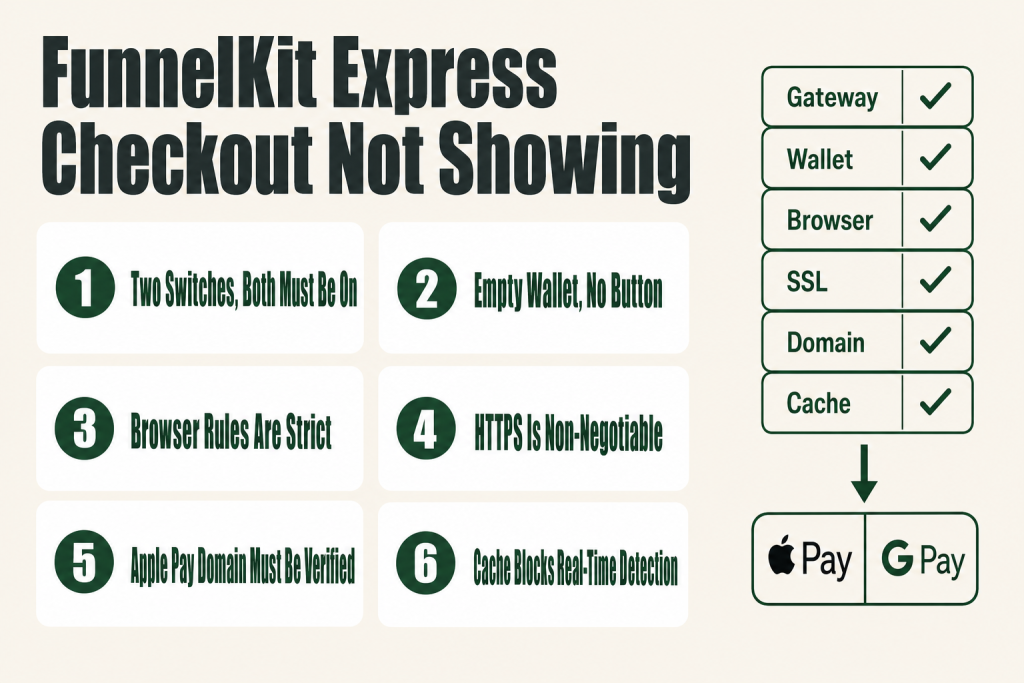
- The 30-second answer
- Cause 1: FunnelKit Express Checkout Not Showing Because Neither Enable Switch Is On
- Cause 2: No Saved Payment Method on the Device or Browser
- Cause 3: Wrong Browser or Incompatible Device
- Cause 4: Missing or Invalid SSL Certificate (No HTTPS)
- Cause 5: Apple Pay Domain Verification Has Not Completed
- Cause 6: Apple Pay Is Not Enabled Inside Your Stripe Account
- Cause 7: A Caching Plugin Is Serving a Stale Version of the Checkout Page
- Cause 8: A Theme or Plugin JavaScript Conflict
- The Full Diagnostic Sequence: A Worked Example
- FAQ
FunnelKit express checkout not showing is one of those problems that feels random but almost always has a traceable cause. Apple Pay, Google Pay, and other wallet buttons are conditional by design, they only render when a long checklist of gateway, device, browser, domain, and server conditions all pass at once. Miss any single item and the button stays invisible. No error message. Nothing in the logs. Just a blank space where the button should be.
This guide walks through every confirmed cause in order of how often they bite operators, gateway misconfiguration first, device and browser rules second, domain verification third, then the infrastructure issues (HTTPS, caching, theme conflicts) that tend to catch people after everything else looks right. Each cause gets a concrete fix, not a vague suggestion. If your checkout page itself isn’t loading at all, see FunnelKit Checkout Not Loading: Every Cause and How to Fix Each first.
The 30-second answer
- Express Checkout not enabled in FunnelKit: Go to FunnelKit → your checkout step → Optimizations tab → Express Checkout Buttons → set Enable to Yes.
- Stripe gateway not configured: Go to WooCommerce → Settings → Payments → Stripe Gateway, Credit Card → under Express Checkout, click Enable Express Checkout.
- No saved payment card on the device: Wallet buttons only appear when the browser or device has a saved payment method stored, an empty wallet shows nothing.
- Wrong browser for the wallet: Apple Pay requires Safari on Apple devices. Google Pay requires Chrome.
- Domain not verified with Apple Pay: FunnelKit’s Stripe Gateway handles this automatically, but you can trigger re-verification from the Stripe payment settings or add the domain manually in the Stripe Dashboard under Settings → Apple Pay.
- No SSL / not HTTPS: Apple Pay and Google Pay both require a valid, active SSL certificate on the domain.
- Checkout page served from cache: Exclude the checkout page URI from any caching plugin so dynamic payment data always loads fresh.
- Theme or plugin JS conflict: Temporarily switch to a default theme and disable non-essential plugins to isolate the conflict.
Cause 1: FunnelKit Express Checkout Not Showing Because Neither Enable Switch Is On
There are two separate switches, and both need to be on. Getting only one is the most common miss I hear about.
Switch 1, Stripe Gateway settings. Go to WooCommerce → Settings → Payments and click Manage next to Stripe Gateway, Credit Card (Stripe). Under the Express Checkout section, click Enable Express Checkout and then configure which pages should show the buttons. Save.
Switch 2, FunnelKit checkout step settings. Go to FunnelKit → Checkouts (or Store Checkout)open your checkout funnel, and click Edit on the checkout step. Switch to the Optimizations tab. Scroll down to the Express Checkout Buttons section and set Enable to Yes. Choose your preferred button position and save.
If you use FunnelKit Cart instead of a checkout page, the path is different: FunnelKit → Cart → Express Checkoutclick Activate Express Checkout there.
The fix if you skipped Switch 2: Even with Stripe fully configured, the buttons will not render on a FunnelKit checkout page until you toggle them on inside the Optimizations tab for that specific step. These are independent settings.
Cause 2: No Saved Payment Method on the Device or Browser
This one trips up a lot of operators who test their own checkout, usually from a laptop that has never had Apple Pay or Google Pay set up. The wallet button is rendered conditionally: it only appears when the browser or device detects a saved payment method.
Think of it like a vending machine that only lights up when you put money in first. No card in the wallet, no button on the page.
For Apple Pay: You need a live card in your Apple Pay wallet. In test mode, your funds won’t be charged, but a real card still needs to be present in the wallet for the button to appear.
For Google Pay: You can test with a Stripe test card added directly in Chrome. Open Chrome Settings → Payment methods and add a test card. Without any saved card, the Google Pay button won’t render.
Quick diagnostic: Visit the Stripe Payments Demo on the same device and browser you’re testing with. If the Apple Pay or Google Pay button doesn’t appear there either, the issue is with the device or wallet setup, not your FunnelKit configuration.
Cause 3: Wrong Browser or Incompatible Device
Wallet buttons are browser-specific. Using the wrong one gives you nothing, no error, no fallback, just an absent button. This is Apple’s and Google’s restriction, not FunnelKit’s.
Apple Pay rules:
- Requires Safari on Apple devices. Chrome, Firefox, and Edge on a Mac will not render the Apple Pay button through the Payment Request API that FunnelKit’s Stripe integration uses.
- On iPhone or iPad, a compatible Apple Pay device with an active card in Wallet is required. Check Apple’s supported devices listthe specific minimum iOS or macOS version depends on your device model, and Apple updates this list as older hardware ages out.
- Apple Pay is not available in all countries and regions, check Apple’s list before assuming a configuration problem.
Google Pay rules:
- Requires Google Chrome.
- Check Google’s list of supported countries and compatible devices.
The fix: Test Apple Pay in Safari on an Apple device with a card in Wallet. Test Google Pay in Chrome with a Google account that has a saved card. If you keep testing in the wrong browser, you’ll keep seeing nothing, and wrongly conclude there’s a configuration problem.
FunnelKit’s docs confirm that browser-specific JavaScript conflicts can cause interactive elements on checkout pages to fail silently. For Apple Pay and Google Pay specifically, the browser restriction is enforced at the Payment Request API level, no plugin or setting can override it.
Cause 4: Missing or Invalid SSL Certificate (No HTTPS)
Both Apple Pay and Google Pay refuse to load on any page served over plain HTTP. The Payment Request API that powers these buttons is locked to secure contexts only, a valid, active SSL certificate is a hard requirement, not a recommendation.
Your site might technically have HTTPS enabled but still fail if the certificate is expired, the checkout page URL loads with mixed content (some assets over HTTP), or your domain recently changed and the certificate hasn’t been reissued to cover it.
How to check:
- Open your checkout page URL in a browser and confirm the padlock icon is present and shows no warnings.
- Run the URL through an SSL checker (there are free ones online) to confirm the certificate is valid and covers your exact domain, including or excluding
wwwas appropriate. - If you recently moved to a new host or changed domains, re-confirm that SSL is active on the new environment.
The fix: Activate or renew SSL through your host. Most managed WordPress hosts provide Let’s Encrypt certificates at no cost. After enabling HTTPS, update the WordPress and Site URL settings in Settings → General to use https://. Clear all caches afterward.
Building this yourself? The free Builder’s Companion Kit collects the checklists and templates that go with this guide, grab it at mmsvegas.com/op/funnelkit-resources/.
Cause 5: Apple Pay Domain Verification Has Not Completed
Apple Pay requires every domain that shows an Apple Pay button to be verified. This includes top-level domains, subdomains, and the www version, they are treated as separate domains and each one needs to be registered.
The good news: FunnelKit’s Stripe Gateway for WooCommerce handles domain verification automatically in the background when you connect Stripe. You don’t need to upload a verification file manually. The domain shows up under verified web domains in your Stripe Apple Pay settings once it’s done.
The catch: automatic verification can silently fail after a domain migration, a change from www to non-www (or vice versa), or if the Stripe connection was re-established. When that happens, the Apple Pay button disappears with no obvious error.
How to check: Log in to your Stripe Dashboard, go to Settings → Payment Methods → Apple Payand confirm your exact domain is listed under verified web domains. The domain must match exactly, including or excluding wwwas it appears in the browser address bar.
The fix: You can request re-verification from within the FunnelKit Stripe payment settings. Alternatively, go to Stripe Dashboard → Settings → Apple Payclick the button to add a new domain, enter your URL exactly as it loads (remove https://; include or exclude www to match your live URL), and save. FunnelKit’s Stripe extension handles the verification file upload in the background, you don’t need to do it manually.
If automatic verification keeps failing, consult the FunnelKit docs on manual domain registration for Apple Pay, which walks through adding the domain directly from the Stripe Dashboard step by step. If Stripe itself isn’t connecting properly, see FunnelKit Stripe Not Connecting: Fix the Gateway Connection for the full diagnostic.
Cause 6: Apple Pay Is Not Enabled Inside Your Stripe Account
Connecting Stripe to WooCommerce does not automatically activate Apple Pay on your Stripe account. Those are separate steps, and the distinction bites people regularly.
Apple Pay must be enabled inside your Stripe Dashboard independently of the FunnelKit plugin settings.
How to check and fix:
- Log in to stripe.com.
- Go to Settings → Payment Methods and scroll to the Wallets section.
- Confirm Apple Pay is enabled. If it isn’t, enable it.
- While you’re there, confirm your domain is listed under Configure domains for Apple Pay.
For Google Pay via Stripe, the path is simpler: in the FunnelKit Stripe Gateway settings, make sure the Payment Request Buttons option is selected. When that option is on, all supported payment request button types activate at once, Google Pay is included automatically when Chrome detects a saved card.
Cause 7: A Caching Plugin Is Serving a Stale Version of the Checkout Page
Checkout pages are dynamic. They need to know the cart contents, the current user session, and, crucially for express checkout, whether the current browser supports a wallet payment. When a caching plugin serves a fully cached version of the page, that real-time detection never happens, and the buttons don’t appear.
FunnelKit’s own documentation acknowledges this directly: if a caching layer conflicts with your checkout, the fix is a single exclusion rule.
The fix:
- Open your caching plugin settings (WP Rocket, W3 Total Cache, LiteSpeed Cache, etc.).
- Find the exclusion list, usually labeled “Never Cache” or “Excluded Pages.”
- Add the full path of your FunnelKit checkout page (e.g.
/checkout/). - Also exclude the cart and account pages if they aren’t already.
- Clear all cached files and purge your CDN cache if you use one.
Server-side caching (Nginx FastCGI cache, Varnish) and CDN edge caching can cause the same problem. If you’re on managed WordPress hosting, contact your host about adding the checkout page to their cache bypass rules.
Cause 8: A Theme or Plugin JavaScript Conflict
Wallet buttons depend on Stripe’s JavaScript loading correctly and in the right order. A theme or plugin that enqueues a conflicting JavaScript library, especially a different version of jQuery, can silently block the payment request scripts from initializing.
FunnelKit’s theme troubleshooting docs note that code conflicts between the active theme and checkout pages can cause issues such as a missing payment gateway section, missing form fields, or distorted layouts. Payment Request Button visibility is not explicitly listed as a conflict symptom in that doc, but if other checkout elements are also broken, a theme conflict is a reasonable suspect to rule out first.
How to isolate the conflict:
- Use the WordPress Health Check & Troubleshooting plugin. It lets you disable all plugins and switch to a default theme for your admin session only, without affecting live visitors.
- With everything disabled, check whether the express checkout buttons appear.
- If they do, re-enable plugins one by one until the buttons disappear, that’s your conflict.
- To check for theme conflicts specifically: go to Appearance → Themes and temporarily switch to a default theme like Storefront or Twenty Twenty-Four. If the buttons appear with the default theme, report the conflict to your theme developer.
Browser console check: Open your checkout page, right-click → Inspect → Console tab. Any red JavaScript errors here are your first lead. If you see Stripe-related script errors, that confirms a loading conflict rather than a configuration issue.
If the problem appears only in one browser, that points to a browser-level conflict or extension rather than a site-wide issue, test in a second browser before digging into plugins.
The Full Diagnostic Sequence: A Worked Example
Here’s the exact order I run through on any store where the wallet buttons are missing. Each step either confirms a cause or eliminates it, so you’re never guessing twice at the same layer.
Scenario: A client’s WooCommerce store running FunnelKit Funnel Builder. Apple Pay was showing fine last month. After a host migration, it’s gone, no errors in the logs, no clues on screen.
- Confirm both FunnelKit switches are on. Check WooCommerce → Settings → Payments → Stripe Gateway, Credit Card → Express Checkout. Then open the checkout funnel in FunnelKit, click Edit on the checkout step, go to the Optimizations tab, and confirm Express Checkout Buttons is set to Yes. In this scenario: both were on, not the issue.
- Check SSL. The host migration moved the site to a new server. The old SSL certificate didn’t carry over. Opening the checkout URL showed a browser warning, not a padlock. Fixed by provisioning a new Let’s Encrypt certificate and updating Settings → General to
https://. Cleared all caches. Apple Pay still didn’t show, dig deeper. - Verify the domain in Stripe. Stripe Dashboard → Settings → Payment Methods → Apple Pay. The old
wwwsubdomain was verified. The new host was serving the site withoutwww. The non-www domain was not listed. Added it manually, clicked Add a new domainentered the bare domain withouthttps://. Apple Pay button appeared immediately after saving. - Confirm Apple Pay is enabled in Stripe. While in the Stripe Dashboard, confirm Settings → Payment Methods → Wallets shows Apple Pay as enabled. In this case it was, saved a separate debugging session.
- Test on the correct device and browser. Tested in Safari on iPhone with a live card in Wallet. Button confirmed working. Tested on a Windows laptop in Chrome, no Apple Pay button, as expected. Google Pay appeared there instead.
Root cause: the migration changed the serving domain from www to non-www, invalidating the Apple Pay domain verification. SSL was a secondary issue that needed fixing regardless. Total time to resolve once the checklist was in hand: under 20 minutes.
Once express checkout is confirmed working, the next logical step is making sure your post-checkout flow is equally solid. If you’re building upsell sequences, see FunnelKit One-Click Upsell Not Working? The Reasons It Doesn’t Fire and How to Fix Each. And if your order bumps aren’t appearing, FunnelKit Order Bump Not Showing? The 9 Reasons and How to Fix Each One runs through the same cause-by-cause format.
FAQ
Why does the Apple Pay button show on some devices but not others?
Apple Pay only renders on compatible Apple devices running a supported OS version in the Safari browser. The exact minimum iOS or macOS requirement depends on the device model, Apple maintains an updated compatibility list at support.apple.com/en-us/102896. A Windows laptop, an Android phone, or any non-Safari browser on a Mac will not show the Apple Pay button through the standard Payment Request API, that’s Apple’s restriction, not a FunnelKit setting you can change.
Does FunnelKit express checkout work without Stripe?
For Apple Pay and Google Pay via the FunnelKit Stripe Gateway, yes, Stripe is required. FunnelKit’s checkout also supports PayPal Express (via the PayPal AngelEye plugin) and Amazon Pay (via the WooPayments plugin) as separate express checkout options that don’t depend on Stripe. Each requires its own gateway plugin and configuration.
Why does Google Pay not show even though I have Chrome and a Google account?
Google Pay buttons only appear when Chrome detects a saved payment method in the browser’s Payment Methods settings. Open Chrome Settings → Payment methods and confirm there is a card saved. For testing in Stripe test mode, you can add a Stripe test card there. Without a saved card, Chrome has nothing to offer and the button doesn’t render.
How do I manually register my domain for Apple Pay if automatic verification failed?
Log in to your Stripe Dashboard, go to Settings → Payment Methods, scroll to the Wallets section, and click Configure domains under Apple Pay. Click Add a new domain and enter your domain exactly as it loads in the browser, include www if that’s how your site loads, or leave it out if it doesn’t. FunnelKit’s Stripe extension handles the verification file upload in the background. Check the FunnelKit docs page on manual Apple Pay domain registration for a full walkthrough.
Can caching really hide the express checkout buttons?
Yes. Wallet buttons rely on the browser’s real-time detection of saved payment methods, which requires dynamic page rendering. If your caching plugin serves a fully cached static version of the checkout page, that detection never fires and the buttons don’t appear. Exclude your FunnelKit checkout page URI from your caching plugin’s cache rules and purge all existing cached versions.
funnelkit express checkout not showing after moving to a new domain, what do I check?
Domain changes break Apple Pay domain verification. After moving to a new domain, go to your Stripe Dashboard and verify the new domain under Settings → Apple Pay. Also update your SSL certificate to cover the new domain, update WordPress Site URL and Home URL to the new HTTPS address, and clear all caches. Google Pay should resume automatically once Stripe is reconnected to the new domain.
Will FunnelKit express checkout not showing affect the rest of my checkout, or just the wallet buttons?
Just the wallet buttons. Standard credit card fields, PayPal, and any other enabled gateways render independently. If your entire checkout is broken rather than just the express buttons, that’s a separate issue, see FunnelKit Checkout Not Loading: Every Cause and How to Fix Each for a full diagnostic on that problem.
Sources:
Sources consulted for this article:
- FunnelKit Docs, Why my express payment buttons are not showing up on the checkout page?
- FunnelKit Docs, Enable Express Checkout Buttons
- FunnelKit Docs, Smart Buttons for Express Checkout
- FunnelKit Docs, How to Configure Stripe Apple Pay & Google Pay
- FunnelKit Docs, Express Checkout (Stripe Gateway)
- FunnelKit Docs, How do I Manually Register My Domain for Apple Pay?
- FunnelKit Docs, How to Find Theme Specific Issues
- FunnelKit Docs, How to Find Browser Specific Issues
- FunnelKit Docs, Caching Plugins
- FunnelKit Docs, Why Are My Square Express Payment Buttons Not Showing?
- Stripe Docs, Register domains for payment methods
- Apple Support, Devices compatible with Apple Pay
Brian Kasday spent forty years in direct-response marketing before rebuilding the whole operation as a one-person shop. He writes The Operator’s Library, including “The Missing Manual for FunnelKit”, for operators who’d rather build it themselves than wait on someone else.
Get the Builder’s Companion Kitthe free checklists and templates that pair with this guide: mmsvegas.com/op/funnelkit-resources/.
More FunnelKit guides
Free · FunnelKit Operator Toolkit
Building checkouts in FunnelKit?
Get the free operator toolkit — order-bump templates, checkout checklists, and a note when what you just read changes.
Get the free toolkit →