
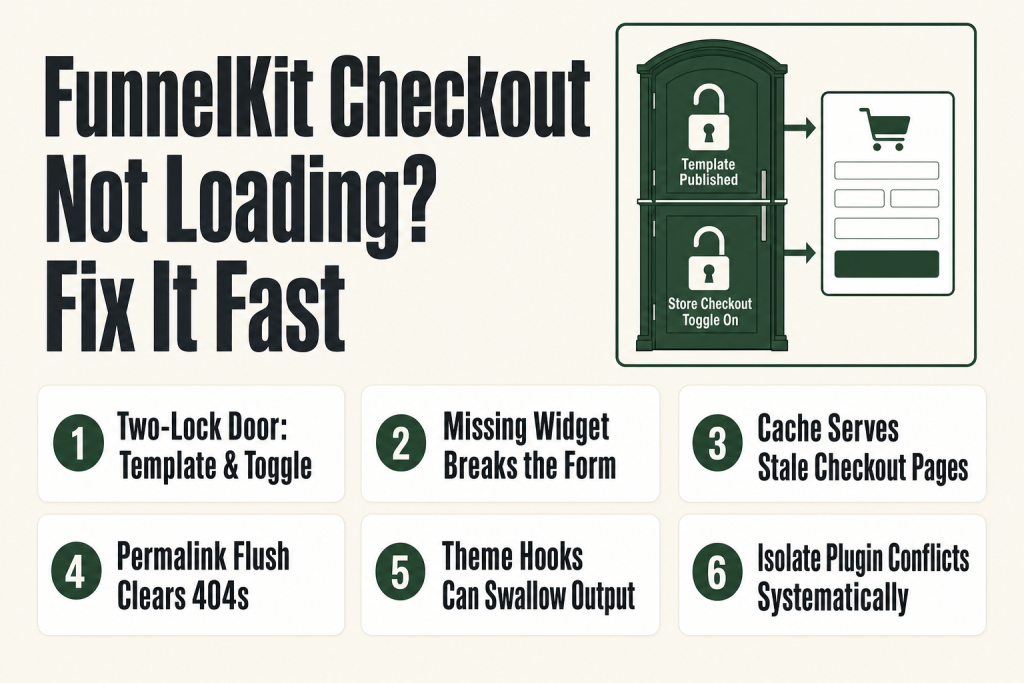
The 30-second answer
- Template not published: open the checkout in FunnelKit, check that the page builder template is published (not just saved as a draft), then turn the Store Checkout toggle on.
- Store Checkout toggle off: FunnelKit → Store Checkout → the top-right toggle must be enabled or the funnel will not intercept WooCommerce’s checkout URL.
- Page builder widget missing: if you edited the layout and removed the FunnelKit checkout form widget (or its block equivalent in Gutenberg), the form renders empty. Re-add it from the FunnelKit widget panel.
- Shortcode conflict: a second
- Cache serving a stale page: exclude every FunnelKit checkout URL from all cache layers (plugin, server, CDN) and flush.
- Permalinks stale: Settings → Permalinks → Save Changes, no edits needed, forces a rewrite flush.
- Theme conflict: switch to Storefront or a WordPress default theme to test. FunnelKit is designed to work with Astra, Blocksy, GeneratePress, Kadence, and others, but a theme missing WooCommerce hooks will break the form.
- Plugin conflict: deactivate plugins one by one to find the culprit, starting with anything that touches checkout redirects or URL rewrites.
Take this fix into your next scenario. The free Builder’s Companion Kit collects the checklists and templates that pair with this guide — so next time, you start from a template, not a blank page. Grab it free →
- Step 1: Confirm the Template Is Published and the Store Checkout Toggle Is On (Fix FunnelKit Checkout Not Loading Fast)
- Step 2: Verify the Page Builder Widget (or Block) and Check for Shortcode Conflicts
- Step 3: Flush Every Cache Layer and Exclude the Checkout URL
- Step 4: Flush Permalinks
- Step 5: Rule Out a Theme Conflict
- Step 6: Isolate a Plugin Conflict
- Worked Example: A FunnelKit Checkout That Reverts to WooCommerce Default After a Plugin Update
- What FunnelKit Cannot Fix on Its Own
- FAQ
FunnelKit checkout not loading is one of those failures that costs you money every minute it sits broken. Customers hit the URL, see a blank page or the raw WooCommerce default, and leave. The frustrating part is that FunnelKit’s checkout involves more moving pieces than a standard WooCommerce page: a template that must be published, a store-checkout toggle that must be active, a page builder that must render its widgets, a cache layer that must not serve a stale copy, a permalink structure that must be flushed, and a stack of third-party plugins that must not intercept the request first. This guide walks each cause in the order you should check it, fastest fixes first.
Step 1: Confirm the Template Is Published and the Store Checkout Toggle Is On (Fix FunnelKit Checkout Not Loading Fast)
This is the most common cause, and it takes 30 seconds to rule out. Think of it as a two-lock door: the template itself needs to be published inside the page builder, and the Store Checkout funnel needs its toggle switched on. Either lock left open and the checkout won’t fire.
Template publication: go to FunnelKit → Store Checkout, click your checkout funnel name, then click the checkout step. On the Design tab, click “Edit Template” to open your page builder. Make sure the page builder has saved and published the page, not left it in draft. In the Customizer flow, the final step is clicking Publish to save all changes. In Elementor, Divi, Gutenberg, or Bricks, the same rule applies: a template sitting in draft will render blank for visitors even though it looks fine in the editor preview.
Store Checkout toggle: when you’re satisfied with everything, go back and turn the toggle to activate your Store Checkout. That is how you set up the global checkout page in your WooCommerce store. The toggle lives at the top right of the Store Checkout screen. When it’s off, WooCommerce ignores the funnel entirely and falls back to its own checkout page. This is the classic “reverts to default WooCommerce checkout” symptom.
What “Store Checkout” actually does: when you add a new checkout page inside Store Checkout, it’ll automatically be used as your store checkout or global checkout page. That only happens while the toggle is live. Turn it off and the assignment is released.
If both the template and the toggle are already correct, move to the next step.
Step 2: Verify the Page Builder Widget (or Block) and Check for Shortcode Conflicts
FunnelKit does not rely on placing a raw
How to check: open the template in the page builder. Look for the FunnelKit-specific checkout form widget. In Elementor it appears under the FunnelKit widget group: there are two dedicated Elementor widgets built for checkout customization. In Gutenberg, FunnelKit has created two dedicated blocks to design your checkout pages. If the checkout form widget or block is absent, re-add it from the FunnelKit widget panel and republish.
Shortcode conflict: if you or a plugin also placed a bare to embed the checkout form instead of the native widgets. In that case, a single clean instance of that shortcode is correct and expected. The problem arises when a second copy sneaks in.
Also check WooCommerce → Settings → Advanced and confirm that the “Checkout page” field still points to the FunnelKit-managed page, not to a leftover legacy page. FunnelKit’s Store Checkout assignment normally handles this automatically, but a WooCommerce update or a settings import can override it.
For the related issue of the order form being present but broken, see How to Set Up FunnelKit Checkout from Scratch for the correct widget placement walk-through.
Step 3: Flush Every Cache Layer and Exclude the Checkout URL
Caching is the “I fixed it but it broke again” cause. The checkout page is dynamic: it needs to load cart totals, session data, shipping rates, and payment options in real time. A cached snapshot of the page breaks all of that.
Caching and session issues are among the most common reasons a WooCommerce checkout gets stuck. The problem usually comes from a plugin, your hosting provider, or a CDN serving an outdated version of the checkout page. Since checkout needs to load dynamic data like product totals, shipping rates, and payment options in real time, those outdated pages break the session flow, leaving customers trapped in a loading loop.
The fix has two parts.
First, flush all caches right now: your caching plugin (WP Rocket, W3 Total Cache, LiteSpeed Cache, etc.), your server-level cache if your host provides one, and your CDN (Cloudflare’s “Purge Everything” if applicable). Also clear your own browser cache and test in an incognito window to rule out locally cached resources.
Second, add a permanent exclusion rule. The checkout page may be cached by a cache plugin or server-level cache. A simple solution is to exclude the slug of your checkout pages from the settings of your respective cache plugin. Exclude the cart, checkout, and account pages from any caching at the plugin level, server side, and CDN, because these pages are dynamic and must show user-specific data in real time.
FunnelKit checkout pages use a custom slug (“checkouts” by default). Exclude that slug pattern, not just /checkout/, from your caching rules. If you’ve ever changed the slug, confirm the current value under FunnelKit → Settings → General → Permalinks and use that slug in your exclusion rules.
Step 4: Flush Permalinks
Permalinks are the simplest fix on the list and take ten seconds. WordPress stores its rewrite rules in the database. After a plugin install, update, or deactivation, those rules can go stale and FunnelKit’s checkout URL will return a 404 or redirect back to the cart.
When users visit the checkout page they can get a 404 or a page that doesn’t load correctly. This usually happens due to broken or outdated permalink settings or conflicts with plugins that alter URL structures. Refreshing permalink rules and enabling URL rewriting fixes the issue.
How to flush: go to WordPress Admin → Settings → Permalinks. Don’t change anything. Just click Save Changes. That single click forces WordPress to regenerate all rewrite rules, including FunnelKit’s funnel slugs.
FunnelKit also has its own permalink settings. Under FunnelKit → Settings → General → Permalinks, you can change the slugs for sales pages, opt-in pages, checkout pages, upsell pages, and thank-you pages. Keep them short and clean. Click “Save Changes” there too. If you’ve ever changed the checkout slug inside FunnelKit, flush WordPress permalinks again after saving, or the old rewrite rule lingers.
One specific gotcha: if your site has WordPress installed in a subdirectory, or if you use a “/blog/” prefix for posts, FunnelKit’s page URL preview in the admin can display the wrong URL. The fix is still a permalink flush, not a slug rename.
Worked example (permalinks): you update FunnelKit on a Monday. Tuesday morning a customer emails to say the checkout URL returns a 404. You check the editor and the funnel looks fine. Go to Settings → Permalinks → Save Changes. Test immediately in an incognito window. In most cases the 404 clears in under a minute. If it doesn’t, check FunnelKit → Settings → General → Permalinks to confirm the checkout slug hasn’t been reset to a blank value, then save and flush WordPress permalinks once more.
Step 5: Rule Out a Theme Conflict
Some themes inject their own CSS or JavaScript into every page, override WooCommerce template hooks, or apply full-page container markup that swallows FunnelKit’s output. The symptoms look identical to a broken plugin: blank area where the form should be, form fields misaligned, or payment gateways missing from the page.
There are cases where code conflicts between the website theme and checkout pages cause issues like a missing payment gateway section, missing form fields, users unable to proceed to checkout, or fields that are misaligned or have a distorted layout. By doing basic debugging, you can confirm whether the issue is specific to a theme. To perform this debugging you will need to check checkout pages with any other installed theme on the site.
How to test: navigate to Appearance → Themes and switch from the currently activated theme to any other installed theme on your website. If the issue gets resolved after switching themes, you can report to the product support team to fix the theme-specific issue.
FunnelKit is designed to work with most well-coded WooCommerce themes. It is highly compatible with both classic and block-based WordPress themes, including Astra, Blocksy, GeneratePress, Kadence, and others. If you are on one of those themes and the checkout still breaks after steps 1 through 4, the problem is almost certainly a theme customization or child-theme function, not the theme itself.
After switching themes, flush permalinks and clear all caches again before judging the result. A cached version of the broken page will give you a false negative.
Worked example (theme conflict): you install a premium theme and the checkout page immediately shows a blank column where the FunnelKit checkout form widget should be, even though the toggle is on and the template is published. Switch to Storefront under Appearance → Themes and reload the checkout in an incognito window. The form appears. Switch back to the premium theme and open its child-theme functions file. Look for any hook on woocommerce_before_checkout_form or woocommerce_checkout_before_customer_details that outputs a container div without closing it. Removing or reordering that hook resolves the blank column without touching the FunnelKit configuration at all.
Step 6: Isolate a Plugin Conflict
Plugin conflicts are the most time-consuming cause to diagnose, but the methodology is mechanical. You are looking for a plugin that either hijacks the woocommerce_checkout_page_id filter, intercepts checkout redirects, or breaks the AJAX endpoints WooCommerce uses to render the checkout form.
Common triggers include incompatible plugins or conflicts between plugins and WooCommerce, theme code missing essential WooCommerce hooks, and hosting environments that don’t fully support WooCommerce AJAX endpoints. If a host doesn’t support these endpoints properly, or if security and firewall rules block them, checkout can fail to load, spin endlessly, or generate PHP fatal errors.
A real-world example of how stealthy this can be: one operator observed a 302 HTTP status code for the checkout request with the Location header pointing back to the cart. When they systematically deactivated plugins to isolate the conflict, deactivating one specific bundle plugin resolved the checkout redirection issue.
Fastest methodology:
- Deactivate all plugins except WooCommerce and FunnelKit. Test the checkout. If it loads, a deactivated plugin was responsible.
- Reactivate plugins in batches of three or four, testing after each batch. When the checkout breaks again, the culprit is in the last batch.
- Reactivate one at a time within that batch until you find it.
High-suspect plugins to test first: anything that modifies checkout redirects, WooCommerce checkout field editors from third parties, page-caching plugins you haven’t excluded yet, security or firewall plugins, and any plugin that rewrites URLs or adds rewrite rules.
Try turning off other plugins one by one to find any conflicts. Switch to a default theme like Storefront to rule out theme issues. Disable custom JavaScript to see if it helps. Ensure scripts load in the right order and avoid using multiple jQuery versions.
JavaScript errors are a sub-category here. If you experience issues with interactive functionality within checkout pages, this may be due to JavaScript errors or conflicts. For example, the FunnelKit checkout form widget fields or buttons might be misaligned, or payment gateways may not be visible. Open your browser’s developer tools (F12 → Console tab) while loading the checkout URL and look for red errors before contacting support. The console output is the first thing FunnelKit’s team will ask for.
Worked example (plugin conflict): you add a new security plugin on a Wednesday. Thursday morning your checkout spins endlessly and never loads. The FunnelKit toggle is on, the template is published, and permalinks are fresh. Open the browser console (F12): you see a 403 error on wp-admin/admin-ajax.php. That tells you a firewall rule is blocking the AJAX endpoint WooCommerce needs. Go to the security plugin’s settings and look for a firewall or rate-limiting rule that applies to admin-ajax.php. Whitelist that endpoint, flush all caches, and retest. If the 403 clears, the FunnelKit checkout form widget loads correctly and the order processes. If the security plugin doesn’t provide a whitelist option, deactivate it and find an alternative that does.
For the specific case where express payment buttons are missing after you resolve the general loading issue, see FunnelKit Express Checkout Not Showing? for a dedicated fix list.
Worked Example: A FunnelKit Checkout That Reverts to WooCommerce Default After a Plugin Update
Here’s a pattern that shows up often. You update three plugins on a Tuesday, and by Wednesday a customer tells you they ended up on the ugly default WooCommerce checkout. You check the FunnelKit dashboard and the funnel looks fine in the editor. What happened?
What to check, in order:
- Store Checkout toggle: some plugin updates reset WooCommerce’s checkout page ID or overwrite the setting that FunnelKit writes. Go to FunnelKit → Store Checkout. If the toggle is on but the WooCommerce checkout page (WooCommerce → Settings → Advanced) now points to the original
- Permalink flush: the update may have added new rewrite rules that conflict with FunnelKit’s slug. Settings → Permalinks → Save Changes. Test immediately in an incognito window.
- Cache flush: if the CDN or server cache caught the 302 redirect to the old checkout page, it will keep serving it even after you fix the underlying cause. Purge everything and test again.
- Plugin conflict check: if the issue appeared right after a specific update, that plugin is the first one to deactivate and test. Check your update log (Plugins → Plugin file editor or a plugin like WP Activity Log) to see exactly which plugins changed.
In the scenario where the checkout URL loads but shows a blank content area, the most likely culprits are the page builder template sitting in draft (step 1) or the FunnelKit checkout form widget deleted during a template edit (step 2). Open the template in the page builder and confirm the FunnelKit checkout form widget is present and the page is published.
For a related post-purchase display failure, the same toggle-and-cache logic applies to the thank you page. See FunnelKit Thank You Page Not Showing if that step of the funnel is also broken.
What FunnelKit Cannot Fix on Its Own
FunnelKit is a WordPress plugin. It cannot override your hosting environment’s firewall, fix a broken PHP installation, or force a CDN to respect cache exclusion rules you have not configured. If you have worked through all six steps above and the checkout still does not load, verify these three things outside of FunnelKit:
- PHP errors: enable WordPress debug logging (
WP_DEBUG_LOGinwp-config.php) and check/wp-content/debug.logafter a failed checkout load. A fatal PHP error at the server level will override anything FunnelKit does. Once you have the error text, search it verbatim: most PHP fatal errors on WooCommerce checkout pages come from a plugin calling a function that no longer exists after an update. If the log shows a “memory exhausted” error, raisememory_limitin yourphp.iniorwp-config.php(adddefine(‘WP_MEMORY_LIMIT’, ‘256M’);). If it shows a “Call to undefined function” error, the offending plugin or theme is named in the stack trace. Deactivate it and test. If the log is empty but the page is still blank, ask your host to check the server-level error log, which captures errors that happen before WordPress even loads. - WooCommerce AJAX endpoints: WooCommerce uses AJAX heavily on the checkout page. If your host doesn’t support these endpoints properly, or if security and firewall rules block them, checkout can fail to load, spin endlessly, or generate PHP fatal errors. Ask your host to confirm that
wp-admin/admin-ajax.phpand the REST API endpoint/wp-json/are not blocked. You can verify this yourself by opening the browser console (F12), loading the checkout page, and checking the Network tab for any 403 or 500 responses on AJAX requests. - Memory limit: a checkout page that loads blank with no console errors is sometimes a silent PHP memory exhaustion. Check your PHP memory limit in WooCommerce → Status → System Status and raise it if it’s under 256 MB.
You are the one who owns the relationship with your host and knows your server setup. FunnelKit support can tell you what the plugin expects; only you and your host can confirm whether the server is delivering it. The judgment call on escalating to hosting support is yours to make, not something to outsource to an AI summary of the docs.
If the order processes correctly but post-purchase flow breaks, the problem is downstream. Start with FunnelKit One-Click Upsell Not Working? or FunnelKit Thank You Page Not Showing depending on which step fails.
FAQ
funnelkit checkout not loading blank page
The two most common causes are (1) the page builder template is saved as a draft instead of published, and (2) the FunnelKit checkout form widget or its Gutenberg block equivalent was accidentally removed from the template layout. Open the template in your page builder, confirm the FunnelKit checkout form widget is present, publish the page, and retest in an incognito window.
funnelkit checkout reverts to default woocommerce checkout
Go to FunnelKit → Store Checkout and check that the Store Checkout toggle is enabled. When the toggle is off, FunnelKit releases its assignment and WooCommerce falls back to its own checkout page. Also check WooCommerce → Settings → Advanced to confirm the checkout page field still points to the FunnelKit-managed page, not a legacy page.
does funnelkit checkout need to be excluded from cache
Yes. FunnelKit checkout pages are dynamic and must load cart totals, session data, and shipping options in real time. Add the checkout page slug (“checkouts” by default, confirmed under FunnelKit → Settings → General → Permalinks if you’ve changed it) to your caching plugin’s exclusion list, your server-level cache exclusions, and your CDN’s bypass rules. Then flush all caches and test in an incognito window.
funnelkit checkout page 404 after changing permalink
Go to WordPress Admin → Settings → Permalinks and click Save Changes without editing anything. This forces WordPress to regenerate its rewrite rules, including FunnelKit’s funnel slugs. If you also changed a slug inside FunnelKit → Settings → General → Permalinks, flush WordPress permalinks again after saving the FunnelKit change.
how to find which plugin is breaking funnelkit checkout
Deactivate all plugins except WooCommerce and FunnelKit and test the checkout. If it loads, reactivate plugins in batches of three or four, testing after each batch. When the checkout breaks again, the culprit is in the last batch you activated. Also open the browser developer tools console while loading the checkout URL and look for JavaScript errors or AJAX failures (403/500 in the Network tab), which are the first thing FunnelKit support will ask about.
funnelkit checkout not showing after theme switch
Some themes override WooCommerce template hooks or inject CSS that collapses the checkout container. Switch to a known-compatible theme such as Storefront, Astra, or GeneratePress and test. If the checkout loads correctly with the other theme, the issue is a conflict in your active theme’s code, not a FunnelKit configuration problem. Flush permalinks and clear caches before judging the result after switching.
Sources:
Sources: FunnelKit Docs: Creating a Store Checkout; FunnelKit Docs: Replace the Default WooCommerce Checkout; FunnelKit Docs: Checkout Page Design; FunnelKit Docs: Theme-Specific Issues; FunnelKit Docs: Browser/JS Issues; FunnelKit Docs: Caching and Product Visibility; FunnelKit Docs: Permalinks; FunnelKit Docs: Block Editor (Gutenberg); FunnelKit Docs: Other Page Builders; FunnelKit: WooCommerce Checkout Not Working; FunnelKit Docs: Elementor Checkout Page Design; FunnelKit Docs: WP Rocket Cache Exclusion. All documentation verified July 2026.
Brian Kasday spent forty years in direct-response marketing before rebuilding the whole operation as a one-person shop. He writes The Operator’s Library — including “The Missing Manual for FunnelKit” — for operators who’d rather build it themselves than wait on someone else.
Get the Builder’s Companion Kit — the free checklists and templates that pair with this guide: mmsvegas.com/op/funnelkit-resources/.
This guide fixes one FunnelKit step. The Missing Manual for FunnelKit covers the whole checkout system. See the manual →
More FunnelKit guides
Free · FunnelKit Operator Toolkit
Building checkouts in FunnelKit?
Get the free operator toolkit — order-bump templates, checkout checklists, and a note when what you just read changes.
Get the free toolkit →