
Table of contents
- The 30-second answer: why your Make blueprint import is not working
- What a blueprint actually contains and what it leaves out
- Cause 1: every connection needs rebinding after import
- Cause 2: you imported into a different team
- Cause 3: the app or module isn’t available in the target account
- Cause 4: the blueprint file is over Make’s size limit
- Cause 5: the history, data store, and logs didn’t come along
- How to export and import a blueprint the right way
- Using blueprints for backup and version control
- Frequently asked questions
- Sources
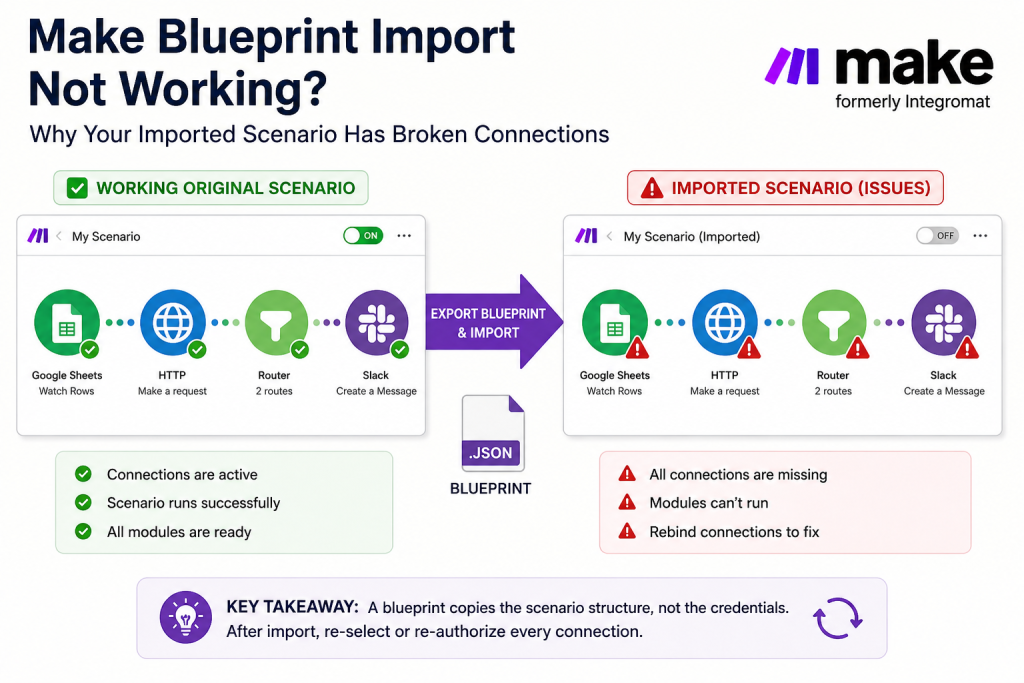
You export a working scenario as a blueprint, import the JSON into another scenario or another account, and it doesn’t just run. The modules are all there, the routes and filters look right, but every module is flagged, the connections are blank, and nothing fires. When a Make blueprint import is not working the cause is almost never a corrupt file. It is that a blueprint is a portable copy of a scenario’s structure, not a copy of the credentials, history, or account-specific plumbing that made the original run. Once you know exactly what travels in a blueprint and what stays behind, the fixes are short and predictable.
This guide covers what a blueprint really is, the specific reasons an imported one won’t run out of the box, and how to export and re-import cleanly, grounded in how blueprints actually behave.
The 30-second answer: why your Make blueprint import is not working
If your Make blueprint import is not working, check these in order:
- The connections are unbound. A blueprint references connections by ID, never by credentials, so after import you have to re-select or re-authorize a connection for each affected module. This is the number-one reason an imported scenario sits there doing nothing.
- You imported into a different team. Connection IDs are team-scoped, so a blueprint moved to another team means rebinding every connection. Expect to reselect or recreate each one in the destination team.
- An app or module isn’t available in the target account, whether because of a different plan or an app that isn’t installed or enabled where you’re importing.
- The blueprint file is too large. Make’s current blueprint limit is 2 MB; if the file is larger, the scenario can’t be saved after import.
- You expected history or data to come with it. Blueprints carry structure only, no execution history, no data store contents, no run logs.
- The scenario is simply off. Import doesn’t activate anything; you still have to toggle the scenario on and set its schedule.
The vast majority of “my blueprint import isn’t working” cases are the first two: connections. Everything a blueprint deliberately excludes is excluded for the same reason: your credentials and operating data never leave your account inside a shareable file.
What a blueprint actually contains and what it leaves out
A blueprint is the complete JSON representation of a scenario. It contains every module with its app, type, and ID; every connection reference (by ID, not credentials); every input parameter, including your mapped expressions; every filter; every route and its configuration; and the scheduling and other scenario settings. In other words, everything about how the scenario is built.
What it does not contain is just as important, because it explains most import surprises. A blueprint is not a complete export of the scenario’s state: it holds no execution history, no data store contents, and no run logs. And crucially, the connection references are exactly that, references. The credentials themselves never leave your account, which is a security feature, not a bug. That single design choice is why an imported scenario has all its logic intact but no live connections until you supply them.
Think of a blueprint like an architect’s drawings, not the finished building with the utilities hooked up. The drawings tell you exactly where every wire and pipe goes, but the new site still has to be connected to its own power and water. In Make, “power and water” are your connections.
Cause 1: every connection needs rebinding after import
This is the one that accounts for most blueprint-import trouble. Because credentials never travel in the file, every module that talks to an external app comes in without a live connection attached. Make can see that the original scenario used, say, a Google Sheets connection with a particular ID, but that ID means nothing until you point the module at a real connection you own.
The fix is mechanical: open each flagged module and either select an existing connection or create a new one. If you already have valid connections for those apps in the target team, this is a matter of picking them from the dropdown. If you don’t, you’ll authorize them the same way you would in any new scenario. Work through every flagged module before you try to run, because a single unbound connection is enough to stop the scenario. If you’re seeing a connection that won’t authorize at all, that’s a separate issue worth checking before assuming the blueprint is the problem.
The exact warning label can vary as Make updates the interface, so don’t debug by the label alone. The operational rule is simpler: after import, open every module that uses an external app and confirm it has a valid connection selected in the target team. If a module can’t run because the connection is missing, select an existing connection or create a new one before testing the scenario.
Cause 2: you imported into a different team
Connections in Make live at the team level, and a blueprint references them by team-scoped ID. That has a concrete consequence: a blueprint is not portable across teams without rework. Move it to another team, even inside the same organization, and none of the original connection IDs resolve, so you rebind every one. Expect to reselect or recreate each connection in the destination team as part of the import. If you move scenarios between teams frequently, the clone and move workflow handles some of the housekeeping for you.
This isn’t a failure to plan around so much as a step to budget for. If you’re provisioning the same scenario for several clients, or migrating work between a staging team and a production team, expect to spend time reconnecting apps on the far side. For a scenario with many external modules, plan for roughly an hour of rebinding rather than assuming it will drop in ready to run.
Cause 3: the app or module isn’t available in the target account
A blueprint records each module by its app and type. If the account you import into can’t provide one of those, because the app isn’t installed or enabled there, or because the feature belongs to a plan tier the target account isn’t on, that module can’t be reconstructed the way the original had it.
The exact import-time message can vary, so treat this as a practical check rather than a specific error string. If one module fails to import, save, or run while the rest of the scenario looks intact, confirm that the app is available and enabled in the target account and that the target plan includes any feature the module depends on.
Cause 4: the blueprint file is over Make’s size limit
Make’s current blueprint import limit is 2 MB. If the blueprint exceeds that size, the import may appear to work at first, but you won’t be able to save the scenario. In that case, reduce the scenario’s size, split the automation into smaller scenarios, or rebuild the largest sections manually.
Cause 5: the history, data store, and logs didn’t come along
Sometimes the import “not working” is really a mismatch of expectations. A blueprint is structure, not operating data, so none of the following crosses over: the scenario’s execution history, the contents of any data store it read from or wrote to, and the run logs. The scenario logic that uses a data store is preserved, because the data store references travel as part of the build, but the rows inside a data store are separate account data and stay behind.
The practical version: if your imported scenario depends on lookup values or state that lived in a data store, you have to recreate or repopulate that data in the new location. The blueprint got you the machine; it didn’t bring the fuel. If you need the actual records to move too, that’s a separate export and transfer, not something the blueprint handles.
How to export and import a blueprint the right way
Every scenario has a blueprint you can view from the scenario detail page and export from the scenario’s three-dot menu. Exporting gives you a JSON file. Re-importing is done from the scenario detail page as well. A clean round trip looks like this:
Export from the source. Open the scenario, use the three-dot menu, and export the blueprint. Save the JSON file somewhere you’ll find it, because this is also exactly how you take a backup (more on that below).
Import into the target. Bring the blueprint into the destination scenario. If you’re landing in a different team, expect to reselect or recreate the connections in that destination team as part of this step.
Rebind connections. Work through every flagged module and attach a real connection you own in the target team, selecting existing ones or authorizing new ones.
Recreate any required data. If the scenario relies on data store contents, repopulate them; the blueprint didn’t carry them.
Turn it on. Import doesn’t schedule or activate anything. Confirm the scheduling settings came across the way you want, then toggle the scenario active. Run it once first to catch any lingering unbound module before you rely on the schedule.
One distinction worth knowing: if your goal is only to show someone a scenario, Make’s scenario sharing may be enough. If your goal is to hand them an editable copy they can run in their own account, you’re still dealing with a blueprint, and every connection-rebinding rule in this guide still applies.
If you’re importing to recover a scenario you broke or lost rather than to move one, check Scenario History first. If you saved over a working scenario with changes that broke it, you can often restore the previous version from history without needing the blueprint at all. The blueprint is your backstop for the cases history can’t cover, like an outright deletion.
Using blueprints for backup and version control
The same export you use to move a scenario is your best insurance against losing one. Make’s storage is reliable, but it isn’t infallible, and the most common way people lose work is a regrettable Save, not a platform failure. Export a blueprint periodically for any scenario you couldn’t comfortably rebuild from memory, and you can re-import to recover after an accidental deletion or a bad save.
Two further uses are worth knowing. Some teams check blueprints into Git for version control. The diffs are messy because it’s deeply nested JSON, but they’re workable for reviewing how a scenario changed over time. And because the Make API can create scenarios from blueprints programmatically, agencies that stand up similar scenarios for many clients write the blueprint once and instantiate it repeatedly. In every one of these cases the same caveat applies: the structure travels, the connections and operating data do not.
Frequently asked questions
Why are all my modules broken after importing a Make blueprint? Because a blueprint references connections by ID and never carries credentials, so every module comes in without a live connection. Open each flagged module and attach a connection you own, selecting an existing one or authorizing a new one, before running the scenario.
Can I move a Make blueprint to a different team? Yes, but not without rework. Connections are team-scoped, so importing into another team means rebinding every connection. Expect to reselect or recreate each one in the destination team. Budget time for reconnecting apps rather than expecting a drop-in scenario.
Does a Make blueprint include my data store contents? No. A blueprint is the scenario’s structure only: modules, mappings, filters, routes, and settings. It does not include execution history, data store contents, or run logs. If the scenario needs those records, move or recreate them separately.
Are my passwords or API keys stored inside a blueprint? No, and that’s deliberate. A blueprint stores connection references by ID, not the credentials themselves, so your secrets never leave your account inside a shareable file. It’s safe to share a blueprint, but the recipient must supply their own connections.
Why doesn’t my imported scenario run automatically? Importing a blueprint doesn’t activate or schedule the scenario. After you rebind connections, confirm the scheduling settings, run it once to catch any remaining issue, then toggle the scenario on.
Can I use a blueprint to back up a Make scenario? Yes. Exporting a blueprint is the standard backup method. Export one periodically for any scenario you couldn’t easily rebuild, and re-import it to recover from an accidental deletion or a bad save.
Can a Make blueprint import not working be caused by a connection that keeps expiring? Yes. If you rebind a connection after import but the underlying OAuth token is stale or revoked, the scenario will fail on its first run even though the module looks connected. Check the connection’s status in the Connections panel, and if it shows an error, reauthorize it there rather than inside the module itself. See the guide on expired Make connections for a full diagnostic.
Sources
This guide is drawn from The Missing Manual for Make Chapter 12 (Subscenarios, Templates, Blueprints, and Custom Properties) and Chapter 3 (The Workspace, Editor, and Dashboard), and from Make’s own documentation on exporting and importing blueprints. Platform behavior can change with updates. Verify anything version-specific against the current Make documentation.
Get the free Builder’s Companion Kit. Six importable blueprints, function cheat sheets, and error-handler patterns to speed up your builds. Grab it at mmsvegas.com/make-resources. Need a Make account to import those blueprints? You can start with Make here.
Related guides: Make data stores, Make error handling, and Make webhook not triggering.
Brian Kasday is a direct-response marketer with four decades in the trade who rebuilt the whole marketing stack as a one-person operation using modern AI and a few-dollars-a-day software toolkit. He writes The Operator’s Library for MMS Vegas, the missing manuals for the tools small operators actually run on.