
Last updated: July 2026
Table of contents
- The 30-second answer
- A downsell only fires when the customer rejects the upsell
- Is the no-thanks control a FunnelKit Reject Link?
- FunnelKit downsell not showing? Check Dynamic Offer Path
- Are the downsell’s skip rules bypassing it?
- Is the downsell product published and purchasable?
- Order handling is separate from downsell routing
- How to test the rejection path properly
- Frequently asked questions
You built the upsell, built the downsell behind it, and then a test order sailed straight past the downsell to the thank-you page. A FunnelKit downsell not showing is usually a routing, skip-setting, reject-control, product-availability, or caching problem — not proof of a plugin bug. Work through the checks below in order before rebuilding the offer or escalating.
A downsell in FunnelKit is a recovery offer shown after a buyer rejects your one-click upsell. It might present a lower-cost product, a smaller package, or another relevant alternative. There is no dependable universal take-rate benchmark, so judge the downsell against its own conversion rate and revenue in FunnelKit’s offer analytics rather than a number you read online. Here is how to find out why yours isn’t appearing.
The 30-second answer
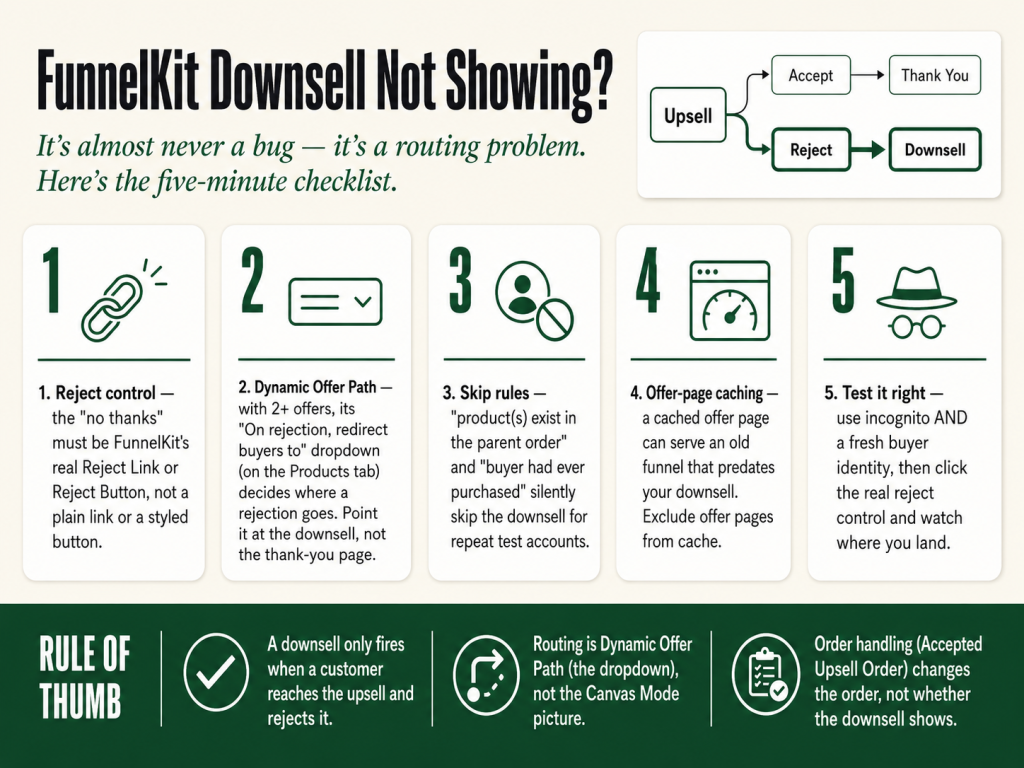
If your FunnelKit downsell isn’t showing after a customer rejects the upsell, check these in order:
- Confirm the customer actually rejected the upsell — a downsell only fires for someone who reaches the upsell and uses the reject control. Accepting it, or never seeing it, means no downsell.
- Confirm the “no thanks” control is a genuine FunnelKit Reject Link or Reject Button — not a plain link or a styled button that bypasses the offer logic.
- Check Dynamic Offer Path — if the step holds more than one offer, its “On rejection, redirect buyers to” dropdown decides where a rejection goes. Point it at the downsell, not the thank-you page.
- Check the two skip rules — “product(s) exist in the parent order” and “buyer had ever purchased this product(s)” will silently skip the downsell for a repeat test account.
- Confirm the downsell product is published and purchasable — a draft, private, out-of-stock, or otherwise unavailable product can prevent the offer from triggering.
- Rule out offer-page caching — one-click offer pages must be excluded from cache, or the page can misbehave.
A downsell only fires when the customer rejects the upsell
Start with the basic false alarm. A downsell is not an unconditional page — it only shows to a customer who reaches the upsell and then rejects it. If your test order accepted the upsell, or never triggered the upsell at all, you will never see the downsell, and nothing is broken.
So before you touch any settings, confirm two things. First, that the upsell itself is showing. If the upsell is missing, fix that first — the downsell can only exist behind a working upsell. (If the upsell itself won’t fire, see the guide on why a FunnelKit one-click upsell isn’t working.) Second, that your test actually rejected the upsell rather than accepting it or closing the tab. Once you’ve confirmed the customer genuinely rejected the offer and the downsell still didn’t appear, move on to the controls below.
Is the no-thanks control a FunnelKit Reject Link?
The rejection route only runs when the customer uses a genuine FunnelKit reject control. Depending on the builder and design, FunnelKit documents this as a Reject Link or a Reject Button; custom pages can use FunnelKit’s Product Offer Reject/Skip Link shortcode. That specific element is what fires the offer’s rejection logic.
If the “no thanks” text was rebuilt as an ordinary URL, a generic button, or a navigation element, it may not route through the offer’s reject action at all — the customer just leaves the offer without the downsell ever being triggered. Open the upsell page in the builder and confirm the reject option is FunnelKit’s Reject Link or Reject Button, or the official reject shortcode on a custom page. Once the control is working, keep it small and understated — “No thanks, I don’t need this” — so it reads as the secondary choice.
FunnelKit downsell not showing? Check Dynamic Offer Path
Here is the setting that catches experienced builders. When a funnel holds more than one offer, FunnelKit decides what follows an acceptance or a rejection through Dynamic Offer Path. Canvas Mode lets you build and inspect your funnel steps, but it isn’t where you set this offer’s accept/reject destination — and on a multi-offer step, the “+” you see opens an Add Offer dialog rather than a routing connector you wire by hand.
The control lives on the offer’s Products tab, below the product list under Product Selection Settings, and it appears only when the step holds two or more offers. There you’ll find two options: “On acceptance, redirect buyers to” and “On rejection, redirect buyers to,” each with a dropdown listing your other offers and the thank-you page.
If the “On rejection, redirect buyers to” dropdown points at the thank-you page or a different offer, the downsell will not be the next step. Set the rejection destination to the downsell, save the offer, and test the rejection path again.
Open the upsell offer, go to the Products tab, and read the rejection dropdown carefully. It should point at your downsell. Also check that “On acceptance, redirect buyers to” sends accepters where you intended, then save the offer.
Are the downsell’s skip rules bypassing it?
FunnelKit offers have two skip settings that exist to avoid presenting an offer for a product the buyer already has. They’re useful, but they can also make a correctly routed downsell look like it’s missing — especially during testing.
The first is “Skip this offer if the product(s) exist in the parent order.” If the offered product is already part of the parent checkout order, FunnelKit skips the offer. The second is “Skip this offer if the buyer had ever purchased this product(s).” That one checks the customer’s WooCommerce purchase history — and if you’ve been testing repeatedly with an account that bought the product once before, the downsell will skip every time even though it’s configured perfectly.
Open the downsell’s settings and check both rules. If either is on, either turn it off for testing or run your test with a fresh customer identity that has never purchased the product. This is the classic case of “it works — you’ve just been testing with a buyer the rule is designed to skip.”
Is the downsell product published and purchasable?
If both skip settings are correct, check the downsell product itself. FunnelKit can skip an offer whose product is draft, private, out of stock, or otherwise not purchasable in WooCommerce — the routing can be perfect, but the product isn’t eligible to be offered. Confirm the downsell product is published, in stock or otherwise purchasable, and available to WooCommerce.
Order handling is separate from downsell routing
This setting won’t stop a downsell from showing, but it’s worth knowing because an unexpected order structure can look like a broken offer. Open the main Upsells step, go to Settings → Order, and find “Each accepted upsell will be.” Choose “Merged with the main order” to add accepted offer items into the primary order, or “Create a new order” to record the accepted offer separately.
That setting affects the order structure after an offer is accepted — it does not control whether the downsell page appears. If the downsell shows but the accepted item lands in an unexpected order, check this setting. And if the offer can’t be charged with one click at all, that’s a payment-gateway tokenization issue, not a routing one — see our guide on why a FunnelKit one-click upsell isn’t working.
How to test the rejection path properly
A test that never exercises the rejection path cleanly can make a working downsell look broken. Run the test the way a real rejecting customer would.
Use a fresh browser session and, when a purchase-history skip rule is in play, a fresh buyer identity that has not ordered the offered product. Incognito clears local browser state, but it doesn’t make the buyer “new” if you check out with the same email or account. Place a real order through the funnel, reach the upsell, and use the FunnelKit Reject Link or Reject Button — not accept, not the back button, not close. Watch where you land. If you land on the downsell, it works. If you land on the thank-you page, you’ve reproduced the problem — continue through the routing, skip-setting, product-availability, and caching checks above.
If the downsell is still skipped, open the corresponding order in WooCommerce and look for FunnelKit’s skipped-offer reason on the order; for deeper troubleshooting, check the FunnelKit entries under WooCommerce → Status → Logs (search by order date), which can report messages such as “Offer product(s) are not purchasable/in stock.”
One more thing to rule out if the page seems stale: page caching. FunnelKit says one-click offer pages must be excluded from page cache, because caching can interfere with the operation of those pages. Exclude the offer-page URL or slug in your caching plugin, host, CDN, or Varnish configuration, purge the relevant caches, and run the test again in a fresh session. Clearing the cache is a useful diagnostic; excluding the offer page is the durable fix. If your checkout itself is behaving oddly alongside this, check the guide on FunnelKit checkout not loading for related caching and configuration causes.
The one-afternoon fix. Want the whole FunnelKit offer stack — bump, upsell, and downsell — laid out as a build-along checklist you can clone? Grab the free FunnelKit resource pack at mmsvegas.com/op/funnelkit-resources/. It’s the companion to The Missing Manual for FunnelKit, the plain-English reference that turns every one of these settings into a checklist instead of a scavenger hunt.
Related FunnelKit troubleshooting guides
- Why a FunnelKit one-click upsell isn’t working
- Why a FunnelKit order bump isn’t showing
- How to set up and test a FunnelKit order bump
Frequently asked questions
Why is my FunnelKit downsell not showing after a customer declines the upsell? Check the offer’s Dynamic Offer Path setting on the Products tab. The “On rejection, redirect buyers to” destination should be the downsell, not the thank-you page or another offer. Then check the downsell’s skip settings and confirm the customer used a FunnelKit Reject Link or Reject Button.
Does a downsell show to everyone? No. A downsell only shows after a customer reaches the upsell and rejects it using FunnelKit’s reject control. Customers who accept the upsell, or never reach it, will not see the downsell.
Could a skip rule be hiding my downsell? Yes. The skip rules for products in the parent order and for products the buyer has ever purchased will both bypass the downsell for matching customers, including a repeat test buyer.
What take rate should I expect from a downsell? There is no reliable universal benchmark. Track the downsell’s conversion rate in FunnelKit, then test the product, price, and framing against your current baseline.
Should I use a downsell in every funnel? Use one when the rejected upsell has a natural lower-cost alternative. Do not add a downsell just to add one; it should solve the same problem with a smaller commitment.
Why does my downsell show but the order looks wrong? Open the main Upsells step and go to Settings, then Order. Under “Each accepted upsell will be,” choose “Merged with the main order” to add accepted offer items to the primary order, or “Create a new order” to keep them separate. This setting affects order handling after acceptance, not whether the downsell page appears.
Can a FunnelKit downsell not showing be caused by the thank-you page redirect? Sometimes. If your thank-you page is misconfigured or redirecting too early, it can pull customers past the downsell before it loads. Confirm the thank-you page is set up correctly and not redirecting on arrival by checking the guide on FunnelKit thank-you page not showing. Fix any redirect issues there, then retest the rejection path.
Sources: Dynamic Offer Path · Skip Offers for Products · One-Click Upsell Design (reject controls) · Why upsells are not triggering · One-Click Upsell settings (order handling) · WordPress caching compatibility. Verified against the live FunnelKit documentation, July 2026.
More FunnelKit guides
Free · FunnelKit Operator Toolkit
Building checkouts in FunnelKit?
Get the free operator toolkit — order-bump templates, checkout checklists, and a note when what you just read changes.
Get the free toolkit →