
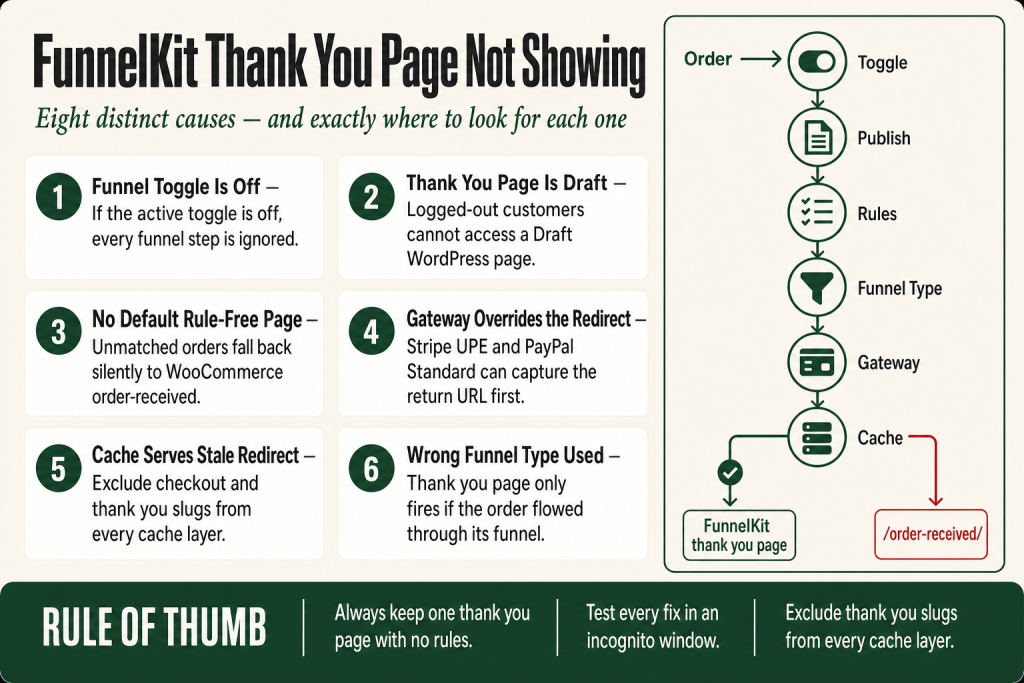
The 30-second answer
- Funnel not active: The Store Checkout (Global Checkout) toggle or the individual funnel’s publish state is off. No toggle, no redirect.
- Thank you page not published: The WordPress page behind the thank you step is in Draft status and won’t serve to real visitors.
- No default thank you page: Every version has a rule attached and none of them match the order, so FunnelKit falls back to WooCommerce.
- Wrong funnel type: You built a product-specific funnel but a customer bought via the store checkout, or vice versa. The thank you page belongs to a funnel that never fired.
- Payment-gateway redirect override: Some gateways capture the return URL before FunnelKit can swap it, or handle the redirect process entirely differently, sending the buyer back to
/order-received/. - Caching: Your cache plugin is serving a stale, pre-FunnelKit version of the checkout redirect. The thank you slug needs an exclusion rule.
- Permalink conflict: The thank you page slug collides with WooCommerce’s
order-receivedendpoint, causing WordPress to resolve the wrong page. - A redirect set inside the thank you page settings: Someone enabled the custom redirect option inside the thank you step and pointed it at the wrong page.
Take this fix into your next scenario. The free Builder’s Companion Kit collects the checklists and templates that pair with this guide — so next time, you start from a template, not a blank page. Grab it free →
- Step 1: Confirm the Funnel Is Actually Active
- Step 2: Check the WordPress Page Publish Status
- Step 3: Every Thank You Page Has a Rule Attached and None Match
- Step 4: Funnel Type Mismatch (Store Checkout vs. Product Funnel)
- Step 5: Your Payment Gateway Is Overriding the Redirect
- Step 6: Your Cache Plugin Is Serving a Stale Redirect
- Step 7: Permalink or Endpoint Conflict
- Step 8: A Custom Redirect Is Set Inside the Thank You Page Settings
- Walkthrough: Diagnosing a FunnelKit Thank You Page Not Showing in Under 10 Minutes
- Cleaning Up Test Orders After Diagnosis
- FAQ
The FunnelKit thank you page not showing is one of the most disorienting problems you can hit. Your customer paid. WooCommerce created the order. But instead of landing on your branded confirmation page, they end up staring at the plain /order-received/ endpoint that WooCommerce ships out of the box. Nothing crashes. Nothing throws an error. The funnel just silently steps aside and lets the default page load instead.
There are eight distinct causes for this, and most of them are invisible until you know exactly where to look. Work through the sections below in order. The first two causes account for the majority of reports, so start there before you dig into the rest.
Step 1: Confirm the Funnel Is Actually Active
Think of the active toggle as the main power switch for the entire funnel. If it’s off, every step in the funnel, including the thank you page, is ignored regardless of how perfectly everything else is configured.
For a Store Checkout (also called a Global Checkout in current FunnelKit docs), go to FunnelKit > Store Checkout and look for the active toggle at the top of the page. The FunnelKit docs confirm that you need to turn this toggle on before any step in that funnel goes live. For a product-specific funnel, open the funnel from FunnelKit > Funnels and check the toggle there.
An easy miss: you may have disabled the toggle temporarily to make edits and forgotten to re-enable it. That one oversight kills the thank you page for every order that comes through while it’s off.
Step 2: Check the WordPress Page Publish Status
Each step in a FunnelKit funnel is backed by a WordPress page. If that page is in Draft status, logged-out visitors, meaning actual customers, can’t access it. FunnelKit doesn’t surface a warning when this happens. It just routes around the unpublished page.
To check: open the funnel, find the thank you step, and click Edit on the step. Then look at the WordPress publish status in the top-right corner of the editor. It needs to say Published, not Draft or Pending Review.
This happens more often than you’d expect. You import a template, get pulled away before you finish, and the page never gets published. Or a security plugin forces a review status on newly created pages. Either way, the fix is one click.
Step 3: Every Thank You Page Has a Rule Attached and None Match
FunnelKit lets you run multiple thank you pages, each triggered by a different set of conditions: order total, product purchased, payment gateway, customer type, and more. The rule engine is powerful. It’s also the source of a specific and quiet failure mode.
If every thank you page in your funnel has at least one rule attached to it, and a given order doesn’t satisfy any of those rules, FunnelKit has nowhere to send the customer and falls back to the WooCommerce order-received page.
The fix is straightforward: always keep one thank you page with no rules attached. That rule-free page acts as the catch-all for every order that doesn’t match a more specific condition. The FunnelKit documentation on rule-based thank you pages makes this explicit: when you set up rule-based pages, always ensure you create a default version that shows to users who don’t meet any of the conditions.
To check your setup, open each thank you step in the funnel and click the Rules tab. If every step shows at least one condition, add a new thank you step and leave its rules tab empty.
Step 4: Funnel Type Mismatch (Store Checkout vs. Product Funnel)
FunnelKit has two distinct funnel structures. A Store Checkout (referred to in the FunnelKit docs as a Global Checkout) is a global checkout that replaces the default WooCommerce checkout for all products. A product-specific funnel is a separate flow attached to one or more individual products.
The thank you page only fires if the order flowed through the funnel that contains it. If a customer buys a product through your Store Checkout but your thank you page lives inside a separate product funnel, WooCommerce never enters that product funnel, and the thank you page stays invisible. The same is true in reverse.
Ask yourself: how did this order enter the checkout? Was it from the cart page (Store Checkout territory) or from a dedicated product landing page with its own checkout step? Match the thank you page to the funnel the customer actually travels through.
If you’re not sure how your checkout is structured, the article How to Set Up FunnelKit Checkout from Scratch covers the difference between these two funnel types in detail.
Step 5: Your Payment Gateway Is Overriding the Redirect
This one is subtle and genuinely frustrating. FunnelKit works by hooking into WooCommerce’s return URL system. After payment, WooCommerce asks the gateway where to send the customer. FunnelKit intercepts that question and substitutes its own thank you page URL.
Not every gateway plays by the same rules here. Some capture the return URL before the payment is processed, grabbing the raw WooCommerce /order-received/ URL before FunnelKit can swap it in. Others handle the redirect process entirely on their own terms, bypassing the hook FunnelKit relies on altogether. The FunnelKit team has documented one version of this with the Stripe gateway in UPE (Universal Payment Element) mode: the return URL is fetched before the order status transition occurs, so the hook fires too late.
PayPal Standard has a similar issue. It redirects from an external payment page back to your site, and if that redirect is even slightly disrupted, such as by a slow mobile connection or the buyer closing the tab early, the FunnelKit thank you page is never reached.
What to check and try:
- Stripe: If you’re using the standard WooCommerce Stripe gateway, check whether you’re in UPE mode. FunnelKit publishes its own Stripe gateway plugin that is specifically built to handle this redirect correctly. Switching to it often resolves the problem immediately, but keep the plugin updated: FunnelKit continues to ship redirect-related fixes for new gateway flows, and an outdated version may not cover your specific configuration.
- PayPal: PayPal Standard is the most problematic. PayPal Payments (the newer API-based version) handles redirects more reliably. If you’re stuck on Standard, verify that your PayPal IPN (Instant Payment Notification) is correctly configured so WooCommerce can update the order status and trigger the redirect.
- BNPL gateways (Klarna, Afterpay, etc.): These also redirect off-site and may handle the return URL differently from a standard card transaction. FunnelKit’s own Stripe plugin has addressed at least one known redirection issue with BNPL flows; keep it current for the same reason noted above.
- Rule by payment gateway: If you’ve set a rule on your thank you page that filters by payment gateway, double-check that the rule value exactly matches the gateway ID WooCommerce sees. A mismatch here means no thank you page loads for orders through that gateway. Go to the thank you step’s Rules tab and confirm the Payment Gateway condition matches the exact gateway ID.
See also the section on one-click upsells in FunnelKit One-Click Upsell Not Working, because gateway redirect issues there and here share the same root cause.
Step 6: Your Cache Plugin Is Serving a Stale Redirect
A cache plugin’s whole job is to serve pre-built pages without executing PHP. That is exactly what breaks FunnelKit’s dynamic redirect logic. If your checkout page is cached, the PHP hook that FunnelKit uses to swap the return URL may never run. The customer completes payment, WooCommerce redirects to the cached version’s hard-coded destination, and that destination is the default /order-received/ page.
The fix is exclusion, not disabling caching entirely. You need to tell your cache plugin never to cache the FunnelKit checkout and thank you page URLs.
FunnelKit publishes exclusion guides for WP Rocket, LiteSpeed Cache, WP Super Cache, W3 Total Cache, Breeze (Cloudways), SiteGround SG Optimizer, Hummingbird, WP Engine, Kinsta, and Cloudflare, among others. The pattern is always the same: grab the permalink slug of your checkout and thank you steps from FunnelKit > Settings > General > Permalinks, then paste those slugs into your cache plugin’s exclusion list.
A few specifics worth calling out:
- WP Rocket: Go to WP Rocket > Advanced Rules and add your checkout slug in the pattern
/checkouts/(.*). Add a matching pattern for your thank you slug. - LiteSpeed Cache: Go to Settings > LiteSpeed Cache > Excludes and paste the FunnelKit checkout and thank you URLs.
- Managed hosting (WP Engine, Kinsta, Cloudways): Server-level caching bypasses WordPress plugins entirely. Open a support ticket with your host and ask them to exclude your FunnelKit page URLs from their server cache. FunnelKit’s documentation includes a pre-written template you can paste directly into the ticket.
- Cloudflare: If you’re using Cloudflare Page Rules or Cache Rules, make sure your checkout and thank you page paths are set to bypass cache.
After adding exclusions, clear your entire cache and run a test order. Do not test from a browser tab that’s logged into the WordPress admin, because you’ll hit different cache logic. Use an incognito window or a separate device.
Step 7: Permalink or Endpoint Conflict
WooCommerce adds a rewrite endpoint called order-received to the checkout page URL. FunnelKit uses its own permalink slugs for checkout and thank you steps, configured under FunnelKit > Settings > General > Permalinks.
A conflict arises when the FunnelKit thank you page slug is the same as, or a prefix of, the WooCommerce endpoint. For example, if your thank you page slug is set to order-received, WordPress resolves the URL as a WooCommerce endpoint rather than a FunnelKit page, and the FunnelKit page never loads.
Less obviously: if you’ve installed a plugin that registers a custom WooCommerce endpoint that overlaps with your FunnelKit thank you slug, the same collision can happen. Conflict symptoms are usually a 404, a wrong-page load, or a loop.
The fix is simple: use a slug that doesn’t overlap with any WooCommerce endpoint. After changing the slug, go to Settings > Permalinks in the WordPress dashboard and hit Save Changes (even without making a change) to flush the rewrite rules. FunnelKit’s new slug won’t resolve correctly until the rewrite cache is refreshed.
Step 8: A Custom Redirect Is Set Inside the Thank You Page Settings
FunnelKit’s thank you page has a Settings tab that lets you configure a custom redirect. When enabled, it immediately forwards the customer to a different page the moment they land on the thank you step. If someone set this up and pointed it at the wrong page, or if it’s pointing at a page that no longer exists, the customer hits the thank you URL for a fraction of a second and then gets forwarded somewhere unexpected.
This is not the same problem as the thank you page not loading at all, but it produces a nearly identical symptom from the customer’s perspective.
To check: open the thank you step, go to its Settings tab, and look for the custom redirect option. If it’s enabled, either disable it or correct the destination URL. The page you redirect to must already exist as a published WordPress page.
Walkthrough: Diagnosing a FunnelKit Thank You Page Not Showing in Under 10 Minutes
Here’s the fastest way to work through this in a live store without burning a real order on a customer account.
- Enable WooCommerce test mode. Go to WooCommerce > Settings > Payments, enable a test gateway such as the built-in “Cash on Delivery” or the Stripe test mode. This lets you place real orders without charging anyone.
- Confirm the funnel toggle is on. Go to FunnelKit > Store Checkout and verify the active toggle is enabled. If you’re testing a product funnel, confirm that funnel is active too.
- Open an incognito window. Do not test from your admin browser session. Caching, logged-in redirect rules, and admin cookies all distort the result. Use a private browser window acting as a guest customer.
- Place a test order. Add a product to the cart, go to checkout, and complete the order using your test gateway. Watch the URL in the address bar after payment. Where does it land?
- If it lands on
/order-received/: The FunnelKit redirect isn’t firing at all. Go back and check the funnel active state (Step 1), the page publish status (Step 2), and the rule coverage (Step 3) in that order. - If the URL briefly shows your thank you page slug but then changes: The redirect inside the thank you page settings (Step 8) is likely firing. Check that Settings tab.
- If it lands on the right URL but shows a blank or broken page: This is a caching or page-builder rendering issue. Clear the cache, then reload.
- Re-test after each change. Clear your cache completely between each attempt. Stale cache makes it look like your fix didn’t work when it actually did.
Once the test order hits your FunnelKit thank you page cleanly, run one more test using the payment gateway your customers actually use in production. Gateway-specific redirect issues (Step 5) only appear with the real gateway, not with the test cash gateway.
If your checkout page itself isn’t behaving as expected during testing, the article FunnelKit Checkout Not Working covers checkout-layer problems that sit upstream of the thank you page redirect.
Cleaning Up Test Orders After Diagnosis
Test orders pile up fast and they pollute your revenue analytics, your FunnelKit conversion stats, and any automations triggered by new orders. Clean them up before you move on.
The cleanest approach is to delete them directly from WooCommerce > Orders. Select the test orders, choose Move to Trash from the bulk actions dropdown, and then empty the trash. If your orders are already in Trash, you’ll need to empty the trash to fully remove them.
One honest caveat: if you’ve triggered any FunnelKit Automations during testing, such as a post-purchase email sequence, deleting the order does not retroactively cancel those automation runs. Go to FunnelKit Automations > Contacts and check whether any test contact was enrolled in a sequence, then remove or unsubscribe them manually. The article FunnelKit Automation Not Triggering covers how to verify what fired and what didn’t, which is useful here for confirming your automations are clean.
If you added any order bumps during testing and want to verify they recorded correctly (or incorrectly), FunnelKit Order Bump Not Showing walks through the order bump side of the same diagnostic process.
Also: if you used a real email address during testing, any confirmation emails have already been sent. That’s a “learn from it” situation, not a recoverable one. Use a junk email address for test orders.
FAQ
funnelkit thank you page not showing after paypal payment
PayPal Standard redirects through an external payment page and sometimes loses the FunnelKit return URL in transit. Switch to PayPal Payments (the newer REST API version) if possible, or verify your PayPal IPN is properly configured so WooCommerce can update the order status and complete the redirect. Also confirm your thank you page has no unmatched rules and that the page is published.
why does funnelkit show order-received instead of my thank you page
The most common causes are: the Store Checkout (Global Checkout) toggle is off, the WordPress page behind the thank you step is in Draft status, or every thank you page in the funnel has a rule attached and none of them matched the order. Check those three things first. Payment-gateway redirect overrides and caching are the next most likely culprits.
do i need a default thank you page with no rules in funnelkit
Yes. If every thank you page in your funnel has at least one condition attached, any order that doesn’t match a condition will fall back to the WooCommerce order-received page. Always keep one thank you step with an empty Rules tab to catch all orders that don’t match a more specific rule.
funnelkit thank you page not showing after stripe payment
Stripe in UPE (Universal Payment Element) mode can capture the return URL before FunnelKit has a chance to substitute its own. Consider using FunnelKit’s own Stripe payment gateway plugin, which is designed to handle this redirect correctly. Keep that plugin updated, as FunnelKit continues to ship fixes for new gateway flows and redirect edge cases. Also make sure the Stripe gateway is not cached by your caching plugin or server.
does caching break funnelkit thank you page redirect
Yes. If your checkout page is cached, the PHP code that swaps in the FunnelKit thank you URL may not run. Exclude your checkout and thank you page slugs from your cache plugin using the settings under FunnelKit > Settings > General > Permalinks. FunnelKit publishes specific exclusion guides for WP Rocket, LiteSpeed Cache, and more than a dozen other caching setups.
funnelkit thank you page rules not working, page not displaying
Open each thank you step and check the Rules tab. If a rule condition references a payment gateway, product, or category, confirm the value exactly matches what WooCommerce records on the order. A label mismatch or a gateway ID that differs from what WooCommerce actually stores will cause the rule to silently fail, and the thank you page won’t display for those orders.
Sources:
Sources consulted: FunnelKit Docs: Creating a Store Checkout (Global Checkout Funnel); FunnelKit Docs: Thank You Page; FunnelKit Docs: Thank You Page Rules; FunnelKit Docs: Thank You Page Settings; FunnelKit Docs: Rule Engine; FunnelKit Docs: Caching Plugins; FunnelKit Docs: WP Rocket Exclusion; FunnelKit Docs: LiteSpeed Cache Exclusion; FunnelKit Docs: Stripe Gateway Overview; FunnelKit Docs: Supported Payment Gateways; GitHub: Stripe UPE Redirect Issue (FunnelKit / WooCommerce Stripe).
Brian Kasday spent forty years in direct-response marketing before rebuilding the whole operation as a one-person shop. He writes The Operator’s Library — including “The Missing Manual for FunnelKit” — for operators who’d rather build it themselves than wait on someone else.
Get the Builder’s Companion Kit — the free checklists and templates that pair with this guide: mmsvegas.com/op/funnelkit-resources/.
This guide fixes one FunnelKit step. The Missing Manual for FunnelKit covers the whole checkout system. See the manual →
More FunnelKit guides
Free · FunnelKit Operator Toolkit
Building checkouts in FunnelKit?
Get the free operator toolkit — order-bump templates, checkout checklists, and a note when what you just read changes.
Get the free toolkit →