
The 30-second answer
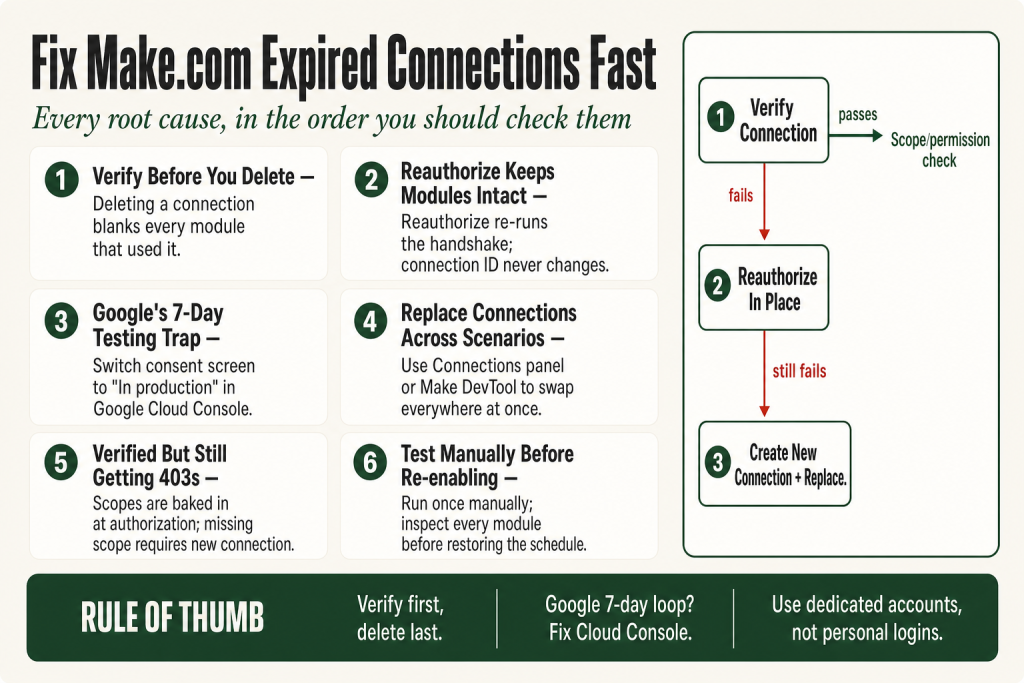
- Go to Connections first, not the scenario. Open the Connections section from the workspace navigation, find the broken connection, and hit Verify. That single check tells you whether the token is dead before you touch anything else.
- If Verify fails, try Reauthorize. For OAuth connections, the Reauthorize button re-runs the OAuth handshake in a pop-up window without creating a new connection object, so all your modules keep pointing to the same underlying record.
- If Reauthorize is greyed out or absent, create a new connection. Some non-OAuth connection types don’t expose a Reauthorize button. Create a fresh connection and then swap it into each affected module.
- Google OAuth expiring every 7 days? Your Google Cloud app’s OAuth consent screen is set to “Testing.” Change the publishing status to “In production” in Google Cloud Console. That is a Google-side fix, not a Make.com setting.
- Revoked or password-changed? The old token is permanently dead. Create a new connection and use the Make DevTool browser extension’s connection-duplicate tool or the Replace connections across multiple scenarios workflow to swap it everywhere at once.
- Scope mismatch or account permission issue? Some connectors require you to delete and recreate the connection to add new OAuth scopes, or the connected account may lack permission for the action the module is requesting. Verify both before you delete anything.
- Test safely. Run the scenario once manually before re-enabling the schedule, so you can inspect the execution log for new errors without burning through a timed run.
Take this fix into your next scenario. The free Builder’s Companion Kit collects the checklists and templates that pair with this guide — so next time, you start from a template, not a blank page. Grab it free →
- How Make.com stores and uses connections
- Diagnose before you delete anything
- OAuth refresh token expired: reauthorize in place
- Google connections expiring every 7 days: the testing-mode trap
- Revoked access or changed password: create a new connection
- How to replace a make connection expired connection across multiple scenarios
- Permission scope problems and account permission issues: the silent blocker
- Retesting without risking your live data
- Habits that prevent the next make connection expired outage
- FAQ
A make connection expired error is one of the most disruptive failures in an active Make.com workspace. Every scenario touching that connection stops cold, often overnight, and the error message rarely tells you why the token died. The short version: go to Connections in the left nav, click Verify on the broken connection, then click Reauthorize if it fails. That fixes the most common case in under two minutes without touching a single scenario. If that doesn’t work, this guide walks you through every root cause in the order you should check them, then shows you how to reconnect or replace a connection safely so your other scenarios keep running while you fix it.
How Make.com stores and uses connections
Make.com stores each connection as a named credential object shared across your team. When a module runs, Make fetches the stored credential and authenticates the outbound request on your behalf. Because one connection object can serve dozens of modules across multiple scenarios, a single expired token creates a cascading failure that looks different in each scenario’s error log even though the root cause is identical.
Authentication methods break down into roughly three families:
- API key / basic auth. A static string or username-password pair. These expire only when you or the third-party service changes them.
- OAuth 2.0. A short-lived access token backed by a longer-lived refresh token. Make.com refreshes the access token automatically using the refresh token. If the refresh token itself expires or gets revoked, Make.com cannot self-heal and the connection breaks.
- OAuth 1.0. An older handshake used by a small number of legacy platforms. Token lifecycle rules vary by service.
The important mental model: an OAuth access token expiring on its own is normal and Make.com handles it silently. What you see as a “make connection expired” error is almost always the refresh token dying, not the access token.
Diagnose before you delete anything
The single most destructive mistake I see is deleting a connection immediately. Once it’s gone, every module that used it shows a blank connection field and you have to re-assign them one by one. Spend two minutes diagnosing first.
- Open Connections from the workspace navigation. You’ll see a list of every connection your team owns.
- Click Verify on the suspect connection. Make.com calls the third-party API with the stored credentials and returns a confirmed or not-confirmed result. A passing check means Make’s stored credentials were accepted by the third-party API at that moment. A failure means the credential is dead at the third-party end.
- Read the error message in the failing scenario’s execution log. The exact wording matters. “Invalid refresh token” points to an expired or revoked OAuth token. “401 Unauthorized” with an API key connection usually means the key was rotated or deleted. “403 Forbidden” often means a scope issue or an account-level permission problem on the connected service’s side.
- Check the third-party app’s side. Log into the connected service and look at its authorized apps or connected applications list. If Make.com no longer appears, the user revoked access.
Once you know which of the causes below applies, pick the matching fix. Don’t guess.
OAuth refresh token expired: reauthorize in place
This is the most common case. The refresh token aged out because it was unused, because the connected account’s password changed, or because the service enforces a hard expiration window. The fix is to re-run the OAuth handshake without deleting the connection.
- Go to Connections in the workspace navigation.
- Find the connection and click Reauthorize. A pop-up window opens the third-party service’s login or consent screen.
- Complete the login flow. Make.com receives a fresh access token and refresh token and stores them against the same connection record.
- Click Verify to confirm the new token is accepted before you close anything.
Because you reauthorized in place, the connection ID hasn’t changed. Every module and every scenario that pointed to it keeps working automatically. You don’t touch a single scenario.
One caveat: for OAuth connections, the Reauthorize button is required to confirm credential changes. Make.com won’t use new OAuth data until you complete that step. If you edited connection fields instead of reauthorizing, the old token stays active until you do.
Google connections expiring every 7 days: the testing-mode trap
If your Google (Gmail, Sheets, Drive, Calendar) connection breaks on a regular 7-day cycle with an “Invalid refresh token” error, the problem is not Make.com. It is your Google Cloud project’s OAuth consent screen status.
When an app’s OAuth consent screen status is set to “Testing” in Google Cloud Console, Google automatically expires all refresh tokens issued by that app after exactly 7 days. Make.com reauthorizes fine, runs for a week, then fails again.
The permanent fix:
- Go to Google Cloud Console and open your project.
- Navigate to APIs & Services > OAuth consent screen.
- Change the publishing status from “Testing” to “In production.”
- If your scopes are sensitive or restricted, Google will require verification before approving production status. That process takes time. For a Google Workspace organization, setting User Type to “Internal” sidesteps the 7-day limit entirely without requiring external verification.
In production with a verified app, refresh tokens have no fixed expiration: they stay valid as long as they are used at least once every 6 months, the per-client 50-token cap is not exceeded, and the user has not revoked access.
A few other Google-specific causes worth knowing: a refresh token that sits idle for six consecutive months is automatically invalidated, and resetting an account password revokes tokens that include Gmail scopes. If you’re hitting either of those, reauthorizing in Make.com is the correct fix because the token itself is dead, but the underlying Google Cloud config is fine.
Verify this is truly the cause before you start modifying your Google Cloud project. If your connection was fine for months and then broke once, it’s probably not the 7-day testing limit.
Revoked access or changed password: create a new connection
When someone revokes Make.com’s access from the connected service’s side, or when an account password changes and that invalidates all outstanding tokens, the stored refresh token is permanently dead. Reauthorizing should still work because you’re re-running the login flow, but if the account credentials themselves changed you’ll need to enter the new ones during the reauthorization pop-up.
If Reauthorize is greyed out or missing (some non-OAuth connection types don’t expose it), you must create a new connection from scratch:
- In Connections, click Create a new connection for the same app.
- Complete the authorization flow with the updated credentials.
- Verify the new connection passes.
- Now swap it into your affected modules. See the next section for how to do this without missing any module.
You may need to replace a connection used in multiple modules of the same app across one or many scenarios when you need to replace the connection instead of editing the credentials for an existing one. Don’t skip this step and just fix the one scenario you noticed. Other scenarios using the same dead connection are already failing silently.
How to replace a make connection expired connection across multiple scenarios
This is the part most guides skip. You’ve created a working replacement connection. Now you need to get every module pointing to it. There are two official paths.
Within one scenario: Make DevTool browser extension
The Make DevTool is a Chrome browser extension (not a built-in platform feature) that adds a debugging pane to Chrome Developer Tools. It includes a connection-duplicate tool: you select the module that holds the connection you want to propagate, and it sets the same connection for every module of the same app in your scenario. To use it: install Make DevTool from the Chrome Web Store (search “Make DevTool” or visit the Chrome Web Store directly), open the scenario in Make.com, press Control+Shift+I (Windows) or Command+Option+I (Mac) to open Chrome Developer Tools, and switch to the Make tab. Navigate to Tools, select the module with the correct new connection, and run the connection-duplicate action. Every module of that app type in that scenario switches in one action.
Across multiple scenarios
Make.com’s “Replace connections across multiple scenarios” feature lets you swap one connection for another across your whole workspace without opening each scenario individually. You’ll find this in the Connections panel. Pick the old connection, pick the new one, confirm. Check the results carefully: some modules may require additional configuration after the swap, particularly if the new connection uses a different account with different resource IDs.
One honest caveat: with a large number of scenarios the current replace process can still be error-prone, because it is easy to miss a module. After running the bulk replace, run a manual test execution on each affected scenario and read the execution log before re-enabling the schedule. Don’t assume the swap was clean.
Permission scope problems and account permission issues: the silent blocker
A scope mismatch or account-level permission problem produces a different kind of failure: the connection verifies as healthy, but specific modules return 403 errors or empty results. The connection itself is alive. The issue is what it’s allowed to do, or what the connected account is allowed to do.
There are three distinct causes here and they need different fixes:
- Missing OAuth scope. Scopes are baked into the token at authorization time. In an OAuth 2.0 connection, scopes define the level of access Make.com requests and control what the connected app can do. If you add a module that needs a scope the original connection didn’t request, that module will fail even though older modules in the same scenario work fine.
- Account-level permission. The connected account simply doesn’t have access to the resource the module is targeting. For example, a Google account without edit access to a shared Drive folder will produce a 403 even with a fully scoped token. Reauthorizing won’t fix this. The underlying account needs the correct permission granted at the service level first.
- Incorrect module configuration. A misconfigured module field, for example a hardcoded folder ID that no longer exists or a filter that resolves to an unauthorized resource, can produce 403 or empty-result failures that look like connection problems. Check the module’s settings and field mappings before assuming the connection is at fault.
How to fix a scope problem:
- Check the app’s documentation at
https://apps.make.com/<app-name>to see which scopes each module requires. - If the missing scope is addable without deleting the connection (some services allow incremental scope grants), try reauthorizing. The reauth pop-up may offer an expanded permission list.
- If the service requires a fresh authorization to add scopes, you’ll need to create a new connection with the correct scope set checked, verify it, then replace the old connection following the steps in the section above.
The practical advice: when you create a connection for the first time, grant slightly broader scopes than you think you need for that single module. Chasing a scope mismatch weeks later costs more time than the extra permission ever would. That said, grant only the minimal required permissions for any connection that touches sensitive data. Balance those two realities for your specific situation.
For the related case where a module configuration itself is broken (not the connection), see Make InvalidConfigurationError for a walkthrough of that separate failure mode.
Retesting without risking your live data
Once you’ve reauthorized or replaced the connection, don’t just flip the scenario back on and walk away. A repaired connection can pass Verify but still fail in the actual execution context if the account permissions, resource IDs, or field mappings have shifted.
- Keep the schedule off. Leave the scenario deactivated until you’ve confirmed the manual run works.
- Run once manually. Click the Run once button in the scenario editor. Watch the execution live or check the execution history immediately after.
- Inspect the full execution log. Look at every module, not just the first and last. A partial success where only early modules pass is easy to miss if you only check whether the scenario “completed.”
- Check incomplete executions. Any runs that failed while the connection was broken may be sitting in the incomplete executions queue. Decide whether to retry or discard them before you re-enable the schedule, or you’ll double-process data once the scenario starts running again.
- Re-enable the schedule last. Only after a clean manual run confirms end-to-end success.
If the manual run still fails, the fix isn’t complete. Check the error message against the diagnostic steps above again. A new error after reauthorizing usually means a scope issue, an account permission gap, or a mapping problem that the broken connection was masking. For mapping errors that appear after reconnecting, Make Mapping Fields Missing covers why fields disappear and how to restore them.
Habits that prevent the next make connection expired outage
You can’t stop every third-party service from expiring tokens, but you can make the failure less disruptive when it happens.
- Use dedicated service accounts, not personal logins. Use dedicated integration accounts where possible instead of personal accounts. A personal account password change instantly breaks every connection attached to it. A dedicated account’s credentials change on your schedule.
- Name connections descriptively. Include the service, environment (prod vs. test), and owner. When three Gmail connections exist and one breaks, you need to know which one serves which scenarios without opening each scenario.
- Maintain a connection inventory. Keep a simple doc or data store listing which scenarios depend on each critical connection. Pair it with an error handler that alerts you the moment a connection fails in production, rather than letting incomplete executions pile up silently.
- Periodically verify connections. Once a month, scan your Connections list and click Verify on the ones your highest-priority scenarios depend on. Catching a stale token before it breaks beats discovering it during a live run.
- Revoke and clean up unused connections. Periodically review the Connections list and remove unused items. Unused connections are security surface area and noise when you’re trying to diagnose a problem.
FAQ
make connection expired how to fix
Go to Connections in the workspace navigation, find the broken connection, and click Verify. If it fails, click Reauthorize and complete the login pop-up. That refreshes the token in place without touching your scenarios. If Reauthorize is missing, create a new connection and use the Replace connections feature to swap it into all affected modules.
why does my Make Google connection keep expiring every 7 days
Your Google Cloud project’s OAuth consent screen is set to “Testing” status. Google automatically expires all refresh tokens from unverified apps after 7 days as a security measure. Fix it by changing the publishing status to “In production” in Google Cloud Console, or set User Type to “Internal” if your org uses Google Workspace. This is a Google-side setting, not a Make.com setting.
how to replace a Make connection across multiple scenarios without opening each one
Make.com has a “Replace connections across multiple scenarios” feature accessible from the Connections panel. Select the old connection and the replacement, then confirm. For replacing a connection across all modules within a single scenario, use the Make DevTool browser extension’s connection-duplicate tool instead. Note that Make DevTool is a Chrome browser extension you install separately from the Chrome Web Store; it is not a built-in Make.com feature. After either method, run a manual test execution on each affected scenario before re-enabling the schedule.
Make connection reauthorize button greyed out
The Reauthorize button is only available for OAuth connections. Non-OAuth connection types (API key, basic auth) don’t have it. For those, edit the connection’s credentials directly and save. If the button is greyed out on an OAuth connection, check whether you have the correct permissions in Make.com to edit that connection, as some connections are scoped to the user who created them.
will deleting a Make connection break my scenarios
Yes. Any scenario that uses the deleted connection will fail immediately because the module’s connection field becomes blank. Before deleting, always create the replacement connection first and swap it into all modules using the Replace connections feature. Only delete the old connection after you’ve confirmed the replacement is working.
Make connection says verified but modules still get 403 errors
A verified connection means the stored token is accepted by the third-party API, but it doesn’t guarantee the token covers every action or that the connected account has every permission. Three things to check: first, a scope mismatch (the token doesn’t include permission for the specific action the module is requesting); second, an account-level permission gap (the connected account lacks access to the specific resource, such as a folder or file); third, a module configuration issue (a field is mapped to an invalid or inaccessible resource ID). Check the app’s documentation for required scopes, verify the connected account has the right permissions on the service side, and inspect the module’s field mappings before assuming the connection itself is the problem.
Sources:
Sources: Make Help Center: Replace connections across multiple modules; Make Help Center: Connect to any web service using OAuth 2.0; Make API Documentation: Connections reference; Make Developer Hub: DevTool Tools; Make Developer Hub: Make DevTool (browser extension); Unipile: Google OAuth Refresh Token Expiration (2026); Nando.dev: Google OAuth invalid_grant explainer; ConsultEvo: Connections guide for Make.com.
Brian Kasday spent forty years in direct-response marketing before rebuilding the whole operation as a one-person shop. He writes The Operator’s Library — including “The Missing Manual for Make” — for operators who’d rather build it themselves than wait on someone else.
Get the Builder’s Companion Kit — the free checklists and templates that pair with this guide: mmsvegas.com/make-resources.
This guide solves one Make problem. The Missing Manual for Make covers the production system. See the manual →
More Make guides
Free · Make Operator Toolkit
Running scenarios in Make?
Get the free operator toolkit — production checklists and the fixes that keep scenarios alive under real traffic, plus a note when this guide changes.
Get the free toolkit →