
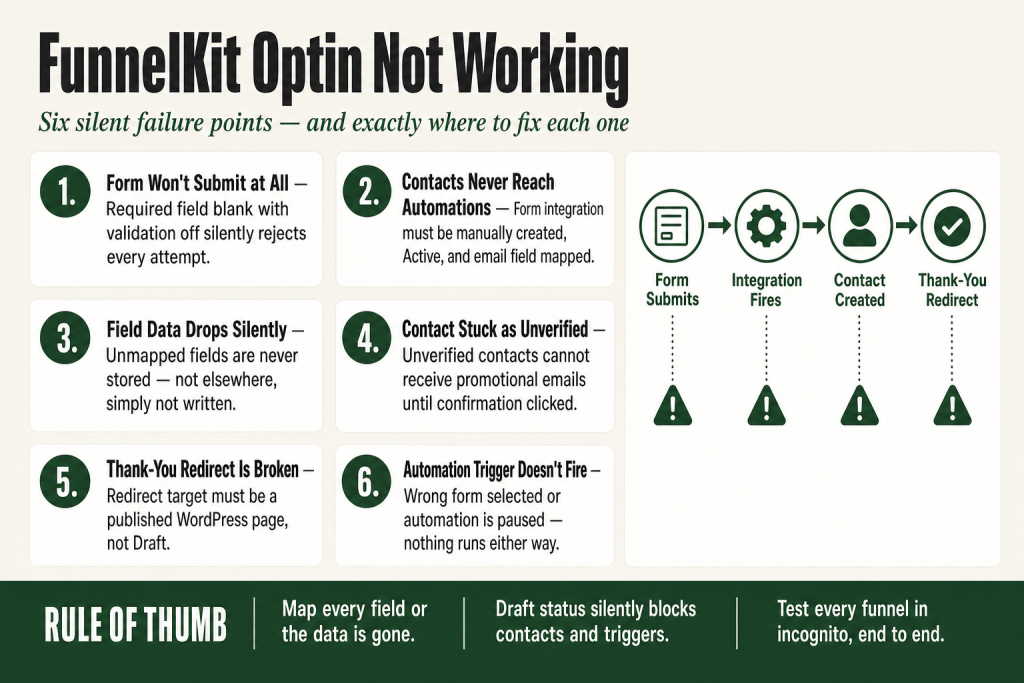
The 30-second answer
- Form does not submit at all: The most common cause is a required field left blank with validation messages turned off, so the form silently rejects. Enable validation messages in Optin Page Settings so visitors see what to fix.
- Contact never appears in Automations: The form integration under FunnelKit Automations › Tools › Forms is either missing, in Draft status, or the email field is not mapped. All three prevent contact creation.
- Field mapping is incomplete: Any form field that has no matching Automations contact field assigned in the mapping screen will not be written to the contact record. Map every field you care about, or create the destination field first under Contacts › Fields in Automations. Note that unmapped fields are not secretly stored elsewhere: the mapping screen is the only place form data gets written to contact properties.
- Contact shows as Unverified, not Subscribed: Double opt-in is active and the visitor has not clicked the confirmation link. Unverified contacts cannot receive promotional emails until their status flips to Subscribed.
- Thank-you page or redirect is broken: The redirect target must be a page added to your WordPress Pages list. A draft page or a URL entered in the wrong field will not resolve correctly. Check the Optin Thank You page Settings panel.
- Automation trigger does not fire: If the trigger is set to “Form Submits” but the wrong form is selected, or the automation is paused, nothing runs even if the contact is created.
Take this fix into your next scenario. The free Builder’s Companion Kit collects the checklists and templates that pair with this guide — so next time, you start from a template, not a blank page. Grab it free →
- How the FunnelKit Optin Pipeline Works
- Fix 1: The Form Is Not Submitting at All
- Fix 2: Contacts Are Not Created in Automations
- Fix 3: Field Mapping Gaps Drop Data Silently
- Worked Example: Wiring a Fresh Optin Form End to End
- Fix 4: The Contact Is Unverified and Not Receiving Emails
- Fix 5: The Redirect After Submission Is Broken
- Fix 6: The Automation Trigger Does Not Fire After Submission
- Walkthrough: FunnelKit Optin Not Working, End-to-End Check in 10 Minutes
- FAQ
FunnelKit optin not working is one of the quieter failures in the stack because the form looks fine on the front end, no error appears, and the visitor thinks they subscribed. Meanwhile, nothing lands in Automations, the thank-you page never shows, and you have no idea how many leads just walked out the door. This article goes through every layer where the break can happen: the form submission itself, field mapping to Automations, contact status after the double opt-in, and the redirect chain after submission. Fix the right layer and the whole pipeline snaps back into place.
How the FunnelKit Optin Pipeline Works
Before you can fix a break, you need to know the path. A FunnelKit opt-in has four distinct legs, and a failure in any one of them produces a different symptom.
- The form renders and submits. The visitor fills out the fields on your opt-in page (inline or pop-up) and clicks the button. FunnelKit validates the required fields before doing anything else.
- The form integration fires. If you connected the form inside FunnelKit Automations under Tools › Forms, the integration picks up the submission and maps the incoming field values to contact fields in Automations.
- A contact record is created or updated. Automations either creates a new contact or updates an existing one. The contact’s subscription status depends on whether double opt-in is active.
- The visitor lands on the thank-you page or a redirect. FunnelKit sends the visitor to the Optin Thank You step in the funnel, or to a custom redirect URL if you configured one.
Most “optin not working” reports are actually a failure in exactly one of these legs. The sections below follow that same order so you can stop as soon as you find your break.
Fix 1: The Form Is Not Submitting at All
If clicking the submit button does nothing, or the page refreshes without moving forward, start here.
Validation messages are off
What happens: A required field is blank, but the visitor gets no feedback. The form quietly refuses to submit and nothing moves.
The fix: Open the funnel step in FunnelKit Funnel Builder (formerly WooFunnels), click the optin step, then go to Settings. You’ll find the Validation Message option there. When you set it to Yes, visitors see a prompt telling them exactly which required field they missed, so they can fill it and resubmit. You can also edit the message text from the same panel.
A page builder widget is overriding the form action
If you built the optin page from scratch in Elementor or Divi and used a native page-builder form widget instead of the FunnelKit optin shortcode or block, that widget submits to its own handler, not to FunnelKit. The result looks like a working form but nothing reaches Automations. Replace the widget with the FunnelKit optin form element or use the provided shortcode so the submission goes through FunnelKit’s handler.
A JavaScript conflict is blocking submission
Caching plugins, optimization plugins that defer or combine scripts, and some theme scripts can break the click handler on the submit button. Test in an incognito window with all browser extensions off. If the form submits cleanly there, isolate the script conflict by temporarily disabling your caching or optimization plugin and retesting.
The form integration in Automations is in Draft status
Even if the page renders correctly, the integration between the form and Automations has its own status. If the form entry under FunnelKit Automations › Tools › Forms is in Draft, submissions do not get processed. Open the form entry and flip the status to Active.
Fix 2: Contacts Are Not Created in Automations
The form submits fine, the visitor reaches the thank-you page, but no contact appears in FunnelKit Automations. This is the most common complaint, and it almost always comes back to the integration setup.
The form integration was never created
Submitting the form does not automatically create a contact. You have to wire the form into Automations explicitly. Go to FunnelKit Automations › Tools › Forms and create a new form integration. In Step 1, select FunnelKit Optin as the plugin. In Step 2, pick the name of your specific optin page from the dropdown. Click Next to reach the Mapping screen. Without this integration, submissions land nowhere.
Alternatively, if you want an automation workflow to handle contact creation, create an automation with the trigger Form Submits under FunnelKit Optin Form, select the correct form, map the fields, and add a Create Contact action. Either path works; you need at least one of them.
The email field is not mapped
Field mapping is the step where you tell Automations which incoming form field corresponds to which contact property. If the email field on your form is not mapped to the Email field in Automations, no contact can be created at all. The email address is the primary identifier. Map it first, then map first name, last name, phone, and any custom fields you want to capture.
If you have a custom field on your form that does not yet exist as a contact property in Automations, you need to create it first. The official docs confirm you can add it via Contacts › Fields inside Automations. Once the field exists there, come back to the mapping screen and connect it. The mapping screen is where form data gets written to contact properties: there is no parallel path where unmapped fields are stored automatically.
The form integration is pointing at the wrong optin step
If your funnel has multiple optin steps or you cloned a funnel, the integration might still be pointing at the original step. Open the form entry in Tools › Forms, check which optin page is selected in Step 2, and make sure it matches the live step you want to track.
For a deeper look at why contacts might not appear in Automations even when the integration looks correct, see the companion article on FunnelKit Automations Contact Not Added.
Fix 3: Field Mapping Gaps Drop Data Silently
This one is subtle. The contact is created, but some fields are blank on the contact record. You expected a phone number or a custom answer to show up, and it does not. The culprit is almost always an unmapped field.
When a form field has no mapping counterpart in the Automations integration, the data from that field is not written to the contact record. FunnelKit Automations does not error out or store the value somewhere else for you to retrieve later. The mapping screen in Tools › Forms is the only place where form submission data gets routed to contact properties. Anything left unmapped there does not appear on the contact.
One important distinction: form field data can be referenced inside an automation workflow using Form Field merge tags, even for fields that are not mapped to a contact property. But those merge tags only work within the automation that fires on that specific submission. They do not persist on the contact record. If you need the data to live on the contact permanently and be usable later, the field must be mapped to a contact property in the form integration.
How to audit your mapping
- Go to FunnelKit Automations › Tools › Forms and open the form integration.
- Click through to the Mapping step.
- Compare every field on your optin form against the mapping list. Any form field with no destination field assigned is not being written to the contact record.
- For custom fields (a dropdown asking how the visitor heard about you, for example), the official docs note that if the destination field does not yet exist in Automations you can add it via Contacts › Fields first, then come back and map to it here.
The mapping screen also matters for automation merge tags. If you use merge tags like {{first_name}} in a follow-up email triggered by the form, but First Name was never mapped to the First Name contact property, the tag outputs blank. Get the mapping right here and those merge tags fix themselves automatically. See FunnelKit Merge Tags Not Working if you’re still seeing blank output after fixing the mapping.
Worked Example: Wiring a Fresh Optin Form End to End
Here is a concrete run-through so you can see what a correctly configured pipeline looks like. Scenario: you have a lead-magnet funnel with a two-field optin form (First Name, Email) and a published thank-you page. The goal is a contact created in Automations and a welcome email fired automatically.
Step 1: Build the optin step in Funnel Builder
In FunnelKit Funnel Builder (formerly WooFunnels), add an Optin step to your funnel. On the Design tab, confirm the form has two fields: First Name and Email. Set both to Required. Open Settings on the optin step and set Validation Message to Yes so visitors see a prompt if they skip a field.
Step 2: Add and publish the Optin Thank You step
Add an Optin Thank You step immediately after the optin step in the funnel. Give it a real page title and publish it. This is where the visitor lands after a successful submission. If this step is missing or in Draft, the redirect has nowhere to go.
Step 3: Create the form integration in Automations
Go to FunnelKit Automations › Tools › Forms and click Create Form. In Step 1, select FunnelKit Optin as the plugin. In Step 2, select the name of your optin page from the dropdown. Click Next to reach the Mapping screen.
Step 4: Map the fields
On the Mapping screen, connect the form’s First Name field to the First Name contact property in Automations, and the form’s Email field to the Email contact property. Email must be mapped or no contact is created. If you add more fields to the form later, come back here and map them before assuming the data will show up on the contact record. For any custom field that does not yet exist in Automations, create it under Contacts › Fields first, then return to this screen to map it.
Scroll down past the field mapping to the contact profile settings. Here you can apply a tag (for example, “lead-magnet-2026”) so this cohort of contacts is easy to segment later. Click Next, then click Activate to make the integration live.
Step 5: Create the automation trigger
Go to FunnelKit Automations › Automations and create a new automation. Choose Start from Scratch, name it something like “Welcome: Lead Magnet,” and click Create. Set the trigger to Form Submits under FunnelKit Optin Form. Select the specific optin page. Map the fields in the trigger panel (First Name and Email at minimum). Click Save.
Add a Create Contact action and populate the First Name and Email fields using the form merge tags. Then add a Send Email action with your welcome message. Set the automation status to Active.
Step 6: Test end to end
Open the optin page in an incognito window. Fill in a real name and an email address you control. Click submit. You should land on the Optin Thank You page within a second or two. Then go to FunnelKit Automations › Contacts and search for that email address. The contact should appear with status Subscribed (or Unverified if double opt-in is active). Check the automation’s Contacts tab to confirm the contact entered as Active and the welcome email sent.
If any step in this chain breaks, the section it maps to in this article tells you the fix.
Fix 4: The Contact Is Unverified and Not Receiving Emails
You can see the contact in Automations, but emails are not going out. The contact status column shows Unverified instead of Subscribed. This is not a bug. It is double opt-in working exactly as designed, and it has one specific fix.
When double opt-in is active, a contact added through a form submission sits in Unverified status until they click the confirmation link in the email sent to them. You cannot send promotional emails to an Unverified contact. The status changes to Subscribed only after the confirmation link is clicked, or if you manually change the status on the contact record.
The three ways to resolve it
- The visitor confirms: They click the link in the double opt-in email. This is the intended path.
- You manually change the status: Open the contact record in Automations and change the status field to Subscribed. Do this sparingly and only for contacts you can verify through another channel.
- You enable Auto-confirm Contacts for this form: Inside the form integration settings under Tools › Forms, enabling Auto-confirm Contacts automatically marks new sign-ups as Subscribed immediately, skipping the confirmation step. This reduces friction but also removes the verification layer. Use it only when your list-quality requirements allow it.
If double opt-in emails are not arriving at all so the visitor cannot confirm, check your transactional email configuration. The double opt-in email is sent through your site’s email system. If that is misconfigured, the email never lands. That is a separate issue from the optin form itself. The article on FunnelKit Automation Not Triggering covers the email delivery checks in detail.
Fix 5: The Redirect After Submission Is Broken
The form submits and the contact is created, but the visitor lands on a blank page, a 404, or never moves off the optin page. Redirect failures almost always have a configuration root cause you can fix in under two minutes.
The Optin Thank You step is missing from the funnel
FunnelKit sends visitors to the Optin Thank You step by default after a successful submission. If that step was deleted or was never added to the funnel, there is nowhere to go. Open the funnel in FunnelKit Funnel Builder and confirm the Optin Thank You step exists and is published.
Custom redirect is pointing at a page not in your WordPress Pages list
The custom redirection option in the Optin Thank You page Settings panel works by letting you enable redirection and select a destination. The official FunnelKit docs state clearly: the page you want to redirect to must be added to your WordPress Pages. If you need to send visitors somewhere outside WordPress entirely (a private Facebook group, a file download link), use the same custom redirection field and enter the full external URL there directly. You can redirect to pages outside the funnel, including blog posts or external communities. Just make sure any WordPress page target is published, not in Draft.
The time-bound redirect on the Optin Page Settings is conflicting
The Optin Page Settings panel has a separate redirect option for time-bound offers. If your optin page is not actually expired but this redirect is configured and pointing somewhere, it may be intercepting traffic unexpectedly. Check the Settings panel on the optin step itself (not the thank-you step) and confirm that redirect is either cleared or set intentionally.
CRM-controlled redirect is missing its URL
If you integrated a third-party CRM directly with the optin form, the CRM may control the redirect rather than FunnelKit. For example, if you use ActiveCampaign, you configure the redirect URL inside the CRM’s own form settings, and that URL should point to the URL of your funnel’s next step. If that field is blank in the CRM, visitors stay on the CRM’s confirmation page instead of moving through your funnel.
If your thank-you page shows up but is not tracking the lead conversion properly, that is a separate issue. See FunnelKit Stats Not Tracking for that.
Fix 6: The Automation Trigger Does Not Fire After Submission
The contact exists in Automations, but the welcome email or follow-up sequence never starts. This is a trigger configuration problem, not a form problem.
The trigger is pointed at the wrong form
When you create an automation with the Form Submits trigger under FunnelKit Optin Form, you pick a specific form in the trigger settings. If you cloned the automation or the optin step, the trigger may still be referencing the original form. Open the trigger settings and confirm the form name matches your live optin step.
The automation is paused or in Draft
An automation in Draft or Paused status does not process new contacts. Check the automation list and confirm the status is Active. If it was recently edited, it may have reverted to Draft on save.
The contact already entered the automation and hit a goal or exit condition
If a returning visitor re-submits the form, and the automation has a goal or condition that marks contacts as complete on their first pass, they may not re-enter. Check the automation’s entry settings to see whether re-entry is allowed for contacts who have already completed it.
For deeper debugging of automation triggers, the article FunnelKit Automation Not Triggering walks through the full inspection sequence, including the Failed tab inside the automation’s Contacts view.
Walkthrough: FunnelKit Optin Not Working, End-to-End Check in 10 Minutes
Run through these steps in order. The break could be anywhere in the chain, so work through each step rather than skipping ahead.
- Test the form in an incognito window. Fill out every field and click submit. Watch whether the button responds, validation messages appear for blank required fields, and the thank-you page loads. If the button does nothing, you have a JavaScript conflict or a page-builder form widget issue. See Fix 1 above.
- Check Tools › Forms in Automations. Go to FunnelKit Automations › Tools › Forms. Confirm a form integration exists for your optin page and that its status is Active. If it is missing or in Draft, that is your problem. Create or activate it, then remap the fields.
- Verify the field mapping. Inside the form integration, walk through the Mapping step field by field. Confirm Email is mapped. Confirm every field you care about has a destination contact property in Automations. If a destination field does not exist yet, create it under Contacts › Fields in Automations first, then come back and map it. Fields with no mapping are not stored elsewhere: they are simply not written to the contact.
- Submit the form and search for the contact. Use a real email address you control. Wait 30 seconds, then search for it in FunnelKit Automations › Contacts. If the contact appears but shows Unverified, double opt-in is the cause. Check your inbox for the confirmation email and click it. If the contact does not appear at all, the integration is still the issue.
- Check the automation trigger. Open the automation that should fire after the form submits. Confirm the trigger is Form Submits, the correct form is selected, fields are mapped in the trigger, and the automation status is Active. Check the Contacts tab inside the automation to see whether your test contact appears as Active, Completed, or Failed.
- Trace the redirect. After the test submission, note exactly where the browser lands. If you expected the Optin Thank You page, confirm that step exists in the funnel and is published. If you configured a custom redirect, open the Optin Thank You page Settings panel and confirm the destination page is in your WordPress Pages list and is published, or that you entered a full external URL directly in the custom redirection field.
If your automation fires but emails are not going out, that is a delivery issue rather than an optin issue. See FunnelKit Broadcast Not Sending for email delivery troubleshooting, and FunnelKit Delay Not Working if contacts are entering the automation but stopping at a delay step.
FAQ
funnelkit optin form not saving contacts
The form integration between your optin page and FunnelKit Automations must be created manually under FunnelKit Automations > Tools > Forms. The integration must be Active and the email field must be mapped to the Email contact property. If any of those three conditions are not met, no contact is saved. A quick note on custom fields: mapping a form field to a standard contact property (like Email or First Name) is what creates and updates the contact record. Custom fields follow the same rule: you create the field first under Contacts > Fields in Automations, then map to it in the form integration. There is no separate path where unmapped field data is stored automatically. Unmapped fields are simply not written to the contact.
funnelkit optin contact status unverified
Unverified means the contact submitted the form but has not clicked the confirmation link in the double opt-in email. They cannot receive promotional emails in this state. Either wait for them to confirm, manually change their status in the contact record, or enable Auto-confirm Contacts in the form integration settings if your situation allows it.
funnelkit optin thank you page not redirecting
The redirect destination must be a page added to your WordPress Pages list. If the target page is in Draft status, the redirect will not work as expected. For external URLs (a Facebook group, a file download), use the custom redirection field in the Optin Thank You page Settings and enter the full URL there directly. Make sure any WordPress page target is published.
funnelkit optin form submits but automation does not trigger
Open the automation and confirm the trigger is set to Form Submits under FunnelKit Optin Form, that the correct form is selected, and that the automation status is Active. Also check the Contacts tab inside the automation to see whether the contact entered but hit a failed or completed state. Cloned automations commonly point at the wrong form.
funnelkit optin field data missing on contact record
Any form field that is not explicitly mapped to a contact property in the form integration is not written to the contact record. It does not error and it is not stored elsewhere. Go to Tools > Forms, open the integration, and walk through the mapping step. For custom fields, you need to create the destination field in Automations first (under Contacts > Fields), then map to it. Fields that are referenced via Form Field merge tags inside an automation workflow can surface data during that automation run, but those values do not persist on the contact record unless you also map them in the form integration.
funnelkit optin double opt-in confirmation email not arriving
The double opt-in email routes through your site’s transactional email system. If that system is not configured (no SMTP plugin or service connected), the email either lands in spam or never sends. Install and configure a transactional email plugin or service, then test a fresh submission. The optin form itself is not the problem when confirmation emails go missing.
Sources:
Sources: FunnelKit Optin Page documentation; Optin Page Settings documentation; FunnelKit Automations: Integrate with Forms; Enable Double Optin documentation; Contact Status documentation; Double Opt-in Settings documentation; Optin Thank You page Settings documentation; CRM Integration documentation; FunnelKit Optin Form integration in Automations; Adding Fields in FunnelKit Automations; Use Form in Automations documentation. All documentation accessed September 2026.
Brian Kasday spent forty years in direct-response marketing before rebuilding the whole operation as a one-person shop. He writes The Operator’s Library — including “The Missing Manual for FunnelKit” — for operators who’d rather build it themselves than wait on someone else.
Get the Builder’s Companion Kit — the free checklists and templates that pair with this guide: mmsvegas.com/op/funnelkit-resources/.
This guide fixes one FunnelKit step. The Missing Manual for FunnelKit covers the whole checkout system. See the manual →
More FunnelKit guides
Free · FunnelKit Operator Toolkit
Building checkouts in FunnelKit?
Get the free operator toolkit — order-bump templates, checkout checklists, and a note when what you just read changes.
Get the free toolkit →