
The 30-second answer
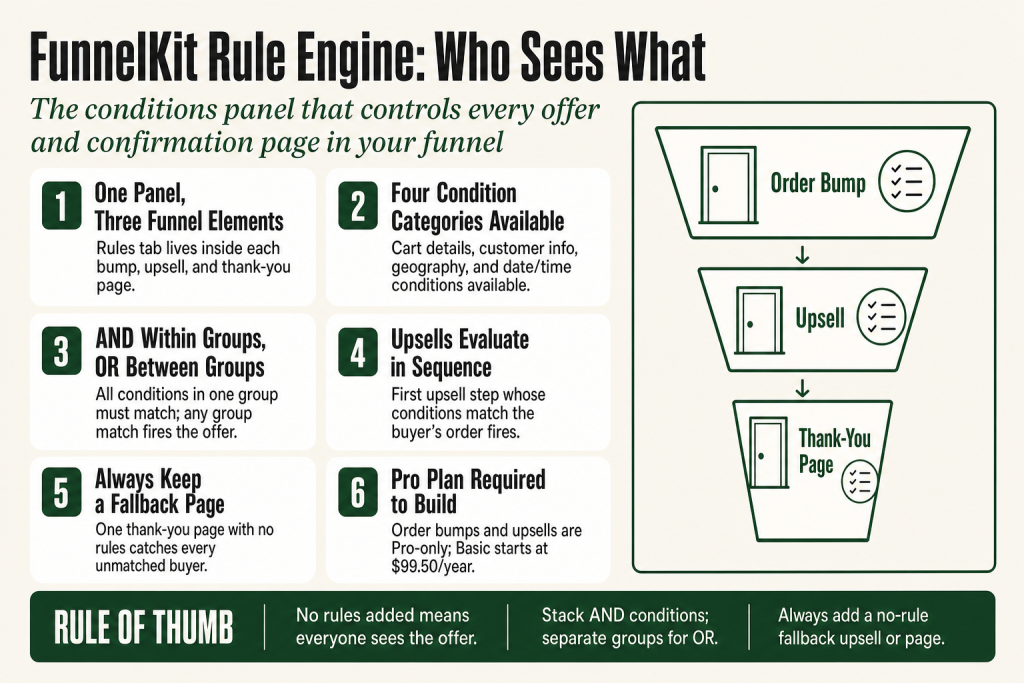
- What it does: The rule engine controls whether an order bump, one-click upsell, or thank-you page is shown to a given buyer based on conditions you define. It matches logic you set up; it doesn’t make the targeting decisions for you.
- Condition categories: Order/cart details (products, total, coupons, shipping method), customer info (first order, user role, purchase history, guest status), geography (billing or shipping country), and date/time.
- AND vs. OR: Multiple conditions inside one rule group are joined by AND (all must be true). Separate rule groups act as OR (any group match triggers the offer).
- Order bumps: Set rules on each bump individually inside the bump’s Rules tab. A bump with no rules added shows to every buyer on that checkout page.
- One-click upsells: Set rules on each upsell step. FunnelKit evaluates them in sequence and shows the first one whose conditions match.
- Thank-you pages: Add multiple thank-you pages to your funnel, give each one a condition, and keep one page with no condition as the default fallback.
- Plan requirement: Order bumps (including their conditional rules) and one-click upsells are Pro-only features, confirmed on the official FunnelKit Lite vs. Pro comparison page. Verify your current plan at funnelkit.com/pricing before building, as plan boundaries change with new releases.
Take this fix into your next scenario. The free Builder’s Companion Kit collects the checklists and templates that pair with this guide — so next time, you start from a template, not a blank page. Grab it free →
- What the FunnelKit Rule Engine Actually Is
- Every Condition Category Available
- AND vs. OR: How Rule Groups Work in the FunnelKit Rule Engine
- How to Set Up Order Bump Rules
- How to Set Up Conditional One-Click Upsell Rules
- How to Show Different Thank-You Pages by Condition
- Worked Example: One Checkout, Three Different Buyer Experiences
- Plan Requirements and Honest Caveats
- FAQ
The funnelkit rule engine is the part of FunnelKit Funnel Builder that decides what each buyer sees after they hit your checkout. Without it, every customer gets the same order bump, the same post-purchase upsell, and the same thank-you page, regardless of what they bought, how much they spent, or whether they’ve shopped with you before. That’s a lot of missed relevance. The rule engine fixes that by letting you attach conditions to any offer or confirmation page, so the right thing shows up for the right person automatically.
One honest note before you build: the rule engine doesn’t tell you what to offer or who to target. It executes whatever logic you give it. Every call about which product to pitch to which segment, at what price, and with what framing, stays with you. The tool doesn’t supply that judgment. You do.
UI note: FunnelKit ships updates regularly. As of September 2026, the current Funnel Builder Pro release is in the 3.16.x line. Button labels and tab names in this guide reflect what the official docs show at time of writing. If your version looks different, the FunnelKit rule engine documentation is the authoritative source for your installed version.
What the FunnelKit Rule Engine Actually Is
The rule engine is not a separate plugin or screen. It’s a conditions panel built into every order bump, upsell step, and thank-you page inside FunnelKit Funnel Builder. You access it from the Rules tab of whichever element you’re editing. There’s no global rule dashboard to find. Each offer carries its own rules.
Think of it like a bouncer at each door of your funnel. Before the offer shows, the bouncer checks the guest list. If the buyer matches the conditions you set, the door opens. If not, that offer is skipped entirely.
The rule engine handles three types of funnel elements:
- Order bumps (shown on the checkout page before payment)
- One-click upsells (shown post-purchase, before the thank-you page)
- Thank-you pages (shown after the funnel completes)
Each element gets its own independent rule set. A condition on your upsell has no effect on your order bump, and vice versa.
One thing to be clear about from the start: the rule engine matches your logic. It doesn’t generate offer ideas, suggest which segments to target, or decide what to pitch. Those calls are yours. The tool executes whatever conditions you hand it, nothing more.
Interface note: FunnelKit ships updates frequently. The current Funnel Builder Pro release line as of September 2026 is 3.16.x. If a tab name or button label in your version doesn’t match what’s described here, the official rule engine docs are the authoritative source for your installed version.
Every Condition Category Available
FunnelKit groups its rule conditions into four main categories. The exact options available can vary slightly between order bumps, upsells, and thank-you pages, so check the Rules tab of each specific element. Here’s what the official documentation covers across all three:
Order/Cart Conditions
For order bumps, cart-level conditions include: Total, Subtotal, Items, Categories, Product Tags, Item Count, Quantity, Item Type, Coupons, and Shipping Method. For thank-you pages, the Order category adds: Products, Product Category, Product Tag, Total, Item Count, Item Type, Coupons, If Coupon(s), Coupons (Text Match), Payment Gateway, Shipping Method, and Order Custom Field. For upsells, the Products group covers product, category, and tag, plus order-level conditions like total, item count, payment gateway, shipping method, and order custom field.
Customer Conditions
Across all three element types you can target: User Role, First Order status, Guest Status, and Purchase History (products and categories bought at any time). Upsells and thank-you pages also expose Customer User Name as a condition.
Geography
Both Shipping Country and Billing Country are available as conditions. Useful when you’re offering region-specific products or need to comply with local regulations on what you can pitch.
Date/Time
You can set conditions based on Day, Date, and Time. This is the one condition category most operators ignore, and it’s genuinely useful for flash-sale bumps or offers that should only appear during specific hours. One practical note: the Date/Time conditions in the Funnel Builder rule engine run against your WordPress server timezone (set under Settings > General in WordPress). If you sell to an international audience and need time-based rules to align with a specific local clock, verify that your WordPress timezone is set correctly before building those rules.
Stock Status (Order Bumps, added in Funnel Builder 3.15)
Funnel Builder 3.15 added a Product Stock Status display condition to order bumps. You can show or hide a bump based on whether the bump product is In Stock, Out of Stock, or on Backorder. This keeps you from accidentally selling buyers something you can’t ship. The 3.15.x line also brought conditional checkout fields, Divi 5 compatibility, and a product checkout redirect, so if you haven’t updated past 3.14, it’s worth reviewing the full 3.15 release notes before building new rules.
AND vs. OR: How Rule Groups Work in the FunnelKit Rule Engine
This is the part where operators get confused, so let’s be precise.
Within a single rule group, conditions are joined by AND. Every condition in that group must be true for the offer to show. The official FunnelKit documentation states this directly: you create multiple conditions using the AND operator. Example: Cart Total is greater than $100 AND Product Category is “Beauty” must both be true simultaneously.
Multiple rule groups are joined by OR. If any one group’s conditions are all met, the offer fires. In the one-click upsell rules UI, the official docs confirm the button for this is labeled “Create Rule Group”. For order bumps and thank-you pages, the official docs describe placing conditions under different rule groups to apply OR logic. The exact button label in your installed version may vary between releases, so verify it in your dashboard before building.
A practical way to read it: rule group 1 OR rule group 2 OR rule group 3, where inside each group every condition uses AND.
Official example from the docs: Free Shipping OR (Cart Total is greater than $100 AND Product Category is Beauty). That’s two groups: one with a single condition, one with two conditions that must both be true.
Getting this backwards is one of the most common setup mistakes I see. If you stack every condition into a single group expecting OR behavior, you’ll end up with an offer that never fires because all those AND conditions can’t be true at the same time. Separate them into distinct rule groups instead.
How to Set Up Order Bump Rules
Before you start: order bumps and their conditional rules require a paid FunnelKit plan. The official Lite vs. Pro comparison confirms that order bumps (rule-based, with multiple skins and conditional targeting) are not included in the free Lite version. The entry-level paid plan that includes order bumps and upsells is Basic ($99.50/year for one site), though plan names, prices, and inclusions change, so confirm your current plan against the feature matrix at funnelkit.com/pricing before building.
- Open your funnel and click on the order bump you want to target.
- Go to the Rules tab inside the bump editor.
- By default, the rule is set to ‘No Rules’, which means the bump shows to every buyer on that checkout page. Click ‘Add Rules’ (the confirmed label per the official FunnelKit order bump docs) to begin adding conditions.
- Select a condition (e.g., Cart Total), then the operator (e.g., Is Greater Than), then the value (e.g., 100).
- To add another AND condition to the same group, click Add Condition.
- To add an OR group, look for the rule group button in the bump rules UI and build the second set of conditions there. The official FunnelKit docs confirm this button is labeled “Create Rule Group” in the upsell rules UI. For order bumps, the docs describe using separate rule groups for OR logic but do not explicitly name the button label in that context, so verify the exact label in your installed version.
- Hit Save when done.
You can set independent rules on each bump you have in a funnel. A checkout with three bumps can show the first bump to first-time buyers, the second to returning customers, and the third to buyers with an order total above a threshold, all from the same checkout page, without duplicating funnels.
One thing worth noting: as of v3.15, you can also gate a bump on the stock status of the bump product itself, so a bump for a limited item automatically disappears when it sells out.
For more on why a bump might not be showing at all despite rules looking correct, see FunnelKit Order Bump Not Showing? The 9 Reasons and How to Fix Each One.
How to Set Up Conditional One-Click Upsell Rules
Post-purchase upsells work a little differently because you’re stacking multiple offer steps in a sequence. The rule engine determines which offer in the sequence fires for a given buyer. It doesn’t pick the best offer for you. That sequencing and offer selection is your call every time.
- In your funnel, add as many upsell steps as you need. Drag and drop them into the order you want FunnelKit to evaluate them.
- Click on a upsell step (click the Upsell step itself, not the individual offer inside it).
- Go to the Rules tab and click Add Rules.
- Set your condition, operator, and value. Example: Product Category matches any of “Summer Clothing.”
- To require multiple conditions together, click Add Condition inside the same group. Example: Product Category is “Summer Clothing” AND Order Total is greater than $50.
- For OR logic, click “Create Rule Group” (the confirmed label in the upsell rules UI per the official FunnelKit docs) and define the alternate conditions there.
- Repeat for every upsell step in the sequence.
FunnelKit evaluates upsell steps in order. The first step whose conditions match the buyer’s order is the one that fires. If no step matches, no upsell is shown. That’s important: if you want a fallback upsell that goes to everyone who didn’t match your targeted steps, add a final upsell step with no rules attached.
FunnelKit also lets you skip upsells for buyers who already own the product being offered. That’s a separate setting inside the offer configuration, not a rule you build manually. Worth checking if you sell to repeat customers.
If your upsell isn’t firing at all, check the dedicated troubleshooting guide: FunnelKit One-Click Upsell Not Working? The Reasons It Doesn’t Fire and How to Fix Each.
How to Show Different Thank-You Pages by Condition
This one surprises people because thank-you pages look like static confirmation screens. They don’t have to be.
The setup pattern is different from bumps and upsells. Instead of putting one page with rules, you add multiple thank-you pages to your funnel and give each one its own condition set. FunnelKit evaluates each page’s rules after the order completes and sends the buyer to the first one that matches.
- In your funnel, add a second (or third) thank-you page. Each appears as a separate step in the funnel editor.
- Click the first thank-you page whose condition you want to set, then go to its Rules tab.
- Click Add Rules and build your condition. Example: Total is Greater Than 300.
- Repeat for each conditional thank-you page.
- Critical step: Keep one thank-you page with no conditions at all. That page acts as the default fallback for any buyer who doesn’t match any of the conditional pages. Without a fallback, a buyer who doesn’t match any condition may see a broken or unexpected page.
Thank-you page conditions have access to the full post-purchase data set, including Payment Gateway (useful if you want a different confirmation for bank transfer vs. card buyers), Order Custom Field, and Customer Purchased Product/Category All Time. These give you more targeting depth than the pre-purchase bump rules, because the order is already complete by the time the rules evaluate.
A common use: show buyers who spent over $300 a thank-you page with a loyalty coupon, show first-time buyers a page that promotes your community or email list, and send everyone else to the standard confirmation. Three pages, one funnel, no extra logic required. What goes on each of those pages, and which segment gets which message, is entirely your call. The rule engine carries out whatever targeting logic you define.
If your thank-you page isn’t loading at all, the issue is usually structural rather than rules-related: FunnelKit Thank You Page Not Showing: Every Cause and How to Fix Each.
Worked Example: One Checkout, Three Different Buyer Experiences
Here’s how all three pieces fit together in a single store checkout funnel selling fitness supplements.
The setup:
- Order bump A: A protein shaker bundle. Rule: Cart Category contains “Protein Powder” AND Cart Total is greater than $50. Shows only to buyers with protein in their cart who cross the $50 threshold.
- Order bump B: A beginner’s guide ebook. Rule: Customer is First Order = true. Shows only to first-time buyers, regardless of what’s in their cart.
- Upsell step 1: A premium supplement stack at a post-purchase discount. Rule: Order Total is greater than $150 AND Product Category matches “Pre-Workout.” Targets high-spend buyers in that category.
- Upsell step 2: A 3-month coaching program. Rule: Customer Purchased Product All Time includes any of the core product SKUs. Targets returning customers who already have the basics.
- Upsell step 3 (fallback): A single best-seller at 15% off. No rules. Everyone who didn’t match steps 1 or 2 sees this.
- Thank-you page A: VIP confirmation with a loyalty code. Rule: Total is Greater Than $200.
- Thank-you page B: New customer welcome with community link. Rule: Customer is First Order = true.
- Thank-you page C (fallback): Standard order confirmation. No rules.
The result: a buyer dropping $220 in their first-ever order sees bump A (if they have protein in the cart), upsell step 1 or 2 depending on purchase history, and thank-you page A because their total exceeds $200. A first-time buyer spending $40 on a single item sees bump B, upsell step 3, and thank-you page B. Neither buyer had to land in a different funnel.
Worth being explicit: the rule engine does the matching, but every judgment call about what offer makes sense for which buyer is entirely yours. Deciding which product to pitch to which segment, at what price point, and with what framing, that’s your work. The tool executes whatever logic you give it. Getting the targeting right still requires you to know your customers.
Plan Requirements and Honest Caveats
The rule engine is a paid feature. The official FunnelKit Lite vs. Pro comparison confirms that order bumps (including their conditional rules) and one-click upsells are not available in the free Lite version. Both are Pro-only. The entry-level paid plan that unlocks order bumps is Basic ($99.50/year for one site as of September 2026), but plan names, prices, and feature inclusions change between releases. Don’t build on assumptions: check the current feature matrix at funnelkit.com/pricing against your specific plan before you start, and re-verify any time FunnelKit publishes a major update or you consider renewing.
A few things the rule engine cannot do, so you’re not surprised later:
- It doesn’t make offer decisions for you. Choosing what to pitch, to whom, and why is your judgment call every time. No amount of conditions fixes an offer that’s simply irrelevant to the buyer who sees it. The tool executes your logic. It doesn’t supply it, and it can’t tell you whether your targeting strategy is any good.
- It doesn’t test itself. Use FunnelKit’s built-in A/B testing to measure whether a targeted offer actually beats a general one for your audience. See FunnelKit A/B Testing: How to Set Up, Read Results, and Declare a Winner for how to run that test correctly.
- Purchase history rules require indexed orders. For conditions like “Customer Purchased Product: All Time” to work accurately, FunnelKit needs to have indexed your existing order history. There’s a Tools section in FunnelKit settings where you can trigger that index manually if you’re adding these rules to an established store.
- Date/Time conditions run on your WordPress server timezone. The date and time rules in the Funnel Builder rule engine evaluate against the timezone set in WordPress (Settings > General). If your server clock doesn’t match the timezone you intend, rules can fire at unexpected times. The fix is straightforward: confirm your WordPress timezone setting before building any time-based rule. FunnelKit Automations delay steps also default to the WordPress timezone, with an option to use the contact’s own timezone instead, but that option is specific to Automations delays and is separate from the Funnel Builder’s rule engine conditions.
- UI labels and plan features can change between versions. FunnelKit updates its interface regularly. The 3.15.x and 3.16.x release lines both included UI changes alongside new features. The official documentation at funnelkit.com/docs is updated alongside releases and is the most reliable source for the current labels in your installed version. If a button name or tab in your dashboard doesn’t match what’s described in this article, treat the live docs as the tie-breaker. The same applies to plan tiers: feature access can shift between releases, so re-verify your plan’s feature coverage at funnelkit.com whenever you upgrade FunnelKit or renew your license.
If you’re building a store checkout (global checkout) rather than a product-specific funnel, the rule engine works the same way, but the range of products that could land in the cart is much wider, so cart-content-based rules need more care. For background on the difference between those two checkout types, see FunnelKit Store Checkout vs Product-Specific Checkout: Which One Do You Need?.
FAQ
funnelkit rule engine how does it work
The rule engine is a conditions panel built into each order bump, upsell step, and thank-you page in FunnelKit. You set a condition (like cart total or customer type), an operator (like “is greater than”), and a value. When a buyer’s order matches, the offer or page is shown. Conditions inside one rule group use AND logic (as confirmed in the official FunnelKit documentation); separate rule groups use OR logic. The rule engine matches the logic you define. It doesn’t choose what to offer or who to target. Those decisions stay with you. UI labels can vary by version, so check your installed version against the official FunnelKit docs if anything looks different.
can funnelkit show different order bumps to different customers
Yes. You can create multiple order bumps in the same checkout and give each one its own rule set. FunnelKit evaluates each bump’s conditions at checkout and shows only the bumps whose conditions the buyer matches. A first-time buyer and a repeat customer can see completely different bumps from the same checkout page.
funnelkit rule engine free or paid
Order bumps and their conditional rules are not available in the free Lite version. The official FunnelKit Lite vs. Pro comparison confirms order bumps and one-click upsells are Pro-only features. The entry-level paid plan that includes order bumps is Basic ($99.50/year for one site as of September 2026). Plan names, prices, and feature inclusions change between releases, so verify the current tier details at funnelkit.com/pricing before building. Don’t rely on third-party comparisons for this; go to the live official page.
what conditions can you use in funnelkit rules
Conditions fall into four main categories: order/cart details (products, categories, total, coupons, payment gateway, shipping method), customer info (first order, user role, purchase history, guest status), geography (billing or shipping country), and date/time (day, date, time). Order bumps gained a product stock status condition in Funnel Builder 3.15, available alongside the existing Pro rule conditions.
funnelkit multiple thank you pages how to set up
Add multiple thank-you pages as separate steps in your funnel editor, then set rules on each one using the Rules tab. FunnelKit sends the buyer to the first page whose conditions match. Always keep one thank-you page with no rules as a fallback, otherwise buyers who don’t match any condition may hit an unexpected page.
funnelkit rule engine AND OR conditions explained
Conditions stacked inside one rule group are joined by AND, meaning all must be true for the offer to fire. The official FunnelKit documentation confirms this directly. To create OR logic, add a second rule group. In the upsell rules UI, the official FunnelKit docs label that button “Create Rule Group.” For order bumps and thank-you pages, the docs describe grouping conditions under separate rule groups for OR logic, but verify the exact button label in your installed version. FunnelKit will trigger the offer if the buyer matches any single rule group, even if they don’t match the others. Putting too many conditions in one group with AND logic is the most common reason an offer never fires.
Sources:
Sources: FunnelKit Docs: Rule Engine; FunnelKit Docs: Rules to Trigger the Order Bump; FunnelKit Docs: One Click Upsell Rules; FunnelKit Docs: Rules for the Thank You Page; FunnelKit Funnel Builder 3.15.0 Release Notes; FunnelKit What’s New (3.16.x changelog); FunnelKit Lite vs Pro Feature Comparison. All documentation consulted via live official sources.
Brian Kasday spent forty years in direct-response marketing before rebuilding the whole operation as a one-person shop. He writes The Operator’s Library — including “The Missing Manual for FunnelKit” — for operators who’d rather build it themselves than wait on someone else.
Get the Builder’s Companion Kit — the free checklists and templates that pair with this guide: mmsvegas.com/op/funnelkit-resources/.
This guide fixes one FunnelKit step. The Missing Manual for FunnelKit covers the whole checkout system. See the manual →
More FunnelKit guides
Free · FunnelKit Operator Toolkit
Building checkouts in FunnelKit?
Get the free operator toolkit — order-bump templates, checkout checklists, and a note when what you just read changes.
Get the free toolkit →