
The 30-second answer
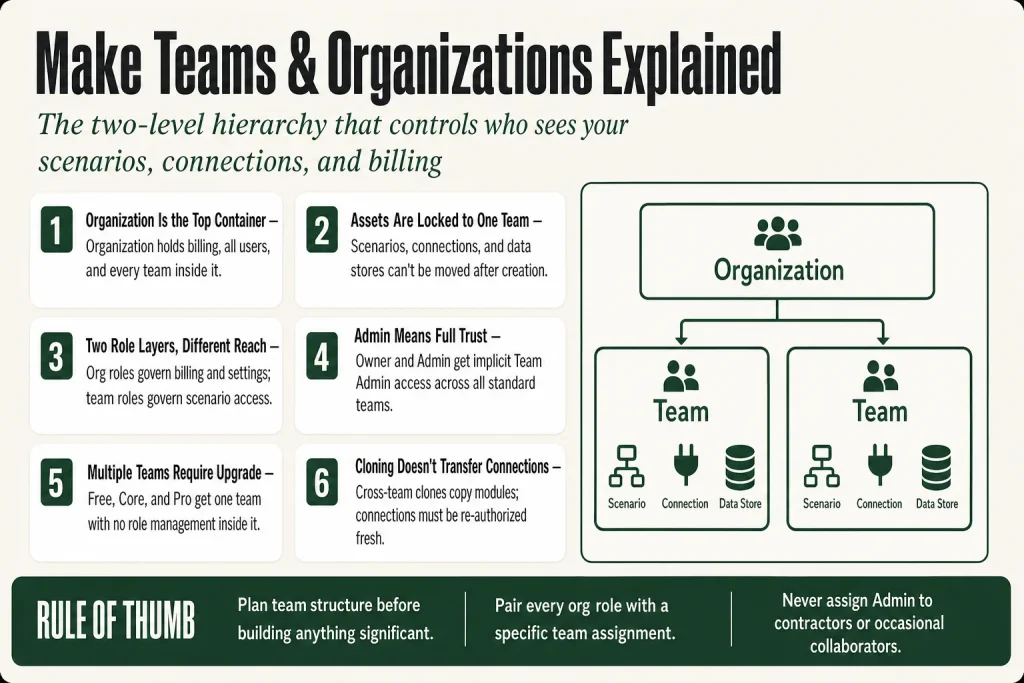
- Organization is the top-level container. It holds the billing plan, all users, all teams, and every asset inside those teams.
- Team is the sub-level. Scenarios, connections, webhooks, data stores, and data structures all belong to exactly one team and can’t be moved after creation.
- Organization roles (Owner, Admin, Member, Accountant, App Developer) control org-wide settings and billing.
- Team roles (Team Admin, Team Member, Team Operator, Team Monitoring, Team Guest) control access to the resources inside one specific team.
- A user can belong to multiple organizations and multiple teams, with a different role in each.
- Multiple teams and team role management require the Teams plan or higher. Free, Core, and Pro accounts get one team and can’t manage roles within it.
- You can clone a scenario to another team inside the same organization, but you can’t move assets between organizations without re-connecting everything from scratch.
Take this fix into your next scenario. The free Builder’s Companion Kit collects the checklists and templates that pair with this guide — so next time, you start from a template, not a blank page. Grab it free →
- The Hierarchy: Organization on Top, Teams Inside
- What Belongs to a Team (and Why It Matters)
- Organization Roles: Who Controls the Building
- Make Teams and Organizations: Team Roles Explained
- Which Plans Unlock Multiple Teams and Role Management
- The Default Setup: My Organization and My Team
- Moving Scenarios Between Teams and Organizations
- Practical Setup: A Solo Operator Going Multi-User
- Common Mistakes With Teams and Organizations
- FAQ
Make teams and organizations are the two-level system that controls who can see your scenarios, edit your connections, and touch your billing. Get the structure wrong and a collaborator either can’t get in or has more access than you intended. This article maps the whole hierarchy, names every role, and flags the traps that catch people off guard.
The Hierarchy: Organization on Top, Teams Inside
Organizations are the basic containers into which all scenarios, users, and data belong. Think of it as the building. Organizations usually represent a company that is a Make customer or partner, and each organization has a separate pricing plan and billing. That means if you’re running client accounts under your agency, each client gets their own organization with their own subscription.
To control access to Make and other Make data, you can assign users to teams. Members of a team have access only to scenarios and data that belong to their team. Teams are the rooms inside the building. A team member with no organization-level elevation can only see what’s in their room.
You register users into an organization, then assign them to teams. A user can be a member of any number of organizations and any number of teams, and a user can have a different role in each team. That’s useful for an agency builder who needs Team Admin access in a client-facing team but only Team Monitoring access in a sensitive finance team.
What Belongs to a Team (and Why It Matters)
This is the part most people miss. The following items belong to a team: scenarios, templates, connections, webhooks, keys, devices, data stores, data structures, custom functions, and credential requests. All of these items always belong to only one team, and you can’t change which team a particular item belongs to.
Read that again. A connection created in the “Ops” team cannot be used in the “Marketing” team without re-authorizing it there. A data store built in Team A is invisible to Team B. This is a hard constraint, not a setting. Plan your team structure before you build anything significant, because rearranging later costs real rebuild time.
When you create a new scenario, it lands in whichever team is currently active in the sidebar. If you’re not paying attention, you’ll build something in the wrong team, discover the connections you need don’t exist there, and have to start over. I’ve done it.
Organization Roles: Who Controls the Building
Organization roles and team roles control what you can access and manage in Make. An organization role controls organization-wide settings and resources. A team role controls resources that belong to a specific team.
Here’s what each organization role actually does:
- Owner: Has full organization access and is the only role that can transfer ownership or delete the organization. Manages users, teams, custom roles, organization settings and resources, apps, agents, connected systems, audit logs, billing, and subscription settings. Has implicit Team Admin access in all standard teams.
- Admin: Administers organization-wide settings, including users, teams, custom roles, organization resources, apps, agents, connected systems, audit logs, billing, and subscription settings. Cannot transfer ownership or delete the organization. Like Owner, Admin includes implicit Team Admin access in all standard teams. That’s the practical distinction between Admin and every other org role below it: Owner and Admin automatically have Team Admin rights across all standard teams without needing a separate team assignment. If you hand out Admin roles loosely, treat it as near-full trust.
- Member: Views organization details, users, credit usage, installed apps, templates, variables, and analytics. Uses connected systems and accesses their own private space. Access to shared team resources depends on their team role. This is the baseline for someone who needs access without admin privileges.
- Accountant: Can view billing and payment details, nothing else. Useful for a bookkeeper or finance contact who needs to pull invoices.
- App Developer: Views relevant organization information. Installs and manages apps, and creates or uses agents and connected systems. The name reflects that this role is scoped for people building with Make’s app layer: installing community apps, creating custom apps within the organization’s scope, and working with agents and connected systems. App Developer does NOT get implicit Team Admin access the way Owner and Admin do. Access to team resources, including scenarios and connections, depends entirely on the team role you assign alongside it. Think of App Developer as a scoped org-level pass that covers app and agent work, while the actual scenario-building access is controlled by whichever team role sits alongside it.
For every other organization role beyond Owner and Admin, access to scenarios and other team-owned resources depends on the user’s role in each team. So a Member or App Developer at the org level with no team assignment can’t reach any team-owned resources. Always pair an org role with a team assignment for anyone who needs to build or run scenarios.
To see the full, current permission set for any role, go to Org > User roles, select Organization roles or Team roles, and select a role.
Make Teams and Organizations: Team Roles Explained
Team roles determine what a user can do inside a specific team. Here’s the current lineup from the official help docs:
- Team Admin: Full access to team resources and settings, including member management, audit logs, custom functions, and team deletion. This is the role for the person responsible for the team.
- Team Member: Full access to team-owned resources, including creating, editing, and deleting custom functions. Cannot manage members, team settings, team audit logs, or delete the team. Your day-to-day builder role. Note that as of August 2, 2026, the team edit permission was removed from the default Team Member role in public environments. Team Members can no longer rename teams unless assigned the Admin role. Private environments are not affected.
- Team Operator: Read-only access to general team resources. Can activate, deactivate, and schedule scenarios. The right role for someone who runs automations but shouldn’t be touching the logic.
- Team Monitoring: Read-only access to selected team information, scenarios and execution logs, templates, usage, and other monitoring resources. Cannot edit resources or operate scenarios. Give this to a client or stakeholder who needs visibility, not control.
- Team Guest: Request-specific access to view, authorize, decline, revoke, or delete credential requests addressed to the user. No general access to team resources.
- Team Restricted Member: A deprecated legacy role, confirmed as such in Make’s official documentation. It carries broad editing access to many team resources but has no team or member administration capabilities, and it lacks some newer Team Member permissions. Make’s official docs say: do not use it for new assignments. Existing users assigned to this role remain supported, but you should migrate them to Team Member or a more appropriate active role. Do not assign it to anyone new.
- Team Observer: A system-managed role that Make assigns automatically. You can’t assign it manually. It gives limited read-only visibility into private spaces and doesn’t grant access to scenario logs.
Owners and Admins of a team’s parent organization always have Team Admin permissions across all standard teams. You don’t need to manually give org owners or admins a team role.
Which Plans Unlock Multiple Teams and Role Management
If you’re on a plan lower than the Teams pricing plan, you can only have one team in your organization and you can’t manage roles within that one team. That means Free, Core, and Pro users are working in a single team with no role granularity. Everyone you invite has the same access level.
The Teams plan includes everything in Pro, plus teams and team roles (manage permissions for scenario apps, templates, and connections), and the ability to create and share scenario templates across the organization. Custom roles, audit logs, and SSO require Enterprise. Enterprise adds features such as enterprise app integrations (for example, connectors for enterprise systems like Workday), on-prem agent access, custom roles, custom functions, an Analytics Dashboard, audit logs, and credits overage protection. Custom functions are an Enterprise-only feature per Make’s official documentation; they are not available on Pro or Teams plans.
If you’re a solo operator or a small shop where everyone already trusts each other, the single-team limitation on Core or Pro probably doesn’t hurt you. The Teams plan starts making sense when you need to give a contractor access to one project without them seeing everything else, or when you’re managing scenarios for multiple clients inside one account. For a deeper look at what each plan costs and includes, see Make Pricing Explained.
The Default Setup: My Organization and My Team
By default, the organization is on a Free plan and has one team, called My Team. When you sign up, Make creates both for you automatically. Every scenario, connection, and webhook you create goes into My Team unless you change the active team in the sidebar.
Every organization must have at least one team. You can rename My Team, but you can’t delete it unless you create a replacement first. If you’re on a plan that supports multiple teams, you add them from Org > Teams > +Add team.
You must be an owner or an admin of an organization to manage its teams. A Team Admin can manage members and settings within their team, but can’t create new teams at the org level.
Moving Scenarios Between Teams and Organizations
Here’s a constraint that trips people up when they reorganize: in Make, you can clone scenarios within the same organization, either within your team or to a different team. But you can’t truly “move” a scenario. Cloning is a copy, and the original stays where it is.
When you clone across teams, the scenario copies to another team within the same organization with all module settings. You will only need to set up the required connections for the target team and the webhooks, if there are any. That’s the gotcha: connections don’t transfer. Each team needs its own authorized connections, so a cross-team clone still requires re-authorization. A few more things don’t carry over cleanly: data store references point to team-specific data stores, so any module that reads or writes a data store will need a corresponding data store set up in the target team. If the scenario uses custom functions, those must exist in the target team too, or Make will flag the clone as incomplete.
Moving between organizations is harder. There’s no direct move tool for cross-organization transfers. You export a blueprint from the source and import it in the target, then rebuild every connection from scratch. If the scenario has a webhook, the URL changes, so anything calling that webhook needs to be updated too. For more on the clone and move workflow, see Clone Make Scenario: Copy or Move Automations Between Teams Without Starting Over.
The Make Migration tool (migrate.make.com) handles cross-zone migrations (for example, EU to US), but it’s scoped to moving between different Make zones, not between organizations on the same zone. You need appropriate permissions (admin or owner) in both organizations to use it.
Practical Setup: A Solo Operator Going Multi-User
Say you’re running everything solo in My Team and you want to bring in a contractor to build a new automation, without letting them see your existing scenarios or connections. Here’s the cleanest way to do it.
- Upgrade to Teams plan if you’re not already there. Below Teams you can’t create a second team or assign granular roles.
- Create a new team via Org > Teams > +Add team. Name it something project-specific, like “Client Onboarding”.
- Invite the contractor via Org > Org Users > Invite user. Set their organization role to App Developer and assign them to the new team with a Team Member role. The App Developer org role covers org-level access to apps, agents, and connected systems. The Team Member role controls what they can actually build and edit inside the team, including scenarios and connections. They won’t see any other teams or org-wide settings.
- Create the connections they need inside the new team before they start. Or their Team Member role lets them create their own. Don’t expect connections from My Team to be visible there.
- When the project is done, remove them from the team or change their team role to Team Monitoring so they can see execution logs for support but can’t touch anything.
The key thing your judgment has to supply here is the scope decision: what should this person be able to see and do? Make’s role system enforces the boundary you define, but you have to define it. The tool doesn’t make that call for you.
For related access patterns, especially when a scenario needs to call logic in another team, see Make Subscenarios Explained.
Common Mistakes With Teams and Organizations
Building in the wrong team. The team selector in the sidebar is easy to overlook. If you’re in a hurry and your active team is My Team instead of the client’s team, your new scenario, connections, and webhooks all land in the wrong place. You can clone the scenario later, but you’ll still have to rebuild the connections in the correct team.
Giving everyone Admin. Owner and Admin include implicit Team Admin access in all standard teams. If you hand out Admin roles to contractors or occasional collaborators, they can see and edit everything across every team in your organization. Use App Developer plus a specific team assignment instead, and remember to also set an appropriate team role so their team-level access is properly scoped.
Expecting connections to follow a clone. Cloning a scenario to another team does not bring its connections. You always need to authorize connections fresh in the target team. Data store references and custom functions don’t transfer either: both are team-scoped, so plan for setup time in the target team. This also means if you’re giving a client their own team, plan for connection setup time. For context on connection errors that come up during this process, see Make Connection Expired: How to Diagnose and Fix It.
Assuming one organization is enough when managing multiple clients. Each organization has a separate pricing plan and billing, and you can monitor credits and data consumption for each organization separately. If you’re managing multiple clients and want truly isolated billing and access, separate organizations are the right call, not separate teams within one org. Teams share the org’s plan and credit pool.
Using Team Restricted Member for new users. Make’s official documentation marks Team Restricted Member as a deprecated legacy role. It’s still supported for teams that already have users assigned to it, but the docs are explicit: do not use it for new assignments. If you have existing users on this role, plan to migrate them to Team Member. Assign Team Member for anyone new.
For tracking whether scenarios are actually running once your team structure is set up, see Make Execution History: How to Read It and Debug Any Scenario.
FAQ
What’s the difference between a Make organization and a Make team?
An organization is the top-level account container. It holds billing, all users, and all teams. A team is a sub-container inside the organization. Scenarios, connections, webhooks, and data stores belong to a team, not the organization directly. Every user is registered at the organization level and then assigned to one or more teams.
Can a user be in multiple teams in Make?
Yes. A user can be a member of any number of teams within the same organization, and they can have a different role in each team. They can also belong to multiple organizations entirely, each with independent access.
Do I need to upgrade to use multiple teams in Make?
Yes. On plans below the Teams pricing plan (Free, Core, Pro), you can only have one team in your organization and you can’t manage roles within it. Multiple teams and granular team role management require the Teams plan or Enterprise.
Can I move a scenario from one team to another in Make?
You can clone it. Cloning copies the scenario to another team within the same organization, including all module settings. Connections are not transferred and must be set up fresh in the target team. Data store references and custom functions are also team-scoped: both need to exist in the target team for the cloned scenario to work correctly. You cannot move a scenario between two different organizations without exporting the blueprint and rebuilding connections manually.
What’s the safest role to give a contractor or external developer in Make?
Set their organization role to App Developer and assign them to a specific team with the Team Member role. The App Developer org role covers org-level access to apps, agents, and connected systems. The Team Member role controls what they can actually build and edit inside that team. Their access to team resources, including scenarios and connections, depends on that team role, not the org role. Avoid giving contractors the Admin organization role, which grants implicit Team Admin access across all standard teams.
Does each Make team have its own credit or operations pool?
No. Credits (operations) come from the organization’s plan and are shared across all teams within that organization. You can view credit and data transfer consumption per team under the team’s settings, but all teams draw from the same monthly pool. Separate billing requires separate organizations.
Sources:
Sources: Make Help Center: Organizations; Make Help Center: Teams; Make Help Center: Team edit permission removed from Team Member role; Make Help Center: Clone a Scenario; Make Migration Tool.
Brian Kasday spent forty years in direct-response marketing before rebuilding the whole operation as a one-person shop. He writes The Operator’s Library — including “The Missing Manual for Make” — for operators who’d rather build it themselves than wait on someone else.
Get the Builder’s Companion Kit — the free checklists and templates that pair with this guide: mmsvegas.com/make-resources.
This guide solves one Make problem. The Missing Manual for Make covers the production system. See the manual →
More Make guides
Free · Make Operator Toolkit
Running scenarios in Make?
Get the free operator toolkit — production checklists and the fixes that keep scenarios alive under real traffic, plus a note when this guide changes.
Get the free toolkit →