
The 30-second answer
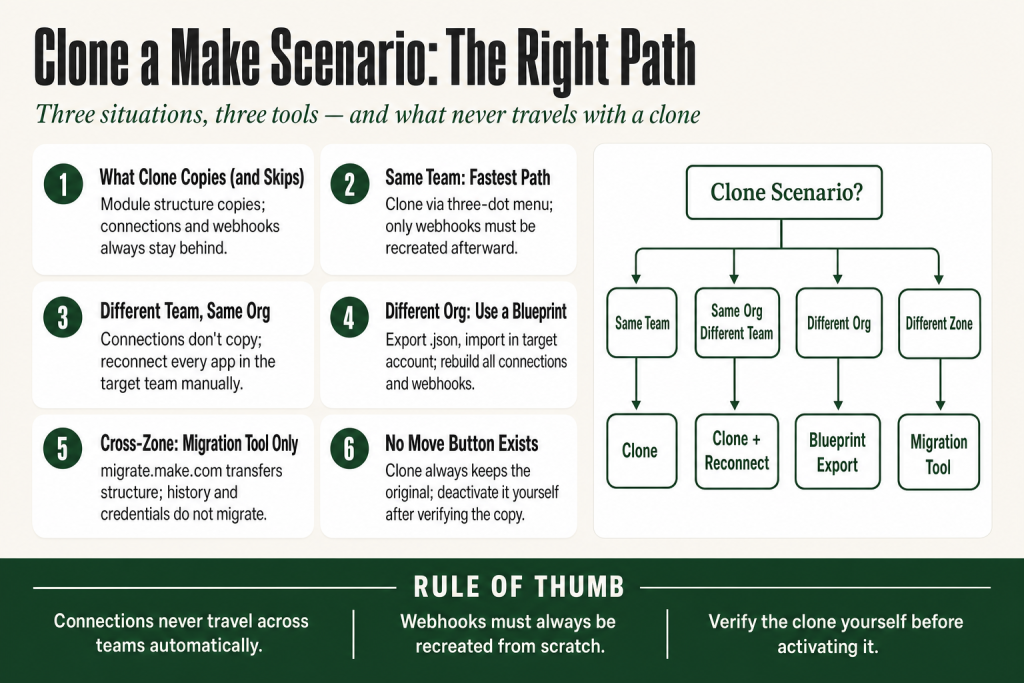
- Same team: three-dot menu next to the scenario, then “Clone.” All module settings and existing connections copy over. You only need to recreate webhooks.
- Different team, same organization: same Clone menu, pick the target team. Module settings copy; you must set up new connections and webhooks in the target team. You also need to be a member of the target team with sufficient permissions to create scenarios there. Multiple teams within one organization require a paid plan at or above the Teams tier.
- Different organization (or sharing externally): export a blueprint (.json) from the scenario editor, import it in the target account. Module structure copies; all connections and webhooks must be created from scratch. Clone and blueprint export are two distinct paths with different scope and use cases.
- Different Make zone (e.g., US to EU): use the Make Migration tool at migrate.make.com. Standard Clone and blueprint export do not cross zones. The migration tool carries scenario structure across but does NOT migrate execution history, incomplete executions, connection credentials tied to external systems, or webhook queues. You handle all of that manually on the other side.
- Connections are team-scoped. They never travel with a clone to another team automatically.
- Webhooks are never duplicated. You always create a new one in the target and update anything pointing to the old URL.
Take this fix into your next scenario. The free Builder’s Companion Kit collects the checklists and templates that pair with this guide — so next time, you start from a template, not a blank page. Grab it free →
- What a Clone Actually Copies (and What It Leaves Behind)
- How to Clone a Make Scenario Within the Same Team
- How to Clone a Make Scenario to a Different Team in the Same Organization
- How to Move a Scenario to a Different Organization Using a Blueprint
- Moving Scenarios Between Make Zones (US, EU, and Others)
- Walkthrough: Clone Make Scenario From an Agency Team to a Client Team
- The Mistakes People Make Right After Cloning
- There Is No “Move” Button: What That Means Practically
- FAQ
The fastest way to clone a Make scenario takes about ten seconds. Getting the result to actually work takes a bit longer, because that two-word question covers three completely different situations, and picking the wrong path costs you time. Whether you’re duplicating a working automation inside your own team, handing it off to a client’s team, or moving it to a completely separate organization, the mechanic looks simple until the copy lands and half the modules show broken connections or blank webhook fields. This article tells you exactly which path to take, what transfers cleanly, and what you have to touch before you turn the cloned scenario on.
What a Clone Actually Copies (and What It Leaves Behind)
Think of a scenario as a blueprint stapled to a set of keys. The blueprint is the module structure, the field mappings, the filter logic, the route order. The keys are your connections, your webhook URLs, and any data store references. When you clone, Make copies the blueprint perfectly. The keys stay behind.
Clone and blueprint export are different tools with different scopes. Clone works only within a single organization, either to the same team or to another team inside that org. Blueprint export is how you move a scenario to a completely separate organization or share it externally as a JSON file. Both result in a scenario you have to reconnect from scratch in some way, but they’re not interchangeable and you can’t use Clone to cross organization boundaries.
Specifically, according to Make’s official documentation:
- Same-team clone: all module settings and existing connections carry over. The one thing that does not copy is webhooks. You create a new webhook in the clone and update wherever the old URL was registered.
- Cross-team clone (within the same organization): module settings copy. Connections do not, because connections are scoped to the team that created them. You pick or create connections in the target team, then map them to the modules. Webhooks also need to be created fresh.
This distinction trips people up constantly. A connection that works in Team A is invisible in Team B even though both teams are under the same organization. Plan to spend five to fifteen minutes reconnecting modules after any cross-team clone, depending on how many distinct services the scenario touches.
If your scenario uses a data store, check whether that data store exists in the target team. Data stores are also team-scoped, so the module will point at nothing until you create or pick one on the other side.
How to Clone a Make Scenario Within the Same Team
This is the fastest path. In the left sidebar, click Scenarios. Find the scenario you want. Click the three-dot icon next to it, then choose Clone. Give the copy a name and confirm. Make creates a new, inactive scenario with all modules and connections in place.
The only post-clone task: if the original scenario had a webhook trigger, the clone will prompt you to set up a new webhook or choose an existing one. Webhooks cannot be duplicated. Create a fresh one, copy its URL, and register it with whatever external service was sending data to the original.
Before you activate the clone, decide whether you want both scenarios running or whether the clone is replacing the original. Two active scenarios watching the same trigger source means double-processing, double operations, and likely duplicate records downstream. Turn off the original first if this is a replacement, not a parallel branch.
If you’re cloning to test a change before touching the live version, check out scenario run replay as a complementary tool. You can replay the last real execution against your cloned copy without waiting for new live data. The testing step is yours to run and verify. The scenario won’t tell you everything is fine on its own.
How to Clone a Make Scenario to a Different Team in the Same Organization
The steps are identical up front. Three-dot menu, Clone, name the copy. The difference is that you now see a team selector. Pick the target team and confirm.
One thing to check before you start: you need to be a member of the target team with a role that allows scenario creation. Make’s official documentation notes that team membership controls access to that team’s scenarios and data. If you can’t see the target team in the selector, you either aren’t a member of it or your role in that team doesn’t allow the action. An org admin can add you or adjust your role. Also note that having multiple teams within one organization requires a plan at or above the Teams pricing tier. On lower plans you can only have one team.
What Make copies: the full module structure and all field mappings. What it does not copy: connections. Each team maintains its own connection pool, so the modules in the target team land in an “unconnected” state. You’ll see an alert in the scenario editor prompting you to set up connections for each app.
Work through the modules left to right. For each app, either pick an existing connection already authorized in the target team or create a new one. If the target team is a client’s workspace and you’re the agency building for them, you’ll usually need the client to authorize their own credentials at this point. That’s by design: Make keeps credentials scoped to the team that owns them. This step requires human action and can’t be automated around.
After reconnecting, recreate any webhooks. Then check your filters and router logic. Field mappings sometimes lose their data structure reference when the connection changes, because the new connection may return slightly different field names or structures. Run a test execution yourself and check the output panels before going live.
If the scenario regularly has incomplete executions you need to monitor, read the incomplete executions guide so you know what to watch in the target team after the move.
How to Move a Scenario to a Different Organization Using a Blueprint
The Clone feature is limited to a single organization. When you need to move a scenario to a completely separate Make account, a client who has their own organization, or anyone outside your org, a blueprint export is the right tool. This is a different path from Clone, not an extension of it.
A blueprint is a JSON file that contains your modules, settings, and mapped values. It does not contain credentials, connection tokens, or live webhook URLs. That’s not a limitation, it’s a security feature.
Export steps
- Open the scenario in the editor.
- Click the three-dot menu (the ellipsis) in the bottom toolbar of the editor.
- Select Export Blueprint. A .json file downloads to your machine.
Import steps (in the target organization)
- In the target account, go to Scenarios and create a new, blank scenario.
- In the editor, open the three-dot menu in the bottom toolbar.
- Select Import Blueprint and upload the .json file.
- The module structure appears. Work through each module yourself to connect it to the target account’s credentials.
- Recreate any webhooks and register their new URLs with external services.
- Save and run a test before activating. Don’t skip this. The import does not verify that your connections work.
A note on plan requirements: Make’s official help documentation does not explicitly state a minimum plan tier for blueprint export or import. Community reports and at least one user thread document someone on the Core plan unable to get the export button to respond. Make’s official docs present the feature without a plan caveat, so the actual behavior may depend on account state or a quiet restriction. Verify your plan includes this feature before promising a client you can hand over a blueprint file, and test the export yourself before the handoff meeting.
If the imported scenario has a broken connection right after import, that’s a known and expected state, not an error in your export. The blueprint import troubleshooting guide covers every variant of that broken-connection state and how to resolve each one.
One more caveat: if your scenario uses a custom app or custom function that isn’t published to the target team, the blueprint import will either fail or produce placeholder modules. You need to install or recreate that custom app in the target organization first.
Moving Scenarios Between Make Zones (US, EU, and Others)
Make hosts accounts in different geographic zones (for example, US1 and EU). Clone and blueprint export do not cross zone boundaries. If you need to move from one zone to another, the tool for that job is the Make Migration Tool at migrate.make.com.
The migration tool transfers scenarios and their dependencies from one Make organization to another in a different zone. It preserves scenario structure and configurations in the target organization. But be clear on what it does NOT carry across. According to the official migration tool documentation, the following are not migrated: execution history and logs, incomplete executions, connections associated with external systems, and webhook queues. Data structures and custom apps tied to your source instance also may not move if they’re unused. You need to reauthorize connections and recreate live webhook registrations on the other side, and you need to verify each one yourself before turning anything on.
There are additional constraints. The tool requires you to have admin or owner permissions in both the source and target organizations. The target organization must already exist and contain at least one team before you start. Scenarios with errors cannot be migrated at all and will be listed separately for your review. If your organization uses the Make API with hardwired IDs, those IDs will need to be updated after migration. If your scenarios interact with applications that have IP-based restrictions, you may need to update those allowlists after migration as well. Cross-zone migration is not a one-click lift-and-shift. Budget time for post-migration verification on every scenario you move.
The migration tool is primarily built for zone-to-zone moves, not for routine team-to-team copies within the same organization. Use Clone for that.
Zone migration: a quick example of what to expect
Say you’re moving a ten-scenario stack from US1 to EU because a client needs EU data residency. Here’s a realistic sequence of what you’ll face after the tool runs:
- Pre-migration: go through every scenario and fix any active errors. The tool skips errored scenarios entirely and lists them separately. A scenario that was limping along in production will not make the trip.
- Run the migration: log into migrate.make.com with admin credentials for both organizations. Select the source team, pick which scenarios to move, select the target team. The tool copies scenario structure. This part is fast.
- Reauthorize connections: every app connection shows as broken in the target org. You reconnect each one from scratch, app by app. For OAuth apps like Google or Slack, that means going through each app’s auth flow again inside the EU organization.
- Recreate webhooks: any webhook trigger generates a brand-new URL in the target org. You take each new URL and re-register it with the external service that was sending data, whether that’s a form tool, a CRM, or a third-party API.
- Update API references: if you use the Make API to trigger or monitor scenarios by ID, those scenario IDs are different in the target org. Update any external calls that reference the old IDs.
- Verify and test: run each scenario manually before activating it. Don’t go live on the EU org until you’ve confirmed that at least one real execution completes cleanly end to end.
- Decommission the source: once the client confirms everything is working in the EU zone, deactivate the US1 scenarios. Keep them inactive (not deleted) for at least two weeks as a reference.
The migration tool does the structural heavy lifting. Everything involving credentials, live endpoints, and IDs is yours to handle.
Walkthrough: Clone Make Scenario From an Agency Team to a Client Team
Here’s a real pattern: you built a lead-routing scenario for a client inside your agency’s team. The client now wants to manage it themselves. Here’s the exact sequence.
- Audit before you clone. List every connection the scenario uses. In this example: Gmail, Google Sheets, Slack. Note that you have three apps to reconnect.
- Check for webhooks. The scenario starts with a custom webhook receiving form submissions. That URL is registered in the client’s form tool. You’ll need a new URL for the client’s version.
- Check for data stores. The scenario writes deduplication keys to a data store. You need to create an equivalent data store in the client’s team first, before the clone, so it exists to select during reconnection.
- Confirm team access. Make sure you’re a member of the client’s team in the same organization with a role that allows scenario creation. If you can’t see the target team in the Clone selector, contact your org admin before going further.
- Clone the scenario. Three-dot menu, Clone, select the client’s team, confirm.
- Reconnect in the client’s team. Open the cloned scenario. For Gmail: the client authorizes their own Gmail account. For Google Sheets: pick the correct sheet in the client’s Google account. For Slack: the client installs the Make Slack app to their workspace and authorizes. You need the client in the room for this step, or at minimum on a call.
- Recreate the webhook. Create a new custom webhook in the cloned scenario. Copy the new URL. Go into the form tool and replace the old agency webhook URL with this new one.
- Update the data store reference. In the write-to-data-store module, point it at the data store you created in step 3.
- Run a test. Submit a test form entry. Trace the execution in the history panel yourself. Confirm every module shows a green checkmark and the data landed where expected. Automation doesn’t self-verify.
- Deactivate the agency-team original once the client confirms everything is working. Do not delete it for at least two weeks. If something breaks in production, the original is your reference copy.
If you hit errors during the test run, the execution history guide walks through how to read the output panels and find exactly which module failed and why.
The Mistakes People Make Right After Cloning
Activating before reconnecting. If you turn on the clone before finishing the connection setup, the first real execution hits an error on the first module that needs a credential. That error may or may not get caught depending on your error-handling setup. Check the error handling guide to make sure the clone has the right handlers before it goes live.
Forgetting to update the webhook registration. The clone has a new webhook URL. If you don’t update the external service, data keeps flowing into the original scenario. Two scenarios running off the same external source is not the same as one cloned backup scenario.
Assuming the schedule carries over as active. A cloned scenario inherits the scheduling settings but starts in an inactive state. You activate it manually. This is correct behavior, not a bug.
Mapping fields after a connection swap. When you reconnect a module to a different account, the field mappings in downstream modules may reference items that no longer exist or have different IDs. Run a test execution and check each module’s output panel for empty or erroring fields. The missing mapping fields guide covers exactly how to restore them.
Ignoring custom functions. If your scenario uses a custom function written in your source team, that function does not exist in the target team. The module will throw an error. You need to recreate the custom function in the target team before the clone will run cleanly.
Assuming a successful clone means a working clone. The copy step and the verification step are separate. You own the second one.
There Is No “Move” Button: What That Means Practically
Make does not have a native “move scenario” action that deletes from the source and drops it in the target in one step. Clone always creates a copy. The original stays where it is, active if it was active before.
That means a “move” is always: clone, verify the clone works (yourself, with a real test), then manually deactivate and delete the original. The upside is that you have a working fallback if the target-side setup goes wrong. The downside is that you carry operational risk if you forget to deactivate the original, especially on webhook-triggered scenarios where two live endpoints will both receive and process the same incoming data.
If you’re on a plan where active scenarios count against a limit, deactivating the source promptly matters. Check the Make limits guide to understand what your plan actually caps.
FAQ
Can I clone a Make scenario to a different organization?
Not with the Clone button. Clone works only within the same organization. To move a scenario to a different organization, export a blueprint (.json) from the scenario editor and import it in the target account. These are two distinct tools with different scopes. After importing, you need to reconnect all apps and recreate any webhooks yourself.
Do connections transfer when you clone a scenario to another team?
No. Connections are scoped to the team that created them. When you clone to a different team, the module structure copies but each module lands in an unconnected state. You pick or create connections in the target team before the clone will run.
Why does my webhook disappear after cloning?
Webhooks cannot be duplicated. Make intentionally requires you to create a new webhook in the cloned scenario rather than sharing the original URL between two active scenarios. Create a new custom webhook in the clone, copy its URL, and update the external service that was pointing at the old one.
Is blueprint export available on the free Make plan?
Make’s official documentation presents blueprint export without specifying a plan restriction, but real-world reports from users suggest the feature may not work reliably on the free plan. At least one community thread documents a Core plan user unable to get the export button to respond. Make’s plan page does not list blueprint export as a paid-only feature explicitly, so the safest move is to test the export yourself on your current plan before relying on it for a client handoff. If it doesn’t work, check your plan’s feature list or contact Make support to confirm whether your tier includes it.
How do I move a Make scenario between zones like US and EU?
Use the Make Migration Tool at migrate.make.com. It transfers scenarios and their dependencies between organizations in different Make zones. Standard Clone and blueprint export do not cross zone boundaries. The migration tool does NOT carry over execution history, incomplete executions, connection credentials tied to external systems, or webhook queues. You also need admin or owner permissions in both organizations, the target organization must already exist with at least one team, and scenarios with errors cannot be migrated at all. Budget time for hands-on verification after the migration completes.
Will the cloned scenario start running automatically?
No. A cloned scenario is created in an inactive state regardless of whether the original was active. You activate it manually after finishing the reconnection and testing steps. The scheduling settings copy over, but the on/off state does not.
Sources:
Sources: Make Help Center: Clone a scenario; Make Help Center: Scenario blueprints; Make Help Center: Teams; Make Migration Tool; Make API Reference: Scenarios (clone endpoint); Make Help Center: Upgrade to Enterprise (migration tool details).
Brian Kasday spent forty years in direct-response marketing before rebuilding the whole operation as a one-person shop. He writes The Operator’s Library — including “The Missing Manual for Make” — for operators who’d rather build it themselves than wait on someone else.
Get the Builder’s Companion Kit — the free checklists and templates that pair with this guide: mmsvegas.com/make-resources.
This guide solves one Make problem. The Missing Manual for Make covers the production system. See the manual →
More Make guides
Free · Make Operator Toolkit
Running scenarios in Make?
Get the free operator toolkit — production checklists and the fixes that keep scenarios alive under real traffic, plus a note when this guide changes.
Get the free toolkit →