
Last updated: July 2026
- The 30-second answer
- Cause 1, The Scenario Toggle Is Off
- Cause 2, The Schedule Itself Is Misconfigured
- Cause 3, Incomplete Executions Are Blocking the Queue
- Cause 4, “Immediately” vs. Interval: You Have the Wrong Trigger Type
- Cause 5, You’ve Run Out of Credits
- Cause 6, Timezone Confusion Is Shifting Your Run Window
- Worked Example: Make Scenario Not Running on Schedule, Running the Full Checklist
- FAQ
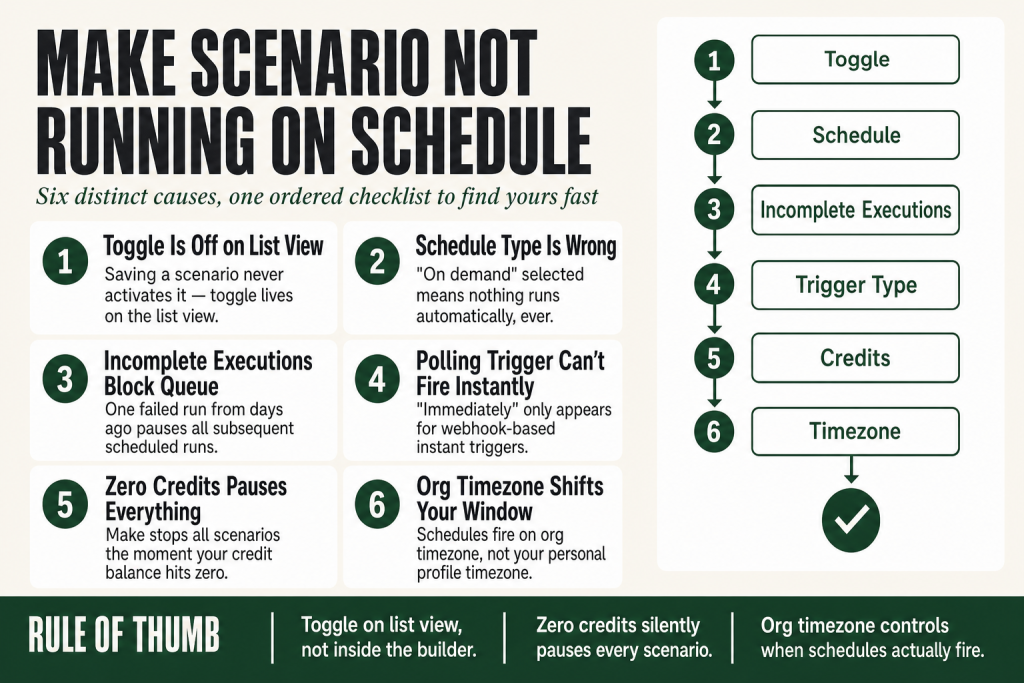
Your make scenario not running on schedule is one of those failures that doesn’t announce itself. No error email. No red badge on the dashboard. The scenario just quietly stops firing, or fires inconsistently, and you only notice when the work didn’t happen. There are six distinct causes, each with a different fix, and the fastest way through is to check them in order. This guide does exactly that.
The 30-second answer
- Scenario is off. The toggle on the Scenarios list page must be enabled, saving changes in the builder does not turn it on.
- Wrong schedule type. The clock icon in the builder controls the interval; the default is every 15 minutes, but verify it reflects what you intended.
- Incomplete Executions blocking the queue. When “Process data in order” is on, a single stuck execution halts every subsequent run until you resolve or delete it.
- Trigger type mismatch. The “Immediately” option only appears for instant (webhook-based) triggers. Polling triggers run on an interval no matter how often you want them to fire.
- Credits exhausted. Once your credit balance hits zero, Make pauses all scenarios until credits are added or the billing cycle resets.
- Timezone confusion. Make schedules run against the organization timezone, not your personal profile timezone, a mismatch shifts runs by hours.
Cause 1, The Scenario Toggle Is Off
This is the one everyone skips because it feels too obvious. Don’t. It bites experienced builders too.
Make separates the act of saving a scenario from activating it. You can build, test, and save a perfectly working scenario and still have it sit completely inert because the activation toggle was never switched on, or was turned off automatically after an error condition.
The toggle lives on the Scenarios list view, not inside the builder canvas. Inside the builder you’ll also see a colored status indicator near the bottom toolbar, but the canonical switch is on the list. If it’s grey, the scenario does nothing regardless of what its schedule says.
When does Make turn this off automatically? Make can deactivate a scenario when it hits certain error states, particularly when the incomplete executions storage fills up and the “Enable data loss” setting is off. You come back the next morning, the toggle is grey, and there’s no obvious notification unless you checked your email.
Fix: Go to your Scenarios list. Verify the toggle is blue (active). If it was off and you don’t know why, check the Incomplete Executions tab before you turn it back on, there may be a queue of failed runs waiting to block the next execution.
Cause 2, The Schedule Itself Is Misconfigured
Make’s scheduling UI is just powerful enough to be confusing. The clock icon at the bottom of the builder opens the Schedule settings panel. According to the official Make documentation, a scenario runs every 15 minutes by default but the panel gives you enough rope to schedule something in a way that never actually fires.
The two traps that catch people most often:
- “On demand” selected by accident. If you (or a teammate importing a blueprint) selected “On demand,” the scenario waits to be triggered by an API call or the Run once button and never fires automatically. The scenario looks active. The toggle is on. Nothing runs.
- Advanced scheduling conflicts. If you use the Advanced section to restrict runs to specific days or time windows, and the “Time from” / “Time to” values are set incorrectly, the scenario can be permanently outside its own allowed window.
Fix: Click the clock icon in the builder. Confirm the schedule type matches your intent, “At regular intervals” for polling cadence, a specific day/time option for calendar-based runs. If you see “On demand,” change it and save. Double-check any Advanced scheduling items for time ranges that might be excluding today.
For a deep dive on all the scheduling options and how they interact, see Make Scheduling Explained.
Cause 3, Incomplete Executions Are Blocking the Queue
This is the silent killer. Your scenario ran, hit an error, and the failed execution landed in the Incomplete Executions tab. If you have “Process data in order” enabled in Scenario Settings (the gear icon in the builder), Make pauses further scheduling until every incomplete execution is resolved.
The official Make documentation is explicit on this: when Process data in order is enabled and an incomplete execution exists, new runs are paused until all incomplete executions are resolved. That means a single failed run from three days ago can be the reason nothing has fired since.
A few things worth knowing about incomplete executions:
- They’re not enabled by default you have to turn on “Store incomplete executions” in Scenario Settings. If you have it on and Process data in order on, you get the blocking behavior described above.
- If the incomplete executions storage limit for your plan fills up and “Enable data loss” is off, Make can also pause scheduling to avoid losing more runs.
- The Incomplete Executions tab shows each failed run with a Details link. Click it to see which module failed and why.
Fix: Go to the Incomplete Executions tab for your scenario. Decide: if the error is transient (a connection blip, a rate limit), retry the execution. If the underlying data is stale or irrelevant, delete it. Either action clears the block and lets scheduled runs resume.
For a full walkthrough on managing this queue, see Make Incomplete Executions Piling Up? What They Are and How to Clear Them.
Building this yourself? The free Builder’s Companion Kit collects the checklists and templates that go with this guide, grab it at mmsvegas.com/make-resources.
Cause 4, “Immediately” vs. Interval: You Have the Wrong Trigger Type
Make has two fundamentally different kinds of triggers, and mixing up their scheduling behavior is a very common source of confusion.
Polling triggers check a source app for new data at the interval you set, every 15 minutes, every hour, whatever. They wake up on a clock tick, ask “anything new?”, and process whatever they find.
Instant triggers (also called webhook triggers) don’t poll. They sit and listen. When the source app sends a notification, a new form submission, a Stripe payment, a Slack message, the scenario fires immediately. The “Immediately” scheduling option in the Schedule panel is only available when your first module is an instant trigger. If you’re looking for it and it’s not there, your trigger is a polling type.
The mismatch usually looks like this: you need near-real-time processing, you set the interval to every 15 minutes (the minimum for most paid plans), and you’re frustrated that responses take up to 15 minutes. Or the reverse: you have an instant trigger, you expect it to also run on a timed backup sweep, and it doesn’t, because instant triggers only fire when a push event arrives.
Fix: Check the first module in your scenario. An instant trigger has a small lightning bolt icon. If your use case needs real-time response and the trigger doesn’t support webhooks, you’re stuck with polling, but you can pair a webhook receiver with a separate polling scenario if you need both. If your trigger is instant and the scenario isn’t firing, the problem is more likely with the webhook itself. See Make Webhook Not Triggering for that path.
Cause 5, You’ve Run Out of Credits
When your credit balance hits zero, Make stops running scenarios, all of them, until you add credits or the billing cycle resets. Make’s own pricing page states this plainly: your scenarios won’t continue to run until credits are added again. Make does send notifications at 75% and 90% consumption, but those emails get buried and missed.
What makes this tricky is that credit exhaustion can look exactly like a scheduling problem. The scenario is active. The schedule is correct. No errors in the execution log, because the scenario never started an execution to log.
A less obvious version: your credit pool is intact, but a specific team’s allocated credits are exhausted. On Enterprise plans, organization admins can cap individual teams. Once a team hits its cap, its scenarios pause until the org resets or an admin allocates more credits, even if the org-wide balance is fine.
Worth knowing: as of August 2025, Make migrated from an “operations” model to a “credits” model. Standard modules still cost 1 credit per execution. The unit name changed; the billing math for non-AI modules didn’t. Native AI modules (built-in OpenAI, Anthropic, etc.) now charge variable rates based on token volume and file size.
Fix: Go to Organization → Usage. Check your current credit balance and the reset date. If you’re at zero, add credits (bundles of 1,000 or 10,000 are available on most paid plans) or wait for the reset. If you’re on a free plan, you wait, there’s no credit top-up option on free. For a full breakdown of plan credit allotments, see Make Limits: Credits, Modules, Webhooks, Storage, and What Actually Caps Out.
For a full explanation of what counts toward credit usage and how to reduce your bill, see Make Operations vs Credits: What Counts, What Changed, and How to Lower Your Bill and Make Pricing Explained: What You Actually Pay For.
Cause 6, Timezone Confusion Is Shifting Your Run Window
This one produces the most head-scratching because the scenario does run, just at the wrong time. Or it appears to skip runs that fall outside a time window you didn’t realize was in a different timezone.
Make uses two separate timezone settings and they do different jobs:
- Organization timezone: This is what actually governs when scheduled scenarios fire. A schedule set to “4:00 PM daily” fires at 4:00 PM in the organization’s timezone. Full stop.
- User (profile) timezone: This controls how times display in your interface, execution history, logs, the dashboard countdown. It doesn’t affect when the scenario runs.
The trap: you set your personal profile timezone to your local zone, you read the schedule panel, it looks right, but the organization timezone is still set to UTC or a previous setting from whoever created the account. The scenario fires on the org timezone, and you’re reading logs in your personal timezone. A 9:00 AM run in UTC+0 shows as 2:00 AM in US Central time in your history view. You assume it’s broken or skipping; it’s actually running exactly as configured.
Daylight Saving Time compounds this. If your organization timezone observes DST, a scenario scheduled for 8:00 AM will silently shift by an hour twice a year.
Fix: Go to your Organization Settings and check the timezone. Compare it to the time you intended the scenario to run. If they don’t match, either update the org timezone (confirm with any teammates who rely on the current setting first) or adjust the scheduled time to compensate. For scenarios where DST drift matters, consider setting the org timezone to a non-DST zone like UTC.
Worked Example: Make Scenario Not Running on Schedule, Running the Full Checklist
Say you have a scenario that’s supposed to pull new rows from a Google Sheet every 30 minutes and post a Slack summary. It ran fine for two weeks. It stopped three days ago. Here’s exactly how to work through it.
- Scenarios list → check the toggle. If it’s grey, it was deactivated. Before re-enabling, continue to step 2.
- Incomplete Executions tab. Are there entries? Click Details on the oldest one. If the Google Sheets module shows a connection error, maybe the OAuth token expired, that’s your culprit. Fix the connection (see Make Connection Not Working), delete or retry the incomplete execution, then re-enable the toggle.
- Open the builder → clock icon. Confirm the schedule says “At regular intervals” and the interval is 30 minutes. If it says “On demand,” change it. If it shows Advanced scheduling with a restricted time window, confirm the window covers right now in the org timezone.
- Check the trigger module. Google Sheets “Watch Rows” is a polling trigger, no lightning bolt, no “Immediately” option. That’s correct. You can’t make it instant without switching to a Google Sheets webhook workaround via Apps Script. Accept the polling interval or redesign.
- Organization → Usage. Confirm your credit balance is above zero. A Google Sheets polling trigger running every 30 minutes consumes ~1,440 credits per month before processing a single row. If you have several similar scenarios, the math adds up fast.
- Organization Settings → timezone. Confirm the org timezone. If you set the schedule for “9 AM to 5 PM” in Advanced scheduling and the org is UTC while you’re in US Eastern (UTC−5), the window runs from 4 AM to noon your time. The scenario appears to “stop” at noon your time because it’s 5 PM UTC.
Work through these six checkpoints in order and you’ll find the cause. In my experience building and debugging Make scenarios, steps 1, 3, and 5 account for the overwhelming majority of silent schedule failures.
FAQ
why is my make scenario active but not running
The most common reasons are: credits exhausted (Make pauses all scenarios at zero balance), Incomplete Executions blocking the queue when “Process data in order” is enabled, or an “On demand” schedule type that requires manual triggering. Check your credit balance and the Incomplete Executions tab first.
make.com scenario skips scheduled runs randomly
Random-looking skips are often a timezone issue, your org timezone and your personal profile timezone are different, so runs that look absent in your history actually ran at the expected time in UTC. They can also be caused by intermittent credit shortfalls if you’re close to your monthly limit mid-cycle.
make scenario not running immediately even though it’s set to immediately
The “Immediately” option only works with instant (webhook-based) triggers, which show a lightning bolt icon. If your first module is a polling trigger, like Google Sheets Watch Rows or Gmail Watch Emails, the option won’t appear and the scenario runs on an interval. You need a webhook-capable trigger to get true instant firing.
do incomplete executions stop other scenarios from running in make
Incomplete executions only block the scenario they belong to, and only when that scenario has “Process data in order” enabled in Scenario Settings. They don’t affect other scenarios in your account. However, if the incomplete execution storage limit for your organization fills up, Make may pause scheduling on the affected scenario to prevent data loss.
make.com scenario stopped running after I ran out of operations
Yes, when your credit balance (formerly called operations) reaches zero, Make stops executing all scenarios until credits are replenished or the billing cycle resets. Make sends warning notifications at 75% and 90% of your balance. On paid plans you can purchase extra credits in bundles or enable auto-purchasing to avoid interruptions.
how do I check when my make scenario last ran
Open the scenario and look at the execution history in the bottom panel of the builder, or go to the scenario’s detail view from the Scenarios list. The execution log shows the timestamp of each run in your personal profile timezone. If no runs appear recently, check the active toggle, credit balance, and Incomplete Executions tab.
can a make scenario not running on schedule be caused by an expired connection
Yes. If a polling trigger module uses a connection with an expired OAuth token, Make may fail the execution silently and, with “Process data in order” on, queue up incomplete executions that block every subsequent scheduled run. Go to the Incomplete Executions tab, click Details on the oldest entry, and look for a connection error on the trigger module. See Make Connection Expired: How to Diagnose and Fix It Without Breaking Working Scenarios for the reconnection steps.
Sources: Make Help, Schedule a scenario; Make Help, Scenario settings; Make Help, Incomplete executions; Make Help, Options related to incomplete executions; Make Help, Manage time zones; Make Help, Webhooks; Make Pricing page, credit exhaustion behavior.
Brian Kasday spent forty years in direct-response marketing before rebuilding the whole operation as a one-person shop. He writes The Operator’s Library, including “The Missing Manual for Make”, for operators who’d rather build it themselves than wait on someone else.
Get the Builder’s Companion Kit the free checklists and templates that pair with this guide: mmsvegas.com/make-resources.
More Make guides
Free · Make Operator Toolkit
Running scenarios in Make?
Get the free operator toolkit — production checklists and the fixes that keep scenarios alive under real traffic, plus a note when this guide changes.
Get the free toolkit →