
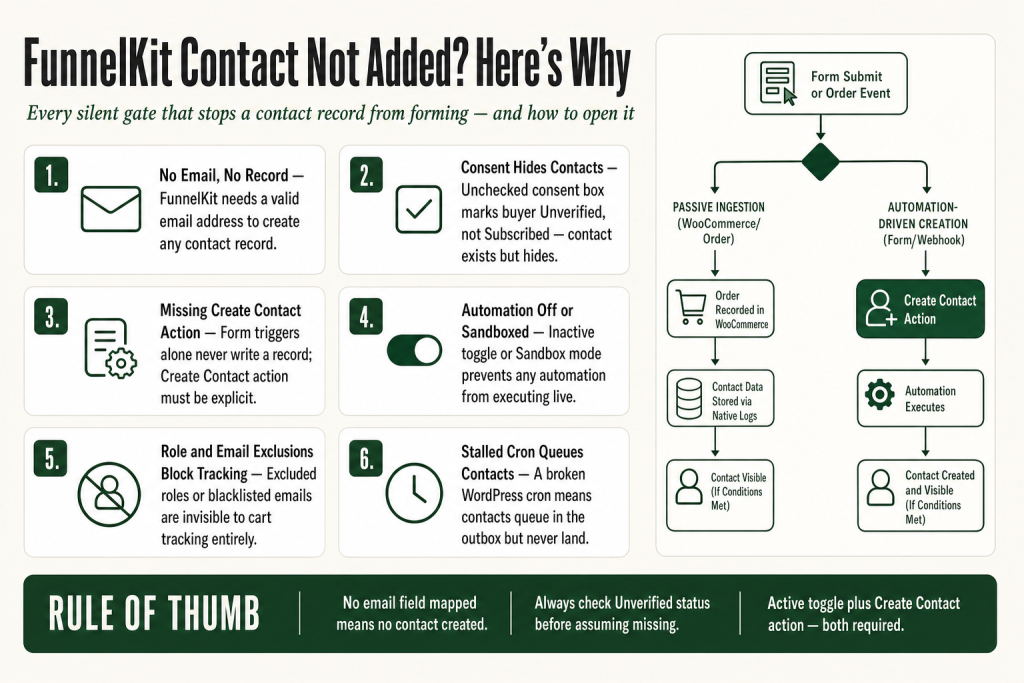
The 30-second answer
- No email address captured: FunnelKit Automations requires a valid email to create a contact record. If the form or checkout did not collect one, no record is created.
- Automation is inactive: The automation toggle must be set to Active. A draft automation never fires, even if the trigger fires.
- Checkout consent is enabled and the buyer skipped it: When the consent checkbox is on, a buyer who leaves it unchecked is marked Unverified, not Subscribed. They exist in the CRM but may be invisible to filters expecting Subscribed contacts.
- Role or email exclusion: Settings, Cart lets you exclude specific user roles and blacklisted email addresses from tracking entirely.
- Double opt-in pending: A contact added via a double opt-in form stays Unverified until they click the confirmation link.
- Form field mapping missing: Third-party form integrations require you to map the email field to the FunnelKit Automations contact email field manually. An unmapped form produces no contact.
- Create Contact action absent: For form-triggered automations, the automation must include a Create Contact action. The trigger alone does not create the record.
- CSV import format error: Imports require a valid email column plus correct ISO formats for Country (2-digit) and Date (YYYY-MM-DD). Rows that fail validation are silently skipped.
- Background worker stalled: FunnelKit Automations uses WordPress cron for queued tasks. A broken cron means contacts queue but never land.
- Sandbox mode on: When Sandbox mode is enabled under Advanced Settings, automations stay in draft and do not execute live.
Take this fix into your next scenario. The free Builder’s Companion Kit collects the checklists and templates that pair with this guide — so next time, you start from a template, not a blank page. Grab it free →
- How FunnelKit Automations Creates a Contact
- The Email Field Is the One Hard Requirement
- Checkout Consent and the Subscribed vs. Unverified Trap
- Role Exclusions and Email Blacklists Block Cart-Based Contacts
- The Automation Is Off or Stuck in Sandbox
- The Trigger Event Does Not Match the Real Action
- Form Integrations Need a Create Contact Action in the Workflow
- A Stalled Background Worker Queues Contacts That Never Land
- Reading the FunnelKit Automations Logs
- CSV and Platform Imports That Silently Drop Rows
- Worked Example: Contact Not Added After a FunnelKit Optin Form Submit
- Contact Exists but Fields Are Empty
- FAQ
A FunnelKit Automations contact not added situation is one of the most disorienting problems you can hit, because nothing breaks visibly. The customer checked out, the form fired, the order landed in WooCommerce, and yet the contact list is empty. You are not watching a crash. You are watching a silent gate that closed before the record ever formed. This article walks through every layer where that gate can close: identity fields, event triggers, consent settings, role exclusions, blacklists, background processing, third-party form integrations, CSV imports, and the logs that will tell you exactly which one fired.
How FunnelKit Automations Creates a Contact
FunnelKit Automations creates contacts in two fundamentally different ways, and mixing them up is the root of most confusion.
The first way is passive ingestion: a WooCommerce order is placed, a cart is captured, or a WordPress user is registered. In these cases, FunnelKit Automations hooks into the event and creates or updates the contact record automatically, without any automation workflow being required.
The second way is automation-driven creation: a form submits, a webhook fires, or a custom trigger runs, and an automation workflow with a Create Contact action writes the record. Per the official docs, “Create Contact” is one of the core actions inside FunnelKit Automations. If that action is missing from your workflow, the trigger fires but the contact is never written.
The distinction matters because the fix is different. For passive ingestion failures, you look at consent settings, exclusions, and cron. For automation-driven failures, you check the workflow itself.
The Email Field Is the One Hard Requirement
FunnelKit Automations identifies every contact by email address. No email, no record. That sounds obvious, but it breaks in two non-obvious ways.
The form has an email field but it is not mapped. When you integrate a third-party form plugin (Gravity Forms, Fluent Forms, Elementor Forms, Contact Form 7, and others), the integration does not auto-detect your email field. You must map it explicitly to the FunnelKit Automations contact email field. An unmapped form will run the automation and skip the contact creation silently.
Per the FunnelKit docs on form integration, you can set a default subscription status for contacts created via form integration, but that setting is only reached after the field mapping step. If you jumped past the mapping screen, go back to the integration settings for that form plugin inside FunnelKit Automations and confirm the email field is explicitly connected.
CSV imports silently skip malformed rows. The import process requires a valid email format in the email column. The docs state that the Country field must be in 2-digit ISO Code format and Date fields must follow YYYY-MM-DD. Rows that violate these rules are dropped without an error prompt on screen. Open your CSV in a spreadsheet, filter for blank email cells and non-standard country codes, clean them, and re-import.
Checkout Consent and the Subscribed vs. Unverified Trap
This is the cause that fools the most operators, because the contact does exist in the CRM. You just cannot find it because your filter shows Subscribed contacts only.
FunnelKit Automations has a Checkout Consent setting under Settings. When this consent checkbox is not enabled, all customers who complete an order are marked as Subscribed. When you turn the consent checkbox on, the behavior splits:
- Buyer checks the box: contact is marked Subscribed.
- Buyer leaves the box unchecked: contact is marked Unverified in FunnelKit Automations.
The official docs confirm: “If they didn’t put a consent (in case they left the box unchecked), their contact profile will be marked as Unverified in FunnelKit Automations.”
So the contact record exists. It is just Unverified. Go to Contacts, remove the Subscribed filter, and search by email. If you find them there, the contact was created. The problem is upstream in how your broadcasts or automation conditions filter by subscription status.
Relatedly, double opt-in creates the same split. A contact added through a double opt-in form stays Unverified until they click the confirmation link in their email. You cannot send them promotional emails until their status changes to Subscribed. If you need to move them manually, open their contact profile and change the subscription status from there.
Role Exclusions and Email Blacklists Block Cart-Based Contacts
FunnelKit Automations cart tracking has two exclusion controls that can silently prevent a contact from appearing after a WooCommerce event.
Under FunnelKit Automations Settings, Cartyou will find two relevant fields:
- Exclude User Roles: Any user logged in with an excluded role is invisible to cart tracking. If you excluded Administrator or Shop Manager during setup and forgot, your own test orders will never create a contact.
- Emails: A blacklist for specific email addresses. Any address entered here is blocked from cart tracking entirely.
The docs describe this directly: “Exclude User Roles, Whether you want a particular user to be excluded from cart tracking. Emails, Enter email addresses which you want to put under your blacklist emails.”
Check both fields. Remove your own admin email if it is listed. Remove any roles that should be tracked. This is also why using your own store account to test contact creation almost always produces a false negative. Create a fresh guest account or use a real customer email for testing.
If you are troubleshooting abandoned cart emails not sendingthe same exclusion settings apply there too.
The Automation Is Off or Stuck in Sandbox
Two switches can kill contact creation without producing any error.
The automation toggle. Every automation in FunnelKit Automations has an Active/Inactive toggle. An inactive automation never executes, even when the trigger event fires correctly. After saving a new automation, you must flip the toggle to Active. The official docs are explicit: “Make sure to turn the automation toggle to ‘Active’ to make it live.” It is easy to miss on a fresh build.
Sandbox mode. Under FunnelKit Automations Settings, Advanced, there is a Sandbox mode toggle. When it is on, automations stay in draft mode and do not execute live actions. This is useful while building but easy to leave on by accident. Check Settings, Advanced, and confirm Sandbox mode is off for any automation you expect to fire in production.
If the automation was active and the contact still did not appear, look at the Contacts tab inside the automation itself. It shows Active, Completed, Paused, and Failed tasks, and you can trace exactly where a contact stalled.
The Trigger Event Does Not Match the Real Action
FunnelKit Automations contacts enter an automation “as soon as they match the events that get triggered as you define them.” If the trigger is set to the wrong event, the right action never fires.
Common mismatches:
- Trigger is set to Order Completed but your store keeps orders at Processing. The trigger never fires because the order never reaches Completed.
- Trigger is set to a specific form but you published a different form on the page. The event fires but the ID does not match.
- A WordPress user registration trigger is configured but the user signed up through a third-party membership plugin that bypasses the standard WordPress registration hook.
Open the automation, click the trigger event block, and verify the exact event name and any filter values (such as form ID, product, or order status). Then compare those values against what actually happened in WooCommerce or your form plugin. A mismatch here is one of the most common causes after consent, though other factors can produce the same symptom.
For deeper trigger troubleshooting, see the full walkthrough in FunnelKit Automation Not Triggering.
Form Integrations Need a Create Contact Action in the Workflow
This one catches operators who come from ESP-native form tools. In Mailchimp or ActiveCampaign, submitting a form creates the contact automatically. In FunnelKit Automations, a form submission fires a trigger event, and the contact is only created if your automation workflow contains a Create Contact action explicitly.
The FunnelKit docs walk through building a form-based automation: you select the trigger event (Form Submits under your form plugin), map the fields, then add a Create Contact action as the first step in the workflow. Skipping that action means the form fires, the automation runs, any subsequent steps execute, but no contact record is written.
The most likely fix: open the automation, check whether Create Contact appears in the workflow canvas. If it is missing, add it as the first action after the trigger, map the contact fields (at minimum: email), and save. Set the automation to Active. That resolves the issue in most cases, though it is worth also checking field mapping and the automation toggle if contacts still do not appear after that change.
If your form is a FunnelKit Optin Form, the trigger is labeled Form Submits under the FunnelKit Optin Form category. The Create Contact action still needs to be present in the workflow.
A Stalled Background Worker Queues Contacts That Never Land
FunnelKit Automations processes many tasks asynchronously. Think of it like a postal queue: the event drops an envelope in the outbox, but the mail carrier (WordPress cron) has to pick it up and deliver it. If the carrier is not running, envelopes pile up and contacts never appear.
WordPress cron runs on page visits by default. On low-traffic stores, or stores behind a full-page cache that blocks WordPress from loading PHP, cron can stall for hours. You will see the trigger logged but the contact never written.
Signs of a stalled worker: you can see the automation task in the Active queue inside the Contacts tab of the automation, but it never moves to Completed. The task is scheduled but not executing.
Things worth checking, in order:
- Verify that WordPress cron is running. You can check this with a plugin like WP Crontrol.
- If your host disables WordPress cron, set up a real server-side cron job to call
wp-cron.phpon a schedule (every minute is ideal). - Look at the FunnelKit Automations debug logs. Under Settings, Advanced, you can enable Enable Logs for Cron Execution Time, which writes to a log file named
fka-cron-check-xxx. That file will show whether the worker is executing at all.
These steps resolve stalled-cron issues in most cases, but if your host has non-standard cron restrictions, you may need to contact them directly for details specific to your server environment.
Reading the FunnelKit Automations Logs
When you have checked every setting and the contact still is not appearing, the logs are the next stop. FunnelKit Automations keeps debug logs under Settings, Tools, Logs.
The official docs describe the process: “Select a specific log file where you encountered an error and click on the View button.” Logs are automatically deleted after one month, so check sooner rather than later.
Under Settings, Advanced, several granular log options let you isolate the problem:
- Enable Logs for Automation Steps: Logs step-by-step execution inside an automation. Saved as
fka-automation-step-id-xxx. This will show you whether the Create Contact step ran, and if it failed, what the error was. - Enable Logs for Event JSON Endpoint: Logs the payload and response of API calls. Useful if your form or webhook is submitting data but you are not sure FunnelKit Automations is receiving it correctly.
- Enable Logs for Contact Query: Saved as
fka-contacts-query-xxx. Use this if you suspect a contact is being created but is not showing in search results.
The docs note that it is highly recommended to disable logging once troubleshooting is complete to optimize system performance. Turn these on, reproduce the problem, inspect the file, then turn them off.
The logs will point you toward the cause in most cases. If an error code appears that you do not recognize, FunnelKit support or their documentation are the right next step rather than guessing at the fix.
If you are also debugging email delivery from contacts that do exist, the same Logs area covers bounce webhook handling and broadcast execution.
CSV and Platform Imports That Silently Drop Rows
FunnelKit Automations supports importing contacts from CSV, WordPress, WooCommerce, and direct CRM API integrations (like Mailchimp). Each path has its own silent failure mode.
CSV imports: The import process requires each row to have a valid email. The docs are specific: the Country field must be in 2-digit ISO Code format and dates must follow YYYY-MM-DD. Rows that fail validation are skipped without a loud warning. If your import ran but the count is lower than expected, check the skipped-rows detail in the import report, fix the formatting in your CSV, and re-run. That resolves most import shortfall issues, though a small number of rows may fail for other reasons the import report will describe.
Two useful options on the CSV import screen:
- Do Not Overwrite Empty Fields: Prevents empty values in the import file from overwriting existing contact data.
- Allow Field Information to be Overwritten: Enables overwriting existing contact fields with new values from the import.
If you are migrating from another CRM, note that FunnelKit Automations 3.7.0 moved all contact import functionality including CSV, WordPress, WooCommerce, and direct API integrations to the free (Lite) tier. You do not need a Pro license to import.
WordPress and WooCommerce imports: These sync existing users and customers into the CRM. If a WordPress user has no email address on their profile, they will not import. WooCommerce guest orders import using the billing email, so orders placed without an email at checkout cannot be synced.
Worked Example: Contact Not Added After a FunnelKit Optin Form Submit
Here is how to diagnose the most common form-based scenario from start to finish. These steps cover the likely causes. If a contact still does not appear after all of them, the debug logs described earlier are your next stop.
Situation: You have a FunnelKit Optin Form on a landing page. Someone fills it out. You check Contacts in FunnelKit Automations and nothing is there.
Step 1: Confirm the automation exists and is Active. Go to FunnelKit Automations, Automations. Find the automation tied to this form. Check the toggle. If it is grey (Inactive), flip it to Active, have someone re-submit the form, and check again.
Step 2: Check the trigger. Open the automation and click the trigger block. Confirm it shows Form Submits under FunnelKit Optin Form and that the correct form ID is selected. If you duplicated the form, the ID may have changed.
Step 3: Confirm the Create Contact action is present. Scroll through the workflow canvas. If the first action is something other than Create Contact (like Send Email), the contact is never written before the email tries to send. Add Create Contact as the first action, map the email field, and save.
Step 4: Check field mapping. Inside the Create Contact action, every field you want populated must be mapped from the form. At minimum, the email field on the form must be mapped to the Email field in FunnelKit Automations. If it is blank, map it and save.
Step 5: Enable debug logging and re-test. Go to Settings, Advanced, and enable Enable Logs for Automation Steps. Submit the form again. Then go to Settings, Tools, Logs, open the fka-automation-step-id-xxx file, and look for the Create Contact step. The log will tell you if it ran and whether it succeeded or errored. Disable logging when done.
If you also need to verify that the form page itself is loading correctly before any of this, check the guide on FunnelKit Checkout Not Loading for page-level diagnostics that apply equally to optin pages.
Contact Exists but Fields Are Empty
A separate but related problem: the contact record is created but fields like first name, phone, or custom fields are blank. This is not a creation failure. It is a field-mapping gap.
FunnelKit Automations stores custom fields separately from core contact fields. You create them under Contacts, Fields, and you must explicitly map each one in the Create Contact action (or an Update Fields action). If a custom field appears blank on a contact profile, the field was likely not mapped in the automation that created the record.
If merge tags are pulling blank values from these fields in your follow-up emails, that is a downstream symptom of the same mapping gap. The fix is to update the Create Contact or Update Fields action to map the missing fields. For existing contacts with blank fields, you can manually edit the profile or run a bulk action to backfill the data. For the full merge-tag side of this issue, see FunnelKit Merge Tags Not Working.
FAQ
why is my funnelkit automations contact not showing up after checkout
The most common cause is the Checkout Consent setting. When the consent checkbox is enabled in FunnelKit Automations Settings, a buyer who does not check it is recorded as Unverified rather than Subscribed. The contact exists but does not appear in filters set to Subscribed only. Go to the Contacts page, clear the status filter, and search by email to confirm whether the record is there.
does funnelkit automations create a contact automatically when someone places an order
Yes, for WooCommerce orders, FunnelKit Automations hooks into the order event and creates or updates the contact record using the billing email. You do not need an automation workflow for this. However, if the Checkout Consent checkbox is enabled and the buyer skips it, the contact is created as Unverified. If an email exclusion or role exclusion is set in Settings, Cart, the contact may not be created at all.
funnelkit automations form submit not creating contact
For form-triggered automations, the contact is only created if your automation workflow contains an explicit Create Contact action. The trigger event alone does not write the record. Open the automation, confirm Create Contact is the first action after the trigger, and verify the email field is mapped inside that action. Also make sure the automation toggle is set to Active. These steps resolve the issue in most cases.
funnelkit automations csv import contacts not added
CSV imports silently skip rows that fail validation. Every row needs a valid email address in standard format. The Country field must be in 2-digit ISO code format (e.g., US, GB) and any date fields must follow YYYY-MM-DD. Open your CSV in a spreadsheet, filter for blank or malformed email cells, fix the formatting, and re-import.
what is the difference between unverified and subscribed in funnelkit automations
A Subscribed contact has confirmed their subscription (or double opt-in is disabled so they are auto-subscribed). An Unverified contact was added through a double opt-in form and has not yet clicked the confirmation link, or they completed checkout without checking the consent box. You cannot send promotional emails to Unverified contacts until their status changes to Subscribed, which can happen automatically when they click the confirmation link or manually via their contact profile.
how do i debug why a funnelkit automations contact was not created
Go to FunnelKit Automations Settings, Advanced, and enable Enable Logs for Automation Steps. Reproduce the event (form submit, test order, etc.), then go to Settings, Tools, Logs and open the fka-automation-step-id-xxx file. It logs each step and will show whether the Create Contact action ran and whether it succeeded or produced an error. Disable logging once you have your answer.
Sources:
Sources: FunnelKit Automations Contacts documentation; Checkout Consent settings documentation; Cart settings documentation; Contact Status documentation; Automations Actions documentation; Import Contacts from CSV documentation; Logs documentation; Advanced Settings documentation; Integrate with Forms documentation. All documentation accessed July 2026.
Brian Kasday spent forty years in direct-response marketing before rebuilding the whole operation as a one-person shop. He writes The Operator’s Library — including “The Missing Manual for FunnelKit” — for operators who’d rather build it themselves than wait on someone else.
Get the Builder’s Companion Kit — the free checklists and templates that pair with this guide: mmsvegas.com/op/funnelkit-resources/.
This guide fixes one FunnelKit step. The Missing Manual for FunnelKit covers the whole checkout system. See the manual →
More FunnelKit guides
Free · FunnelKit Operator Toolkit
Building checkouts in FunnelKit?
Get the free operator toolkit — order-bump templates, checkout checklists, and a note when what you just read changes.
Get the free toolkit →