
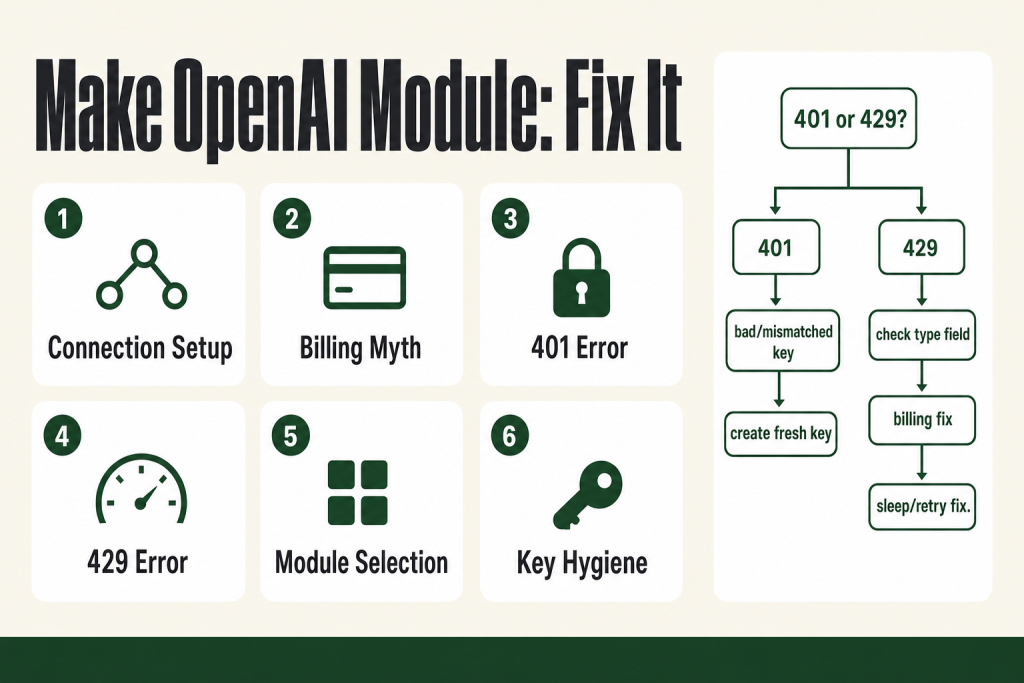
The 30-second answer
- Two credentials, not one. The Make connection dialog asks for an API Key and an Organization ID. The key comes from platform.openai.com/api-keys. The Organization ID comes from your OpenAI organization settings. Both fields appear in Make’s official connection docs.
- Simple Text Prompt needs no connection. Make has a Simple Text Prompt module that works without an OpenAI account. On free Make plans and trials it supports only the GPT-5 nano model (per Make’s live documentation at apps.make.com/openai-modules). All other modules require a connected account.
- 401 means the key is wrong or dead, not missing. Look at the
codefield in the error body:invalid_api_keymeans the key itself is bad. Delete the connection, create a fresh API key on the OpenAI dashboard, and reconnect. - 429 has two completely different causes. Read the
typefield.insufficient_quotais a billing problem: add credits or raise your spend limit.rate_limit_exceededis a speed problem: add a sleep or use Make’s retry handler. - ChatGPT Plus does not unlock the API. The ChatGPT subscription and the OpenAI API are separate products billed separately. A paid ChatGPT plan gives you zero API credits.
- Model availability is tied to your OpenAI account. Only models your account has access to appear in the module’s model dropdown. If a model is missing, your account does not have access to it yet.
Take this fix into your next scenario. The free Builder’s Companion Kit collects the checklists and templates that pair with this guide — so next time, you start from a template, not a blank page. Grab it free →
- ChatGPT Plus and the OpenAI API are not the same thing
- How to create the Make OpenAI module connection correctly
- Which OpenAI module should you use?
- 401 errors: the key is wrong, revoked, or from the wrong account
- 429 errors on the make openai module: billing vs. rate limiting are not the same fix
- Worked example: building a simple content-classification scenario
- Model not appearing in the dropdown
- Connection hygiene: one key per environment, not one key for everything
- FAQ
The make openai module is one of the most-used connectors on the platform and one of the most-misunderstood. Half the people who get a 401 error think they typed the key wrong. Most people who get a 429 think they hit a speed limit. Both assumptions are usually wrong, and the wrong assumption sends you chasing the wrong fix for the next hour. This article gives you the correct mental model for each step: connecting your API key, picking a module and model, and diagnosing errors from the actual error code instead of the often-misleading error message.
ChatGPT Plus and the OpenAI API are not the same thing
This is the single most common setup mistake. You pay for ChatGPT Plus, you log into Make, you connect the OpenAI module, you run it, and you get a 429 quota error immediately, even though you’re a paying subscriber. The reason: the ChatGPT subscription and the OpenAI API are two separate products with separate billing.
API calls cost money from a prepaid credit balance in your OpenAI platform account (platform.openai.com), not from your ChatGPT subscription. You can have a $20/month ChatGPT Plus plan with zero API credits. You need to add credits under Settings > Billing on the OpenAI platform before any API-connected module in Make will work.
Keep this distinction in your head for every troubleshooting step below. If you’re confused about whether an error is a Make problem or an OpenAI billing problem, it’s almost always the billing side.
How to create the Make OpenAI module connection correctly
The connection dialog in Make asks for two values from your OpenAI platform account.
- Get your API key. Log into platform.openai.com, click the Settings icon (top right), then click API keys on the left sidebar. Click Create new secret key, give it a name (something like “Make production” so you can identify it later), and click Create secret key. Copy the key the moment it appears. OpenAI shows it exactly once. If you close the dialog without copying, you have to create a new key.
- Get your Organization ID. Still in OpenAI platform settings, click the Settings icon to navigate to Organization settings and copy your Organization ID from there. It starts with
org-. - Create the connection in Make. Add any OpenAI module to a scenario and click Create a connection. Paste your API key into the API Key field and your Organization ID into the Organization ID field. Optionally, enter a name in the Connection name field. Click Save.
A few things worth knowing about that connection dialog:
- The connection name is for your benefit. Something like “OpenAI prod – sk-proj-abc” lets you identify it in the Connections panel later without clicking into it.
- Make’s official docs list both the API Key and Organization ID as fields to fill in. If your key belongs to only one organization, enter the one Organization ID you have. Make sends it as a header on every request. If you ever get a 401 that persists after a fresh key, confirm the Organization ID in your Make connection matches the same OpenAI account that issued the key.
- Make stores the key encrypted and reuses the connection across all scenarios. You only connect once per key.
- If you want to separate test spend from production spend, create separate API keys in OpenAI and separate connections in Make. That way you can revoke a test key without touching production scenarios.
Which OpenAI module should you use?
Make groups the OpenAI modules into a few families. Here is what each is for:
- Simple Text Prompt. No connection required. You pick a model, type a prompt, run it. On free Make plans and trials, Make’s own documentation confirms it supports only the GPT-5 nano model; paid plans expose a wider list. This is fine for prototyping a single-step idea but gives you no conversation history, no system prompt, and no structured outputs.
- Generate a Response. Uses OpenAI’s Responses API. Supports system prompts, multi-turn conversations, image input, file input, and tools (web search, code interpreter, function calls, and more). OpenAI recommends the Responses API for new projects, especially those involving tools and state management, and newer models gain their full capabilities there first.
- Generate a Completion (also labeled Create a Completion in some Make UI contexts). Uses the Chat Completions API. OpenAI has confirmed this endpoint remains supported with no shutdown date announced, and it’s still widely used across existing workflows. Takes a messages array with roles (system, user, assistant). Most tutorials you find online reference this module because it’s been around longer. Note: as of mid-2026, some newer models limit tool-calling support in Chat Completions, so check OpenAI’s model documentation if that matters to your build.
- Audio modules. Transcribe audio (Whisper), generate speech from text, and translate audio. Separate use case from text generation.
- Batch modules. Send large volumes of prompts to OpenAI’s batch API for lower-cost, async processing. Requires the
files:readpermission on your API key.
For most solo-operator workflows, you’ll use either Generate a Response (when you want conversation history or tools) or Generate a Completion (when you need to manually pass a message array or maintain compatibility with an existing build). Both modules are actively maintained. Start with Generate a Response for new builds that need tools or conversation state.
Model availability in the dropdown depends entirely on what your OpenAI account has access to. If a model you expect to see is not listed, your account does not have access to it yet. You cannot override this from Make’s side.
401 errors: the key is wrong, revoked, or from the wrong account
A 401 error in the Make OpenAI module almost always looks like this in Make’s execution log: [401] Incorrect API key provided. The instinct is to assume you mistyped the key. That is almost never the cause.
The real causes, in order of frequency:
- You are using a key that was already shown to you and closed. OpenAI shows a secret key exactly once. If you tried to save it and something went wrong, the key in your clipboard or notes might be truncated or have trailing whitespace. The fix: go to platform.openai.com/api-keys, revoke the old key, create a new one, and paste it fresh.
- The key was revoked. If you or a teammate deleted the key in OpenAI, Make keeps the old value in the connection but every call fails. Go to platform.openai.com/api-keys, confirm the key still exists and is active. If it is gone, create a new key and update the Make connection.
- You connected the wrong account’s key. If you have a personal OpenAI account and a work account, it is easy to generate a key from one and try to use it with the other account’s Organization ID. Check that the key and the Organization ID you entered are both from the same account.
- The Organization ID does not match the key. If the key was issued under a different organization than the one whose ID you entered in Make, OpenAI rejects the request with a 401. Double-check both values come from the same place in the platform settings.
To fix a 401 in Make: open the connections panel, find the OpenAI connection, click the three-dot menu, and choose Edit. Paste a freshly created API key. Save. Re-run the scenario. If the 401 persists after a fresh key, the issue is the Organization ID mismatch or the wrong OpenAI account.
429 errors on the make openai module: billing vs. rate limiting are not the same fix
A 429 is not one error. It is a status code that OpenAI uses for two entirely different problems. If you treat a billing problem as a rate-limit problem, you will add sleeps and retries that do nothing, because the requests are rejected before they are even metered. Read the type (or code) field in the error body to know which you have.
Type 1: insufficient_quota (a billing problem)
Error body will show type: insufficient_quota or code: credit_balance_exhausted, or something like organization_spend_limit_exceeded. The message usually says something about your plan and billing details. This has nothing to do with request speed.
Causes:
- No prepaid credits in your OpenAI platform account.
- Credits added recently but not yet provisioned (can take a few minutes after a first payment).
- You set a monthly spending limit in OpenAI and hit it. Check Settings > Limits on the OpenAI platform and raise or remove the cap.
- You are calling with a key from an account that has no credits, even if another account does.
Fix: go to platform.openai.com/settings/organization/billing/overview, add credits, and confirm your usage limits allow spending up to that credit amount. Then re-run the scenario.
Type 2: rate_limit_exceeded (a speed problem)
Error body will show type: rate_limit_exceeded. This means you are sending requests faster than OpenAI allows for your usage tier. It can happen even with only a handful of calls if you are in an iterator processing many bundles in quick succession.
Fixes:
- Add a Sleep module (Tools > Sleep) between your iterator and your OpenAI module. Even a 1-2 second pause flattens the burst.
- Use Make’s Retry handler on the OpenAI module. Set it to retry with a delay. This catches transient rate-limit hits without killing the whole scenario.
- For large batch workloads, consider OpenAI’s Batch API modules, which process requests asynchronously at lower cost and with no rate-limit pressure.
Make’s own documentation on the OpenAI modules states that a 429 means you have used all credits or exceeded your monthly budget, which describes the billing variant. That framing is incomplete. Check the error type field first to know which variant you actually have before taking action.
If you are frequently hitting rate limits inside an iterator, read the iterator troubleshooting guide for patterns that reduce burst volume.
Worked example: building a simple content-classification scenario
Here is a representative setup. Say you receive webhook payloads with a description field, and you want OpenAI to classify each one as “urgent”, “normal”, or “low” so a downstream router can direct it correctly.
- Trigger: a Custom Webhook module listening for POST requests.
- OpenAI module: use Generate a Completion. Add two messages:
role: system/ content: You are a classification assistant. Respond with only one word: urgent, normal, or low.role: user/ content: map thedescriptionfield from the webhook bundle. - Model: for a classification task that only needs a single word back, a smaller model costs significantly fewer tokens than a large reasoning model. Pick the smallest model your account has access to that reliably follows simple instructions.
- Map the response: the module outputs a
choices[]: message: contentfield. Map that into your next module. It will contain the single word. - Router: add a Router with three routes filtering on that classification value. Each route handles the corresponding urgency level.
A few things to confirm before you go live with this pattern:
- Set a Max Output Tokens limit so a misbehaving response cannot generate a massive token bill. For a single-word classification, 10 tokens is enough.
- Add error handling on the OpenAI module so a 429 or 503 creates an Incomplete Execution rather than silently dropping the bundle.
- Test with a variety of input texts before scheduling. Prompt instructions that seem clear to you can produce unexpected output on edge cases. The judgment call on prompt quality stays with you, not the model.
Model not appearing in the dropdown
The model dropdown in every OpenAI module in Make is populated dynamically from your connected OpenAI account. Make calls the OpenAI models endpoint with your credentials and shows only what is returned. If a model you expect is not listed:
- Your OpenAI account does not have access to that model yet. Some models have waitlists or require a minimum account spend history before they become available.
- You are connected with the wrong API key. A key from a free-tier account will return fewer models than a key from a paid account with usage history.
- The model has been deprecated or renamed by OpenAI. Model IDs change. If a model you used previously is gone, check OpenAI’s model deprecation page for the current recommended replacement.
There is no way to manually type in a model ID in the standard module’s model field. If you need to call a model that is not appearing but you know your account has access to it, you can use the Make an API Call module under the OpenAI app, or use the generic HTTP module with a Bearer token to call the OpenAI endpoint directly and pass whatever model ID you need.
Connection hygiene: one key per environment, not one key for everything
Make stores connections at the team level. Every scenario in your team can reuse the same OpenAI connection. That is convenient but creates a problem: if you revoke the key (say, because a contractor had it), every scenario using that connection breaks at the same time.
A better pattern: create at least two API keys in OpenAI, one for production scenarios and one for development and testing. Create two connections in Make named clearly (“OpenAI prod” and “OpenAI dev”). Point your live scenarios at the prod connection and your test scenarios at the dev connection. When you need to rotate the prod key, you can do it without touching dev scenarios, and vice versa.
This also gives you clean spend separation in OpenAI’s usage dashboard. If you ever want to track what a specific workflow costs in tokens, a dedicated key makes the audit straightforward.
If you share a Make team with others and are concerned about a connection being edited or revoked accidentally, read the connection expiry guide for how to monitor and re-authenticate connections before they break running scenarios.
FAQ
Does ChatGPT Plus give me access to the OpenAI API in Make?
No. ChatGPT Plus and the OpenAI API are billed separately. A ChatGPT subscription gives you no API credits. You need to add credits at platform.openai.com/settings/organization/billing/overview before any Make module that uses the API connection will work.
Make OpenAI module 401 error even though I just created the key, why?
The most common cause is that the key was copied with trailing whitespace or was truncated when you saved it. Revoke the key in the OpenAI platform, create a fresh one, and paste it directly into the Make connection dialog without any intermediate steps. Also confirm the Organization ID in your Make connection matches the same account that issued the key.
429 error but I have credits in my OpenAI account, what do I do?
Check the error type field, not just the message. If the type is rate_limit_exceeded, you are sending requests too fast, not out of money. Add a Sleep module in your scenario or enable Make’s retry handler. If the type is insufficient_quota, your credits may exist but your spending limit in OpenAI’s usage settings may be capped below your credit balance. Go to Settings > Limits in the OpenAI platform and raise the cap.
Which Make OpenAI module should I use for a chatbot or multi-turn conversation?
Use Generate a Response. It supports conversation tracking so OpenAI can maintain message history without you having to manually assemble and pass every previous message in each scenario run. For a stateless single-turn call, Generate a Completion (also labeled Create a Completion in some UI contexts) works fine and remains fully supported.
The model I want is not showing in Make’s dropdown, can I type it in manually?
Not in the standard module fields. The dropdown is populated from your connected account. If the model you need is not listed, your account may not have access to it yet. As a workaround, use the Make an API Call action under the OpenAI app, or use the HTTP module with a Bearer token, where you can pass any model ID string directly.
Do I need to enter the Organization ID in the Make connection or is it optional?
Make’s official connection docs list the Organization ID as a field to fill in alongside your API key. Find it in the OpenAI platform under Settings > Organization settings. If your account belongs to only one organization, enter that single ID. If you belong to multiple organizations, make sure the ID you enter matches the organization that the API key was created under, or you will get a 401 mismatch error.
Sources:
Sources: Make OpenAI (ChatGPT, Whisper) App Documentation (verified October 2026); Make OpenAI Modules Reference (verified October 2026); OpenAI API Error Codes Guide (verified October 2026); OpenAI Help: Troubleshooting 429 Errors (verified October 2026); OpenAI Billing Settings.
Brian Kasday spent forty years in direct-response marketing before rebuilding the whole operation as a one-person shop. He writes The Operator’s Library — including “The Missing Manual for Make” — for operators who’d rather build it themselves than wait on someone else.
Get the Builder’s Companion Kit — the free checklists and templates that pair with this guide: mmsvegas.com/make-resources.
This guide solves one Make problem. The Missing Manual for Make covers the production system. See the manual →
More Make guides
Free · Make Operator Toolkit
Running scenarios in Make?
Get the free operator toolkit — production checklists and the fixes that keep scenarios alive under real traffic, plus a note when this guide changes.
Get the free toolkit →