
Last updated: July 2026
- The 30-second answer
- The Two Trigger Modes: Polling vs. Instant
- Every Make Scheduling Option in the Builder
- Plan Tiers and Minimum Intervals
- Make Scheduling and Operations Cost: The Math That Surprises People
- The On/Off Switch: Why Your Scenario Doesn’t Run at All
- How Incomplete Executions Interact With Your Make Scheduling
- Polling vs. Instant: How to Choose for Your Scenario
- Worked Example: Setting Up a Make Scheduling Configuration From Scratch
- Debugging: Why Your Scenario Is Not Running When You Expect
- Advanced Make Scheduling Patterns Worth Knowing
- FAQ
Make scheduling is the engine underneath every automation you build, and it’s the first thing to understand when a scenario runs at the wrong time, skips a run entirely, or chews through your operations budget faster than you expected. Whether you’re choosing between a polling interval and an instant webhook trigger, trying to pin a scenario to 9 AM on weekdays, or puzzling over why Incomplete Executions seem to stall your entire schedule, this guide covers the full picture. No glossed-over abstractions, just how the clock actually works inside Make, where it costs you, and how to set it up so it does exactly what you need.
The 30-second answer
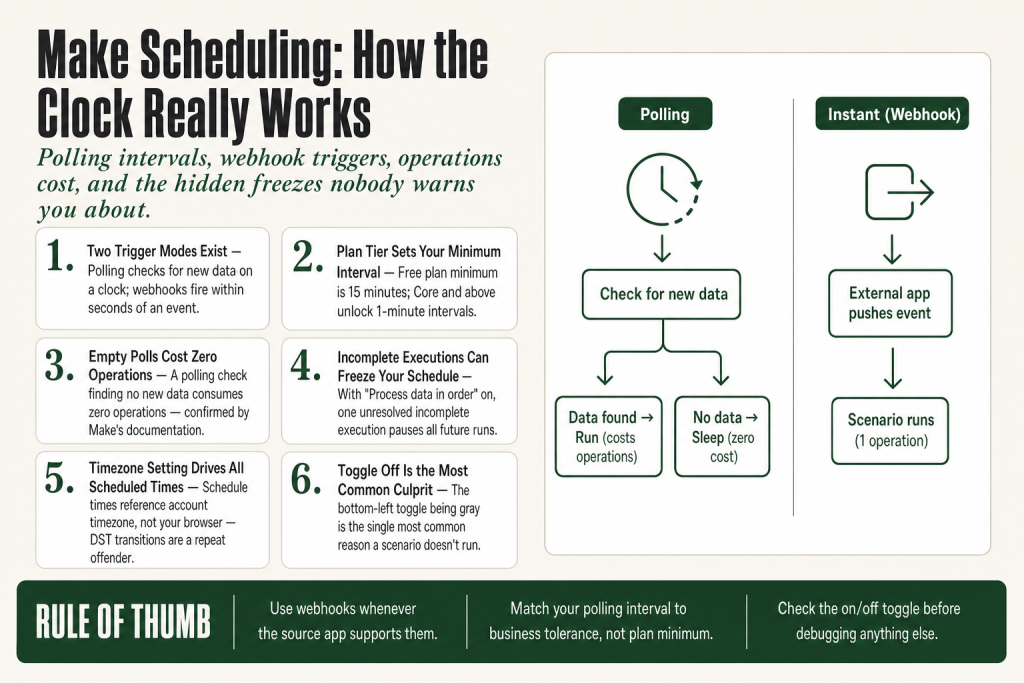
- Two trigger modes exist: scheduled (polling) triggers check for new data on a clock interval; instant (webhook) triggers fire the moment an event is pushed to Make.
- Polling intervals are plan-gated: Free plan minimum is 15 minutes; Core and above unlock 1-minute intervals.
- Schedule options include: regular intervals, once, daily, days of the week, days of the month, specified dates, and on demand, all configured by clicking the schedule label in the scenario builder toolbar.
- Empty polls do NOT consume operationsa polling check that finds no new data costs zero operations.
- Webhook triggers cost 1 operation per real eventmaking them the most cost-efficient option for high-frequency needs.
- Incomplete Executions can freeze your schedulewhen “Process data in order” is enabled, a single unresolved incomplete execution pauses all future runs until you clear it.
- Timezone matters: schedule times reference the timezone set in your account or organization settings, not your browser’s local time.
The Two Trigger Modes: Polling vs. Instant
Every Make scenario starts with a trigger. That trigger is either polling (scheduled) or instant (webhook-based). Understanding the difference between them is the single most useful thing you can know about make scheduling, because the choice shapes your latency, your operations cost, and the debugging path when something breaks.
Polling triggers
A polling trigger is a Watch module, “Watch for new Gmail messages,” “Watch for new rows in Google Sheets,” and so on. When you activate a scenario with a polling trigger, Make wakes up on the interval you’ve set, contacts the source app, and asks: “Is there anything new since I last checked?” If the answer is yes, the scenario runs with that data. If the answer is no, Make records a check run in your history and goes back to sleep.
Think of it like a motion-activated porch light that checks for movement on a timer rather than reacting to motion directly. It works, but there’s always a gap between when something happened and when your light catches it.
The gap is your interval. On the Free plan, the minimum interval is 15 minutes, meaning up to 15 minutes can pass between an event happening in the source app and your scenario reacting to it. On the Core plan and above, that minimum drops to 1 minute.
Instant triggers (webhooks)
An instant trigger is a webhook, a unique URL Make generates for your scenario. When an external app sends an HTTP request to that URL, Make receives the data immediately and starts the scenario within seconds. There’s no clock, no polling interval, no gap between event and reaction.
The source app does the work of pushing the data. That means instant triggers only work when the upstream service supports outbound webhook calls. Most modern SaaS tools do, Stripe, Typeform, GitHub, Shopify, and thousands of others. If the app you’re integrating with doesn’t support webhooks, polling is your only option.
For a deeper look at custom webhooks and their limits, see Make Webhooks Explained: Setup, Credits, Limits, and the Traps Nobody Warns You About.
Every Make Scheduling Option in the Builder
You set a scenario’s schedule by clicking the schedule label, it shows “Every 15 minutes” by default, in the bottom toolbar of the scenario builder. A Schedule Settings panel opens with a “Run scenario” dropdown. The options are:
- At regular intervalsthe most common choice. You define the number of minutes between consecutive runs. The minimum depends on your plan (15 minutes on Free, 1 minute on Core and above).
- Onceruns the scenario a single time at the next scheduled moment, then stops.
- Dailyruns at one or more specific times each day. You can add multiple run times in the same daily schedule, so one scenario can fire at 1:00 AM, 2:40 PM, and 10:00 PM from a single setup.
- Weekdays (Mon, Fri)runs once per day at a set time, Monday through Friday only.
- Weeklyruns on one or more specific days of the week at a set time.
- Monthlyruns on specific days of each month (e.g., the 1st and 15th).
- Specified datestargets exact calendar dates, useful for campaign launches or quarterly processes.
- On demanddisables automatic scheduling entirely. The scenario only runs when you click “Run once” manually or trigger it via the Make API.
Under “Show advanced settings,” you can define a start date and end date for the schedule window, useful when you want automation to run during a specific campaign period and stop automatically.
One caveat: the Immediately option (sometimes visible in older documentation) is available only for certain trigger types, not as a general schedule mode. Don’t look for it if your trigger is a standard Watch module.
Where timezone lives
All scheduled times reference the timezone set in your account or organization settings, not your browser’s local clock. If your scenario fires an hour early or late, check your account timezone first. Daylight saving transitions are a recurring culprit: a scenario set to run at 9 AM during winter may drift to 8 AM or 10 AM after a DST change if your timezone setting doesn’t automatically adjust.
Plan Tiers and Minimum Intervals
Make gates your minimum polling frequency by plan. Here’s what each tier gives you:
- Free15-minute minimum interval, 2 active scenarios, 1,000 operations per month.
- Core and above1-minute minimum interval, unlimited active scenarios.
The 1-minute floor matters in practice. If you need near-real-time polling and can’t use a webhook, Core is the minimum viable plan. But think carefully before defaulting to 1-minute polling, the cost implications are significant enough to deserve their own section (see below). For a full breakdown of what each plan includes, see Make Pricing Explained: What You Actually Pay For.
The “immediately” or instant option visible for some app-native modules (like Gmail’s “Watch Emails” with push notifications enabled) doesn’t apply to all Watch modules. If you’re not sure whether your trigger supports instant delivery, check the module’s documentation in the Make app library, app pages at apps.make.com/<app-name> list available trigger types.
Make Scheduling and Operations Cost: The Math That Surprises People
Here’s the number that catches most new Make users off guard: a polling trigger on a 1-minute interval fires approximately 43,200 times per month, before your scenario has done a single useful thing.
The good news, confirmed in Make’s official documentation: an empty poll that finds no new data consumes zero operations. If your Google Drive folder gets new files once a week, a 5-minute polling scenario doesn’t burn 8,640 operations per month watching an empty folder. It burns operations only when it actually finds and processes files.
The bad news: many polling triggers do find data regularly. A Gmail Watch trigger on a busy inbox set to poll every minute will find emails to process most of the time, and each of those trigger checks counts as 1 operation, plus every downstream module adds to the count. The math compounds fast.
Concrete example: you set a “Watch Google Drive” scenario to check every 5 minutes. Files arrive roughly twice a day. The scenario processes each file through 4 modules (trigger + 3 actions). Your monthly cost is roughly: 2 files/day × 30 days × 4 modules = 240 operations. Totally manageable. Now flip it: the same scenario polls every minute on a folder that receives 50 files per day. That’s 50 × 30 × 4 = 6,000 operations per month, still within a Core plan, but now the trigger frequency is a meaningful budget decision, not a throwaway setting.
Webhook triggers sidestep this entirely. A webhook-triggered scenario uses 1 operation per real event, no idle polling, no empty checks, no wasted budget while waiting. If the source app supports webhooks, use them. The operation savings can be dramatic for busy scenarios.
For the full breakdown of what operations cost across plans, see Make Operations vs Credits: What Counts, What Changed, and How to Lower Your Bill.
The On/Off Switch: Why Your Scenario Doesn’t Run at All
This sounds too simple to mention, but the scheduling toggle being off is the single most common reason a scenario doesn’t run on schedule. The toggle lives in the scenario editor, a small on/off switch at the bottom left of the canvas. When it’s off (gray), the scenario will not execute automatically regardless of what the schedule says.
What makes this easy to miss: editing a scenario in some contexts can flip the toggle without obvious feedback. If you duplicated a scenario, it starts in the off state. If you imported a blueprint, same story. If someone else on your team edited the scenario and saved it without re-enabling it, off.
Before investigating any other scheduling problem, open the scenario and confirm the toggle is on (blue/green). This step takes two seconds and eliminates the most common cause.
Additional reasons a scenario may fail to fire on schedule:
- The trigger module has a broken connection. If the OAuth token for your source app expired, the trigger module can’t check for data. Look for a warning icon on the trigger module in the builder. Reconnecting the affected app often resolves the scheduling problem.
- The scenario is set to “On demand.” If someone changed the schedule to On demand, it won’t run automatically. Check the schedule label in the toolbar.
- Your plan’s maximum active scenarios is reached. The Free plan caps you at 2 active scenarios. If you’ve hit the limit, turning on a third scenario won’t work until you turn off one of the existing ones.
- The scenario’s execution log shows “check runs” but no data runs. In the History tab, there’s an option to “Hide check runs.” If that’s toggled on, your log looks empty even when the scenario is polling correctly, it’s just not finding new data. Turn off that filter to see all polling activity.
Building this yourself? The free Builder’s Companion Kit collects the checklists and templates that go with this guide, grab it at mmsvegas.com/make-resources.
How Incomplete Executions Interact With Your Make Scheduling
This is the interaction that most documentation quietly skips, and it bites operators the hardest when they’re running production workflows.
Incomplete Executions are a safety feature. When Make’s official documentation describes them: they protect you from data loss when a scenario encounters an error, instead of the run silently disappearing, Make stores the unfinished execution so you can inspect it, fix the issue, and retry. By default, the “Store incomplete executions” setting is disabled. You have to enable it in Scenario Settings (the gear icon in the builder) to use it.
Here’s where it intersects with scheduling: inside those same Scenario Settings, there’s a setting called “Process data in order.” When this is enabled, Make ensures each execution completes before the next one starts. If an incomplete execution is sitting in the queue and Process data in order is on, Make pauses all future scheduled runs for that scenario until you resolve the incomplete execution. Your scenario goes silent on the schedule, not because of a bug or a plan issue, but because Make is deliberately waiting for you to clear the backlog before it continues.
This is appropriate behavior for workflows where order matters, sequential invoice processing, ordered data migrations, anything where running step N before step N-1 is resolved would corrupt your data. But if you didn’t intentionally enable Process data in order, discovering it’s turned on (and that one error has frozen your schedule for hours or days) is a frustrating surprise.
The second relevant setting is “Enable data loss.” This controls what happens when Make can’t create a new incomplete execution because the storage limit is full. With data loss disabled (the safer default), Make pauses scheduling again to prevent losing runs. With data loss enabled, Make drops failed runs rather than pausing, your schedule continues, but you lose the data from the failed execution. Choose carefully based on whether continuity or completeness matters more for your workflow.
For instant (webhook) triggers with Process data in order enabled, Make queues incoming webhook payloads in a webhook queue rather than processing them in parallel. If your webhook source fires rapidly and one execution errors out, the queue builds up.
The practical rule: if your scenario has Process data in order enabled and it suddenly stops running on schedule, go straight to the Incomplete Executions tab. Clear or resolve whatever’s in there and the schedule will resume. For the full workflow on resolving incomplete executions, see Make Incomplete Executions Piling Up? What They Are and How to Clear Them.
Polling vs. Instant: How to Choose for Your Scenario
The decision tree is simpler than most guides make it:
- Does the source app support outbound webhooks? If yes, use an instant trigger. You get faster response (seconds vs. minutes), no idle polling cost, and a cleaner execution history.
- Does the source app only expose a pull API? If yes, polling is your only option. Set the interval to the longest delay your workflow can tolerate, not the shortest interval your plan allows.
- Do you need a fallback for reliability? For critical workflows on apps that technically support webhooks but have a history of dropped events, some operators run a webhook trigger as the primary and a polling trigger on a longer interval as a safety net. The polling scenario uses an idempotency check (typically via a Data Store lookup) to skip records already processed by the webhook scenario.
One nuance worth naming: some Make app modules offer both a webhook-based “Watch” trigger and a polling-based one for the same app event. Typeform is one example, it has a webhook Watch Responses module and a polling Watch Responses module. The naming can be ambiguous. Look for the lightning bolt icon in the module picker; that indicates an instant (webhook) trigger. No lightning bolt means polling.
Also worth knowing: instant triggers don’t have a schedule panel in the same sense polling triggers do. Because they fire on incoming data, the schedule toggle still controls whether the scenario is active, but there’s no interval to configure. The scenario either is on (accepting webhook payloads) or off (ignoring them).
If you’re troubleshooting a webhook trigger that isn’t firing at all, that’s a different problem set, covered in Make Webhook Not Triggering.
Worked Example: Setting Up a Make Scheduling Configuration From Scratch
Let’s walk through a real configuration: a scenario that sends a daily Slack digest of new Airtable records added in the last 24 hours. This is a polling scenario, Airtable doesn’t natively push events to Make without a third-party webhook bridge, and it should run once per day at 8:00 AM on weekdays.
Step 1, Build the scenario with a polling trigger
Start the scenario with the Airtable “Search Records” module (not a Watch module, since you want a full daily batch, not incremental event-by-event processing). Your trigger here is effectively the schedule itselfthe scenario wakes up on the clock, runs the search, and continues. This is a scheduled scenario without a Watch trigger, which means it won’t have the “check run vs. data run” distinction. Every scheduled run executes the full scenario.
Step 2, Set the schedule
Click the schedule label in the toolbar. In the Schedule Settings panel, set “Run scenario” to Days of the week. Select Monday through Friday. Set the time to 08:00. Confirm the timezone shown matches your business timezone, if it doesn’t, fix that in your account settings before saving.
Step 3, Verify the next execution time
After saving the schedule and activating the scenario (toggle on), the schedule label in the toolbar updates to show the next scheduled run. Confirm that time matches your expectation. If you set up the scenario on a Thursday afternoon and the next shown run is Monday at 08:00 AM, that’s correct. If it shows something unexpected, re-check your days-of-week selection and timezone.
Step 4, Account for the operations cost
This scenario runs 5 times per week, roughly 21 to 22 times per month. If your Airtable search returns 10 records on average, and your scenario has 4 modules (Search + Iterator + format + Slack), that’s approximately 22 runs × (1 search + 1 iterator + 10 × 2 downstream modules) = 22 × 22 = 484 operations per month. Well within any paid plan.
Step 5, Decide on Incomplete Executions handling
For a daily digest, order matters less than completeness. You might enable “Store incomplete executions” without enabling “Process data in order”, so if one day’s run errors out, it gets stored for manual retry, but the next day’s run still fires on schedule. That’s usually the right tradeoff for a reporting scenario.
Debugging: Why Your Scenario Is Not Running When You Expect
Work through these checks in order. The first item resolves the majority of cases.
1. Is the scenario toggle on?
Open the scenario. Look at the bottom-left toggle. If it’s gray/off, turn it on. Done.
2. Does the execution history show check runs but no data?
In the History tab, click the filter arrow and make sure “Hide check runs” is turned off. If you see a column of check runs (often shown as a small clock icon) with no full execution rows, the scenario is polling correctly, it’s just not finding new data. The scheduling is working; the source data isn’t there.
3. Is there an unresolved Incomplete Execution with Process data in order enabled?
Go to the Incomplete Executions tab. If there’s anything there and Process data in order is on in Scenario Settings, that’s your freeze. Resolve or delete the incomplete execution and your schedule resumes. For a full diagnostic, see Make Scenario Not Running on Schedule: Every Cause, in Diagnostic Order.
4. Is the trigger module showing a connection warning?
A broken OAuth connection on the trigger module prevents polling entirely. Look for a warning icon on the first module. Reconnect the app and test manually.
5. Is the schedule set to “On demand”?
Click the schedule label. If it says “On demand,” automatic scheduling is disabled. Switch it to your intended interval or time-based option.
6. Is there a timezone mismatch?
If the scenario is running, but at the wrong time, your account timezone setting is the culprit 90% of the time. Check account settings and compare the timezone shown in the Schedule Settings panel against your expected local time. DST transitions are a repeat offender here, verify after any clock change.
7. Are you on the Free plan and hitting the 2-scenario limit?
If you have 2 scenarios already active and tried to turn on a third, the third one won’t run. The toggle will appear on, but the scenario will silently not execute. Upgrade your plan or deactivate one of the other scenarios.
Advanced Make Scheduling Patterns Worth Knowing
Once you understand the basics, a few patterns separate well-architected automations from fragile ones.
Multiple daily run times
The daily schedule option lets you add multiple run times in a single schedule configuration. One scenario can fire at 6:00 AM, 12:00 PM, and 11:00 PM from one setup, you don’t need three separate scenarios. This keeps your scenario count clean and your execution history consolidated.
Staggering concurrent scenarios
If you have multiple polling scenarios hitting the same external API on the same interval, they may fire at nearly the same time and trip rate limits on that API. Add a 1- or 2-minute stagger between their intervals (e.g., one at every 15 minutes starting at :00, another starting at :02) to spread the load. For more on rate limit errors, see Make Rate Limit Error (429)? Why It Happens and How to Fix It.
The polling interval as a budget dial
Going from 1-minute to 15-minute polling on a scenario cuts that scenario’s trigger check frequency by 15×. For scenarios where you can tolerate a 15-minute lag, that’s a meaningful credit savings, especially if you’re on a plan where operations are scarce. Match your interval to your actual business tolerance, not to the minimum your plan allows.
Using “On demand” for triggered-only scenarios
Some scenarios should only run when called explicitly, from another scenario via an HTTP module, from a manual button, or from an API call. Set these to “On demand” so they never fire on a clock and only run when you intend them to. This is particularly useful for utility sub-scenarios that get called by a parent scenario.
Start and end dates for campaign automation
The advanced schedule settings include Start date and End date fields. For a marketing automation that should run daily during a promotion period, set both dates and the scenario will activate and deactivate itself automatically. You don’t have to remember to turn it off.
Webhook-first, polling-fallback
For production-critical workflows on apps that technically support webhooks but occasionally drop events (it happens), run both: a webhook trigger as the primary path, and a polling trigger on a longer interval (15 or 30 minutes) as a safety net. The polling scenario uses a Make Data Store to track already-processed record IDs, skipping any records the webhook already handled. You get instant reaction plus resilience, without double-processing.
FAQ
What is the minimum scheduling interval in Make?
On the Free plan, the minimum interval between scheduled runs is 15 minutes. On the Core plan and all higher paid tiers, the minimum drops to 1 minute. Instant (webhook) triggers are not subject to any interval limit, they fire the moment an event arrives.
Does Make charge operations for empty polling checks?
No. According to Make’s official documentation, an empty polling check that finds no new data consumes zero operations. You’re only charged when the scenario actually processes data. That said, a polling trigger on a busy source can still accumulate significant operation counts, each successful trigger check counts as 1 operation.
Why did my Make scenario stop running on schedule?
The most common cause is the scenario toggle being off, check the bottom-left of the builder canvas. Other common causes include: Incomplete Executions freezing the schedule when Process data in order is enabled, a broken trigger connection, the schedule being set to On demand, or a timezone mismatch causing runs to fire at unexpected times.
Can Make run a scenario only on weekdays or at specific times?
Yes. The schedule panel offers Days of the week (letting you pick specific days and a run time), Weekdays (Mon, Fri) as a preset, daily schedules with multiple run times, monthly schedules for specific calendar dates, and specified dates for exact one-off or recurring calendar targets.
How do Incomplete Executions affect my scenario schedule?
If “Process data in order” is enabled in Scenario Settings, one unresolved Incomplete Execution pauses all future scheduled runs for that scenario until you clear it. With Process data in order disabled, the schedule continues regardless of incomplete executions. If the Incomplete Executions storage is full and data loss is disabled, Make also pauses scheduling to avoid losing runs.
Can I use both a webhook trigger and a scheduled trigger in the same Make scenario?
Not within the same scenario, a scenario has one trigger, which is either instant (webhook) or polling (scheduled). The common workaround is to run two separate scenarios: one webhook-triggered for real-time events and one polling scenario as a safety net, with a Data Store handling deduplication to prevent double-processing.
Can I trigger a Make scenario from another scenario on a schedule?
Yes. Set the child scenario to “On demand” and call it from a parent scenario using the Make HTTP module or a dedicated Make scenario module. The parent runs on whatever make scheduling you configure, and the child fires only when called. This pattern keeps utility sub-scenarios off the scheduler entirely while letting the parent control timing.
Sources:
Sources consulted for this article include Make’s official Help Center documentation at help.make.com/schedule-a-scenariohelp.make.com/incomplete-executionshelp.make.com/scenario-settingsand help.make.com/options-related-to-incomplete-executions. Plan-level interval limits cross-referenced against make.com/en/pricing. Developer documentation on instant triggers reviewed at developers.make.com. All UI labels and behavior verified against live documentation as of July 2026.
Brian Kasday spent forty years in direct-response marketing before rebuilding the whole operation as a one-person shop. He writes The Operator’s Library, including “The Missing Manual for Make”, for operators who’d rather build it themselves than wait on someone else.
Get the Builder’s Companion Kitthe free checklists and templates that pair with this guide: mmsvegas.com/make-resources.
More Make guides
Free · Make Operator Toolkit
Running scenarios in Make?
Get the free operator toolkit — production checklists and the fixes that keep scenarios alive under real traffic, plus a note when this guide changes.
Get the free toolkit →