
The 30-second answer
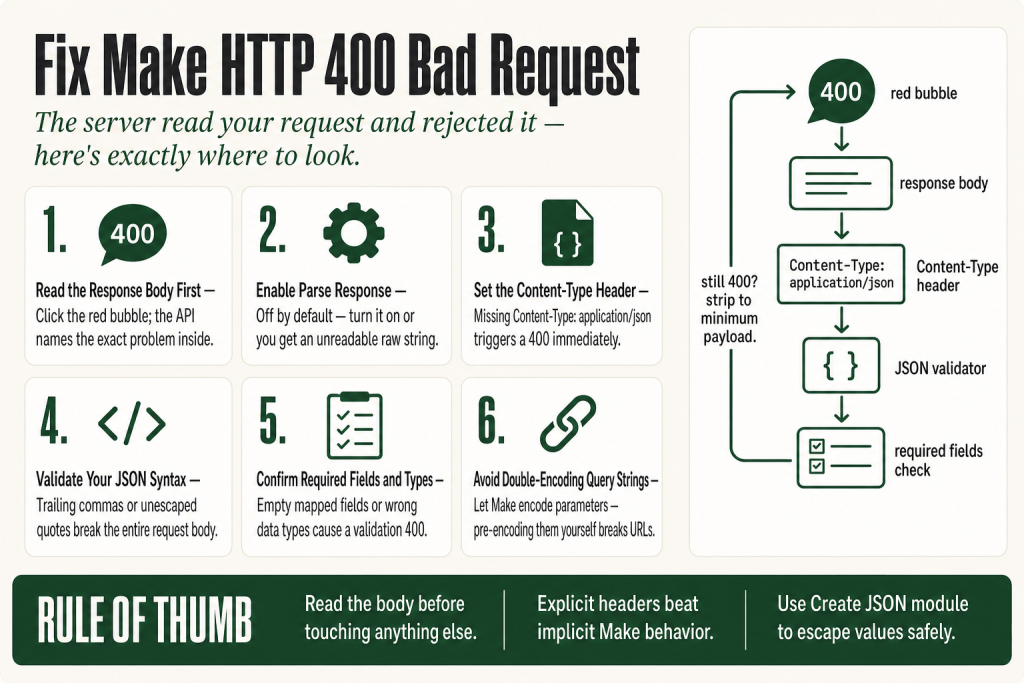
- Read the response body before changing anything. The server’s error message is in the output panel. Click the red bubble on the HTTP module and look at the
dataorbodyfield in the output. - Enable “Parse response” in the HTTP module so the body is readable JSON rather than a raw string. This setting is off by default, so you have to turn it on manually.
- Enable “Evaluate all states as errors (except for 2xx and 3xx)” if you want Make to stop and surface the error instead of silently continuing.
- Check the Content-Type header. Sending JSON without
Content-Type: application/jsonis one of the most common causes of a 400. - Validate your JSON syntax before mapping. A trailing comma, unescaped quote, or missing bracket breaks the entire body.
- Check required fields. APIs return 400 when a mandatory parameter is absent, blank, or the wrong data type.
- Check URL parameters and encoding. Special characters in query strings must be encoded; double-encoding them causes the same 400.
- Reproduce in Postman or curl first. Confirm the request works outside Make before diagnosing Make-specific causes.
Take this fix into your next scenario. The free Builder’s Companion Kit collects the checklists and templates that pair with this guide — so next time, you start from a template, not a blank page. Grab it free →
- What a 400 Actually Means (and Why It’s Your Problem, Not the Server’s)
- Step 1: Read the Response Body Before You Touch Anything
- Step 2: Check the Content-Type Header
- Step 3: Validate Your JSON Syntax
- Step 4: Confirm Required Fields and Data Types
- Step 5: Check the URL and Query String Parameters
- Worked Example: Diagnosing a Real Make HTTP 400 Bad Request
- When the Response Body Is Empty or Useless
- After the Fix: Add a Thin Error Handler So You Don’t Debug Blind Again
- FAQ
A make http 400 bad request is a client-side error. The server received your request, parsed it, and decided something you sent was wrong. That one sentence matters, because it tells you where to look: not at Make’s internals, not at the connection, and not at the trigger. The problem is in the payload you’re sending. The most common mistake operators make at this point is immediately clicking into the module and changing fields. Don’t. Read the response body first. It almost always names the exact problem. This walkthrough takes you through every layer in diagnostic order, so you fix the right thing on the first try.
What a 400 Actually Means (and Why It’s Your Problem, Not the Server’s)
HTTP 400 means “Bad Request.” The official definition: the server could not understand the request due to invalid syntax. This can happen due to invalid data types, prohibited duplication, or simply a malformed payload. The server is not down. Your credentials are not wrong (that’s 401 or 403). The resource exists (that’s not 404). The server is telling you: “I read what you sent and I can’t use it.”
That distinction saves you time. You don’t need to reconnect the app, recreate the module, or check Make’s status page. You need to find the specific field, header, or value the API rejected and fix it.
The 400 family of errors are sometimes called client errors precisely because the fault is in the outgoing request, not the receiving server. Compare this to a 429 (rate limit) or a 5xx (server-side failure). If you’re seeing those, the fix is in a different place entirely. See Make Rate Limit Error (429) for that class of problem.
Step 1: Read the Response Body Before You Touch Anything
This is the step most operators skip, and it’s the one that would solve the problem in two minutes. After a failed run, click the red bubble on the HTTP module in the scenario canvas. Make shows you the output the module produced, even on a failed request. Look for a data or body key in that output. That’s the raw response from the API.
Most APIs put their error explanation there. You might see something like {"message": "The field 'start_date' is required"} or {"error": "invalid_content_type"}. That message is the diagnosis. Everything else in this article is just helping you act on it.
If the body field shows a raw string of unformatted text instead of readable JSON, you haven’t turned on Parse response in the HTTP module settings. This setting is off by default: Make’s HTTP module returns the raw response string unless you explicitly set Parse response to Yes. Enable it. Without it, the response is returned as a plain string, and you lose the ability to map individual fields or read the error cleanly.
One important nuance: by default, the HTTP “Make a request” module treats all response codes as successful and does not stop the scenario when it gets a 400. To make it stop and surface the error, enable “Evaluate all states as errors (except for 2xx and 3xx)” under the module’s advanced settings. Without it, a 400 can pass silently through your scenario, writing nothing, and you’ll never see the failure in your execution log.
For a deeper look at how the HTTP module works overall, see Make HTTP Module Not Working.
Step 2: Check the Content-Type Header
The second most common cause of a 400 in Make’s HTTP module is a missing or wrong Content-Type header. When you choose application/json as the body content type in the module, Make structures your body as JSON, and the Content-Type is handled for you in most cases. When you choose Raw with a custom content type, Make does not infer it, and the API can receive your JSON body with no Content-Type declaration. To be safe regardless of which body type you use, add an explicit Content-Type: application/json header in the Headers section of the module. That way you’re not relying on Make’s implicit behavior, and you control exactly what the API sees.
Many APIs are strict about this. They see a body without Content-Type: application/json and return 400 immediately, before they even try to parse the body content. If the API is rejecting your request and you’re not sure whether the header is being sent, add it manually. One explicit header row is a thirty-second fix that eliminates a whole category of 400s.
The reverse trap also exists: you set the body type to application/x-www-form-urlencoded but you’re passing a JSON string as the body. The API expects key-value form pairs and gets a JSON blob instead. That’s a 400 too. Match the body type to what the API’s documentation actually specifies.
Step 3: Validate Your JSON Syntax
If the response body says something like “unexpected token” or “invalid JSON” or “parse error,” your JSON body is malformed. This happens a lot when you hand-type a JSON body in the Raw body field instead of using the structured key-value fields.
Common culprits:
- A trailing comma after the last key-value pair (valid in some languages, invalid in JSON)
- Single quotes instead of double quotes around strings or keys
- An unescaped double quote inside a string value
- A missing or extra curly brace or square bracket
- A Make variable like
{{1.name}}that resolves to a value containing special characters (quotes, backslashes, newlines) that break the JSON structure
The cleanest fix for the last one: use the JSON > Create JSON module to build your payload. That module handles escaping automatically, so a field value containing a double quote doesn’t corrupt the entire body. Paste the resulting JSON string into the Raw body of the HTTP module, or map it directly. This is covered in detail at Make Parse JSON Not Working.
Paste your JSON body into a validator (jsonlint.com works fine) before sending. Thirty seconds there saves thirty minutes of trial and error inside Make.
Step 4: Confirm Required Fields and Data Types
A 400 that says something like “field X is required” or “invalid value for field Y” is a payload completeness problem, not a syntax problem. Open the API’s documentation for the endpoint you’re calling and look at the required parameters. Then look at what you’re actually sending.
These are the most common mismatches:
- Empty mapped fields. If an upstream module returned no value for a field you’re mapping, Make sends an empty string or
null. Many APIs reject that with a 400. Check the input bundle of the HTTP module (also visible in the output panel) to see the exact values that went out. - Wrong data type. An API expects a number and you’re sending a string. Or it expects an array and you’re sending a single value. The API documentation will say something like
"quantity": integer. Make’s mapped values are often strings unless you coerce them withtoNumber()ortoArray(). - Incorrect date format. APIs that accept date fields are picky. ISO 8601 (
2026-08-10T14:00:00Z) is common, but some APIs want Unix timestamps, and others want a specific timezone suffix. A date in the wrong format is a 400. - Missing nested keys. Some APIs require nested objects. Sending a flat payload where a nested object is expected causes a 400, sometimes with a cryptic message.
If you’re seeing validation errors on specific fields inside Make’s own modules rather than from an external API, the article on Make BundleValidationError explains that layer.
Step 5: Check the URL and Query String Parameters
A malformed URL also returns 400. These are the things to verify:
- Trailing or missing slashes. Some APIs are strict about whether the endpoint URL ends with a slash. Check the docs and match exactly.
- Wrong HTTP method. Sending a GET where the endpoint expects a POST, or a PUT where it expects a PATCH, produces a 400 or a 405. Confirm the method in the API docs.
- Double-encoded query parameters. Make’s built-in query string fields encode values automatically. If you also manually percent-encode a value before putting it in the field, the API receives a double-encoded string it can’t parse. Use the query string fields in the module and let Make do the encoding. Don’t pre-encode.
- Special characters in a URL built by string concatenation. If you’re building the URL itself with a mapped field (like a customer name appended to an endpoint), a space or ampersand in that value corrupts the URL. Use
encodeURL()in a formula to encode dynamic URL segments.
For problems with mapped fields not appearing in the URL or body at all, check Make Mapping Fields Missing.
Worked Example: Diagnosing a Real Make HTTP 400 Bad Request
Here’s a concrete walkthrough. You’re calling a booking API to create a reservation. The HTTP module shows a red bubble. You click it.
The output panel shows:
{
  "statusCode": 400,
  "data": {
    "message": "Invalid datetime format for field 'start'",
    "code": "VALIDATION_ERROR"
  }
}
What this tells you: The server received the request and understood the structure, but the value in the start field is in a format it doesn’t accept.
What to check: Open the module input in the same output panel. Look at the exact value that was sent for start. You see: 08/10/2026 14:00. The API docs specify ISO 8601: 2026-08-10T14:00:00Z.
The fix: Wrap the date value in a formatDate() function to convert it to the format the API expects before it goes into the body. For example: formatDate(1.startDate; "YYYY-MM-DD[T]HH:mm:ss[Z]"). Run the module again. The 400 disappears.
Notice what you didn’t do: you didn’t recreate the module, reconnect the app, change the HTTP method, or check Make’s system status. The response body told you exactly what was wrong in ten seconds.
If your formula syntax is the problem rather than the value it produces, see Make Formula Not Working.
When the Response Body Is Empty or Useless
Sometimes the API returns a 400 with an empty body, or just the text “Bad Request” and nothing else. That’s frustrating, but you still have options.
- Check the response headers. Some APIs put error detail in a custom header like
X-Error-MessageorX-Reason. The output panel in Make shows response headers alongside the body. - Reproduce in Postman or curl. Take the exact URL, headers, and body from Make’s output panel and replay the request in Postman. Postman sometimes shows a richer error response. It also lets you toggle headers and body fields one at a time to isolate the offending value.
- Strip the body to its minimum. Send only the required fields with hardcoded literal values (no mapped variables). If that works, add fields back one at a time until the 400 returns. That identifies the bad field.
- Check for special characters in a mapped value. A newline character inside a mapped text field can break a JSON body silently. Use
replace(value; newline; ” “)to strip them before they go into the body.
If you’re dealing with incomplete executions piling up because errors keep occurring, see Make Incomplete Executions for how to manage that queue while you debug.
After the Fix: Add a Thin Error Handler So You Don’t Debug Blind Again
Once you’ve resolved the 400, add a minimal error handler to the HTTP module so future failures surface information instead of silently dying. You don’t need a complex setup. A simple Break or Ignore route with a log step is enough.
The key setting: enable “Evaluate all states as errors (except for 2xx and 3xx)” in the HTTP module. Without it, Make treats a 400 as a successful pass-through. You won’t see it in the error log. You’ll just notice downstream data is missing or wrong, with no obvious cause.
With that option enabled and a Break handler attached, Make stops the execution at the HTTP module when a 400 occurs, stores the incomplete execution for review, and lets you inspect the exact bundle that failed. That’s the setup described in detail at Make Error Handling.
Your judgment on when to retry, skip, or alert stays with you. An error handler doesn’t make those decisions. It just makes sure you have the information you need to make them yourself.
FAQ
make http 400 bad request what does it mean
It means the server received your request and rejected it because something in the request itself was wrong. The fault is in what you sent, not in the server or Make’s infrastructure. Common causes include invalid JSON syntax, a missing required field, a wrong Content-Type header, or a malformed URL. Read the response body in the output panel first because the API usually names the specific problem.
how do I see the error message from a 400 in Make
Click the red bubble on the HTTP module after a failed run. The output panel shows the full response including the body. If the body field is a raw unformatted string, enable “Parse response” in the module settings, it is off by default, so you have to set it to Yes manually. Once enabled, Make decodes the response into readable JSON you can inspect and map. The error detail from the API is almost always inside that body.
make http module 400 missing content-type header
When you use the Raw body type in Make’s HTTP module, the Content-Type header is not set automatically. Add a header row manually with the key Content-Type and the value application/json. If you use the application/json body content type, Make structures the request as JSON, which typically handles the Content-Type for you, but adding the header explicitly in the Headers section is still the safest approach and takes seconds.
make 400 bad request json invalid syntax
A mapped variable that contains quotes, backslashes, or newline characters can corrupt a hand-typed JSON body. Use the JSON module (Create JSON) to build your payload instead of writing raw JSON with mapped fields inside it. The Create JSON module handles character escaping automatically. You can also paste the body into a JSON validator before sending to catch structural errors like trailing commas or mismatched brackets.
make http 400 error on query string parameters
Use the built-in query string parameter fields in the HTTP module rather than appending parameters to the URL manually. Make encodes those fields automatically. If you pre-encode values yourself and also use the parameter fields, the result is double-encoded and the API will reject it with a 400. For dynamic URL path segments (not query strings), use the encodeURL() function.
make 400 bad request works in postman but not in make
The most common reasons are a missing Content-Type header, a JSON value that contains special characters which Make’s variable interpolation doesn’t escape, or a query string being double-encoded by Make’s automatic encoding plus your own manual encoding. Export the exact request from Make’s output panel, replay it in Postman, then start removing differences one at a time until you isolate the cause.
Sources:
Sources: Make Developer Hub: HTTP Status Error Codes; Make Developer Hub: Error Handling in Custom Apps; Make Developer Hub: Making Requests (body type and Content-Type behavior); Make Apps Documentation: HTTP; Make Apps Documentation: HTTP (legacy); Make Community forums, multiple threads (2024 to 2025).
Brian Kasday spent forty years in direct-response marketing before rebuilding the whole operation as a one-person shop. He writes The Operator’s Library — including “The Missing Manual for Make” — for operators who’d rather build it themselves than wait on someone else.
Get the Builder’s Companion Kit — the free checklists and templates that pair with this guide: mmsvegas.com/make-resources.
This guide solves one Make problem. The Missing Manual for Make covers the production system. See the manual →
More Make guides
Free · Make Operator Toolkit
Running scenarios in Make?
Get the free operator toolkit — production checklists and the fixes that keep scenarios alive under real traffic, plus a note when this guide changes.
Get the free toolkit →