
The 30-second answer
- Open your scenario, click its name in the Scenarios list, then open the History tab to see every run with its status, timestamp, duration, operations count, credits consumed, and data size.
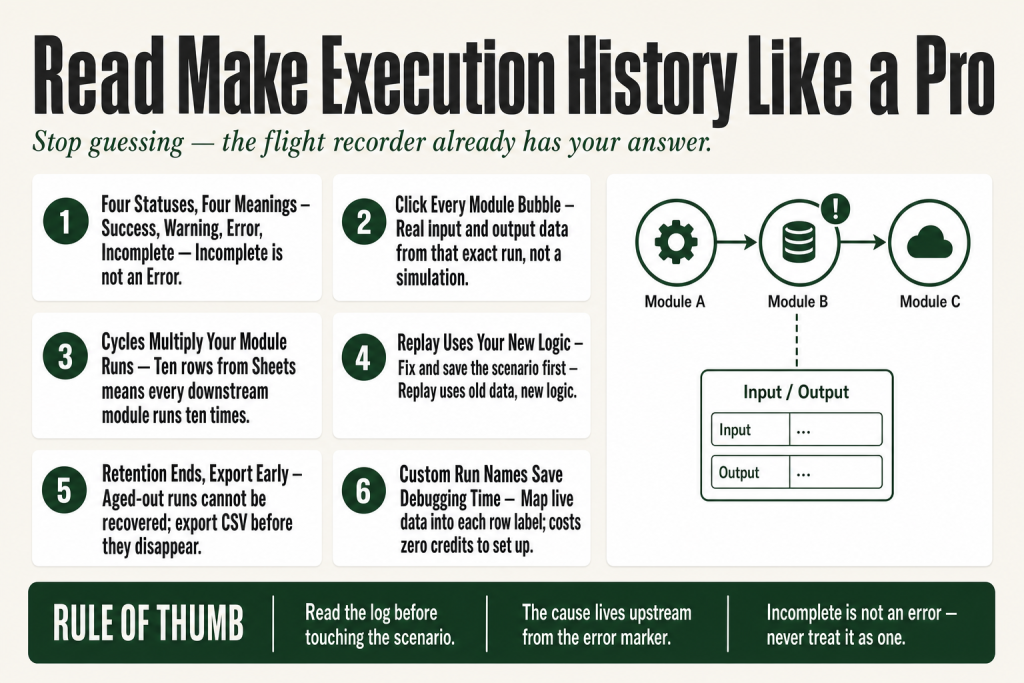
- Statuses are Success, Warning, Error, and Incomplete. Incomplete is not the same as Error.
- Click any row to open the run detail. The scenario diagram highlights the path the run took. Click any module bubble to see exactly what it received and what it output.
- The error message lives on the module that failed, not always the one that looks suspicious.
- Use Run Replay (available on all plans) to re-run a historical execution with its original trigger data after you’ve fixed the scenario.
- History retention length depends on your plan. Check make.com/en/pricing for your tier’s limit. Export to CSV before old runs age out.
Take this fix into your next scenario. The free Builder’s Companion Kit collects the checklists and templates that pair with this guide — so next time, you start from a template, not a blank page. Grab it free →
- What the History Tab Actually Records
- Reading Run Statuses: Success, Warning, Error, Incomplete
- Opening the Run Detail and Reading Module Outputs
- Executions, Cycles, and Why the Bundle Count Matters
- Worked Example: Using Make Execution History to Trace a Silent Failure
- Run Replay: Re-Run a Historical Execution After Fixing the Bug
- History Retention, the Change Log, and CSV Export
- Custom Run Names: Make the Log Human-Readable
- Common Misreads in Make Execution History
- FAQ
Make execution history is the closest thing the platform gives you to a flight recorder. Every time your scenario runs, whether it succeeds, errors out, or stops halfway, a record lands in the History tab with the exact path the run took, the data each module received, and the data it produced. Most operators glance at a red row, spot the error message on the surface, and start randomly tweaking settings. That costs time and sometimes breaks things that were working fine. This article walks you through the History tab systematically so you read the log before you touch the scenario.
What the History Tab Actually Records
The History tab sits at the scenario level, not the organization level. To reach it: go to your Scenarios list, click the scenario name, then select the History tab. You’ll see two kinds of entries mixed together: run entries and change log entries.
Run entries capture the mechanical facts of each execution: the date and time it started, the run name (if you’ve set one up), the trigger or activity type that fired it, the final status, how long it ran, how many operations the modules logged, how many credits were consumed, and the size of data transferred. Change log entries record human actions: scheduling changes, edits to the scenario, and activation or deactivation. Knowing both are in the same list prevents confusion when you’re hunting a failure and keep seeing “edited” rows.
One thing to note: Make’s official documentation lists both an operations column and a separate credits column in run history. Since August 27, 2025, Make replaced operations with credits as its billing unit. Operations now refers to individual module runs as a counting metric, while the credits column reflects billing consumption. For standard (non-AI) modules, they track at a 1:1 ratio. Make’s built-in AI features and Make Code execution can consume credits at variable rates based on actual usage. That said, Make’s UI is subject to change, and column labels may differ from what’s described here depending on your plan or when you’re reading this. Always verify the current column layout in your own account, especially since the UI supports showing and hiding individual columns.
Reading Run Statuses: Success, Warning, Error, Incomplete
Each row in the history list has a status indicator. There are four you’ll encounter:
- Success: Every module completed. Data moved as designed.
- Warning: The run finished, but something triggered a soft alert. This often means an error handler caught a problem and let execution continue. Don’t skip warnings just because the run completed.
- Error: At least one module hit a problem that stopped the execution. The remaining downstream modules did not run.
- Incomplete: The run started but did not finish. Common causes include hitting a plan limit mid-run, a manual stop, or a timeout. Incomplete is not an error. The data the run processed up to that point was committed; what comes after was not.
Incomplete executions get their own storage queue where Make holds the partially-processed bundles so you can resolve the issue and resume. If you’re seeing a pile of Incompletes and don’t know why, read Make Incomplete Executions Piling Up? What They Are and How to Clear Them before touching the scenario.
The practical habit: filter the list to Error first, then scan Warning, then look at any Incomplete rows separately. That order saves you from chasing the wrong status.
Opening the Run Detail and Reading Module Outputs
Click any row in the history list to open its detail view. The scenario diagram loads and highlights the path the execution actually took through your modules, showing visual markers that indicate how far the run progressed and where it stopped. This is the first thing to look at: does the highlighted path match the path you expected?
Click any module bubble in the highlighted diagram. A panel opens showing the exact input that module received during that run and the exact output it produced. This is not a simulation. It’s the real data from that execution. Work left to right through the chain:
- Open the trigger module. Confirm the payload arrived and looks right.
- Move to the next module. Check that its input matches what the previous module output. A mismatch here is usually a mapping problem, not an API problem.
- Find the module with the error marker. Read the full error text. The message often names the field, the expected type, and the value it actually received.
- Compare that module’s input with the upstream output. The gap between the two is your bug.
Most failures live at the boundary between two modules, where the output of one doesn’t match what the next expects. If you’re seeing a type mismatch or a missing field, check Make Mapping Fields Missing: Every Cause and How to Restore Them for the structural reasons that cause that gap.
Executions, Cycles, and Why the Bundle Count Matters
One execution is one complete run of your scenario. Inside that execution there can be multiple cycles. A cycle happens when a module outputs more than one bundle. Every downstream module then runs once per bundle. So if your Google Sheets module returns ten rows, the modules after it each run ten times inside that single execution. The detail view shows you the bundle count per module, which tells you how many cycles ran.
This matters for debugging in two ways. First, an error on cycle 7 of 10 means the first six bundles processed correctly and something about bundle 7’s data is the problem, not your scenario structure. Second, a scenario that’s costing more credits than you expect often has more cycles than you realize. Spot it in the detail view before investigating the billing dashboard.
If your iterator or aggregator is producing unexpected bundle counts, the detail view is where you catch it. See Make Iterator Not Working: Every Cause and How to Fix It for the specific failure modes.
Worked Example: Using Make Execution History to Trace a Silent Failure
Here’s a real pattern I’ve hit. A scenario processes inbound form submissions, enriches the data, and posts to a CRM. Everything shows green in the history. But records are missing in the CRM. You open the run detail, click the HTTP module that posts to the CRM, and the output shows a 200 response. Looks fine. But then you click the module before it, the one that builds the JSON payload, and you see this in the output: the field the CRM expects is an empty string because an upstream formula returned null.
The CRM accepted the request (so no error), but wrote a blank record. The history detail caught it because you looked at module outputs, not just statuses. If you’d only checked the top-level status (Success), you’d never have found it.
The diagnostic path:
- Filter history to the time window when records went missing.
- Open a run from that window. Status: Success.
- Click the HTTP module. Response: 200. Output: the response body from the CRM.
- Click the module before it. Output: the JSON it sent. Spot the empty field.
- Click the module before that. Output: the formula result. It’s null because the source field name changed in an upstream app update.
Fix: update the field mapping. Use Run Replay (see next section) to re-run that execution with the same trigger data. Done.
For formula-level bugs like this, Make Formula Not Working? Why Your Expression Returns the Wrong Value (or an Error) walks through the exact reasons a formula returns null or an unexpected type.
Run Replay: Re-Run a Historical Execution After Fixing the Bug
Run Replay is available on all Make plans. It uses the trigger data from a previous run and passes it through the current saved version of your scenario. That distinction matters: you fix the scenario first, save it, then replay. The replay does not use the old scenario logic. It uses the data from the old run with your new logic.
There are three places to trigger a replay:
- From the History list: Find the row for the run you want to replay. Click Replay Scenario Run (next to the Details button). This runs against the last saved version of the scenario. Use this after you’ve resolved an error and want to backfill data.
- From the scenario builder: Use Run with existing data (in the Run Once dropdown). This replays against the current version of the scenario, even if unsaved, which is useful while actively debugging in the editor.
- From the run detail page: You can also replay directly from inside a run’s detail view without navigating back to the history list.
Each replay generates a new execution record in the history, separate from the original. That means you can open both records side by side and compare module outputs to confirm the fix changed the right thing and nothing else. One caveat: if the external system or API the scenario talks to has changed since the original run, the replay may behave differently or fail for a new reason. That’s not a bug in Replay. It’s a real-world data condition.
Also: if data retention has expired for an old run, Replay for that run is no longer possible. Which brings us to retention.
History Retention, the Change Log, and CSV Export
How long Make stores your run history depends on your pricing plan. The official documentation is clear that retention length varies by tier but does not publish a single table inside the help article itself. Check make.com/en/pricing for your current plan’s retention period, because this number does change as plans evolve.
What this means practically: if you need to investigate a failure from several weeks ago and you’re on a lower-tier plan, that log may already be gone. The community has confirmed that once a run ages out, there is no way to recover it. Export before it disappears.
Make added CSV export for execution history. Before exporting, you can choose to exclude check runs (the empty polling runs that fire when the trigger finds nothing) and the change log. Do exclude check runs if you’re analyzing failure patterns. They add rows without useful signal and make the file harder to filter.
The change log portion of the history is worth a deliberate look when you’re debugging an intermittent failure. It records every scheduling change, edit, and activation. If your scenario started failing on a Tuesday and you see an “edited” entry from Monday evening, you have your first lead.
If you’re debugging a scenario that wasn’t running at all during the suspect window, the history tab is also where you’ll confirm whether it fired or not. Pair that with Make Scenario Not Running on Schedule: Every Cause, in Diagnostic Order to work through the scheduling side.
Custom Run Names: Make the Log Human-Readable
By default, every row in your history looks the same: a timestamp and a status. When you’re scanning fifty rows looking for the one that processed a specific customer, that’s slow. Custom run names fix this. You configure them inside the scenario by adding a module from the Scenarios app and setting a value in the Run name field. You can include mapped values from the run’s data, so each row gets a name like “New order: #10482, Acme Corp” instead of a generic timestamp.
Setting a run name does not consume any credits. It’s housekeeping that pays off every time you open the history tab to debug. Do it for any scenario that processes more than a handful of distinct records per day. The history columns also support showing and hiding individual columns, so you can keep the view focused on what matters for your current debugging session.
The Make documentation lists run name as one of the fields shown in each history row, alongside trigger type, status, duration, operations completed, credits consumed, and data size. You control which of those columns are visible, and Make may update the column set as the platform evolves, so check your own account for the current defaults.
Common Misreads in Make Execution History
A few patterns trip people up repeatedly:
- Blaming the last module: The error marker sits on the module that threw the error, but the cause is often in the module two steps before it. Always trace the input to the failing module back to its source.
- Ignoring Warning rows: A Warning means something was caught by an error handler and execution continued. That’s not necessarily fine. Check what the error handler actually did. If it swallowed an API error silently, your data may be incomplete. See Make Error Handling: Retry, Skip, Resume, Commit, Rollback for how each directive affects execution state.
- Treating Incomplete as Error: An Incomplete run is not a failed run. The modules that completed did their work. Don’t replay an Incomplete without first understanding where it stopped and why, or you risk double-writing data to the connected apps.
- Only checking the most recent run: If a failure is intermittent, one run’s detail won’t tell you much. Filter the history to Error status only, open three or four failed runs, and compare the inputs at the failing module. The difference in those inputs is the pattern.
- Missing the connection error under a generic message: A “400 Bad Request” or “Unauthorized” on an HTTP module in the detail view usually has a response body with the specific message from the external API. Expand the output panel fully before assuming you know what the error means. For 400s specifically, see Make HTTP 400 Bad Request: A Diagnostic Walkthrough Before You Touch Anything.
FAQ
How do I find the execution history in Make?
Go to your Scenarios list, click the scenario name, then select the History tab. The tab shows run entries and change log entries mixed together. Run entries are the execution records. Change log entries record edits, scheduling changes, and activation events.
How long does Make keep execution history?
Retention depends on your pricing plan. Make’s documentation confirms this varies by tier, but the specific number of days per plan is on make.com/en/pricing. Runs that age out cannot be recovered, so export to CSV before they expire if you need them for audits.
Can I rerun a failed Make scenario with the same data?
Yes. Run Replay is available on all plans. From the History list, click Replay Scenario Run next to a run’s Details button. Make runs the current saved version of your scenario using the original run’s trigger data. Fix the scenario and save it before you replay, or you’ll just reproduce the same failure. You can also replay directly from the run detail page, or use Run with existing data in the Run Once dropdown inside the scenario builder.
What does incomplete execution mean in Make history?
Incomplete means the run started but did not finish. The modules that completed did commit their work. Common causes include hitting a plan limit mid-run, a manual stop, or a timeout. It is not the same as an error. Make stores the unprocessed bundles so you can resume after resolving the cause.
Why does Make show operations and credits in the history tab?
Make replaced operations with credits as its billing unit effective August 27, 2025. In run history, the operations field tracks individual module runs as a counting metric, while the credits field reflects billing consumption. For standard (non-AI) modules, the two track at a 1:1 ratio. Make’s built-in AI features and Make Code execution can consume credits at variable rates based on actual usage rather than a flat per-module count. Third-party AI app connectors (like OpenAI or Claude via API key) still cost 1 credit per operation in Make, with token costs billed separately by the provider. Keep in mind that Make’s UI labels are subject to change, so verify the current column names in your own account.
How do I export Make scenario execution history?
Open the History tab for the scenario. Look for the export option to download a CSV file. Before exporting, you can choose to hide check runs (empty polling runs) and change log entries so the file only contains the execution data you need.
Sources:
- Make Help Center: Scenario history (verified September 2026)
- Make Help Center: Scenario run replay (verified September 2026)
- Make Help Center: Credits and Operations (verified September 2026)
- Make Help Center: Introducing credits: new billing unit live in Make
- Make Blog: Scenario Run Replay, Naming, and Rate Limits
- Make Developer Hub: Scenario Debugger
- Make Pricing (for history retention by plan)
Brian Kasday spent forty years in direct-response marketing before rebuilding the whole operation as a one-person shop. He writes The Operator’s Library — including “The Missing Manual for Make” — for operators who’d rather build it themselves than wait on someone else.
Get the Builder’s Companion Kit — the free checklists and templates that pair with this guide: mmsvegas.com/make-resources.
This guide solves one Make problem. The Missing Manual for Make covers the production system. See the manual →
More Make guides
Free · Make Operator Toolkit
Running scenarios in Make?
Get the free operator toolkit — production checklists and the fixes that keep scenarios alive under real traffic, plus a note when this guide changes.
Get the free toolkit →