
The 30-second answer
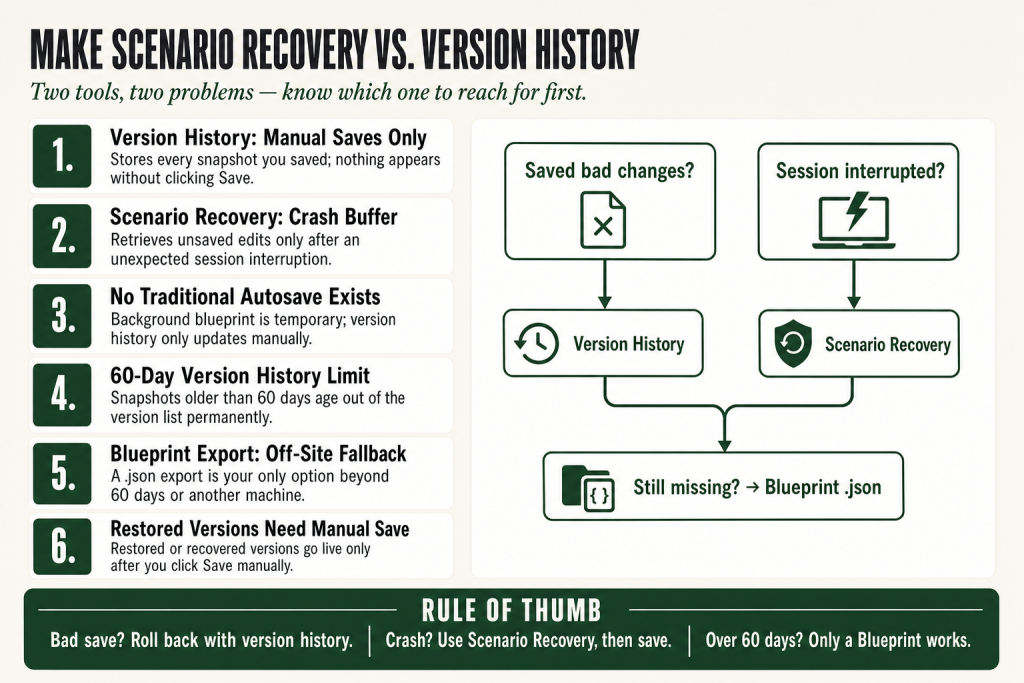
- Version history restores any manually saved snapshot of your scenario going back up to 60 days. Use it when a change you already saved broke something.
- Scenario Recovery retrieves unsaved edits after a session interruption: a browser crash, lost connection, or accidentally closed tab. Make continuously saves a temporary blueprint in the background as you work. That blueprint is temporary, not a persistent autosave, and it only becomes permanent if you click Save after recovering. It is specifically designed for unexpected interruptions, not a substitute for saving.
- Both features are available on all Make plans, confirmed by Make’s official documentation. There is no plan-based restriction on either feature.
- Make does not have traditional autosave. Scenario Recovery saves a temporary blueprint during your editing session; your version history only updates when you manually click Save.
- For changes older than 60 days, or work on a different machine, a Blueprint export (.json) is your only fallback.
- Restored versions do not automatically become the live version; you confirm the restore, then save manually.
Take this fix into your next scenario. The free Builder’s Companion Kit collects the checklists and templates that pair with this guide — so next time, you start from a template, not a blank page. Grab it free →
- Version History and Scenario Recovery Are Not the Same Thing
- How Version History Works
- How Make Scenario Recovery Works
- Worked Example: Make Scenario Recovery After a Browser Crash
- Blueprint Exports: the Fallback Beyond 60 Days
- When Version History and Recovery Both Come Up Empty
- The Save Discipline That Makes Both Features Actually Useful
- FAQ
Make scenario recovery is one of two distinct tools Make gives you to pull back lost work, and most people confuse the two. Version history restores a manually saved snapshot. Scenario Recovery retrieves edits you never saved at all, specifically when your session was interrupted before you had a chance to save. They solve different problems. Using the wrong one means wasting time or missing work entirely. This article covers both, in the order you’d actually reach for them.
Version History and Scenario Recovery Are Not the Same Thing
People search for “make scenario recovery” and expect one panel that handles everything. There are actually two separate mechanisms, and they trigger at different moments.
Version history is a list of every snapshot you created by clicking the Save button. Make’s documentation puts it plainly: version history is for restoring previously manually saved versions. Nothing appears in this list unless you saved first. Think of it like a stack of hard copies you printed yourself. If you never printed, there is nothing to retrieve.
Scenario Recovery is different. Make continuously saves a temporary blueprint of your scenario in the background as you build, even between your own saves. This is not traditional autosave: the blueprint is temporary, it is not added to your version history, and it does not persist on its own. It is a crash buffer for unexpected session interruptions, not a substitute for saving. If something interrupts your session, like a browser crash, a lost connection, or accidentally closing the tab, you can recover those unsaved changes when you return to the editor. The key word is “interrupted”: this feature is specifically for unexpected session interruptions, not for work you intentionally chose not to save and came back to days later.
The practical rule: if your session ended unexpectedly and you have unsaved changes, reach for Scenario Recovery first. If you saved bad changes and need to roll back, go to version history. If both fail, check whether you exported a Blueprint .json at any point.
How Version History Works
Every time you click the Save icon in the scenario editor, Make creates a new entry in your version list. Each entry is stamped with a date and time, and on team accounts it also records which user made the save. Version history stores these snapshots for up to 60 days.
The 60-day window is the key limit to internalize. Anything older than that is gone from version history. If you have a scenario that runs reliably for months and you want to experiment with it safely, snapshot it at the start of each experiment. More manual saves mean more restore points.
To restore a saved version:
- Open the scenario in the editor.
- Click the Previous versions icon at the bottom of the scenario editor (the clock-with-arrow icon).
- Select the version you want from the dropdown list.
- Click OK to load it.
- Click the Save icon to make the restored version the active one. Per Make’s official documentation, the restored version is not automatically saved: you must save manually, or the editor reverts to the current live version when you navigate away.
One thing worth knowing on team accounts: the version list shows the author of each save, so you can tell at a glance whether a colleague’s edit is the culprit before you restore. That is useful before you touch anything.
If you are debugging a scenario that started failing after a recent change, version history pairs well with Make’s execution history, which shows you the exact run where outputs went wrong so you can match it to the version that was live at that time.
How Make Scenario Recovery Works
Scenario Recovery is available on all Make plans, with no plan-based restrictions, as confirmed by Make’s official documentation. Make continuously saves a temporary blueprint of your scenario in the background as you work. You do not configure or enable it. It runs silently the entire time the editor is open.
It is worth being precise about what this is and what it is not. Make does not have traditional autosave. Traditional autosave permanently commits your work at regular intervals. Scenario Recovery is different: the background blueprint is a temporary file tied to your current editing session. It does not permanently persist your work and it does not update your version history. Think of it as a crash buffer: it exists so that an unexpected interruption does not cost you everything since your last manual save. The moment you save manually, that temporary blueprint is superseded by your saved version. The judgment on when to save stays entirely with you.
When your session is interrupted, whether by a browser crash, network failure, or accidental tab closure, you see a pop-up notification when you return to the editor. The dialog shows you a list of the unsaved changes, a preview of the scenario, and the timestamp of the latest automatically saved blueprint. Click Recover to load it.
Important caveats from the official docs:
- The automatically saved blueprint is a temporary version. It gets overwritten by your latest changes or by your next manual save.
- After recovering, you still need to click Save manually to persist the recovered state. If you close the tab again without saving, the cycle may repeat, but only if Make detects new unsaved changes in that session.
- Recovered versions appear in the scenario history with clear labels, so you can see exactly where the recovery point sits relative to your manual saves.
The one scenario where Scenario Recovery cannot help: if you closed the tab, returned to the editor, dismissed the recovery dialog without clicking Recover, and then navigated away. Once you dismiss without recovering, that temporary blueprint is gone.
Worked Example: Make Scenario Recovery After a Browser Crash
Here is a concrete situation. You are rebuilding a lead-routing scenario: three routes, a router, and a set of filters. You have added two new routes and mapped a dozen fields. Your browser crashes before you hit Save.
You reopen Make and navigate back to the scenario. A dialog appears listing the unsaved changes and showing the timestamp of the automatically saved blueprint. You click Recover. The editor loads with both new routes and all the field mapping intact.
Now the critical step most people miss: you are looking at a recovered state, not a saved one. Make has not autosaved anything permanently. Click Save immediately. If you run the scenario once to test it and the browser crashes again, the recovery dialog the next time you open it may only show the test-run state, not the full recovery you just loaded. Lock it in first, test second.
Once saved, the recovered version appears as a timestamped entry in your version history. From that point forward it behaves like any other saved version: you can restore to it from version history if a later change breaks something.
If you are troubleshooting what the recovered scenario is actually doing on its first live run, the scenario run replay article explains how to reuse previous trigger data to verify behavior without waiting for real traffic.
Blueprint Exports: the Fallback Beyond 60 Days
Version history tops out at 60 days. Scenario Recovery only catches work from an interrupted session. If you need something older, or you want a copy that lives outside Make entirely, a Blueprint export is the answer.
A blueprint is a .json file containing your scenario’s modules, settings, mapped values, and filters. It does not store connection credentials or API keys. After you import a blueprint, you reconnect each app manually.
To export a blueprint from the scenario editor, click the three-dot menu and choose Export Blueprint. Save the .json file somewhere with a meaningful name and a date. The filename Make generates by default (usually blueprint.json) tells you nothing, so rename it before you close the download dialog.
To import, create a new scenario (or open an existing one you want to overwrite), click the three-dot menu, choose Import Blueprint, select your .json file, and save. Then reconnect your apps.
The right habit: export a blueprint before any risky structural change, the same way you duplicate a database before running a migration. Version history is the safety net; a Blueprint export is the off-site backup. If you want to take that further with a Make-native automated backup approach, the blueprint import troubleshooting article covers the connection-reconnection gotchas you will hit when re-importing.
One thing blueprints cannot do: they capture structure, not execution state. They do not record incomplete executions waiting to be replayed or any data that was in-flight. For that, see Make’s incomplete executions documentation.
When Version History and Recovery Both Come Up Empty
A few situations leave you with nothing in version history and no recovery dialog:
- You never saved and dismissed the recovery dialog. That temporary blueprint is gone. You are rebuilding.
- The version you need is older than 60 days. It has aged out of the version list. Check for a Blueprint .json export; it is your only option.
- Connections in the restored version have since expired. The scenario structure comes back fine, but modules flagged red need their connections re-authorized. This is not a recovery failure; it is just a connection issue. See connection expiry fixes for the fastest path through it.
- Mapping fields disappeared after restore. If a module’s output structure changed after the version was saved (common with app updates), mapped fields from that module show as missing in the restored version. That is not a recovery bug. See missing mapping fields for the fix.
The honest caveat: if you never saved and never exported a blueprint and the recovery dialog was dismissed, Make cannot give back what it never stored. The judgment call on when to save more frequently stays with you, not the tool.
The Save Discipline That Makes Both Features Actually Useful
Version history and Scenario Recovery are only as useful as your save frequency. More manual saves mean more granular restore points. Here is the pattern that pays off:
- Save before you experiment. Before adding a new route, changing a filter condition, or rewiring module order, hit Save. That creates a clean rollback point one step before the change.
- Save after you confirm a test run works. A working state is worth capturing. Do not rely on the previous save from before you started; capture the working-after state too.
- Export a blueprint before major restructuring. Anything that changes the overall shape of the scenario (adding a router, splitting a linear flow into parallel paths) deserves an off-platform backup.
- Never dismiss the recovery dialog without reading it. The dialog shows you the timestamp of the auto-saved blueprint. If that timestamp is after your last meaningful work session, click Recover first, then decide whether to keep it. Remember: dismissing without clicking Recover destroys the temporary blueprint permanently.
One more thing: the recovered version is not live until you save it. That extra click is the one people skip, and it is why they end up needing recovery twice in the same session.
FAQ
does make.com autosave scenarios
Make does not have traditional autosave. Traditional autosave permanently commits your work at regular intervals without any action from you. Scenario Recovery is different: Make continuously saves a temporary blueprint of your scenario in the background as you work, but this is specifically for recovering after an unexpected session interruption. That temporary blueprint is not permanent: your version history only updates when you manually click the Save icon, and the background blueprint gets overwritten by your next manual save or editing session. If you recover from it, you still need to click Save to keep the result.
how far back does make version history go
Make’s official documentation states that version history stores manually saved scenario versions for up to 60 days. After 60 days, entries age out of the list. If you need a copy older than that, your only option is a Blueprint .json file you exported manually at some point.
make scenario closed without saving can i recover
Yes, if Scenario Recovery has a temporary blueprint for that session. Open the scenario and check for the recovery dialog; if it appears, click Recover and then immediately click Save. The recovery only works if Make detected unsaved changes when the session ended. If no dialog appears, either there were no unsaved changes at the time of the interruption, or the dialog was already dismissed in a prior session.
does restoring a make version overwrite the current scenario
Restoring a version loads it into the editor but does not overwrite anything until you click Save. Make’s official documentation is explicit: the restored version is not automatically saved, and you must save manually. If you do not save, navigating away leaves the current live version unchanged.
does make blueprint export save connection credentials
No. A Blueprint export captures modules, settings, mapped values, and filters, but it does not store connection credentials or API keys. After importing a blueprint, you need to reconnect each app manually before the scenario can run.
make scenario recovery not showing after browser crash
The recovery dialog only appears if Make detected unsaved changes when the session ended. If you had just saved before the crash, or if the browser closed without Make registering any edits, there may be no recovery snapshot to offer. Check version history to see if a recent save exists; if not, check for any Blueprint .json files you exported.
Sources:
Sources: Make Help: Restore and recover scenario; Make Help: Introducing Scenario recovery; Make Help: Restore a previous scenario version; Make Help: Scenario blueprints; Make Help: Scenario history. All accessed September 2026.
Brian Kasday spent forty years in direct-response marketing before rebuilding the whole operation as a one-person shop. He writes The Operator’s Library — including “The Missing Manual for Make” — for operators who’d rather build it themselves than wait on someone else.
Get the Builder’s Companion Kit — the free checklists and templates that pair with this guide: mmsvegas.com/make-resources.
This guide solves one Make problem. The Missing Manual for Make covers the production system. See the manual →
More Make guides
Free · Make Operator Toolkit
Running scenarios in Make?
Get the free operator toolkit — production checklists and the fixes that keep scenarios alive under real traffic, plus a note when this guide changes.
Get the free toolkit →