
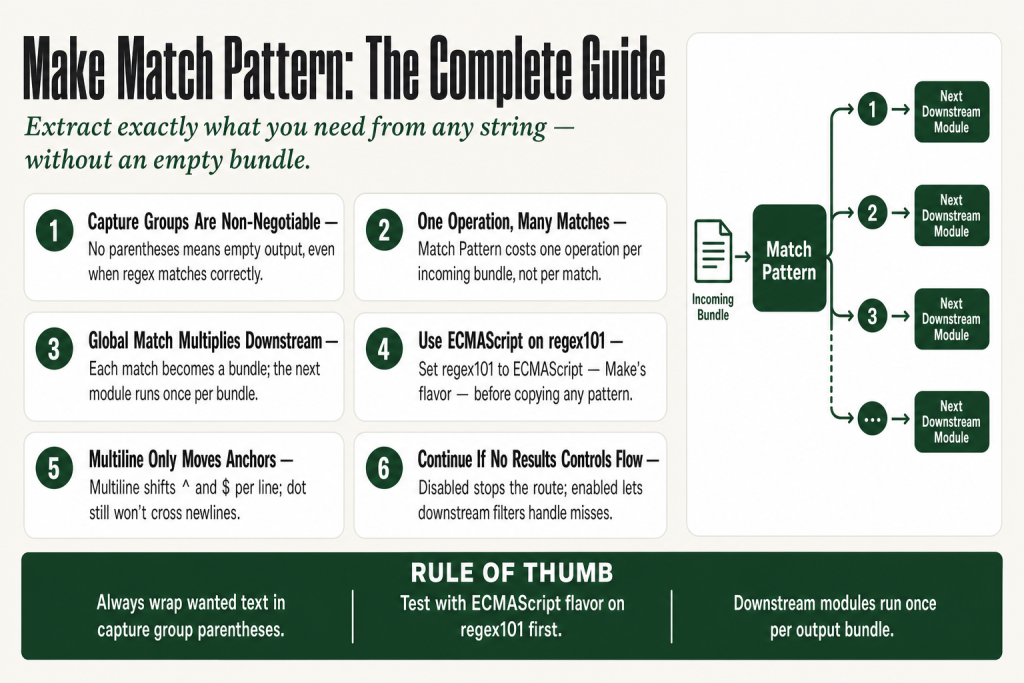
The 30-second answer
- Where to find it: Search for Text Parser in the module picker (it’s a built-in Make.com app, no connection required), then select Match Pattern.
- What it needs: A regex Pattern (ECMAScript flavor), the Text to search, and at least one capture group
()or the output bundle will be empty. - Key flags: Global Match (all hits vs. first hit), Case Sensitive (on by default), Multiline (changes how
^and$behave), and Continue If No Results (keeps the scenario running when zero matches are found). - Each match becomes a separate bundle, so downstream modules run once per match, not once per scenario execution.
- Most common failure: No capture groups in the pattern produces an empty bundle even when the regex matches correctly.
- Test here first: regex101.com with the ECMAScript (JavaScript) flavor selected.
- Operations cost: The module itself costs one operation per incoming bundle, not one per match found.
Take this fix into your next scenario. The free Builder’s Companion Kit collects the checklists and templates that pair with this guide — so next time, you start from a template, not a blank page. Grab it free →
- What the Match Pattern Module Actually Does
- Every Field in the Make Match Pattern Regex Dialog
- Worked Example: Extracting Invoice Numbers from Email Bodies
- Where to Test Your Regex Before You Touch Make
- Common Failures and How to Fix Them
- What the Output Bundle Contains
- Operations Cost: What You Actually Pay For
- When Match Pattern Is the Wrong Tool
- FAQ
The make match pattern regex module is a built-in transformer inside Make.com’s Text Parser app, one of the native tools that ships with every Make account. It finds and extracts text fragments from any string using a regular expression. No API call. No external connection required. One operation per execution, regardless of how many matches come out. If you have ever stared at an empty output bundle after copying a perfectly valid regex from regex101, this guide explains exactly why that happens and how to fix it.
What the Match Pattern Module Actually Does
The Match Pattern module is a transformer inside Make.com’s Text Parser app. Text Parser is a native Make app: it comes with every Make account, needs no external connection, and costs nothing beyond the operations you spend running it. The module takes a string and a regex pattern, then returns one output bundle for each match it finds. Think of it as a stencil: you describe the shape of the text you want, press it against your string, and pull out everything that fits.
Because it runs entirely inside Make, it costs exactly one operation per incoming bundle, regardless of whether the regex finds one match or fifty. What it does not do is cost you an operation per match. The multiplication happens downstream: any module placed after Match Pattern runs once per output bundle, so if your pattern finds 20 matches, the next module runs 20 times and burns 20 operations.
This is the same dynamic you see with an Iterator. If you are new to that cost model, the article on Make Iterator vs Aggregator walks through exactly how bundle multiplication affects your operation count.
Every Field in the Make Match Pattern Regex Dialog
Open the module and you will see six fields. Here is what each one does.
Pattern
This is your regular expression. Make uses the ECMAScript (JavaScript) flavor. If you build your pattern on regex101.com, select ECMAScript in the left panel there, and what you see is what you get in Make. Patterns from Python (re), PHP (PCRE), or Ruby will often look the same but behave differently on edge cases, so do not assume they are interchangeable.
The official Make docs give this example pattern for extracting numerals: [+-]?(\d+(\.\d+)?|\.\d+)([eE][+-]?\d+)?. Notice the parentheses. That brings us to the single most important rule.
Capture Groups: The Rule Nobody Reads
If your pattern contains no capture group (no parentheses), the output bundle will be empty even when the regex finds a full match. Make only maps the content of capture groups, not the full match text itself. Wrap the part you actually want in (). If you want everything the pattern matches, wrap the whole thing: (your entire pattern here).
Multiple capture groups produce multiple output items in a single bundle, labeled 1, 2, 3, and so on. Nested groups follow the same left-to-right counting you would use in any regex engine.
Global Match
When enabled, the module returns all matches in the text as separate bundles. When disabled, it returns only the first match, and returns nothing at all if the first match produces no captured content. Most real-world use cases need Global Match on. Turn it off only when you are certain the text contains exactly one instance of what you want and you do not want duplicates multiplying downstream.
Case Sensitive
Enabled by default. Disable it when you are matching user-supplied input where capitalization is unpredictable.
Multiline
This flag only affects the ^ and $ anchors. Without it, ^ matches the very start of the entire input string and $ matches the very end. With Multiline enabled, ^ matches the start of any line and $ matches the end of any line. Turn this on whenever your pattern uses those anchors and your input spans multiple lines, such as email bodies, AI responses, or webhook payloads that contain line breaks.
One thing Multiline does not do: it does not make the dot . match newline characters. If you need . to cross line boundaries, use [\s\S] instead of a bare dot. That is an ECMAScript limitation, not a Make limitation.
Continue If No Results
When enabled, the scenario keeps running even if the pattern finds zero matches. When disabled, a zero-match result stops the route at this module. Enable this when a no-match is a normal condition you handle downstream with a filter or router. Disable it when a no-match means something went wrong and you want the execution to halt cleanly rather than silently proceed.
For context on reading those halted executions afterward, see Make Execution History Explained.
Text
The string you want to search. Map any text output here: email body, API response field, webhook payload, document content, whatever you are parsing.
Worked Example: Extracting Invoice Numbers from Email Bodies
Say every vendor email contains a line like Invoice #: INV-2024-00842 somewhere in the body, but the exact position varies. You want to pull the invoice number out and write it to a Google Sheet.
Here is the setup:
- Trigger: Gmail > Watch Emails (or any email module that surfaces the body as a text field).
- Module: Text Parser > Match Pattern (inside Make.com, no external connection needed).
- Pattern:
INV-(\d{4}-\d{5})
The outerINV-is a literal anchor so the pattern does not fire on random number sequences. The capture group(\d{4}-\d{5})grabs the part you actually want. - Global Match: On (some vendors include multiple invoices in one email).
- Case Sensitive: On (invoice IDs are always uppercase here).
- Multiline: Off (you are not using
^or$). - Text: Map the email body field from your trigger module.
Each invoice number found becomes its own bundle. If the email contains three invoice references, three bundles flow downstream. The next module, say a Google Sheets row append, runs three times and creates three rows. One scenario execution, one email trigger operation, one Text Parser operation, three Sheets operations. That is five operations total for a three-invoice email.
If you only want the first match, turn Global Match off. The module returns one bundle with the first number found. Downstream runs once.
Where to Test Your Regex Before You Touch Make
The fastest feedback loop is regex101.com. Paste your text in the test string box, paste your pattern in the expression box, and set the flavor to ECMAScript (JavaScript). The site highlights matches in real time and shows exactly which groups captured what. Make’s own docs point to this site for a reason.
A few things to verify before you copy the pattern into Make:
- Every piece of text you want to extract is inside a
()capture group. - The match count on regex101 matches your expectations. If it finds zero matches there, it will find zero matches in Make.
- Special characters like
.,*,+,?,(,),[,],{,},^,$,|, and\are all metacharacters. If you want to match a literal dot or parenthesis, escape it with a backslash:\.not. - If your input text contains newlines (which webhook and email payloads almost always do), check whether your pattern needs the Multiline flag or the
[\s\S]trick for the dot.
Once you confirm the pattern works on regex101, paste it into the Pattern field in Make. Do not add forward slashes around it. Make does not use the /pattern/flags literal notation; you enter the pattern text alone and control flags through the module checkboxes.
Common Failures and How to Fix Them
Empty Output Bundle
This is the number-one complaint in the Make community. The pattern matches in regex101 but the bundle output is empty in Make. The cause is almost always a missing capture group. Add () around the text you want to extract. If you want the entire match, wrap everything: (full pattern).
Zero Bundles Despite Correct Pattern
The regex is fine but Make produces no bundles at all. Check two things:
- Newlines in the input: If the text field contains
\ncharacters (common in webhook payloads and AI-generated text), and your pattern uses.to span lines, it will find nothing. Switch to[\s\S]or enable Multiline if your pattern uses^/$anchors. - The wrong field mapped to Text: Open the output panel of the upstream module and confirm the field you mapped actually contains the string you think it does. A surprisingly common issue is mapping a label or key instead of the value.
If your scenario is stopping unexpectedly and you are not sure which module is responsible, Make Execution History shows you the input and output of every module in the run.
Too Many Bundles
Global Match returns a separate bundle per match. If you are getting 30 bundles when you expected 3, your pattern is matching more instances in the text than you realized. Tighten the pattern (add more context around it), or turn Global Match off to get only the first match.
If you need to collect all matches into a single value to pass to the next step, place an Array Aggregator after the Match Pattern module. The Make Aggregator Not Working article covers the Source Module setting you must get right for that to work.
Pattern Works on regex101 but Fails in Make
Confirm you are using the ECMAScript flavor on regex101, not PCRE or Python. Certain syntax like (?<=...) lookbehinds or \p{} Unicode properties may parse differently or not at all under ECMAScript rules. Rewrite the pattern to use ECMAScript-compatible syntax.
Case Mismatch
If your text uses inconsistent capitalization, disable Case Sensitive. The fix takes three seconds and eliminates a whole class of phantom misses.
What the Output Bundle Contains
Each match produces one output bundle. Inside that bundle, you get numbered items corresponding to your capture groups: 1, 2, 3, and so on, counting left parentheses from left to right. The item labeled 1 is the content of the first capture group.
If you have nested groups, the outer group gets the lower number. For example, in (\d{4}(-\d{2})), group 1 is the full four-digit-hyphen-two-digit match and group 2 is just the -\d{2} portion.
When you map downstream, you pick which numbered item to use. In most simple patterns you only have one capture group, so you map item 1 and move on. In more complex patterns, you pick the group that contains exactly the fragment you need.
The output does not include the portion of the text outside the match. The module does not return the surrounding text. If you need both the matched fragment and context around it, design your capture groups to include that context explicitly.
Operations Cost: What You Actually Pay For
The Match Pattern module costs one operation per incoming bundle, full stop. If your trigger fires once and passes one bundle to Match Pattern, you spend one operation on the module itself, no matter how many matches the regex finds.
What multiplies your cost is every module placed after Match Pattern. Each output bundle triggers a new execution of the next module. Ten matches, ten executions of the next step, ten operations there. This is identical to how an Iterator works, and it is the same reason chaining modules inside a loop gets expensive fast. Keep your downstream chain as short as possible if you expect large match counts.
For a broader view of how Make counts operations across your whole scenario, see Make Operations vs Credits Explained.
The Text Parser app is a native Make.com tool. It requires no paid external connection and has no per-use API cost. It is one of the cheapest tools in Make relative to the work it does.
When Match Pattern Is the Wrong Tool
Match Pattern is designed for unstructured or semi-structured text where the data does not arrive in a predictable format. If your data is already structured, reach for a different tool:
- JSON responses: Use the Parse JSON module or map the field directly. Do not regex-parse a JSON string when Make can parse it natively. The Make Parse JSON Not Working guide covers that path.
- Predictable delimiters: If the value is always between two fixed characters, the
substringorsplittext functions in Make’s formula panel may be simpler and cheaper in cognitive overhead than a full regex. - Structured HTML with known element types: Use the Text Parser Get Elements from HTML module instead. It is also a native Make.com tool and understands image tags, links, and iframes without you writing a pattern.
- Dates in known formats: Use Make’s
parseDatefunction directly. The Make Date Functions article covers that in detail.
Use Match Pattern when the text is genuinely unstructured: email bodies, AI outputs, scraped HTML, webhook payloads with embedded plain-text fields, or any string where the useful data is surrounded by variable noise.
FAQ
Why is the Make text parser match pattern output empty?
Almost always because the regex pattern has no capture groups. Make only outputs the content inside parentheses, not the full match text. Wrap the part you want to extract in parentheses and the output will appear. If you already have capture groups, check that the Text field is mapped to a field that actually contains a string, and verify the pattern works in regex101.com with the ECMAScript flavor selected.
Does Make text parser match pattern regex use PCRE or JavaScript?
Make uses ECMAScript (JavaScript) regex. If you build and test patterns on regex101.com, select ECMAScript in the left-side flavor panel. PCRE and Python patterns look similar but support different features; some syntax that works in those flavors will silently fail or behave differently in Make.
What does Global Match do in Make’s match pattern module?
When Global Match is enabled, the module returns one output bundle for every match it finds in the text. When disabled, it returns only the first match. Each bundle flows downstream independently, so a pattern that finds 10 matches creates 10 bundles and runs the next module 10 times.
How many operations does the text parser match pattern use?
One operation per incoming bundle, regardless of how many matches the regex finds. If your pattern finds 30 matches in one text field, the module still costs one operation. The operation multiplication happens in every module placed after Match Pattern, which runs once per output bundle.
Why does my match pattern regex work on regex101 but not in Make?
The most common cause is testing with the wrong regex flavor on regex101. Set it to ECMAScript (JavaScript). If the pattern still works there but fails in Make, check whether your input text contains newlines that the dot metacharacter cannot cross without the Multiline flag or the [\s\S] workaround. Also confirm you have at least one capture group.
What does the Multiline flag do in Make’s match pattern module?
Multiline changes how the ^ and $ anchors behave. Without it, ^ matches only the very start of the entire input string and $ matches only the very end. With Multiline on, ^ matches the start of any line and $ matches the end of any line. It does not affect the dot metacharacter or anything else in the pattern.
Sources:
Sources: Make Help Center: Text Parser (verified September 2026); Make Help Center: Text Parser field reference (verified September 2026); MDN Web Docs: Regular expressions (ECMAScript).
Brian Kasday spent forty years in direct-response marketing before rebuilding the whole operation as a one-person shop. He writes The Operator’s Library — including “The Missing Manual for Make” — for operators who’d rather build it themselves than wait on someone else.
Get the Builder’s Companion Kit — the free checklists and templates that pair with this guide: mmsvegas.com/make-resources.
This guide solves one Make problem. The Missing Manual for Make covers the production system. See the manual →
More Make guides
Free · Make Operator Toolkit
Running scenarios in Make?
Get the free operator toolkit — production checklists and the fixes that keep scenarios alive under real traffic, plus a note when this guide changes.
Get the free toolkit →